Recover 0 Byte Files in Windows 10/8/7
The 6 methods to recover 0-byte files on a Windows PC are provided by professional geeks from tech sites and experienced YouTubers, and have been tested and verified to be effective.
| Workable Solutions | Step-by-step Troubleshooting |
|---|---|
| Fix 1. Remove 0KB Virus from PC | End task of running "SYSMWIN" > Disable SYSWIN from Startup in Task Manager...Full steps |
| Fix 2. Change File Extensions | Right-click drive with 0KB files > "Properties" > Click "Check now" under Tools...Full steps |
| Fix 3. Re-upload, Re-download File | Repeat the process to get the lost files by re-uploading, re-downloading, and re-sending them...Full steps |
| Fix 4. Use Normal Zip Tools | Use normal zipping tools such as WinZip, 7-Zip, WinRAR, etc. to compress and share files...Full steps |
| Other Solutions | Run CHKDSK > Show Hidden Files...Full steps |
How Can I Restore a 0KB File in Windows 11/10/8/7
"Does anyone meet my problem that all files in my USB drive suddenly become 0 bytes? I can open the USB drive and check all these files, but none can be opened or used. Do you know any solutions to fix my problem? All my documents - word, excel, ppt and other images all suddenly became 0 bytes. I could not open them or edit these files. What can I do to recover those 0-byte files and reuse them again? How?"
If you're experiencing files becoming 0 bytes in storage devices or computer hard drive partitions, it's no longer a new problem. To resolve this issue, follow these three parts.
Although some websites provide a list of solutions to solve this problem, it can still be confusing for most users to manage. Here, we'll offer a step-by-step tutorial to help you restore zero-byte files with ease.
Part 1. Causes of 0 Bytes Files
To restore 0 Bytes files, it's essential to identify the underlying causes that led to this issue. Common reasons include corrupted file systems, incomplete downloads, viruses or malware, disk errors, and software or system crashes. Once the root cause is determined, you can take the necessary steps to resolve the problem, such as running a virus scan, checking for disk errors, or reinstalling software.
- Virus, malware infection
- Uploaded or downloaded files with unsupported attributes
- Incomplete file uploading and downloading
- Incomplete files received via archived emails or email attachments
- Intentionally created 0-byte files
You can now check how your files have turned into 0KB. In the next part, you'll find the solution to resolve the 0KB issue and retrieve your files.
Part 2. Six Ways to Remove 0KB Files on a PC
Some experienced administrators and users claim that once files become 0 bytes, there's no chance to recover them.
After learning the exact reasons that cause your files to become 0KB, you may still have a chance to recover them.
Here are 6 methods provided by geeks and YouTubers that may help you resolve the 0KB file issues. Follow to find the right method and get your files back:
Method 1. Remove 0KB Virus from PC
Applies to: resolve .exe files or programs turned into 0KB.
0KB virus can cause .exe files to turn into 0 bytes, which can be resolved by using automated anti-virus software to clean and remove the virus. There are many reliable virus cleaner software available online that can help.
An experienced YouTuber - Ranier created a YouTube video to help remove the 0KB virus from a PC in a manual way, which some viewers found effective.
According to the video, it's the "SYSWIN" file existing on your PC that infected all files and turned them into 0 bytes. Here is the video:
- Ranier. (2018, January 15).
- Exe 0KB Virus Fixed on YouTube.
- Retrieve files.
Here are the detailed steps:
Step 1. End task of running "SYSMWIN" in Task Manager:
- To resolve the issue, open Task Manager, navigate to the Processes tab, locate the SYSWIN process, and then end it. This should resolve the problem.
Step 2. To disable SYSWIN, go to the Startup folder, right-click on SYSWIN, select "Disable", and then right-click on SYSWIN again to select "Open File".
Step 3. Locate and delete the source file.
Note: If the process doesn't appear in Task Manager, try the following steps to troubleshoot the issue.
Step 4. To show hidden files, right-click the Windows or Start icon, select "Search", and type "Show hidden files" to open Folder Options.
Step 5. To show hidden files, folders, and drives, select the "View" tab in File Explorer, click on "Options" (or "File Explorer Options" in Windows 10), then select the "View" tab, and check the box next to "Show hidden files, folders, and drives." Click "OK" to confirm.
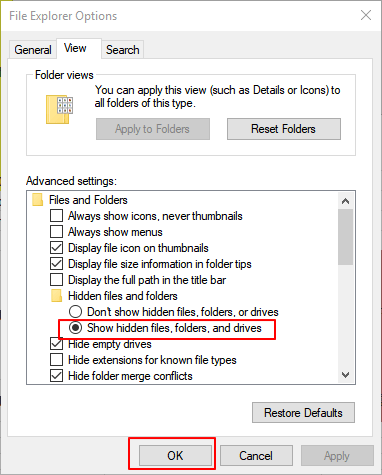
Step 6. Open File Explorer and navigate to the Local C: drive. Locate the "BOOT" folder, which is set to hidden, and delete it.
Step 7. Empty the recycle bin.
Step 8. To resolve the issue, open the Registry Editor and navigate to HKEY_CLASSES_ROOT. Right-click and select "Find", then type "SYSMWIN" and delete the registry entry.
To prevent SYSWIN from running again, delete the Registry file associated with it. This will stop the program from executing when you restart your computer. If you don't delete the Registry file, the infected 0KB file will run again when you restart your computer. After deleting the Registry file, try opening and rechecking the infected 0-byte files on your device.
Method 2. Remove 0 Byte Files by Changing File Extensions
A sudden change in file size to 0 bytes on storage devices or computer hard drives can be resolved by running a disk check, verifying file integrity, and checking for malware or viruses that may be causing the issue. This can be done using built-in tools such as chkdsk in Windows or fsck in Linux, or by running a virus scan with an anti-virus software.
When files saved on storage devices become 0KB, their file extensions often change to .000. To resolve this issue, you can try changing the file extensions of your infected files by following the provided steps. This may help recover your files.
Step 1. To investigate why your files have turned into 0KB, access the properties of the device or hard drive partition where the files are located. This can be done by right-clicking on the drive and selecting "Properties".
Step 2. To start the scan, go to the Tools tab, click "Check now", and then click "OK".
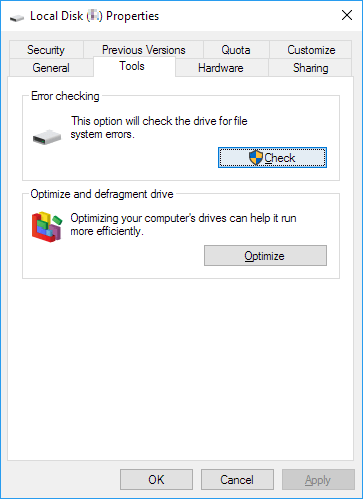
Step 3. Click "Scan drive" and click "Close" when the scanning process finishes.
Step 4. Open the hard drive or your storage device and type: FOUND.000at the address field > hit Enter.
Step 5. Save the original file to a separate hard drive partition, rename it, and change its file extension to a different format, such as from .docx to .doc.
For example: Change FOUND.000 to Word.doc, Excel.xls, etc.
Step 6. Open and check the file content.
Your 0-The byte file is not fixed in size, allowing it to be reused multiple times, making it more efficient in terms of memory usage.
Method 3. Re-upload, Re-download, Re-send Files
To resolve incomplete files, you can try re-uploading, re-downloading, or re-receiving the file, or attempt to repair it using software or online tools specifically designed for this purpose. If the file is corrupted, you may need to contact the sender or source to request a replacement.
Files can become zero bytes due to improper operation, incomplete uploading, or downloading via network or email. To resolve this issue, the best course of action is to resend or redownload the affected files.
- 1. Re-upload files online.
- 2. Re-download files.
- 3. Re-send files to your clients or colleagues.
- 4. As your clients or colleagues resend the files to you.
Method 4. Use the Normal Zip Tools
Applies to: Resolve files with unsupported attributes.
Most files with unsupported attributes will become zero bytes due to the use of unique zip tools.
The best way is to use normal zipping tools for compressing files and share with your clients, colleagues, and friends.
Recommended Zip tools: WinZip, 7-Zip, WinRAR, etc.

Method 5. Run CHKDSK
To resolve the issue of a 0-byte file caused by unknown device errors in Resolve, try the following: restart the application, update the drivers for the device in question, and check the device's firmware. If the issue persists, consider reinstalling the device driver or seeking further assistance from the manufacturer's support team.
If files on a corrupted file system become zero bytes, you can try running the CMD to fix the issue. Running CHKDSK can repair the disk structure and make the files readable again, but it may also result in total data loss. To do this, follow these exact steps.
Step 1. Click "Start" and type cmd in the Search box.
Step 2. Right-click "Command Prompt" and choose "Run as administrator".
Step 3. Type CHKDSK F: /f /r /x hit Enter.
To fix a corrupted or unreadable device, start by checking the drive letter assigned to the device, which is typically denoted by a letter such as F:. If the drive letter is not assigned, you can do this by going to "This PC" or "Computer" and looking for the device in the list. Once you've identified the correct drive letter, you can try to access the device by opening File Explorer and navigating to the drive letter (e.
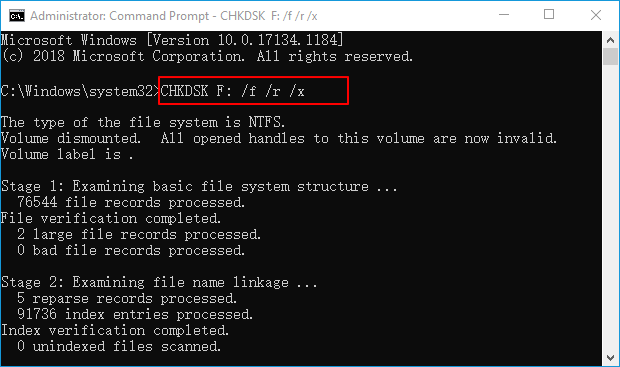
Then your 0-The corrupted files will be replaced with their original versions from the backup, and you can reuse those files again.
Method 6. Show Hidden Files
The process of restoring hidden files replaced by zero bytes on storage devices involves using a data recovery software to scan the device and locate the hidden files. The software then extracts the data from the files and saves it to a safe location, often in a format that can be easily accessed and viewed.
When a hard drive is infected with a virus, it can lead to files being hidden and replaced with 0-byte files, making them inaccessible.
To show hidden files on your device, you can go to Settings > Storage > Internal Storage > Show hidden files. This will display all files, including hidden ones, in the storage section.
Step 1. Right-click the Start or Windows icon, select "Search".
Step 2. To view hidden files in Windows, select the "View" tab in File Explorer Options, then check the box next to "Show hidden files and folders" to display them.
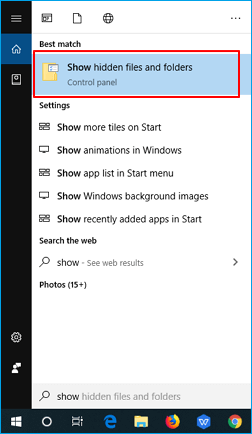
Step 3. To access the Advanced settings, click on the "View" tab in File Explorer. Then, click on "Show hidden files, folders, and drives" and click "OK" to confirm.
Once you've completed the steps, you can go back to your device and open the file manager or settings app to see the hidden files that were previously invisible. This is where you can access and manage these files as needed.
Part 3. Recover/Repair Lost Files with Data Recovery Software
If a file is corrupted, it may become zero bytes. In such cases, you can use file repair and recovery software to fix the issue. A Windows 10 file repair tool like Qiling can help repair corrupted files, including Word and Excel documents, photos, and videos. If the 0-byte virus removal doesn't restore your files and they're no longer visible on your hard drive or external storage device, you may want to try using professional data recovery software for assistance.
When a data loss issue occurs on your device, you can use file recovery software to help recover deleted, formatted, or lost data.
Deep Data Recovery supports to restore files from various file loss situations and simplifies the recovery process in just 3 easy steps.
Step 1. Select file types and click "Fast Scan" to start
Launch Deep Data Recovery software, select the desired file types, and click "Fast Scan" to initiate the recovery process.

Note: You can choose different search modes based on where and why the data was lost.
Step 2. Select a location and start scanning
Launch Deep Data Recovery, hover on the partition/drive where the deleted files were stored, then click "Scan" to find the lost files.

Step 3. Select the files you want to recover
After the scanning process is complete, select the deleted files you want to recover. You can use the filter to display only specific file types, or search for a file by name in the "Search files or folders" box, which can be the quickest way to find the target file. This allows you to quickly and easily identify and recover the files you need.

Step 4. Preview and recover deleted files
Preview the recoverable files, then select the ones you want to restore and click "Recover" to save them at a new location, rather than the original disk where they were lost.
When your files turn into 0-byte or 0KB, don't panic. You can try the 6 methods provided on this page to recover them. If you've lost files without a backup or have permanently deleted them, Deep Data Recovery can help bring them back.
How to Remove 0KB Virus from PC and Recover 0 Byte Files FAQs
Here are more topics related to how to remove 0KB virus from PC and how to recover 0-byte files. If you also have any of these problems, figure out effective tips.
How do I get rid of the 0KB virus?
To remove a 0KB virus from a PC, use antivirus software or manually delete the virus. Antivirus software, such as Bitdefender, Norton, Kaspersky, Avira, or Avast, can be used to run a deep scan and remove the virus. Alternatively, you can manually delete the virus by following the steps in the provided guide, which includes identifying the virus, stopping its processes, and deleting its files.
To remove the 0 kb virus by yourself, follow these steps: (insert detailed steps here).
How do I recover 0 bytes of a JPEG?
You can recover 0 bytes of a JPEG file in the ways below:
- Restore JPG file from backup
- Convert JPG to another format
- Rename the JPEG files without changing the file extension
- Download the JPG files again
- Repair corrupted JPEG files
- Perform CHKDSK
- Remove 0KB virus to repair 0KB files
Why does my file have 0 bytes?
Your file shows zero bytes because it's empty, meaning it doesn't contain any data or content. This can happen due to issues with the file system or storage device, and as a result, the file becomes unreadable and cannot be written to.
If 0-byte files are critical, you can perform 0-byte file recovery in some safe ways, as shown in this article.
How do I recover 0 bytes in Excel?
If an Excel document shows 0 bytes, you can use Microsoft File Recovery mode to open and recover the file in Windows 10.
Step 1. Click on the "File" tab and then click "Open".
Step 2. Click the folder where the 0 bytes Excel file is.
Step 3. In the Open dialog box, select the 0 bytes Excel file.
Step 4. To fix the issue, click on the arrow button next to the "Open" button and select "Open and Repair".
Step 5. Click "Repair" to start 0-byte file recovery.
Related Articles
- How to Recover Permanently Deleted Files in Linux Redhat/Ubuntu/Mint
- Chrome Cache Viewer to View/Recover Google Chrome Cache Files
- Audacity Recovery: Recover Deleted and Unsaved Audacity Recordings
- 6 Ways to Recover Deletd/Corrupted/Crashed PSD Files
Whether you need to recover a PSD file due to accidental deletion, corruption, or a desire to retrieve a file from a temporary location, the guide to recovering a Photoshop file can provide the necessary assistance. - How to Fix PSP Not Reading Games in Memory Stick
If your PSP is not reading games from a memory card, it can be difficult. However, there's a simple solution to fix this issue. To resolve the problem, you can try troubleshooting the memory stick, ensuring it's properly inserted and that the card itself is not damaged.
Products
Articles & Tutorials
- Data Recovery
- Data Backup
- File Recovery
- File Backup
- System Backup and Restore
- Disk and Partition Clone
- Technical articles
- Mobile articles
- Disk Master Help
- Windows Data Recovery Tutorials
- Windows Secure Delete Tutorials
- Windows Partition Management Tutorials
- Windows File Backup and Restore Tutorials
- Windows System Backup and Restore Tutorials
- Windows Disk Backup and Restore Tutorials
- Windows Clone Tutorials