Chrome Cache Viewer to View/Recover Google Chrome Cache Files
Overview
You saw some beautiful pictures on a web page a week ago, but forgot to save them to your computer. Fortunately, you can try to recover them from your Chrome cache files. There are three ways to view Chrome cache files easily, which can help you quickly retrieve the pictures you want to save.
| Workable Solutions | Step-by-step Troubleshooting |
|---|---|
| Fix 1. Visit chrome://cache/ | Click the address bar at the top of your Google Chrome window, type About: cache into the box...Full steps |
| Fix 2. Use Chrome extension | Open your Chrome browser and go to the Chrome Web Store. Search for "Web Cache Viewer"...Full steps |
| Fix 3. Use third-party software | You can still view and recover Chrome cache files by using a third-party Chrom cache viewer...Full steps |
Google Chrome Cache File Recovery Overview
You can view or recover previously viewed content on Google Chrome by utilizing its cache files. The browser cache contains temporary internet files from websites you've visited, and if you don't clear it, you can easily access these files to recover or view content like business logos, images, videos, or other web content. This makes data recovery from Google Chrome possible and straightforward, allowing you to access previously viewed content with ease.
You can view and recover Google Chrome cache files using the Chrome cache viewer. By following these tutorials, you can fully retrieve or extract your data from Google Chrome cache files.
How to View Chrome Cache Files Easily
To access and view Chrome cache files, you can try one or more of the following methods to view cache files in Google Chrome.
View Cache by visiting chrome://cache/ in Chrome 65
You can view Chrome caches by visiting chrome://cache and chrome://view-http-cache, but this feature was removed in Chrome version 65 due to bugs.
Step 1. To view your Google Chrome cache, click the address bar at the top of your browser window, type "About:cache" into the box, and press Enter. This will display a page with a list of cached files and their addresses.
Step 2. Press the "Ctrl + F" keys on your keyboard to open the find bar.
Step 3. To find a cached file, type part of the name or address of the file into the search box and press "Enter" to find it. Pressing "Enter" repeatedly will take you through any matching results.
Step 4. To load a cached file in Chrome, select and copy the full address of the cached file on the page. Then, open the address in Chrome and press "Enter" to load the file from the cache.
Step 5. Right-click the image, page, or script and select "Save As" to save the cached file to your computer.
View Cache Files Using Chrome Extension
If you're using Chrome 66, this method may not be helpful, but you can use a Chrome extension to view cache files in Google.
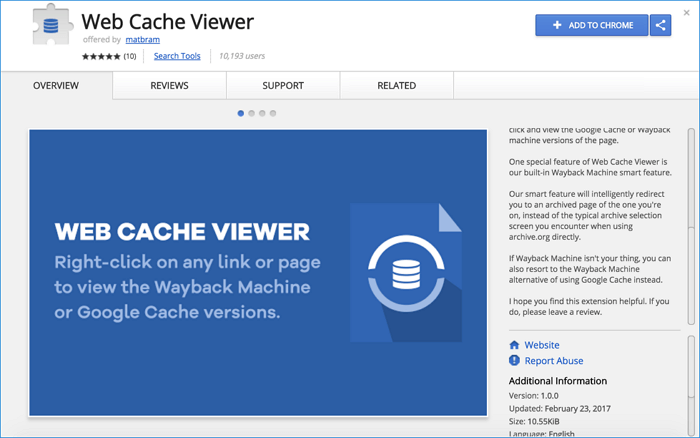
Step 1. Open your Chrome browser and go to the Chrome Web Store.
Step 2. Search To view cached web pages, install the "Web Cache Viewer" extension in your browser. After installation, right-click on any web link in Chrome and select "Web Cache Viewer" to view the cached page from either Wayback Machine or Google archive.
View Chrome Cache Using Third-Party Software
If the first two solutions don't work, you can still try to view and recover Chrome cache files using a third-party Chrome cache viewer. This viewer can help you view the content of the cache files, which have no extension and therefore cannot be viewed directly.
The Chrome cache viewer locates and reads the cache folder of the Chrome web browser, which is typically found at C:\Users\Username\AppData\Local\Google\Chrome\User Data\Default\Cache in Windows 10. If the cache folder is lost, hard drive recovery software can be used to retrieve it and recover Chrome cache files.
How to recover cache files in Google Chrome on your computer
If you've lost the Chrome cache folder due to accidental deletion, hard drive formatting, or system crash, don't worry - you can recover Chrome caches using Deep Data Recovery.
This data recovery software has helped millions of people recover their lost data from various devices, including hard drives, USB drives, SSDs, SD cards, and more. It's free to download and use, and can restore deleted, formatted, or lost data by following a simple step-by-step process.
Step 1.Run Deep Data Recovery on your computer, select the desired file types, and click "Fast Scan" to proceed with the recovery process.

Note: You can choose different search modes based on where and why the data was lost.
Step 2. To recover lost files, select the drive where the files were lost and click "Scan". If the lost files were on an external storage device, connect it to your computer before proceeding.

Step 3. The software rapidly scans deleted files, followed by a deep scan to locate more lost files. Once the scan is complete, a "Filter" feature allows for quick filtering of specific file types.

Step 4. To recover your files, click the "Preview" button or double-click on a file to view it in full. Then, select the desired files and click "Recover" to save them to a new, safe location.
Related Articles
- Excel Cannot Open the File Because The File Format or File Extension Is Not Valid
- Google Drive Files Not Showing Up on PC/Phone/Mac [Fixed]
- How to Recover Data from Specific Folder
- How to Remove Folders and Files from Quick Access Windows 10/11
- How to Recover Files After Factory Reset Laptop/PC [Solved]
To recover lost files after a factory reset on your laptop, regardless of the brand (HP, Dell, Toshiba, Acer, Asus, Lenovo, Sony, Samsung, etc.), download Qiling free data recovery software and follow the detailed guide provided. - How to Recover Files After Factory Reset Windows 10/11
To recover files after a factory reset on Windows 10 or 11, you can use professional data recovery software or leverage a Windows backup. This allows you to retrieve lost files even after a complete system reset.
Products
Articles & Tutorials
- Data Recovery
- Data Backup
- File Recovery
- File Backup
- System Backup and Restore
- Disk and Partition Clone
- Technical articles
- Mobile articles
- Disk Master Help
- Windows Data Recovery Tutorials
- Windows Secure Delete Tutorials
- Windows Partition Management Tutorials
- Windows File Backup and Restore Tutorials
- Windows System Backup and Restore Tutorials
- Windows Disk Backup and Restore Tutorials
- Windows Clone Tutorials