Google Drive Files Not Showing Up on PC/Phone/Mac [Fixed]
What Is Google drive
Google Drive allows users to store files online, making them accessible from any device with an internet connection. For those with a Google account, they receive 15 GB of free storage to experience the platform's functions.

Highlights of Google Drive:
- Protect data
- Access files from anywhere
- Support a wide range of file types
- Recognize images and texts quickly
- Store and share files in an efficient way
Why Google Drive Files Not Showing Up
You may encounter an issue where uploaded files don't show up in Google Drive, even though its powerful functions should allow them to appear. Sometimes, a bug can occur where shared files fail to display when you want to edit them with others. This can be frustrating, but there are factors that might be causing this problem, such as a bug in Google Drive's functionality.
- The internet connection is not stable
- Mistakes during the operation process
- Google Drive has an internal system error
- You are not entitled to edit the files that were shared with you by someone else, as the sharer has the right to control who can modify their files. This means you can only view the files, but not make any changes to them.
- The files that you want to sync have been removed
How to Fix Google Drive Files Not Showing Up Problem
To resolve the issue of files not showing up in Google Drive, try restarting the Google Drive app, checking the file's permissions, and verifying the file's location. Additionally, you can try clearing the Google Drive cache, checking for any conflicts with other cloud storage services, and ensuring that the file is not corrupted.
1. Wait and Refresh Interface
If you see a "Temporary Error (502)" on the PC interface, it means the files and documents in Google Drive are temporarily not showing up. Just wait for a while and then try to refresh the interface.
2. Resign in
You can try to sign out of your Google account on Google Drive and sign back in to fix the issue.
3. Pause and Resume Google Drive
If you're using Google Drive on your phone or tablet, you can resume an upload by tapping on the paused file in your file folders, which will automatically continue the upload from where it was paused.
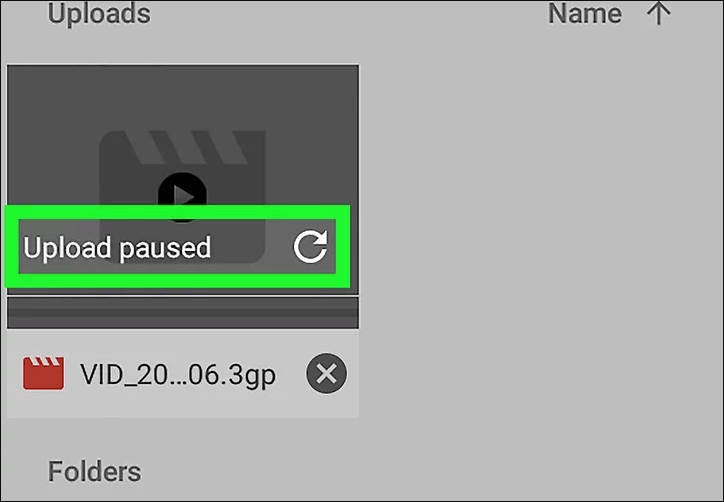
If you use Google Drive on your PC, you can refer to the following steps to resume it.
Step 1. Click the Backup & Sync icon.
Step 2. Click the three dots at the top-right corner of the Backup & Sync panel.
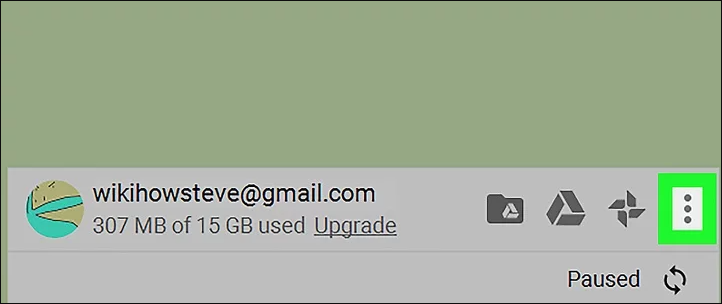
Step 3. Click "Resume" and wait for a few minutes.
4. Run Google Backup App as Administrator
Step 1. Find Google Drive in Windows and right-click on it.
Step 2. Run Google Drive as administrator.
5. Clear Browser Cache and Cookies
Step 1. Open Chrome Chrome > Click More > Click Settings
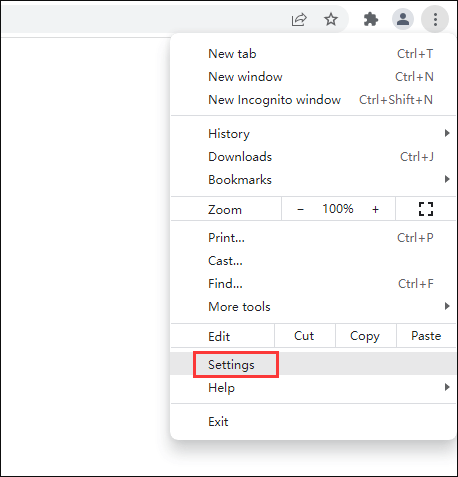
Step 2. To clear cookies on Google Chrome, follow these steps:
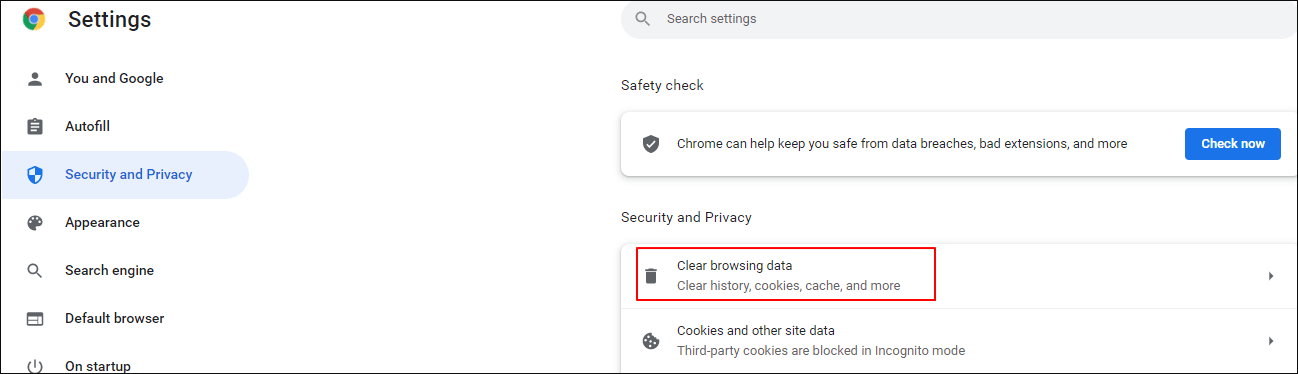
Step 3. To remove all data and clear all permissions from your Google account, follow these steps: Go to the Google Account settings page, click on "Data & personalization", then click on "See all site data and permissions", and finally click on "Remove all data" and "Clear all" buttons. This will delete all data, including search history, location history, and other personal data, and also revoke all permissions granted to third-party apps.
6. Reduce the Size of Files
If files or documents are too large, they may not load onto Google Drive. To solve this, try splitting them into smaller files.
7. View Un-synced Files Online
Step 1. Open Taskbar and click on the menu of Google Drive.
Step 2. To view unsynced files, go to Preferences, right-click the Google Drive icon, and select "View unsynced files."
Step 3. Select the Visit Google Drive on the web option.
8. Use Incognito Mode
To get rid of outdated caches and resolve the Google Drive not showing up issue, you can open incognito mode on Google Chrome.
Step 1. Click the three-dot menu on the top-right corner of Chrome.
Step 2. Choose New incognito window/use the Ctrl + Shift + N.

9. Check Your Firewall and Proxy Settings
If you're having trouble seeing shared files in Google Drive, check your firewall and proxy settings, as they may be blocking access.
To allow Google Drive through the firewall, you can add the Google Drive IP addresses to your firewall's allowed list. This will permit Google Drive to communicate with your computer and access your files.
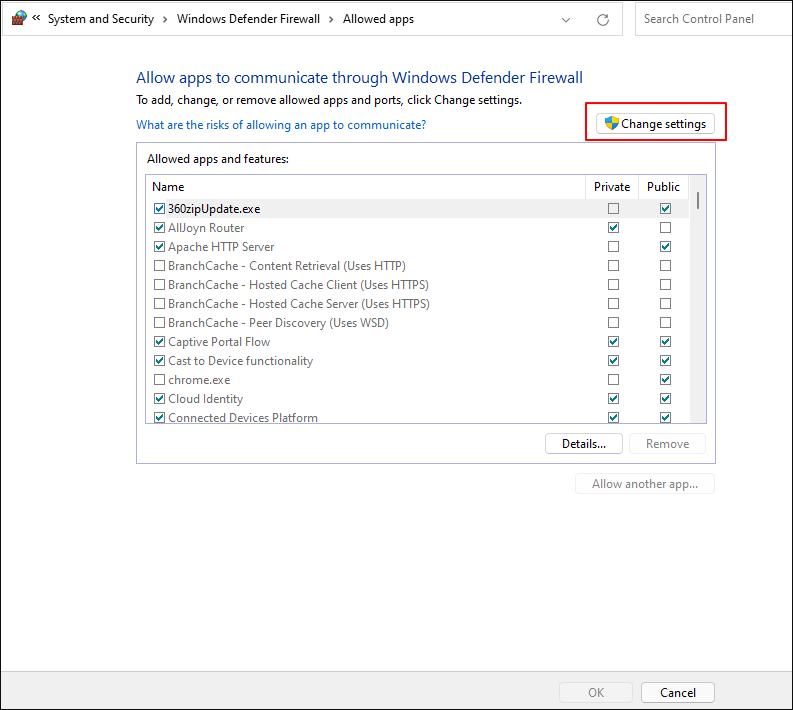
Step 1. Press the Windows plus S Keys > type Firewall.
Step 2. Click on the first option and select "Allow an app or feature through Firewall".
Step 3. To share files on Google Drive, go to Change Settings and tick the Public and Private options. This will make your files accessible to others.
To resolve issues with Google Drive, close automatically detect proxy settings and enable Direct connect by turning off this option.
How to Restore Missing Files in Google Drive
If you've tried the previous methods and your files are still missing from Google Drive, they may have been deleted permanently on your PC. In this case, you can use Qiling data recovery software to scan and recover the deleted files and documents.
Deep Data Recovery is highly praised for its excellent performance in restoring permanently deleted files, allowing users to recover a wide range of files and preview them before recovery.
To restore deleted or lost data, follow these steps. You can refer to this tutorial whenever you need to recover your data.
Step 1. Launch Deep Data Recovery in Windows 11/10/8/7, select file types and click "Fast Scan" to start the recovery process.

Note: You can choose different search modes based on where and why the data was lost.
Step 2. Choose the place where you lost data. Then, click "Scan".

Step 3. After scanning, use the file format filter to locate the desired files, and then click the "Preview" button or double-click a file to view its contents.

Step 4. To recover a lost file, select the file by clicking the checkbox next to it and then click the "Recover" button. This will recover the lost data to a secure location.
More Google Drive Files Not Showing Up Guides
Google Drive is accessible on multiple platforms, including Windows, iPhone, Android, and Mac. If files are not showing on these devices, solutions can be used to address the issue.
How to fix google drive files not showing up on iPhone
To help files in Google Drive show up again on your iPhone, there are five ways to try.
- Update Google Drive
- Offload Google Drive
- Check internet connection
- Sign out your google account
- Delete and reinstall Google Drive
How to fix google drive files not showing up on Android
If you're experiencing issues where files aren't showing up on your Android device, try the following methods to resolve the problem.
- Sign out and sign in again
- Deleting the cache of the app
- Update the Google Drive app
- Check the internet connection
- Reinstall the Google Drive app
- Quit and restart the Google Drive app
- Search solutions in Google help center
How to fix google drive files not showing up on Mac
If you're experiencing issues with Google Drive on your Mac, such as not syncing or being unable to access your files, try restarting your computer, checking for software updates, and verifying your account information. Additionally, ensure that your Google Drive app is up-to-date and that you have sufficient storage space available.
- Turn off the screen share
- Reinstall Drive file stream
- Allow the syncing permission
- Check the Internet connection
- Switch off the Windows firewall
- Check if anti-virus software is blocking Google Drive file stream
Conclusion
If you're experiencing issues with Google Drive files not showing up, you can freely use the suggested methods to address the problem at any time. If none of these solutions work, you can try using Qiling data recovery software to scan and recover the missing files.
Related Articles
- How to Recover Permanently Deleted Emails from Gmail Account
- Fix Files Missing After Restarting Computer and Recover Lost Data
- How to Recover Corrupted Files from a USB Flash Drive
- Accidentally Closed Word Without Saving in MS Word 2003/2007/2010/2013/2016
- How to Undelete Partition in Windows 11/10/8/7
Restoring a deleted partition on Windows 11, 10, 8, 7, and XP is relatively easy. You can easily undelete a partition from your Windows PC hard drive. - 4 Methods To USB Drive Recovery
This page provides a guide on how to safely recover files from a USB flash drive on a Mac or Windows PC in 2023. Scroll below to find out how to retrieve your lost USB files.
Products
Articles & Tutorials
- Data Recovery
- Data Backup
- File Recovery
- File Backup
- System Backup and Restore
- Disk and Partition Clone
- Technical articles
- Mobile articles
- Disk Master Help
- Windows Data Recovery Tutorials
- Windows Secure Delete Tutorials
- Windows Partition Management Tutorials
- Windows File Backup and Restore Tutorials
- Windows System Backup and Restore Tutorials
- Windows Disk Backup and Restore Tutorials
- Windows Clone Tutorials