How to Recover Files After Factory Reset Laptop/PC [Solved]
Part 1. Overview of Data Loss After Factory Reset
You can try using data recovery software to recover your lost files and programs after the factory reset. Some popular options include Deep Data Recovery, Qiling file recovery software, and other professional tools. These tools can scan your hard drive and attempt to recover deleted files, even if they were erased during the factory reset. However, the success rate may vary depending on the type of data and the extent of the deletion. Be cautious when using data recovery software, as it may also recover deleted malware, so be sure to scan the recovered files with an antivirus program before opening them.
Unfortunately, since you've restored your computer to factory default, all data on the original hard drive has been erased. However, you might be able to recover some data using data recovery software or by contacting the manufacturer for assistance.
Many people have made the mistake of factory resetting their laptop without backing up important files first, resulting in the loss of precious data. While resetting a PC or laptop can be necessary in some cases, such as when it's performing poorly or needs to be wiped clean before being sold or sent away, it's always a good idea to transfer personal files to an external drive first to avoid complete data loss.
Part 2. Chances of File Recovery After Factory Reset
The factory reset will delete all files on your computer, including those on the C drive, after the process is completed. This is a standard procedure for factory resetting, which is primarily intended for the C drive. The process involves a series of steps that ultimately result in the erasure of all data on the affected drive.
- Reformat the C drive - Restore the system with a backup - Restart after restore
After a factory reset, all post-installed programs, applications, games, and personal data, including documents, pictures, music, and movies, will be completely removed from the laptop, with some data being overwritten and the original file system corrupted. However, this doesn't mean all hope is lost - some files that haven't been overwritten can still be recovered.
The only chance to recover lost data is using Deep Data Recovery, a professional software that has helped millions of customers recover lost files, including those via RAW, in an easy and reliable way.
What's more, it has some excellent features:
- Recover data from a dead/corrupted hard drive
- Recover photos, audio, music, and emails from any storage device
- Convert RAW to NTFS without losing data
- Recover deleted, formatted, and inaccessible data easily
Part 3. Recover Files After Factory Reset Laptop Without Backup
Since Qiling disk data recovery software is the only one that meets your demands perfectly, you should restore your data as soon as possible by downloading it to recover lost files after a factory reset on laptops from various brands such as HP, Dell, Toshiba, Acer, Asus, Lenovo, Sony, and Samsung.
Also read: How to Recover Data after Factory Reset Samsung Galaxy
Step 1. Run Deep Data Recovery on your computer. Choose the file types you want to recover and click "Fast Scan".

Note: You can choose different search modes based on where and why the data was lost.
Step 2. If you lost files on a computer, choose the drive where the files were stored and click "Scan". If the lost files were on an external storage device, connect it to your computer before scanning.

Step 3. The software rapidly scans deleted files, followed by a deep scan to locate more lost files. Upon completion, a "Filter" feature allows for quick filtering of specific file types.

Step 4. To recover your files, click the "Preview" button or double-click on a file to view its contents. Then, select the desired files, click "Recover", and choose a new safe location to save them.
Part 4. Factory Reset Windows 10 Laptop/PC Without Losing Data
If your computer is running slowly or giving you errors, it's likely time for a reset. To do this, you should first back up any important data, especially from the C drive, to an external hard drive to ensure you don't lose anything. Once backed up, you can then reset your PC or restore it to an earlier state, which can help clean out background programs and remove unneeded files from your hard drive. This will help get your computer running smoothly again.
Also read: Backup Files Before Factory Reset Windows 10
To reset your Windows 10 computer, you have several options to revert it to an earlier state. You can easily reset your Laptop/PC in Windows 10 using the built-in options provided by the operating system.
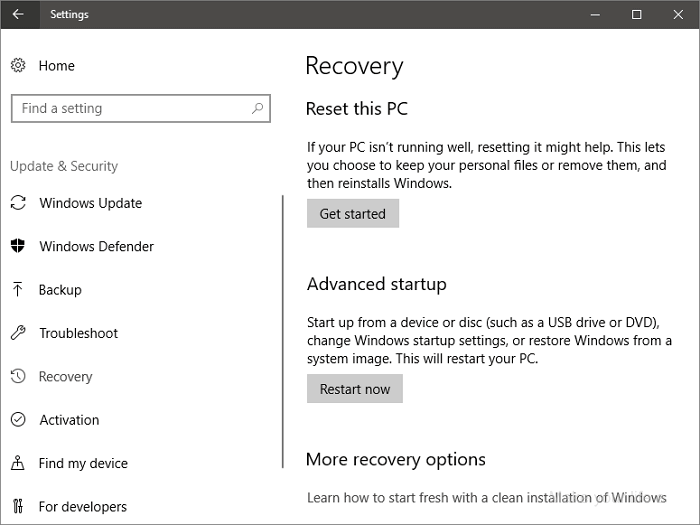
Step 1. To reset your PC, go to Settings, then click on Update & security, followed by Recovery, and select Reset this PC. From there, click on Get started.
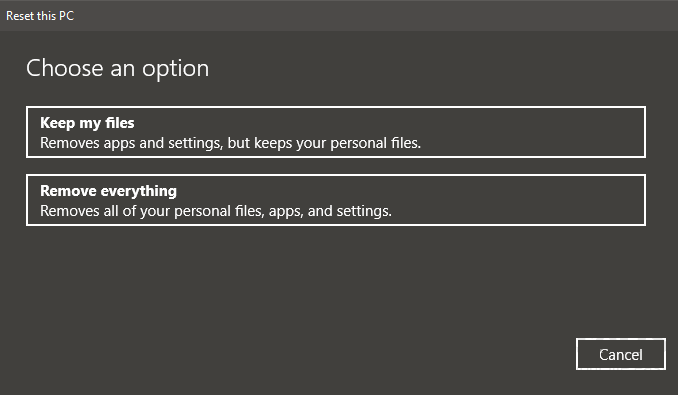
Step 2. You have two options: "Keep my files" or "Remove everything". If you choose the former, your data files will remain intact, but all your settings will reset to their defaults and apps will be uninstalled. If you choose the latter, the same outcome will occur, but your data files will also be removed.
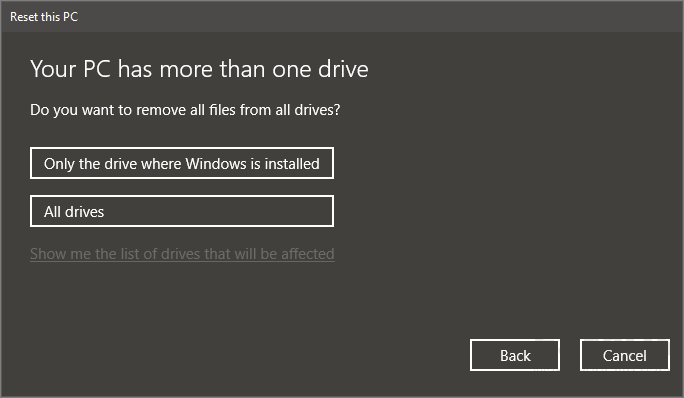
Step 3. If you chose "Remove everything" in the prior step, select "only the drive where Windows is installed" or "All drives" in this step.
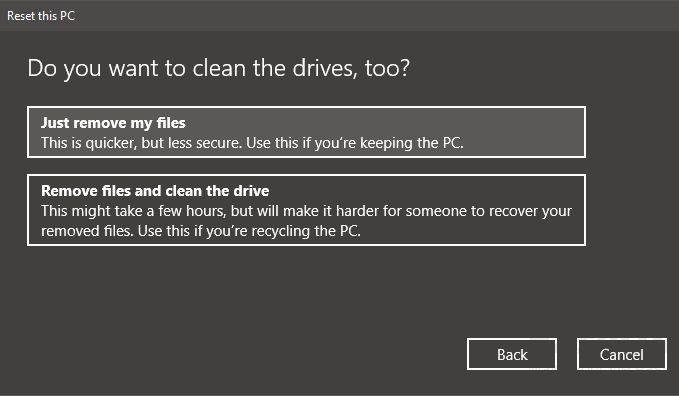
Step 4. If you're giving the computer away, choose "Remove files and clean the drive" so the next person can't recover your erased files, but if you're keeping the computer, choose "Just remove my files."
Step 5. Once you've clicked "Reset", Windows will restart and begin the reset process. This process can take several minutes to complete. During this time, your computer will be restarted multiple times, and you'll see the Windows logo on the screen.
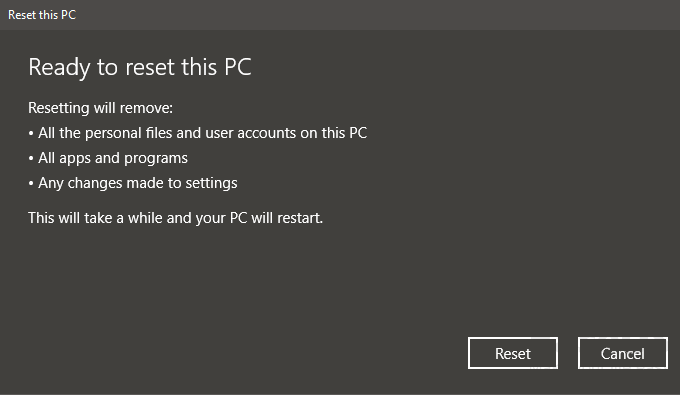
After the data recovery process, you can retrieve your external hard drive data or restore your backup if needed.
Conclusion
Having a backup in advance can save you from losing important files. If your laptop's OS is running slow or you've caught a virus, factory resetting it can be a good solution. However, if you don't have a backup, you can try Deep Data Recovery to recover lost files, which can be a lifesaver. This tool is user-friendly and efficient, making it a reliable option.
Windows 11 reset behavior and possible remaining copies vary by reset option; consult the Windows 11 factory-reset file-recovery guide before installing recovery software.
Related Articles
- Recover Permanently Deleted Files in Windows 10/11
- How to Recover Permanently Deleted Excel File in Windows 10, Mac, iPhone, and Android
- Best Forensic Data Recovery Software
- Top 5 PST Repair Tools in Windows 10/11
- How to Fix Problem of 'Whea Uncorrectable Error' in Windows 8
An uncorrectable error in Windows 8 can cause your computer to malfunction, making it difficult to boot properly, it's a relatively common issue, and there are several methods to resolve the problem. - How to Fix USB Drives not showing up in Windows 10 [7 Ways for 2021]
There are many reasons cause USB drives not showing up in Windows 10. This article help you to fix it.
Products
Articles & Tutorials
- Data Recovery
- Data Backup
- File Recovery
- File Backup
- System Backup and Restore
- Disk and Partition Clone
- Technical articles
- Mobile articles
- Disk Master Help
- Windows Data Recovery Tutorials
- Windows Secure Delete Tutorials
- Windows Partition Management Tutorials
- Windows File Backup and Restore Tutorials
- Windows System Backup and Restore Tutorials
- Windows Disk Backup and Restore Tutorials
- Windows Clone Tutorials