LaCie External Hard Drive Troubleshooting and Data Recovery
If your LaCie external hard drive is not recognized or is corrupted, don't panic! This page offers comprehensive troubleshooting tips to help you fix and repair your LaCie disk. By following these tips, you should be able to resolve any issues and get your LaCie drive up and running smoothly.
To resolve the issue and get your device working again, follow the provided solutions on this page. They should help you overcome the problem and have your device up and running in no time.
| Workable Solutions | Step-by-step Troubleshooting |
|---|---|
| Fix 1. Recover Data | Run Qiling software, and choose the LaCie...Full steps |
| Fix 2. LaCie Light Blinking | Reconnect the LaCie > Disable Save Power...Full steps |
| Fix 3. Repair LaCie Not Turning On | Check power cable > Change USB port...Full steps |
| Fix 4. Repair LaCie Not Showing Up | 1. Format disk to NTFS; 2. Assign Drive Letter...Full steps |
| Fix 5. Repair LaCie Not Working | 1. Update disk drivers; 2. Uninstall Universal...Full steps |
LaCie is a storage device producer that offers external hard drives, SSDs, HDDs, and network storage services for users to store personal and business data, often used for saving backups and large files like photos and videos.
LaCie external hard drives have gained popularity due to their high capacity and fast performance, but users have also experienced issues with these devices, as seen in the LaCie support community and Google search results, affecting both external hard drives and internal HDDs/SSDs.
To troubleshoot external hard disk problems without losing data, let's take the LaCie Porsche Design as an example. First, identify the type of problem you're facing, whether it's a hardware or software issue.
Why Is My LaCie Not Working
External hard drives, including LaCie models, may not work due to various issues. Understanding the causes can help you find immediate solutions. Common reasons for external hard drive malfunction include software or hardware problems, faulty connections, power supply issues, or physical damage. Learning the root cause is essential to resolve the problem efficiently.
- Problematic connection (between drive and computer)
- RAW or invalid file system error
- File system corruption
- Drive letter conflict
- Drive is unallocated, no partition
- The new drive is not initialized
- Drive driver is outdated
- Drive is hidden from showing up on the computer
- Virus, malware infection
LaCie External Hard Drive Troubleshooting Tips
To fix the LaCie external hard drive not working issue, try restarting the drive, checking the USB ports, and ensuring the drive is properly connected. If the issue persists, try running the LaCie Backup Assistant software to diagnose and potentially fix the problem. If the drive is still not working, try using a different USB port or cable, and if necessary, contact LaCie support for further assistance.
- #1. LaCie External Hard Drive Data Loss
- #2. LaCie External Hard Drive Light Blinking
- #3. LaCie External Hard Drive Not Turning On
- #4. LaCie External Hard Drive Not Showing Up/Detected/Recognized
- #5. LaCie External Hard Drive Not Working/Responding
Note Before attempting any troubleshooting methods, it's recommended to use reliable hard disk data recovery software, such as Deep Data Recovery, to safely retrieve your files from the device first. This will prevent potential file loss issues that may arise from some troubleshooting methods. Once your files are safely recovered, you can then proceed with troubleshooting.
If your external hard disk is not working, not turning on, or not showing up, there are several fixes to troubleshoot the issue. First, check the power cord and ensure it's properly plugged in.
Case 1. Fix LaCie External Hard Drive Data Loss Error with Data Recovery Software
Scan your LaCie external hard drive to recover lost data due to accidental deletion, formatting, or RAW errors, making your files inaccessible again.
If your external or internal hard drive is not working or showing up, the first step is to perform data recovery on the device. This should be your top priority.
- 1. Stop using the device when you lost data on it.
- 2. Turn to professional data recovery software for help.
We recommend trying Data Recovery Wizard, a software that can recover lost files on your drive, regardless of the cause of the loss. As long as your drive is detected by Windows Disk Management, this software can work and help you recover your lost files.
Here is the step-by-step recover data from a LaCie external hard drive, start by unplugging the drive from your computer and checking for any visible signs of physical damage. Next, try booting your computer from a live Linux distribution, such as Ubuntu, to access the drive without loading the operating system.
Step 1. Launch Deep Data Recovery software. Select file types and click "Fast Scan" to begin the recovery process.

Note: You can choose different search modes based on where and why the data was lost.
Step 2.Connect your external hard drive to your computer using a correct USB cable. Once connected, run Deep Data Recovery and your external disk will be listed under External drives. This software supports popular external disk brands such as WD, Seagate, Toshiba, LaCie, SanDisk, Samsung, and more.
Select the external hard drive and then click the "Scan" button.

Step 3. As soon as the scan process begins, the software will identify and display lost and deleted data in the scan results, which will be organized and easily searchable by file type or exact file name, allowing you to quickly locate the target files or folders.

Step 4. To recover data from your Seagate drive, you can preview files found by Deep Data Recovery's scanning algorithms, select the desired files, and click "Recover". To avoid overwriting existing data, save the recovered files to a different drive than the original Seagate drive.
After restoring the files and data from the LaCie external hard drive, be sure to save them to another secure device. If your computer is unable to detect the LaCie external hard drive, try the following tips to make it detectable.
Case 2. Fix LaCie External Hard Drive Light Blinking, Not Working
LaCie external hard drive light blinking error can be caused by an unstable power supply, which can be resolved by using a high-quality power adapter or a power strip with surge protection. This can help to stabilize the power supply and prevent the light from blinking.
To fix this issue, you have two options to try:
1. Reconnect the LaCie power cable
If the power LED light is blinking, plug the power cable into the external drive and then plug the power supply into a live power outlet.
2. Disable Save Power Mode in USB Root Hub
Step 1. Keep the LaCie external hard drive connected to your computer.
Step 2. Press the Windows key + X or right-click on the Windows icon, and select "Device Manager" from the menu.
Step 3. Locate and expand the Universal Serial Bus controllers.
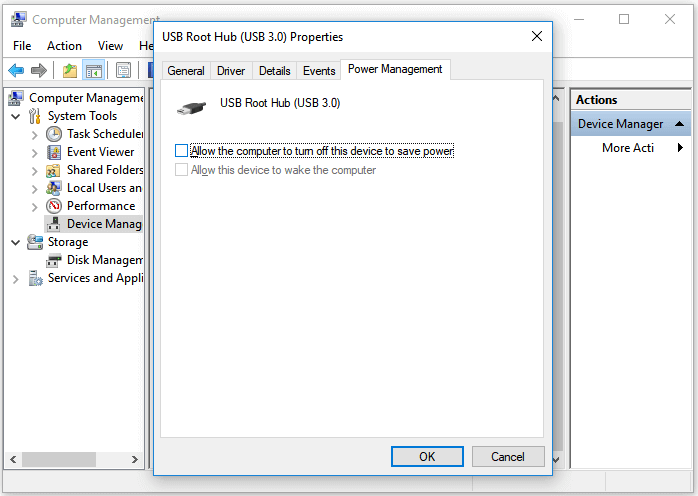
Step 4. Right-click the "USB Root Hub" of your external hard drive and select "Properties".
Step 5. To prevent the computer from turning off the device to save power, go to the Power Management tab and uncheck the option "Allow the computer to turn off this device to save power".
If your Lacie external hard drive is not turning on, try restarting your PC and reconnecting the drive. If it still doesn't work, proceed with the troubleshooting steps.
Case 3. Fix LaCie External Hard Drive Not Turning On
To resolve the issue of a LaCie external hard drive not turning on due to a problematic connection, try using a different USB port on your computer, as sometimes the issue can be resolved by switching ports. If that doesn't work, try using a USB extension cable to rule out any issues with the USB port itself.
If your external hard drive won't power up, you can try the methods presented in Case 2, or use the additional tips to troubleshoot the issue. These tips may help your LaCie external hard drive turn on and show up on your computer again.
Step 1. Check if the power cable of your external hard drive is broken. If it is, you might need to replace it.
If your external hard drive is not recognized by your computer, try replacing the power cable and reconnecting the disk tightly to your computer. This should resolve the issue.
Step 2. If the power cable is good, try switching a USB port and reconnecting the LaCie to your PC to see if that resolves the issue.
Check if the drive shows up or not.
Step 3. If the drive doesn't show up at all after trying all the USB ports on the computer, try connecting it to a new computer to see if the issue persists.
When reconnecting your external drive, ensure that the cables are securely and tightly connected between the drive and your computer to prevent any issues.
Case 4. LaCie External Hard Drive Not Showing Up/Detected/Recognized
To fix a LaCie external hard drive not showing up, detected error due to RAW or unsupported file system, drive letter conflict, or partition loss error, you can try the following steps: Check the drive's power cord and USB connection, run a disk check on the drive, format the drive in a compatible file system like NTFS or FAT32, and if the problem persists, try using a third-party partition recovery software to recover the drive's partition and file system. Additionally, you can try using the LaCie software to update the drive's firmware and check for any conflicts with other devices on the computer.
If your LaCie external hard drive is not working, it's likely due to a complex issue. To troubleshoot, try connecting the drive to your computer and open Disk Management to check its status.
- LaCie external hard drives often show up as RAW or "Others, Unsupported File System" in the Mac Finder, or as *Others, Unsupported File System - Format to Reset LaCie Detectable in Windows. This is usually due to a corrupted file system or a formatting issue, and it requires a specific formatting process to resolve.
- LaCie shows up as a new volume with no drive letter, so you need to assign a new drive letter to it. This can be done using the Disk Management tool in Windows.
- LaCie Displays as Unallocated - Create New Volume
To repair your LaCie external hard drive, first, ensure it's properly connected to your computer. If it's a USB drive, try using a different USB port.
#1. Format and Reset LaCie External Hard Drive to (NTFS) Detectable
Step 1. Right-click on This PC/My Computer, select "Manage".
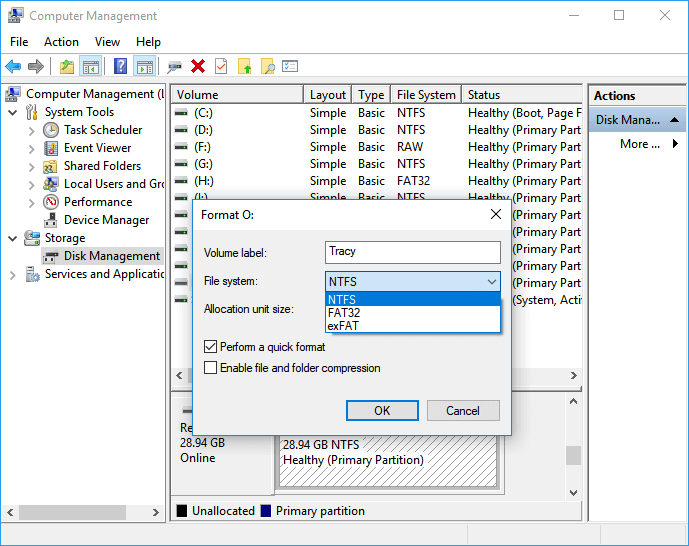
Step 2. Click "Disk Management", locate and right-click the RAW external hard drive partition, then choose "Format".
Step 3.Select NTFS as the file system for the partition and click "OK" to confirm.
#2. Assign a New Drive Letter to Make LaCie Showing UP
Step 1. To open Disk Management, press the "Windows" key and the "X" key at the same time, and then select Disk Management from the menu.
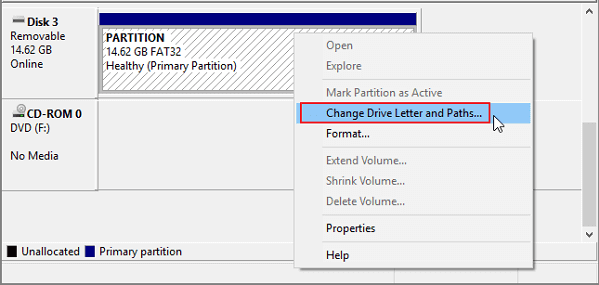
Step 2. To change the drive letter of an external hard drive partition, right-click the partition and select "Change Drive Letter and Path" from the context menu that appears. This will open the "Map Drive Letter" window, where you can select a new drive letter from the dropdown menu or manually enter one.
Step 3.To assign a drive letter to your LaCie external disk, click "Add" in the pop-up window.
#3. Create a New Volume on Unallocated LaCie External Hard Disk
Step 1. Open Disk Management and locate the unallocated space of LaCie external hard drive.
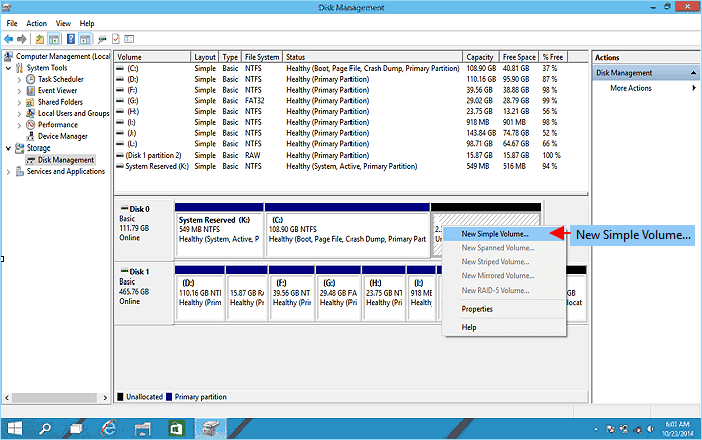
Step 2. Right-click on the unallocated space and select "New Simple Volume".
Step 3. Assign a new drive letter to the disk, set NTFS as its file system, and click "Next".
Step 4. To create a new partition on the LaCie external hard disk, follow the on-screen guidelines and click "Finish" once completed.
Bonus Case: LaCie device shows as No Media
If your LaCie external hard drive shows "No Media" in Disk Management, your options are limited. You can try going back to case 5 and updating the device driver, then attempt to change the drive letter in Disk Management and finally format it to NTFS.
If none of these tips work, your last tryout is to take the disk to a disk repair center for help. Your last resort is to take the disk to a disk repair center for help.
Case 5. LaCie External Hard Drive Not Working/Responding
If your LaCie external or internal hard drive is not working or responding, it's possible that the issue is caused by an outdated driver. To resolve this, you can try updating the driver to the latest version.
#1. Update LaCie External Hard Drive Driver
Step 1. Keep the LaCie external hard disk connected to your PC.
Step 2. Click on "Start" and type devmgmt.msc to open "Device Manager".
Step 2. To update the driver for your LaCie external hard drive, right-click on "Disk drives" in the Device Manager, then select "Update driver" from the context menu. This will initiate the driver update process, allowing you to access your external drive's full capabilities.
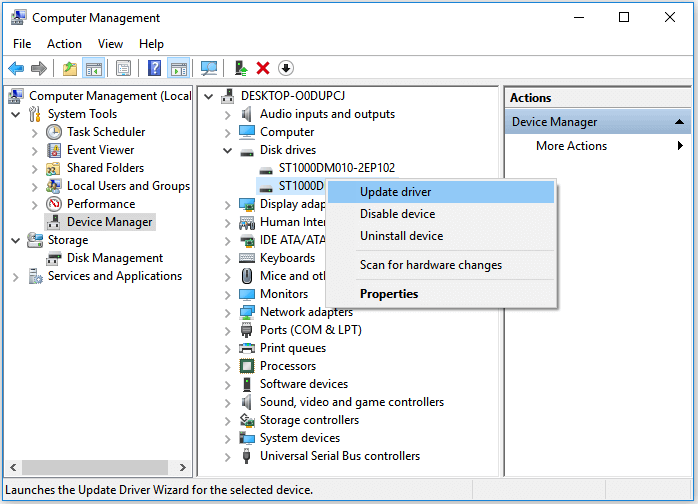
Restart the computer and then check out whether any device shows up as unrecognized or not.
#2. Uninstall Universal BUS Controllers' Drivers
Step 1. Connect LaCie external hard drive to PC and Open Device Manager.
Step 2. Expand Universal Serials Bus controllers and right-click each USB Hub, select "Uninstall device".
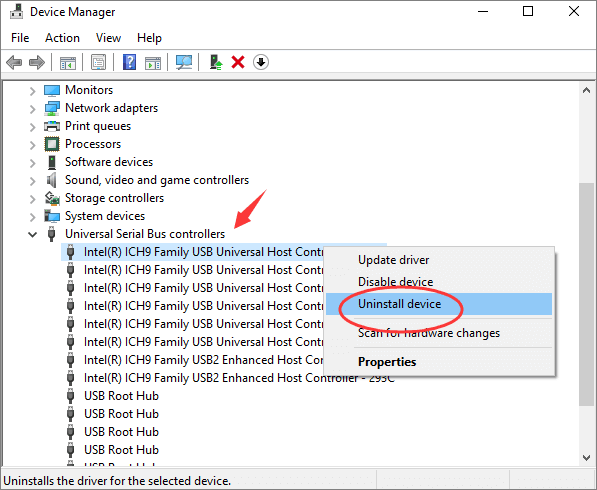
Step 3. After this, restart the PC, and Windows will automatically update and reinstall the missing drivers for you.
Then you can check out if your LaCie disk is detectable by the computer.
To Sum Up
This page addresses the common issue of a LaCie external hard drive not working. It lists possible causes and provides 7+ troubleshooting tips to help repair the drive, including resolving not working, not showing up, not responding, and not recognized issues, to get the drive back to a normal state.
Before attempting any method, remember to use Qiling data recovery software to scan and restore all your valuable files from the disk to a secure location first.
Related Articles
- QNAP Recovery: How to Recover Deleted Files from QNAP Drive for Free
- [Fixed] Drive Is Not Accessible, Access Is Denied in Windows 10/8/7
- Solutions: Cannot Open External Hard Drive and Files/Folders
- What Is RAID 5? RAID 5 Requirements, Benefits, and Calculator
- Excel Found A Problem with One Or More Formula References in This Worksheet [Solved]
You receive an error message in Excel saying it found a problem with one or more formula references in the worksheet while saving the workbook. To fix this issue, you can refer to the post for troubleshooting steps. - Should You Wait for a Response or Close When Excel Frozen but Not Crashed? 10 Tricks Here
If Excel freezes but doesn't crash in Windows 10, the correct reaction is to wait patiently for it to respond, rather than immediately restarting. This approach can help prevent data loss and allow you to recover unsaved work.
Products
Articles & Tutorials
- Data Recovery
- Data Backup
- File Recovery
- File Backup
- System Backup and Restore
- Disk and Partition Clone
- Technical articles
- Mobile articles
- Disk Master Help
- Windows Data Recovery Tutorials
- Windows Secure Delete Tutorials
- Windows Partition Management Tutorials
- Windows File Backup and Restore Tutorials
- Windows System Backup and Restore Tutorials
- Windows Disk Backup and Restore Tutorials
- Windows Clone Tutorials