Should You Wait for a Response or Close When Excel Frozen but Not Crashed? 10 Tricks Here
Examples of Excel behaviors that can cause freezing, hanging up, or non-responsiveness include: large datasets, complex formulas, pivot tables with many items, VLOOKUP functions, large charts, conditional formatting, and complex macros. These scenarios can cause Excel to freeze, hang up, or become non-responsive, requiring a restart or closing the frozen window to resolve the issue.
- When copying files
- When saving as a file
- When deleting rows or columns
- When undoing a change
- When filtering
- When an Excel file is loading
If you're experiencing an unstable Excel program in Windows 10, 8.1, 8, or 7, the reasons behind it can be numerous, but the troubleshooting steps are relatively straightforward. Unlike a complete Excel crash, this issue is often easier to resolve, and we'll walk you through the process to get your Excel program stable again.
- Tip
- If you're working on a large Excel file that's freezing, try waiting for a couple of minutes before proceeding. This is because processing a file with a wide range of formatting, formulas, links, and styles can take some time, and it's best to be patient and let Excel load the content fully before attempting to unfreeze it.
Follow the quick Navigation to all solutions to Excel frozen but not crashed according to two scenarios:
| Scenarios | Troubleshooting |
|---|---|
| #1. Excel Program is Freezing |
Trick 1. Start Excel in Safe Mode Full steps |
| #2. Excel Worksheet is Freezing | Trick 8. Run The Inspect Workbook tool Full steps Trick 9. Remove Conditional Formatting Rules Full steps Trick 10. Disable Calculating Option Full steps |
1. Start Excel in Safe Mode
Safe mode allows you to start Excel without running certain startup programs, which can be helpful if you're experiencing issues with Excel's startup.
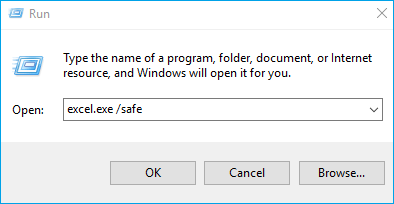
- To bring up the Run box, press and hold the Windows key and the R key simultaneously on your keyboard. This will open the Run dialog box, where you can type in a command or program name to execute it.
- Type excel.exe /safe in Run and press Enter
2. Update Excel (Basically the Entire Office Suite)
The issue that causes Excel to freeze may have been resolved in the latest update released by Microsoft, which could potentially resolve the problem.
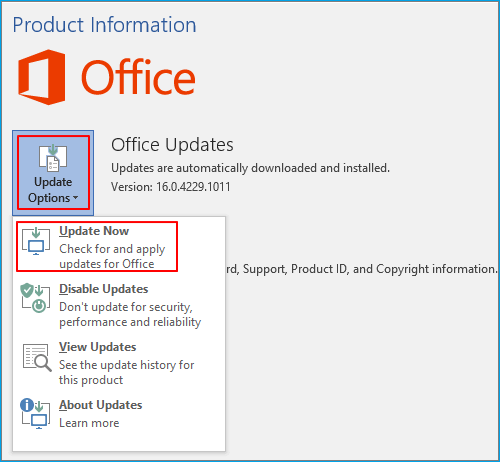
- Go to File and click on Account
- Click on the "Update Options" button and select "Update Now" from the dropdown menu under "Product Information" to initiate the update.
To update older Microsoft Office before Office 2010, you can follow these steps: Go to the Microsoft Office website and click on the "Download Office" button. Select the version of Office you are using and click on the "Download" button.
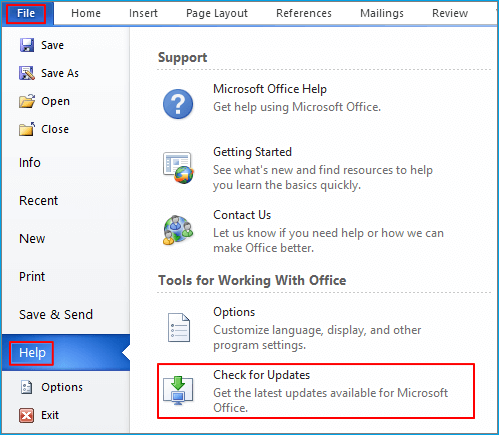
- Go to File and click on Help
- Click on Check for updates
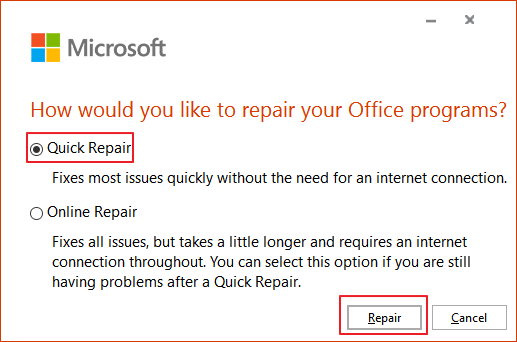
3. Repair Microsoft Office Installation
To fix the issue with the system and registry files associated with MS Office, you can try the following steps: First, uninstall and reinstall MS Office to ensure that all system and registry files are updated. If the issue persists, try running the System File Checker (SFC) tool to scan and replace any corrupted system files.
- Press the Windows key + R to open the Run dialog, type appwiz.cpl, and click OK to open the Programs and Features window in the Control Panel.
- Locate Microsoft Office among the available programs, right-click on it and choose Change to modify the program's settings.
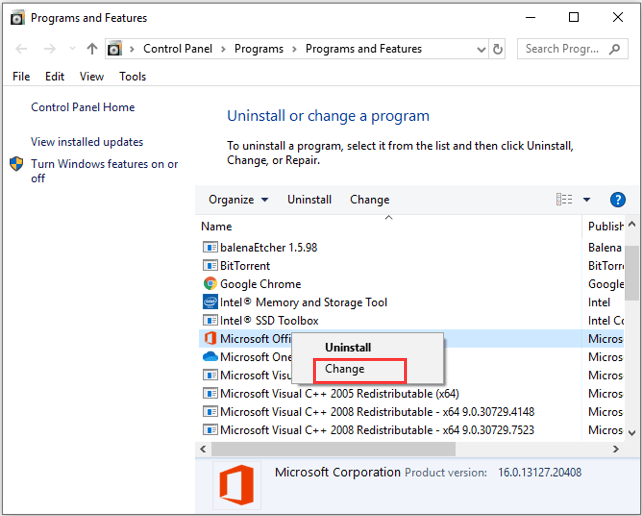
- Select Quick Repair and click the Repair button
4. Remove Broken Add-ins
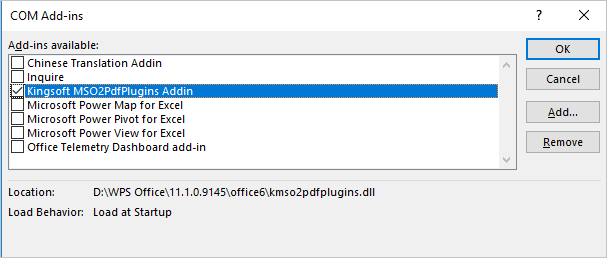
Improperly configured add-ins can occasionally interfere with Excel, causing it to hang up or freeze, which can be frustrating and impact productivity.
- Run Excel in Safe Mode at first
- click File > Options > Add-ins
- Select COM Add-ins, and click Go
- To clear all the check boxes in the list, click on the OK button.
- Close and restart Excel
5. Stop or Wait for Other Processes Using Excel
Many activities executed by Excel at one time can cause one workbook to freeze, especially when working with large workbooks.
If you're editing one workbook but the other one is being printed in the background, Excel may freeze. There is not much you can do in this case, but you just need to wait for the print job to finish.
- Stop unnecessary activity in one workbook that is currently open, or close it if it's not being used.
- Excel will resume working normally once the other workbook has completed its task.
6. Modify Advanced Settings in Excel
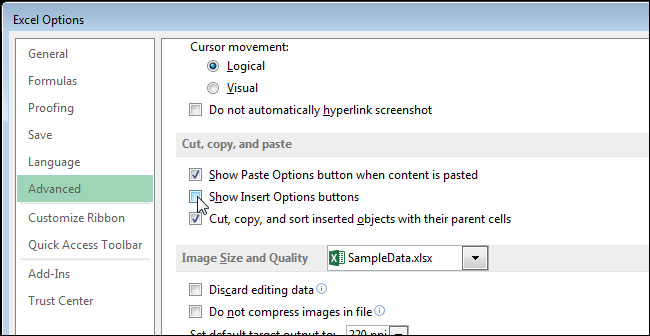
Enabling "Show Insert Options buttons" and "Show Paste Options button when content is pasted" in Excel can result in a noticeable delay in the application's performance.
- Open Microsoft Excel
- Click on File and then on Options
- Click on Advanced
- Uncheck the boxes next to "Show Insert Options buttons" and "Show Paste Options button when content is pasted".
- Click the OK button to save the changes.
7. Increase C Drive Space
If you installed Office on the system drive, running out of disk space can cause Excel to slow down and eventually crash due to insufficient disk space.
- Download and install Qiling Partition Master
- Follow the video guide to increase C drive space
8. Run The Inspect Workbook tool
To troubleshoot Excel issues, start by closing and reopening the program, as this often resolves minor problems. If Excel is frozen, try pressing Ctrl+Alt+Del to open the Task Manager, then click on the Excel process and select "End Task.
- Open the workbook
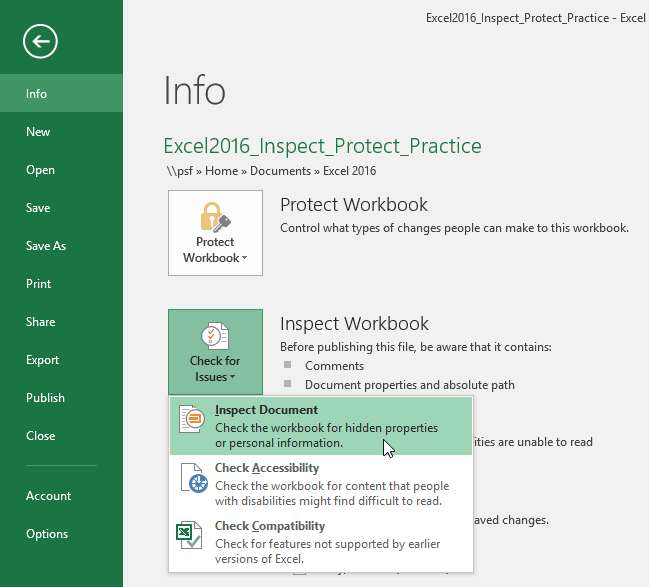
- Click on File and then on Info
- Click on the "Inspect Workbook" button, then click on "Inspect Document" to proceed.
- Select all the applicable conditions in the window and click on Inspect to examine the properties of the selected conditions.
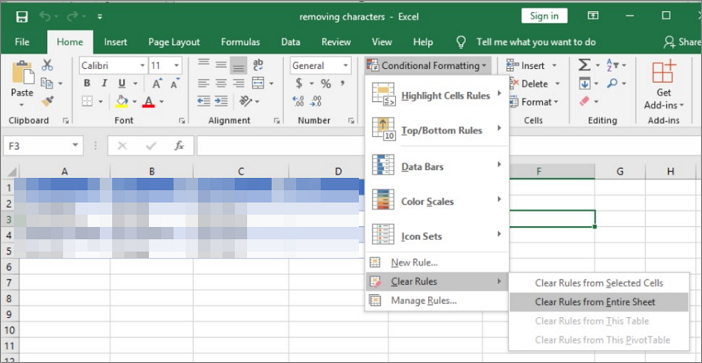
9. Remove Conditional Formatting Rules
Conditional formatting rules can indeed slow down Excel performance, making them a common culprit behind sluggish spreadsheet behavior. This is because Excel has to continuously evaluate each rule for every cell, which can become computationally intensive, especially in large datasets or complex rules.
- Open Excel
- To remove formatting from specific cells in a spreadsheet, select the cells you want to modify by clicking and dragging your mouse over them, or by typing the cell references in the formula bar. Once the cells are selected, go to the "Home" tab in the Excel ribbon and click on the "Clear" button.
- To apply conditional formatting, go to the "Home" tab and click on "Conditional formatting" under "Styles".
- To clear rules, click on the "Clear rules" option which is the right one for you. This will remove any existing rules and allow you to start fresh.
- Select Clear Rules from Entire Sheet
10. Disable the "When calculating this workbook" Option
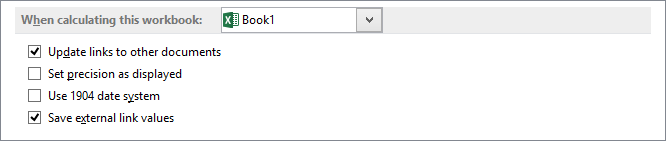
To avoid freezing the worksheet, you can try using formulas that don't reference the entire range of cells, or use functions like INDEX/MATCH or VLOOKUP that are more efficient than traditional lookup formulas. You can also use the "Calculate" button to update the worksheet instead of pressing F9, and consider using a separate worksheet for calculations to keep the main worksheet responsive.
- Open Excel, click on File and select Options
- Click on Advanced
- Uncheck the Update links to other documents option
- Click on OK
Suplementary - Are You Interested in Comprehensive Excel Recovery and Repair Utility?
After reviewing the 10 tricks for solving the Excel frozen but not crashed issue, you should be clear on how to react according to the two scenarios. As a complementary solution for freezing Excel that might cause data loss, we recommend introducing a reputable data recovery program, such as Deep Data Recovery, to recover lost and deleted Excel files.
Besides retrieving lost files of all types, it can also repair corrupted files that were unrecoverable after recovery.
For those interested in the program, a helpful video guide is available to learn how to recover deleted files of various types, including pictures, videos, Excel workbooks, Word documents, and emails.
Related Articles
- Corrupted HTML File Recovery Solutions (Online & Offline)
- How to Recover Files After Format
- How to Fix External Hard Drive Takes Long Time to Open and Read
- How to View/Delete Chrome History
- Canon Memory Card Error - How to Fix Memory Card Error on Canon Camera
It happens all the time that Canon camera memory card error or SD card error locked Canon camera. This article tells you how to fix Canon camera when it says memory card error and use a Canon camera memory SD card repair tool to recover photos, videos, and more files from Canon camera. - How to Fix Problem of 'Whea Uncorrectable Error' in Windows 8
An uncorrectable error in Windows 8 can cause your computer to malfunction, making it difficult to boot properly. it's a relatively common issue, and there are several methods to resolve the problem.
Products
Articles & Tutorials
- Data Recovery
- Data Backup
- File Recovery
- File Backup
- System Backup and Restore
- Disk and Partition Clone
- Technical articles
- Mobile articles
- Disk Master Help
- Windows Data Recovery Tutorials
- Windows Secure Delete Tutorials
- Windows Partition Management Tutorials
- Windows File Backup and Restore Tutorials
- Windows System Backup and Restore Tutorials
- Windows Disk Backup and Restore Tutorials
- Windows Clone Tutorials