How to Fix External Hard Drive Takes Long Time to Open and Read
If your external hard drive is taking a long time to open or load files on your computer, don't worry! This guide will help you fix the issue and make your drive fast again without losing any data. Let's get started!
To resolve the issue of an external hard drive being slow to open files, check out the exact fixes and follow these steps to speed up your external hard drive.
| Your Complete Guide | Workable Solutions |
|---|---|
| Guide 1. Restore External Disk Data | Before you start, run Qiling recovery software to scan and restore all data...Full steps |
| Guide 2. Fix External Drive Slow Error |
Fix 1. Check physical damage, send for repair...Full steps |
Why Is External Hard Drive Taking Long Time to Open/Read Files
Your external hard drive has been experiencing slow performance and taking a long time to load and open files, which is a common issue with older storage devices. This could be due to a variety of reasons such as wear and tear, file fragmentation, or even a failing drive. It is recommended to try running a disk check or a virus scan to see if that resolves the issue, but if the problem persists, it might be time to consider replacing the drive with a newer one.
To fix the issue and make your external hard drive fast again without losing your files, consider running a disk cleanup and disk defragmentation on the drive. You can also try formatting the drive, but be sure to back up your files first. Additionally, check for any physical damage to the drive and ensure it's properly connected to your computer.
When your external hard drive is slow, it's likely due to issues with loading, opening, and reading files, causing it to take a long time to access or get stuck in the loading process.
The issue can be caused by a variety of factors, including physical damage, connection problems, virus infections, and file system errors.
- Damaged disk: external hard drive is physically damaged.
- You're experiencing issues with a USB 3.0 external hard drive connected to a USB 2.0 port, likely due to a faulty connection cable. This is causing the drive to malfunction or not function properly.
- A virus has infected your drive, causing it to slow down significantly. The type of virus is unknown, but it's clear that it's affecting the performance of your disk.
- File system error or bad sectors on the disk.
- External hard drive is full, running out of space.
- Disk fragmentation: external hard drive contains many fragments.
To fix a slow external hard drive and make it fast again, follow the next two guides. Your external hard drive will be fast to open and load files again.
Guide 1: Recover All Files from Slow External Hard Drive First
To fix a slow external hard drive without losing data, first recover all files using a reliable hard drive recovery software like Deep Data Recovery, which scans and recovers data to a safe location.
Regardless of what caused your external hard drive to take so long to open and read files, Qiling file recovery software can still access everything on your drive as long as it's detectable on your computer.
Here are the steps to recover all files from your external hard drive:
Step 1. Select file types and click "Fast Scan" to start
- To recover lost data, download and install Qiling Data Recovery on your PC or laptop.
- Connect the external hard drive to your computer.
- Launch Deep Data Recovery software, select the desired file types, and click "Fast Scan" to initiate the recovery process.

Note: You can choose different search modes based on where and why the data was lost.
Step 2. Choose and scan the external hard drive
- To recover data from an external drive, select the drive from the list of external drives, and then click on "Scan for Lost Data".

Step 3. Check the scan results
- Qiling data recovery software will immediately scan the selected drive for all data, including deleted, corrupted, and existing data.
- You can use the Filter feature to quickly locate files of a specific type, such as Pictures, Word, Excel, PDF, videos, emails, and more.

Step 4. Preview and recover data
- Double-clicking a file from the scanned results to preview.
- Choose the files you want and click "Recover".
- Instead of saving the recovered files back to the original drive, save them to a different drive to avoid overwriting any existing data.
Guide 2: Fix External Hard Drive Slow, Taking Long Time to Open Files Error
If your external hard drive or USB flash drive is becoming slow to open and load files on your PC, try unplugging and re-plugging the drive into your computer to see if it resolves the issue.
If your drive is slow in opening files, you can try the following fixes to improve its performance. First, check if the drive is properly connected and if the file system is healthy.
Fix 1. Check for Physical Damage
If your external hard drive is taking a long time to open files, it's likely that the drive is damaged. You can check the drive's status by looking for a LED light or listening for a sound, which may indicate a problem. This could be due to a variety of reasons, such as physical damage, file system corruption, or a faulty connection.
Step 1. Check if the hard disk case is broken.
If your external hard drive is not being recognized by your computer, try unplugging it and plugging it back in. If that doesn't work, try changing the drive letter associated with the drive in your computer's settings. If the issue persists, it's possible that the drive's file system is corrupted and you may need to reformat it.
Step 2. Check if the LED light is blinking.
If the disk is not recognized by the computer, it's likely that the disk is not properly connected or the disk is damaged. If the disk is not recognized by the computer, you can try to check the disk's power cable and make sure it's properly connected.
Step 3. Check if the external hard disk chips are broken.
If yes, send your external hard drive for repair.
Step 4. Check if the disk is making big noises.
If yes, send the disk for repair.
You can either contact your external hard drive manufacturer or find a local disk repair center for help.
Fix 2. Check and Change USB Cables, USB Ports
A slow external hard drive may also be caused by a problematic USB connection. To resolve this issue, you can try checking and changing the USB cable or the USB port it's connected to.
Step 1. Check if the USB cable of your external hard drive is damaged or broken, as this could be the cause of the issue.
If you're getting a "no disk inserted" error, it's likely that your external hard drive is not properly connected to your computer. To resolve this issue, try unplugging the external hard drive from your computer, wait for a few seconds, and then plug it back in.
Step 2. Make sure you are connecting the external drive to a USB 3.0 port on your computer, as USB 3.0 ports are backwards compatible with USB 2.0 devices but offer significantly faster data transfer speeds.
If your computer is old and not compatible with USB 3.0, the best solution would be to replace it with a newer model that supports USB 3.0.
Step 3. Check if the front USB ports on your computer are damaged by plugging in a working USB device into each port and checking if it's recognized by the computer. If not, try cleaning the ports with compressed air or a soft brush, and if that doesn't work, consider replacing them.
If you have a rare USB port, plug in your external hard drive using the back (rare) USB port.
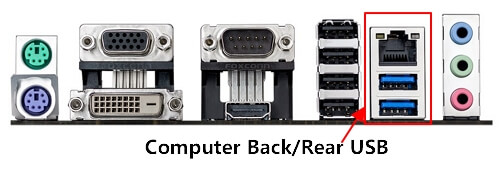
If none of the above steps work, try the following fixes to speed up the slow hard drive. Run a disk cleanup, disable any unnecessary startup programs, and consider upgrading to a solid-state drive (SSD) for improved performance.
Fix 3. Run Antivirus and Clear Virus
If your external hard drive takes a long time to open files, check if there is a virus on it.
To scan for viruses on your hard drive, you can use the built-in Windows Defender or reputable third-party antivirus software like McAfee, Symantec, Kaspersky, or Avast.
Step 1. Connect the external hard drive to your PC.
Step 2. Run the Antivirus software or program to scan your external drive.
Step 3. Clear the found virus or malware from your disk.
If you lost some important files that were removed by the antivirus software as suspicious, don't worry. You can rescue your data with the help of Qiling file recovery software - Data Recovery Wizard. Just wait for the process to complete.
Fix 4. Check and Repair File System Errors & Bad Sectors
When your external hard drive has file system errors or bad sectors, it may take a long time to open or not open at all, resulting in an error.
If your hard drive is slow to open files, you can troubleshoot the issue by checking and fixing file system errors and soft bad sectors. To do this, you can run a disk check or scan using built-in tools like the Command Prompt or Disk Management in Windows, or the Disk Utility app on a Mac.
#1. Check & Fix Corrupted File System Errors:
- Warning
- Running chkdsk may resolve the issue of slow file opening, but it can also lead to total data loss. Therefore, it's recommended to perform data recovery in advance, followed by the CMD method.
Step 1. Press the Windows + S keys, type cmd.
Step 2. Right-click "Command Prompt" and choose "Run as administrator".
Step 3. Connect your external hard drive to your PC and check its drive letter, which is the letter assigned to the drive, usually listed in File Explorer or Disk Management. This will help you identify the drive and ensure it's properly recognized by your computer.
Step 4. To run a check on your external hard drive, open the Command Prompt, type `chkdsk e: /f /r /x`, replacing `e:` with the drive letter of your external hard drive, and press Enter. This command will scan the drive for errors, fix any issues it finds, and attempt to recover any readable information from the drive. The `/f` option tells the command to fix any errors it finds, the `/r` option tells it to locate bad sectors and recover data from them, and the `/x` option forces the command to run even if the drive is in use.
#2. Check & Fix Bad Sectors
Check and Repair Bad Sectors on Your External Disk
First, check whether there are bad sectors on your devices and then, if any, fix them.
Fix 5. Free Up Disk Space
If your storage device is almost full, that may be the main reason why your external hard drive is slow to open files.
If that's the case, here is what you should do:
Step 1. Wait for your external hard drive to open.
Step 2. To optimize your digital storage and improve your productivity, it's essential to categorize your files into two main groups: important useful files and useless junk files. This simple yet effective approach will help you quickly identify what's worth keeping and what can be safely deleted or archived.
Step 3. Back up all the important files to another secure device.
You can manually copy or create a backup image for these files at one time with free backup software - Qiling Backup.
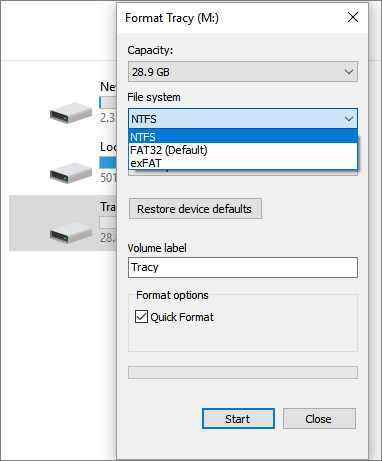
Step 4. Right-click the external drive in File Explorer, select "Format" to format it.
To set NTFS for your external hard drive, select it in Disk Management, right-click and choose "Format". In the Format window, select "NTFS" as the file system, and check the box next to "Quick Format".
To restore your data, first, ensure that your computer is turned off. Then, connect the external drive to your computer and turn it on.
Fix 6. Perform Disk Defragmentation
Defragmenting your disk helps optimize the disk by consolidating fragmented files on the hard drive, which can improve the performance of your external hard drive.
You can defragment your hard drive either with Windows' built-in tool or with third-party software that's more convenient.
To defragment a hard drive in Windows 10, follow these steps: first, click on the Start button and type "defragment" in the search bar, then select the "Defragment and Optimize Drives" app; next, click on the "Optimize" button next to the hard drive you want to defragment; finally, click on "Analyze" to see if the drive needs defragmentation, and if so, click on "Optimize" to start the process.
Step 1. To defragment your computer, press the Windows key + S, type "defragment" in the search box, and click on "Defragment and Optimize Drives".
Step 2. Select your external hard drive disk and click "Optimize".
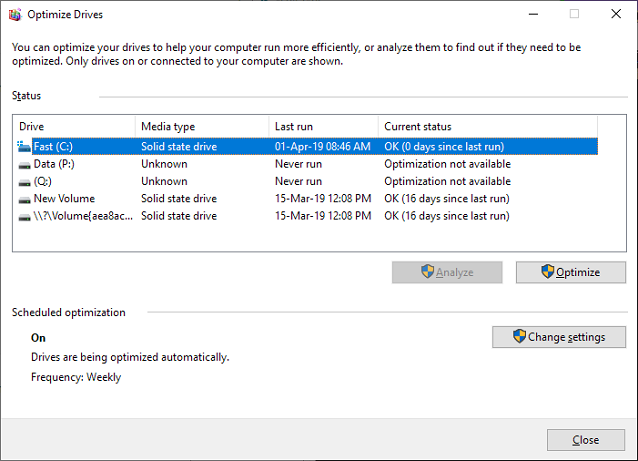
Wait for the process to finish, and it will automatically clear all existing fragments on your disk, allowing for smoother access to files on your disk.
After the process is complete, reboot your PC, reconnect your external drive, and you'll have a fast accessing speed to the drive.
External or Internal Hard Drive Slow is No Longer a Problem, Fix It Now.
Don't worry if your external or internal hard drive is running slowly on your computer. We've identified the possible causes and provided two comprehensive guides to help you resolve the issue and get your drive back to normal speed.
If you have saved important data on your slow external hard drive, prioritize recovering that data using Deep Data Recovery before taking any further action.
To speed up your external hard drive, take action now! This will make it fast in opening and loading files on your computer.
Related Articles
- [Self-Check-and-Repair]: How to Repair External Hard Disk Not Detected in Windows 10
- [SOLVED] The Boot Configuration Data for Your PC Is Missing
- Your PC Ran into a Problem and Needs to Restart in Windows 10/11
- Media Storage on Android: Can You Disable Data in Media Storage
- How to Recover CR2 Files from SD Card on Mac/Windows PC
This article tells you how to recover CR2 files from SD card on Mac or Windows PC, even to recover corrupted CR2 files. Follow the simple steps: scan, preview and restore deleted or lost CR2 files from memory card/formatted card. - How to Recover Deleted Cyberlink Youcam Videos
If you don't know how to recover deleted Cyberlink Youcam videos, then try the step-by-step guide for how to recover videos from Youcam on Mac or Windows with Youcam video recovery tool.
Products
Articles & Tutorials
- Data Recovery
- Data Backup
- File Recovery
- File Backup
- System Backup and Restore
- Disk and Partition Clone
- Technical articles
- Mobile articles
- Disk Master Help
- Windows Data Recovery Tutorials
- Windows Secure Delete Tutorials
- Windows Partition Management Tutorials
- Windows File Backup and Restore Tutorials
- Windows System Backup and Restore Tutorials
- Windows Disk Backup and Restore Tutorials
- Windows Clone Tutorials