How to Fix SD Card Not Detected in Android Phone or Windows
If your SD card is not detected in your Android device, there are several solutions you can try. First, ensure that the SD card is properly inserted into the mobile device. If the issue persists, try restarting your device or checking if the SD card is damaged.
If your micro SD card is not detected or readable on your phone, try cleaning the card and the phone's SD card slot with a soft cloth. Sometimes, dust or dirt can prevent the card from being recognized. If that doesn't work, try reinserting the card into a different phone or a computer to see if it's the phone's issue.
To make the memory card detected on your Android phone, you have two workarounds to try:
- Part 1. Make SD card detected on Android phone
- Part 2. Repair unreadable Android memory card on PC
Here are the specific methods to make the SD card detected and repair undetected SD cards on your Android phone and PC without losing any data: Check the SD card connection, format the SD card, scan the SD card with a card reader, use a data recovery software, and update the device drivers. These methods can help resolve the issue of an undetected SD card and recover any lost data.
| Solutions | Ways to Make SD Card Readable |
|---|---|
| Re-insert SD Card into Your Phone | If the memory SD card is not detected in Android mobile phones, first, try to reinsert the SD card...Full steps |
| Un-mount and Remount SD Card | Then, try to unmount and remount the SD Card to make it detected on your Android phone...Full steps |
| Change SD Card Reader and Connect to PC | If the SD card can't be detected on your PC, try to change the SD card reader and reconnect it to the PC...Full steps |
| Recover Data, Format SD Card to FAT32 | If the file system of the SD card is corrupted, it won't show up. Recover data from SD card and format...Full steps |
| More Effective Methods | To make the SD card be detected, update the card driver, run CHKDSK, show hidden files, and clear...Full steps |
Note that If your SD card is damaged, you'll need to send it for repair. The fixes on this page only work for physically healthy SD cards that are not being detected by your Android phone, regardless of the underlying causes.
If your SD card is not showing up, follow the methods in Part 1 to make it visible. If the issue persists, try the fixes in Part 2 to make the SD card readable and work normally again. By following these steps, you can make your Android SD card detected on your phone and PC without losing any data.
Part 1. Fix SD Card Not Detected on Android Phone
The error "Fix memory SD card not detected" in Android mobile phones can be resolved by extending storage space, which involves adding an SD card to the device. This allows the phone to use the SD card as an additional storage space, freeing up internal memory and resolving the issue.
If your SD card is not detected on your phone, try restarting your phone or checking the SD card slot for any blockages or dust. You can also try formatting the SD card in your phone's settings or using a card reader to transfer files. If none of these methods work, you may need to replace the SD card or seek further assistance from a professional.
Fix 1. Re-insert Memory SD Card into Your Phone
Step 1. Turn off your Android phone and unplug the SD card.
Step 2. If the SD card is not clean, clean dust from the SD card. If it's clean, check the card reader. If the card reader is not working, try using a different card reader or contact the manufacturer for further assistance.
Step 3. Put the SD card back to the SD card slot and re-insert it into your phone.
Step 4. Turn on your phone and check if your memory card is detected now.
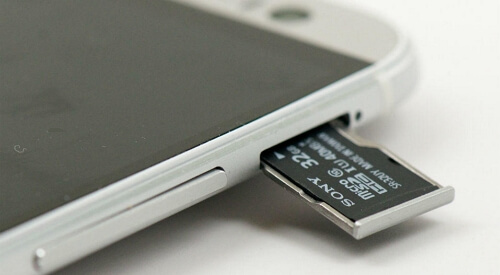
If the card is still not recognized, proceed to Method 2.
Fix 2. Un-mount and Remount SD Card on Android
Step 1. Tap "Settings" on your phone and select "Storage".
Step 2. Tap on "Storage" > "SD Card" > "Mount".
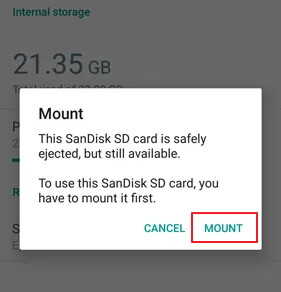
If you're experiencing issues with your phone's SD card, try restarting your phone and check if you can access the SD card normally. If it still doesn't work, you can try unmounting and remounting the SD card by following a specific procedure.
Step 1. Go to "Settings" on your Android phone.
Step 2. To unmount the SD card, select the "SD Card" option and then tap on "Unmount SD card". Confirm by clicking "OK".
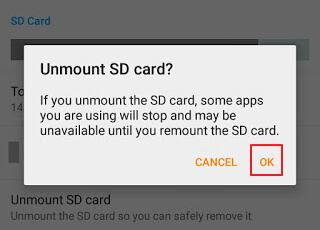
Step 3. Now re-mount the SD card, power off your phone, unplug and re-insert the memory card back into your phone.
Step 4. Reboot the phone.
The steps to resolve the issue of the mobile phone not being able to read the SD card are as follows: 1) Ensure that the SD card is properly inserted into the phone's SD card slot. 2) Restart the phone to refresh the system.
Android SD Card Mounted As Read-Only
If the SD card shows it's read-only after mounting, use this walkthrough to clear the Read-Only state.
If your SD card still isn't showing up on your phone, try removing it from your phone and connecting it to your computer. From there, you can attempt to troubleshoot the issue and make your SD card detectable again.
Part 2. Fix Android SD Card Not Detected, Not Showing Error on PC
Fixing an Android phone's SD card not being detected, not showing, or not reading on a PC without losing data is possible.
If the SD card is not recognized after trying the methods in Part 1, don't worry. You can try the fixes listed in this section to make the SD card work again.
- Fix 1. Change SD Card Reader and Connect to PC
- Fix 2. Recover SD Card Data and Format It to FAT32
- Fix 3. Update SD Card Driver
- Fix 4. Run CHKDSK to Fix Android SD Card Not Detected Error
- Fix 5. Show Hidden Files on SD Card and Clear Virus
To repair your SD card and make it detectable on your PC without losing any data, you can try the following steps: 1. Connect your SD card to your PC using a card reader or a USB adapter.
Fix 1. Change SD Card Reader and Connect Memory Card to PC
Step 1. Insert the memory SD card into an SD card reader and connect it to your PC.
Step 2. Check if the SD card shows up on your computer.
Step 3. If the SD card reader is not working, try using another SD card reader to read the SD card. If the issue persists, reconnect the SD card to your PC. If you're still having trouble, try formatting the SD card.
To identify the issue, try using the memory/SD card in another device, such as a computer or another phone. If it works fine in the other device, the problem is likely with your phone.
- If you can see all data on the SD card, it means the SD card is working properly. The issue is likely with your Android phone, and it's best to have it repaired.
- If your memory card is unreadable on your PC, don't worry! You can try the following fixes to repair your SD card without losing any data.
Fix 2. Recover SD Card Data and Format It to FAT32
If an SD card is correctly mounted but not showing on a phone, it's likely that the SD card has a file system that the phone doesn't support. Formatting the SD card to FAT32 can resolve this issue.
Before formatting your SD card to FAT32, you should first recover any important data from the card, as formatting will erase all files. To do this, you have two options.
Recover Data from Android SD Card
Deep Data Recovery will help you restore and extract all Android memory/SD card data in just three steps.
Follow the steps below to get all your personal files out of the SD card:
Step 1. Connect the SD card, memory card, or CF Card to your computer and launch Qiling memory card recovery software. Choose the file types you want to recover and click "USB/SD Scan" to start the recovery process.

Note: You can choose different search modes based on where and why the data was lost.
Step 2. To recover data from an SD card, first, insert the SD card into your computer or a card reader. Then, go to the Disk Drill software and select the SD card from the list of devices. Click "Scan" to start the scanning process, which will look for recoverable data on the SD card.

Step 3. The software will automatically start a scan, which is powerful enough to find all lost files, including those with unknown file names. After scanning, you can find deleted items from the tree-view panel on the left. If you're looking for a specific file type, such as photos, documents, videos, or emails, click "Filter" to narrow down your search.

Step 4. You can double-click the files to preview them. Then, choose the files you want and click "Recover" to restore them to a secure location.
Format Memory SD Card to FAT32
To format your SD card to FAT32 using the "Disk Management" utility, you can follow these steps:
Step 1. To access the SD card, insert it into your PC, then right-click on "This PC" and select "Manage" from the drop-down menu.
Step 2. Go to "Disk Management", right-click the memory card, and select "Format".
Step 3. Set the SD card file system to FAT32 and click "OK".
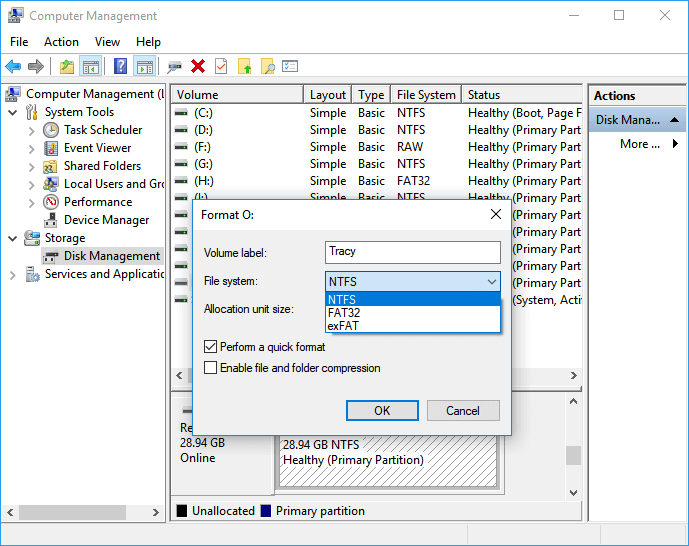
Step 4. Save the previously recovered data to the SD card, safely unplug it, and reinsert it into your Android phone.
Step 5. If the files and SD card don't show up after restarting your phone, try reverting to Fix 2 in Part 1 to mount the card.
Once you follow these steps, the memory card or SD card can now be read and detected by your Android phone, allowing you to continue using the previously restored data on your phone again.
Read Also: SD Card Not Showing Up in Windows 10/8/7.
Fix 3. Update Memory Card/SD Card Driver
If your memory card is not being detected on your mobile or PC, it may be due to an outdated SD card driver. To resolve this issue, you can update the SD card driver, which should make your memory card readable again. Follow the steps to update the driver and get your memory card working properly once more.
Step 1. Connect the memory card to your PC via an SD card reader.
Step 2. Right-click on "My Computer" or "This PC" and select "Manage".
Step 3. Click "Device Manager" and expand "Disk Drives".
Step 4. Right-click on your SD card and choose "Properties".
Step 5. To update the driver for your device, go to the "Driver" tab in the Device Manager, click on "Update Driver" and follow the on-screen instructions to complete the update.

Wait patiently for the latest driver to be installed and reboot your computer. Once the installation is complete, the driver should be updated and functioning properly.
Step 6. Unplug and insert the SD card into the phone, reboot to check if your mobile detects it.
Note: If the driver update process fails, you should reach out to the SD card manufacturer for assistance or manually download the driver from the official website of the manufacturer.
Fix 4. Run CHKDSK to Fix Android SD Card Not Detected Error
If your memory card or SD card has internal errors or bad sectors, it may become unreadable on your mobile phone or PC. However, you can try running the CHKDSK command to repair and fix this issue, potentially making the card readable again.
Note:Running chkdsk can potentially lead to data loss, so it's recommended to perform data recovery beforehand. Once that's done, you can proceed with the CMD method.
Follow these steps to make an SD card readable now with CHKDSK command:
Step 1. To open the Command Prompt, press the Windows key + R to bring up the "Run" dialog, type cmd, and press Enter.
Step 2. To run a disk check on your memory card, type the command `chkdsk D: /f` and press Enter, replacing "D" with the actual drive letter of your memory card. This will run a thorough check on the card and attempt to fix any errors it finds. The "/f" option is used to force the check and repair any errors, rather than just reporting them.
Or you can type chkdsk D:/f /offlinescanandfix and hit Enter.
Step 3. If the above command lines don't work, type `chkdsk D: /f /r /x` and hit Enter.
Step 4. After completing the steps, unplug the device and insert the SD card back into your phone, then reboot the mobile.
To resolve the memory SD card error and make the card detectable again, try the following: remove the SD card from your device, then insert it back in while the device is turned off. This simple process can often resolve the issue.
Fix 5. Show Hidden Files on SD Card and Clear Virus
Viruses or malware infections can sometimes cause files on an SD card to be hidden, making the card appear undetectable on a phone or PC, but this issue can be resolved.
To get hidden files back on your SD card and clear all viruses with ease, follow these steps: go to Settings, select "Storage & USB," and tap the three-dot menu icon on the top-right corner to select "Internal shared storage." Navigate to the "Android" folder, select "Media," then "DCIM," and look for the "Camera" folder.
Show Hidden Files on SD Card
Qiling CleanGenius is a user-friendly computer fixing tool - a safe and lightweight solution to repair damaged file systems. Unlike the CHKDSK command, this one-click tool is easy to use and provides a hassle-free experience. Say goodbye to complicated commands and hello to a seamless fix for your computer's file system issues. Just click, and let the tool do the rest!
Step 1. DOWNLOAD Qiling CleanGenius on your computer and complete the installation.
Step 2. Run the software. Click "Optimization", and then choose "File Showing".
Step 3. Select the drive with a corrupted file system. Tick the "Check and fix file system error" option and click "Execute".
Step 4. Wait the tool performs the repairing task. After that, click the "here" button to check the drive.
To ensure the security of your files, please save them to another secure device. This will protect your data from potential loss or theft.
Clear Virus from SD Card
Step 1. Connect the SD card to your PC.
Step 2. Download and run anti-virus software on your computer.
Step 3. Run a virus scan on your device to identify and remove any detected malware or viruses. This will help ensure your device is free from harmful software that could compromise your security and data.
Once the data recovery process is finished, you can safely insert the SD card back into your phone and use the recovered data as needed.
Share to Help:
To resolve the issue of an Android phone memory card not showing up, follow the troubleshooting steps: restart the phone, check the card's compatibility, ensure the card is properly inserted, and format the card if necessary. If the problem persists, try using a card reader or a different USB port. If the card still doesn't show up, it's likely faulty and should be replaced.
Why Is SD Card Not Detected, and How to Avoid This Error
Some users may experience an issue where their SD card becomes undetectable on their phone, leaving them wondering what causes this problem. Fortunately, there are some tips to help prevent this error from happening again. Understanding the reasons behind this issue can also help, so let's explore the possible causes and solutions together.
1. Causes of SD Card Not Detected Error:
- The memory SD card slot has a loose spring.
- The SD card is not mounted properly.
- The SD card file system is not supported by the phone.
- If your SD card has a file system error or contains bad sectors, it may not be recognized by your device. This can happen due to various reasons such as physical damage, water exposure, or software issues.
- SD card driver is outdated.
- SD card is damaged or corrupted.
- Virus or malware infection.
2. Tips to Keep SD Card Detectable on Your Phone:
- The SD card should be formatted with an Android-compatible file system, specifically FAT32, by default.
- Mount the SD card correctly on your Android phone.
- Run antivirus scans on your phone.
Conclusion
This tutorial provides 7 practical solutions in two parts to help you make your Android memory card detectable, and explains the causes behind the Android SD card not showing error.
To prevent data loss on your Android memory card while fixing this error, back up your data first using reliable data recovery software like Qiling. This will ensure that your files are safe even if the error persists.
If you're experiencing issues with your SD card on your phone, you can try the fixes provided on this page to resolve the problem and use your SD card normally again.
What is the main purpose of the FAQ section on this website? The main purpose of the FAQ section on this website is to provide answers to frequently asked questions about a particular topic or issue.
People Also Ask
1. How do I fix files not showing on my SD card?
Here are a couple of ways to help you view files, and at the same time fix the SD card not showing files issue with ease: You can try using a card reader to connect the SD card to your computer and view the files. If that doesn't work, try using a file explorer app on your device to view the files on the SD card.
- Check the lock switch
- Unhide files
- Scan and remove viruses
- Recover lost files or ones that aren't showing
- Repair corrupted SD card
- Format SD card
For a detailed step-by-step guide, you may refer to SD Card Files Not Showing on mobile phone, camera, or PC for help.
2. Why is my SD card not showing up on my computer?
Many factors may prevent your SD card from showing up on a computer, including issues such as a faulty SD card, incorrect card reader or port, corrupted file system, or compatibility problems with the operating system or device.
- Problematic connection
- SD card drive letter conflict
- The invalid or unsupported file system on the SD card
- SD card is configured to be hidden
- SD card driver is outdated
Here are some practical fixes that are included on this page in Part 2 for you to try:
- Update memory SD card driver
- Run CHKDSK command to repair SD card errors
- Fix SD card file system error using CMD alternative software
- Restore data and format SD card
With these fixes, you can resolve the SD card not detected or not displayed error on both Android phones and Windows computers, effectively resolving the issue.
3. What do I do if my laptop won't recognize my SD card?
When your laptop or computer doesn't recognize the SD card, try restarting your device, checking the SD card for physical damage, and ensuring it's properly inserted into the card reader. If the issue persists, try using a different SD card reader or checking for software updates to resolve the problem.
- Change the SD card reader and reconnect it to your PC.
- Change the SD card drive letter.
- Update the SD card driver.
- To fix SD card file system error, run the CMD CHKDSK command. This command checks the file system and fixes any errors it finds, including those on an SD card.
- To restore SD card data and format it to FAT32 or exFAT, first, ensure the SD card is safely removed from any device. Next, insert the SD card into a computer or a card reader connected to a computer.
Related Articles
- Solved: What to Do with A Dying Hard Drive
- 4 WD My Passport Repair Tools: Fix Cannot Access My Passport External Hard Drive
- How to Fix 'the device is not ready' on USB Flash Drive/HDD
- Free Download Lenovo Data Recovery Software [for Laptop & Mobile]
- How to Open ISO File in Windows 10/11 Without Burning
To open an ISO file on Windows 10 without burning or mounting it, you can use free software to view the contents. This method allows you to access the ISO file without having to burn it to a DVD. - How to Recover 0 Byte Word Document in Windows 10/8/7
If your Microsoft Word document shows zero bytes after saving. This issue can occur on Windows 10, 8, or 7. To recover a 0-byte Word document. you can try using Qiling data recovery software, which can help restore your lost file.
Products
Articles & Tutorials
- Data Recovery
- Data Backup
- File Recovery
- File Backup
- System Backup and Restore
- Disk and Partition Clone
- Technical articles
- Mobile articles
- Disk Master Help
- Windows Data Recovery Tutorials
- Windows Secure Delete Tutorials
- Windows Partition Management Tutorials
- Windows File Backup and Restore Tutorials
- Windows System Backup and Restore Tutorials
- Windows Disk Backup and Restore Tutorials
- Windows Clone Tutorials