Fixed: Seagate external hard drive not showing up in Windows 10/11
How to fix Seagate external hard drive not showing up in Windows 10/11
Your 320 GB Seagate external hard drive is detected but not showing up in My Computer. To fix the issue, you can try initializing the drive in Disk Management, which may make it visible in My Computer. However, initializing the drive will erase all existing data, so make sure to back up your files before proceeding. Alternatively, you can try checking for disk errors, updating drivers, or using a third-party tool to recover the drive. If none of these solutions work, it's possible that the drive is faulty and may need to be replaced.
If your Seagate external hard drive isn't being recognized by your PC, you're not alone. This issue can cause your disk and files to become inaccessible. Fortunately, there's a solution that allows you to fix the problem without losing any data.
1. Update Seagate Disk Driver
To troubleshoot the issue of a Seagate external hard drive not showing up in Windows, first check if it appears in Disk Management. If it does, proceed with the next steps. If not, update the disk driver to ensure the drive is recognized by Windows and visible in Disk Management.
Step 1. In Run (Windows + R), type devmgmt.msc and hit Enter.
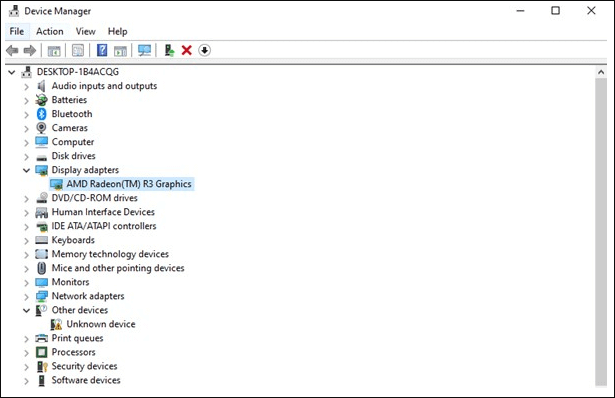
Step 2. To update the Universal Serial Bus controller driver in Device Manager, click the "+" next to Universal Serial Bus controller, look for the yellow exclamation mark, right-click on it, and select "update driver software".
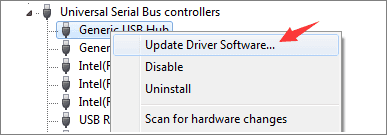
Step 3. Click "automatically search for driver software online..."
Step 4. After the process completes, restart your computer and the driver should be automatically installed and loaded on your computer.
Step 5. If the Seagate external hard drive shows up in Windows Disk Management, it means it's recognized by Windows and is ready to be used. You can then format the drive to make it ready for use. To do this, right-click on the Seagate drive in Disk Management, select "Format" and follow the prompts to complete the formatting process.
Sometimes, even if the hard drive shows up in Disk Management, it may be listed with unusual characters such as "Unallocated", "RAW", "unknown disk not initialized", etc. Although it's detected, it's inaccessible, necessitating immediate data recovery from the hard drive.
You May Also Interest In:
If you're experiencing issues with your hard drive, try the following fixes.
How to Fix Hard Drive Not Showing Up in Windows
If your hard drives, whether new or old, internal or external, are not appearing in File Explorer or Disk Management, follow these steps to troubleshoot and make them visible again in Windows 11/10/8/7 without losing data. Check the power cord and cable connections for both the hard drive and the computer, and ensure they are securely plugged in. Restart your computer and try again.
2. Recover Data from the Seagate External Hard Drive
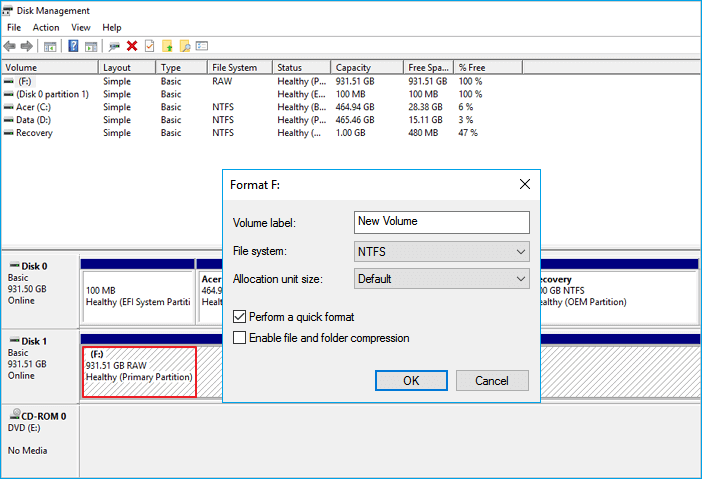
If your Seagate hard drive shows as RAW or unallocated, you need to format it, but first, recover your data to a safe place using a disk data recovery tool like Qiling, which can recover data from an external hard drive even if it's not opening on your computer.
Download the Qiling data recovery tool now and follow the guide below to protect your data.
Step 1. Connect your external hard drive to your computer using a correct USB cable and run Deep Data Recovery. Choose the desired file types and click "Fast Scan" to initiate the recovery process.

Note: You can choose different search modes based on where and why the data was lost.
Step 2.You will see your external disk listed under External drives in the next window. This software supports various popular external disk brands, including WD, Seagate, Toshiba, LaCie, SanDisk, Samsung, and more.
Select the external hard drive and then click the "Scan" button.

Step 3. As soon as the scan process begins, the software will continuously locate and display lost and deleted data in the scan results, organizing the recovered data in a clear and easily accessible manner. This allows users to quickly find specific files or folders by type or search for them using the exact file name in the search box.

Step 4. After scanning, you can preview the files found by Deep Data Recovery's algorithms. Select the desired files and click "Recover" to save them to a different drive than the original Seagate drive to avoid data overwriting.
3. Reformat and Partition Seagate External Hard Drive
After Seagate external hard drive recovery, you can then reformat and partition the disk to initialize the disk and make it show up in your computer. To do this, connect the external hard drive to your computer, open Disk Management, right-click on the Seagate external hard drive and select "Format" to initialize the disk. Then, right-click on the disk and select "New Simple Volume" to partition the disk and make it show up in your computer.
Step 1. To format a disk partition, go to This PC > Manage > Disk Management, right-click the partition you want to format, and select the Format option.
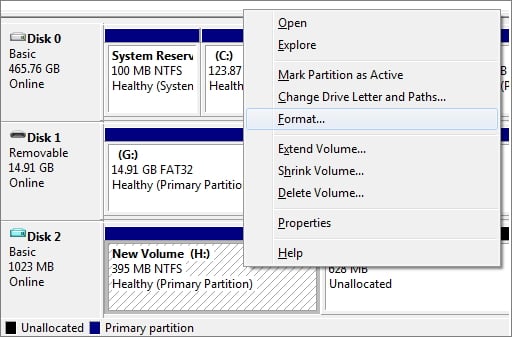
Step 2. In the pop-up window, you can set the file system and cluster size, then click OK.
Mac users who are experiencing issues with their flash drive not being recognized or showing up on their computer can try a few troubleshooting steps to resolve the issue. First, they should check the flash drive's compatibility with their Mac by ensuring it is formatted in a compatible file system, such as FAT32 or APFS. Next, they should try using a different USB port on their Mac to rule out any issues with the port.
The Bottom Line
If your Seagate external hard drive is not showing up, don't worry! Try restarting your computer, checking the USB port, and ensuring the drive is properly connected. If that doesn't work, try using a different USB port or cable, and if it's still not recognized, try formatting the drive in a different computer or using a different operating system.
Related Articles
- Solutions: Cannot Open External Hard Drive and Files/Folders
- Fix Unknown USB Device - Device Descriptor Request Failed
- Fix the Error that Memory Card Not Show Up or Detected in Mobile/PC
- Kingston Flash Drive Recovery
- 4 Ways for How to Stop Windows 10 Update 2021
While updates are generally beneficial, they can sometimes cause problems. If you're experiencing issues with Windows 10 updates, you may want to consider stopping them permanently. This article provides guidance on how to do so. - Top 5 Best Windows 7 Disk Image Backup Software for 2021
If you're looking to back up your Windows 7 disk image, consider the top 5 software options for 2021. These programs allow you to create a complete and bootable backup of your system, including all installed applications, settings, and data.
Products
Articles & Tutorials
- Data Recovery
- Data Backup
- File Recovery
- File Backup
- System Backup and Restore
- Disk and Partition Clone
- Technical articles
- Mobile articles
- Disk Master Help
- Windows Data Recovery Tutorials
- Windows Secure Delete Tutorials
- Windows Partition Management Tutorials
- Windows File Backup and Restore Tutorials
- Windows System Backup and Restore Tutorials
- Windows Disk Backup and Restore Tutorials
- Windows Clone Tutorials