Kingston Flash Drive Recovery
Kingston USB flash drives offer a secure digital environment, large storage capacity, and fast performance, making them portable and convenient. Unfortunately, MediaRECOVER, a previously reliable data recovery tool, is no longer compatible with Windows 8 and Windows 10 operating systems.
Follow the content navigation bar to find the best Kingston flash drive recovery tool and recover all your lost files from Kingston or other storage devices quickly.
- Notice:
- Don't use a Kingston flash drive to save new files after data loss occurs, as this can lead to permanent file loss by occupying the empty space.
Kingston Flash Drive Recovery Tool Free Download
If you accidentally delete data, you can try using data recovery software to scan your device and retrieve the deleted files. Some operating systems, like Windows, also have built-in features for recovering deleted files.
If you've deleted files on your computer, start by checking the Recycle Bin. If you can't find the files there, consider using reliable hard drive data recovery software to help recover them.
Deep Data Recovery is a great choice for recovering data from a corrupted, formatted, or inaccessible USB flash drive. Unlike MediaRECOVER, Qiling data recovery tool works better to recover USB files cross platforms.
- Support Windows XP, Vista to the latest Windows 10
- Support data recovery on both Windows and Mac platforms.
- Recover files from various data loss scenarios, such as accidental deletion, formatting, partition loss, OS crashes, and virus attacks, among others.
To recover your lost files, download Qiling data recovery software, connect your Kingston USB drive to your PC, and follow the software's tutorial to retrieve all your files.
How to Recover Lost Data from Kingston USB Drive - Guide
When the software is ready, launch it and follow the guide to recover photos, videos, documents, and other files from the storage drive.
Step 1. Select file types and click "USB/SD Scan" to start
Launch Deep Data Recovery software, select the desired file types, and click "USB/SD Scan" to initiate the recovery process.

Note: You can choose different search modes based on where and why the data was lost.
Step 1. Choose the USB drive to scan
Launch Deep Data Recovery and select the USB drive where you lost your important files. Click "Scan" to initiate the scanning process.

Step 2. Check and preview USB drive data
When scanning is complete, you can quickly find a specific type of file using the Filter feature and the Search option.

Step 3. Restore flash drive data
After locating the lost USB drive files, click "Recover" to restore them, and save the recovered files to a safe location on your PC, not the USB drive itself.
Recover Kingston Flash Drive with MediaRECOVER
* Only for Win 7 and earlier users
Kingston, a leading independent manufacturer of memory products, is a trusted brand globally. Its popular USB flash drives are particularly favored by young students and office workers. While all storage devices have a limited lifespan, manufacturers like Kingston suggest taking steps to prolong their life, such as avoiding abrupt removal from a connected computer.
Many USB flash drive users lose data due to improper removal, often plugging in and out without safe ejection, resulting in the drive not responding or Windows prompting to format it.
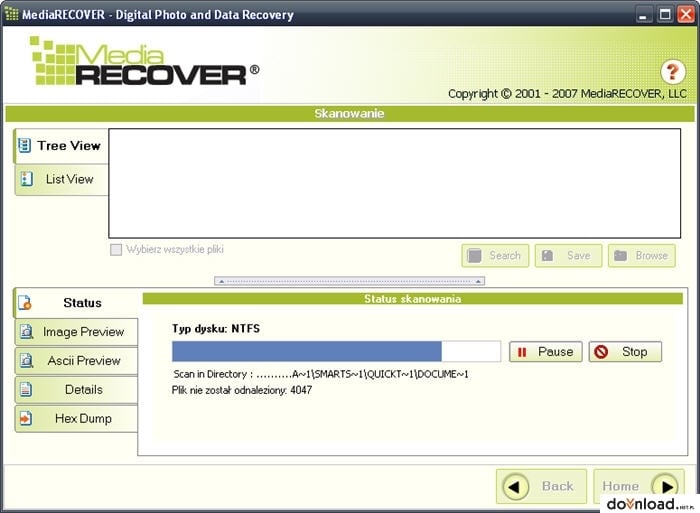
For Kingston users, MediaRECOVER is a digital image and file recovery utility designed specifically for you. It can recover 250 file types and serves as a reliable flash drive recovery tool. However, it has been out of optimization for a long time and is compatible with Windows operating systems including Windows 7, Windows Vista, and Windows XP (SP1, SP2, SP3).
Step 1. Downloading and Installing MediaRECOVER.
Step 2. Download the program and install the software on your computer.
Step 3. Plugin the Kingston memory or storage device that contains the files you want to recover to your computer.
Step 4.You can select either the Basic Scan or Advanced Scan from the main menu to proceed.
Step 5. Choose the files you want and click "Save" to recover files to another drive on the computer.
Related Articles
- SD Card Won't Read or Open on My Computer
- Fix Hard Drive Not Detected/Recognized in BIOS Without Losing Data
- USB Unreadable: Recover Files from Unreadable USB Flash Drive
- Recover Data from Dead, Failed or Crashed SSD in Windows 11/10
- Microsoft Excel Cannot Paste the Data? [Fixed]
If you're experiencing the 'Microsoft Excel Cannot Paste the Data Error' issue. To resolve this problem. you can try running the Qiling repair tool for file repair to repair corrupted Excel files and get Excel working again. - 6 Fixes for Excel File Keeps Closing Automatically | Excel File Recovery Tips
If your Microsoft Excel file keeps closing automatically while editing, it is probably because Excel has a crash problem. Here, you can get 5 fixes to get rid of the issue.
Products
Articles & Tutorials
- Data Recovery
- Data Backup
- File Recovery
- File Backup
- System Backup and Restore
- Disk and Partition Clone
- Technical articles
- Mobile articles
- Disk Master Help
- Windows Data Recovery Tutorials
- Windows Secure Delete Tutorials
- Windows Partition Management Tutorials
- Windows File Backup and Restore Tutorials
- Windows System Backup and Restore Tutorials
- Windows Disk Backup and Restore Tutorials
- Windows Clone Tutorials