6 Fixes for Excel File Keeps Closing Automatically | Excel File Recovery Tips
Q: The Excel spreadsheet keeps closing itself while I'm working in it and also when it is open while working in another window. When I re-open it, a message says an error is causing the problem. I click on the Repair Now button this activity does not keep the spreadsheet from auto-closing every few minutes. Why does my Excel file keep closing itself? I have lost several worksheets due to the unexpected auto shutdown.
The conflict when opening Excel on a Windows PC may arise from within the program itself or with a third-party item associated with it. If the issue also occurs with other Microsoft Office applications like Word and PowerPoint, it's likely related to Microsoft Office installation and Windows operating system issues.
How Does An Excel File Get Corrupted?
An Excel file can become corrupted due to various reasons such as sudden power outages, software or hardware malfunctions, and viruses. If you're unable to open a corrupted Excel file, you can try using the built-in Repair feature in Excel or use third-party recovery software like Deep Data Recovery. You can also try opening the file in a different version of Excel or using a cloud-based Excel service like Google Sheets or Microsoft 365. If none of these methods work, you may need to contact the file's creator or seek professional help to recover the file.

If your Microsoft Excel file keeps closing automatically, it's likely due to a crash problem. To resolve this issue, try the following fixes: 1) Close Excel, then restart it and reopen your file; 2) Save your file as a different format, such as CSV or PDF; 3) Use the 'Save As' feature to save a copy of your file; 4) Avoid using the 'copy and paste' function, which can cause Excel to crash; 5) Start typing directly into the file instead of using the 'copy and paste' function. By trying these fixes, you should be able to resolve the issue and keep your Excel file open.
| Workable Solutions | Step-by-step Troubleshooting |
|---|---|
| Fix 1. Check Compatibility Issue |
Run Excel in Windows Compatibility Mode...Full steps |
| Fix 2. Repair MS Office | Open Programs and Features in Control Panel...Full steps |
| Fix 3. Repair Corrupted Excel Files | Free download a professional file repair tool...Full steps |
| Fix 4. Disable DOM Add-ins | In Excel, go to File > Options > Add-ins...Full steps |
| Fix 5. Disable Conditional Formatting | Under Home, click Conditional Formatting...Full steps |
| Fix 6. Launch Excel in Safe Mode | Press Windows + R keys to bring up Run...Full steps |
Fix 1. Check Compatibility Issue of MS Office and Windows 10
To troubleshoot the crashing issue, consider two key factors: the version of Excel installed on your PC and any recent Windows 10 updates. If you've updated Windows 10 recently, check if the date of the update coincides with the day the Excel file starts closing automatically. If you're using an older version of Excel (pre-2013), it may not be compatible with Windows 10, and upgrading to a newer version is recommended to resolve the stability issue.
To resolve the incompatibility issue between Excel and Windows 10, you can try running the current Excel in Windows Compatibility Mode, as suggested by Microsoft Support. Alternatively, using the newer version of Excel is also a viable solution.
Make older apps or programs compatible with Windows 10
Fix 2. Repair MS Office
If your Excel is experiencing issues like crashing, freezing, or closing automatically, be cautious when creating a new file as it may lose content. Check if the same problem occurs in Word or other Office Suite like PowerPoint. If yes, it's likely a Microsoft Office issue that requires repair.
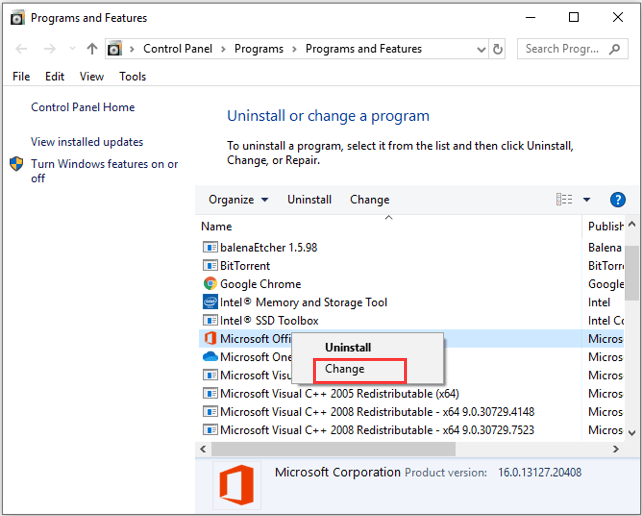
- To open the Programs and Features window in the Control Panel, you can directly access it by typing 'programs and features' in the search bar of the Start menu or by navigating to the Control Panel, clicking on 'System and Security', and then selecting 'Programs and Features'. Alternatively, you can type 'appwiz.
Press Windows +R keys and type appwiz.cpl and click OK
- To modify the location of Microsoft Office, right-click on it in the list and select the "Change" option.
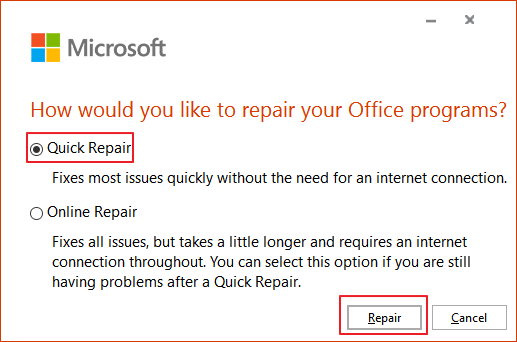
- Select Quick Repair and click the Repair button
Fix 3. Repair Corrupted Excel Files
When opening a corrupted Excel workbook, the Excel application may keep closing. To resolve this issue, try using a reliable file repair tool like Qiling file repair software, which can fix damaged Word, Excel, and PPT files from Microsoft Office 2019, 2016, 2013, 2010, and previous versions.
Qiling file repair software can repair multiple Office files at once, and also fix corrupted PDF files, restoring text, hyperlinks, and other elements. It's available for free download.
Step 1. Launch Deep Data Recovery, select the desired file types, and click "Fast Scan" to initiate the recovery process.

Note: You can choose different search modes based on where and why the data was lost.
Step 2. This software allows you to fix damaged Word, Excel, PPT, and PDF files by scanning the disk with corrupted documents and enabling you to repair them in the same steps.

Step 3. Qiling data recovery and repair tool will scan for all lost and corrupted files, allowing you to find target files by file type or search for them by typing the file name in a search box.

Step 4. Deep Data Recovery can automatically repair damaged documents, allowing you to recover and save repaired Word, Excel, and PDF files to a safe location after previewing them.
Fix 4. Disable COM Add-ins
Disabling add-ins in Excel is recommended when working with large files to prevent memory consumption and potential crashes. This helps maintain a stable and efficient editing experience.
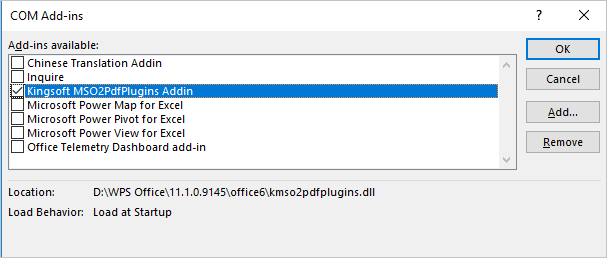
- In Excel, go to File> Options> Add-ins
- Choose COM Add-ins from the drop-down and click Go
- Uncheck all the checkboxes and click OK
Fix 5. Disable Conditional Formatting Rules
The issue of Excel files closing automatically is likely related to the use of Conditional Formatting Rules in a specific spreadsheet. This feature, which highlights or differentiates information storage, might be causing the problem. To troubleshoot, try disabling the Conditional Formatting Rules to see if the Excel file functions normally again.
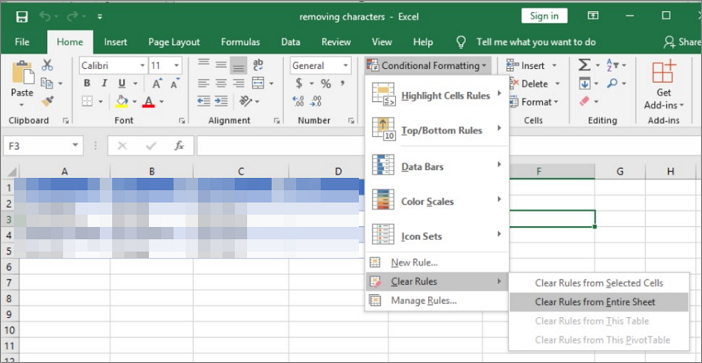
- Under Home, click Conditional Formatting
- Choose Clear Rules
- Select Clear Rules from Entire Sheet
- Close and restart the Excel file again
Fix 6. Launch Excel in Safe Mode
If the previous solutions don't work, try launching Excel in Safe Mode, which may indicate that a startup process is interfering with its performance.
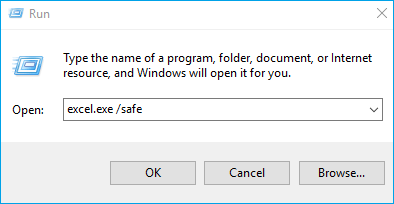
- Press Windows + R keys to bring up Run
- Type excel.exe /safe and hit Enter
How to Recover Unsaved Excel Files After Automatically Closing
Microsoft Excel files closing automatically can result in data loss, but Microsoft Office's autosave feature can recover unsaved files from a recoverable folder, assuming it was enabled by default.
To recover unsaved Excel files from AutoRecover:
- Open a new Excel file in Windows
- Click File > Open > Recent Workbooks
- Then check the recently used Excel document and find the unsaved file due to a sudden Excel close
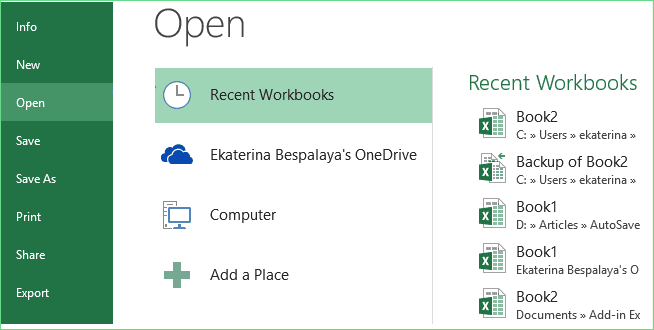
- To recover an unsaved Excel file, click on "Recover Unsaved Workbooks" and wait for the program to retrieve your closed file.

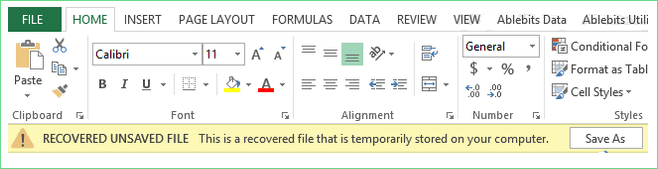
- When you see the pop-up window indicating that a recovered file is temporarily stored on your computer, click "Save As" to save the Excel file as a new file to a safe location on your PC. This will prevent the file from being overwritten and allow you to access it again.
Related Articles
- How to Recover Deleted Files/Photos on Phone from Hide it Pro
- Undo DiskPart Clean: Recover Data/Partition after DiskPart Clean
- Full Guide on SATA Hard Drives
- How to Initialize Disk without Losing Data In 3 Procedures Step by Step
- How to Extend Hard Drive Partition in Windows 8/7/10
Extending a hard drive partition involves changing the size of the partition. If you want to maintain the optimal performance of your Windows PC, it is recommended that you extend hard drive partition Windows 8.1, Windows 10, and more. - [Solved] Files Missing from My Documents Folder in Windows
Are you experiencing the frustration of missing files in your 'My Documents' folder in Windows 10, 8, 7, or XP? This article will guide you through the troubleshooting process to help you recover your missing files.
Products
Articles & Tutorials
- Data Recovery
- Data Backup
- File Recovery
- File Backup
- System Backup and Restore
- Disk and Partition Clone
- Technical articles
- Mobile articles
- Disk Master Help
- Windows Data Recovery Tutorials
- Windows Secure Delete Tutorials
- Windows Partition Management Tutorials
- Windows File Backup and Restore Tutorials
- Windows System Backup and Restore Tutorials
- Windows Disk Backup and Restore Tutorials
- Windows Clone Tutorials