SD Card Won't Read or Open on My Computer
Having trouble with your SD card not reading or opening on your Windows PC? If your SD card is not being recognized or is causing issues, try the following solutions to rescue your precious data.
| Workable Solutions | Step-by-step Troubleshooting |
|---|---|
| Recover Data | Connect SD card to PC > Run Qiling file recovery software > Scan and recover data...Full steps |
| Case 1. Fix RAW SD | Run CHKDSK in Command Prompt to fix SD card errors. Fix 2. Format SD card to FAT32...Full steps |
| Case 2. SD Shows Now Media | Open Device Manager > Disk drivers > Right-click SD card and select "Update driver"...Full steps |
| Case 3. SD Shows Unallocated | Open Disk Management > Right-click unallocated SD > "New Simple Volume"...Full steps |
| Case 4. SD Won't Read | 1. Update SD card driver; 2. The solution to the problem of a non-functional SD card reader is to either replace the SD card adapter or the USB port, or to send the device for repair....Full steps |
What to Do When SD Card Won't Open or Open on Computer
The user's SD card was working fine on their computer, but suddenly it stopped being recognized. They tried various troubleshooting steps, including restarting their computer, checking the card for physical damage, and updating their operating system. However, the issue persisted.
"The computer won't recognize your Toshiba SD card. Have you tried checking the SD card slot on your laptop, making sure it's clean and free of any debris? Also, try removing the SD card from your laptop and then reinserting it to see if that resolves the issue. If not, you might want to try using a different USB port or checking the SD card itself for any physical damage."
If you're experiencing issues with an unreadable SD card and are worried about losing your data, don't worry - we have tried-and-true solutions that can help fix the problem without any data loss.
Part 1: Recover Data When the Computer Cannot Read or Open SD Card
Before attempting to fix the "SD card not opening" issue, it's essential to recover any data on the card first to avoid further loss. You can use Qiling Disk Data Recovery Software to help you recover your data.
If your SD card can't be read on your computer, right-click "This PC" and select "Manage" to see if the memory card is listed in Disk Management. If it is, you can use Deep Data Recovery to retrieve your valuable data by following a few simple steps. Additionally, this software can also repair corrupted files on your SD card, including photos, videos, and documents.
After recovering data from your corrupted Micro SD card, you can proceed to Part 2 to learn how to repair a Micro SD card that is no longer readable.
Step 1. Connect the SD card, memory card, or CF Card to your computer and launch the Qiling memory card recovery software. Select the desired file types and click "USB/SD Scan" to initiate the recovery process.

Note: You can choose different search modes based on where and why the data was lost.
Step 2. To recover lost data from an SD card, first, ensure the SD card is properly connected to your computer. It will be listed under the Devices section. Select the SD card and click "Scan" to initiate the search for lost data.

Step 3. The software will automatically start a powerful scan that can find all lost files, including those with lost file names. After the scan, you can find deleted items from the tree-view panel on the left. To narrow down the search, you can click "Filter" to look for specific file types, such as photos, documents, videos, or emails.

Step 4. You can directly double-click the files to preview the content. Then, choose the wanted files and click "Recover" to restore them to a secure location on your PC or other external storage devices.
Part 2. Fix SD Card Won't Read or Open on My Computer
After retrieving your data, you can resolve the "SD card can't be read or opened on the computer" issue by following a series of steps.
1. Not Opening SD Card Becomes RAW
Your SD card can be recognized under Disk Management, but it becomes inaccessible, turning RAW. To fix this issue, you have two options: either use the CHKDSK tool or format the SD card.
Run CHKDSK to Fix SD Card Not Reading (Fix the File System Error)
If the SD card is detected but can't be opened, run CHKDSK to scan for errors. However, be aware that CHKDSK will permanently delete all saved data, so make sure to recover all files first using reliable file recovery software.
Step 1. Connect the SD card to your computer using an SD card reader, which is a small device that allows you to transfer data from the SD card to your computer. This will allow you to access and view the contents of the SD card on your computer.
Step 2. To begin, open the Command Prompt by typing "cmd" in the search bar and right-clicking on the resulting Command Prompt icon. From the context menu, select "Run as administrator". This will open the Command Prompt with elevated privileges, allowing you to execute commands that require administrative access.
Step 3. To check the SD card for errors, open Command Prompt as an administrator, type `chkdsk h: /f`, and press Enter. Replace "h" with the actual drive letter of your SD card. This command will scan the SD card for any errors or inconsistencies and attempt to correct them if possible.
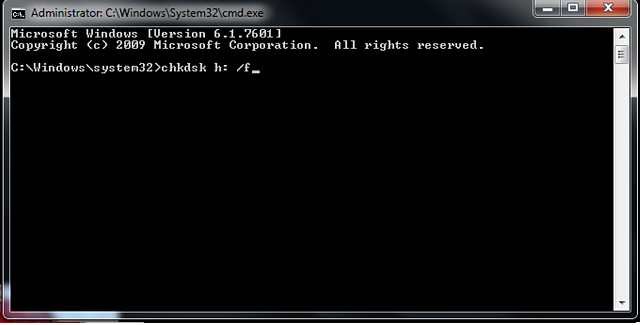
After this, you can try again to see whether you can open it or not. If not, you may need to format the SD card.
Qiling CleanGenius is a user-Introducing a game-changing computer fixing tool that's both safe and super lightweight! Unlike the CHKDSK command, this one-click wonder is the perfect alternative to fix damaged file systems with ease. Say goodbye to complicated processes and hello to a hassle-free experience with this user-friendly tool!
Step 1. DOWNLOAD Qiling CleanGenius on your computer and complete the installation.
Step 2. Run the software. Click "Optimization", and then choose "File Showing".
Step 3. Select the drive with a corrupted file system. Tick the "Check and fix file system error" option and click "Execute".
Step 4. Wait the tool performs the repairing task. After that, click the "here" button to check the drive.
Format the SD Card (Can Also Solve Lost Partition Issue)
If your SD card is recognized under Disk Management but is inaccessible or the partition is lost, you can try formatting it to resolve the issue. Formatting the SD card will erase all data on it, so make sure to back up any important files before proceeding. To format the SD card, you can use the built-in formatting tool in Windows, or a third-party formatting software.
- Important
- Formatting an SD card will result in data loss. If you want to recover your important data, you can try to recover it from the formatted SD card.
Step 1. Connect the SD card to your PC. Right-click on This PC/My Computer, select "Manage" from the list, and then select "Disk Management" from the left panel.
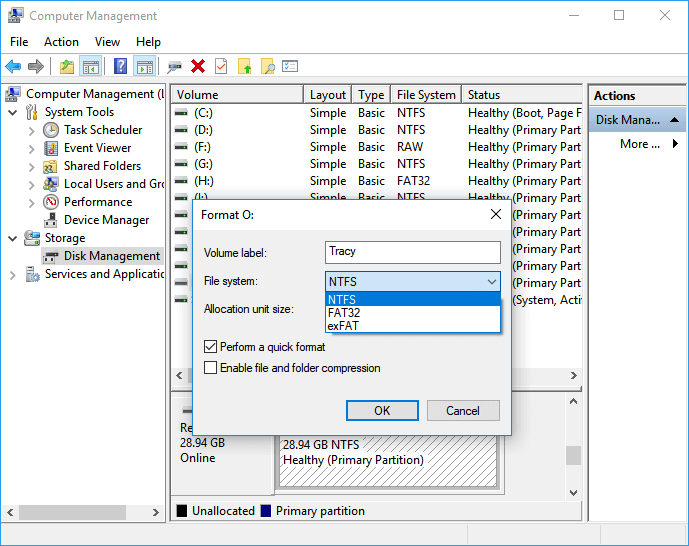
Step 2. To format the SD card, click on "Disk Management", locate the SD card, right-click on it, and select "Format" from the menu.
Step 3. Select the desired file system for the SD card, and click "OK" to confirm the selection.
2. SD Card Shows No Media
If your SD card shows 0 bytes in Disk Management, you'll need to take your device to a local data recovery service center and ask for help.
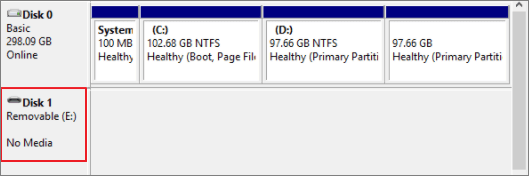
You can try updating the drivers to fix the issue. Many users have reported success with this method.
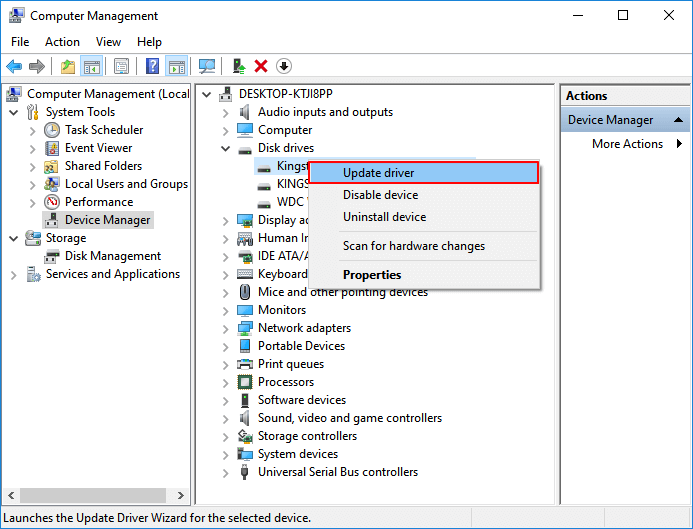
Step 1. Connect the SD card to your PC, then right-click on the "This PC/My Computer" icon and select "Manage". From there, navigate to the "Device Manager" to access the SD card.
Step 2. To update the disk driver for the no media SD card, go to the Disk drivers section, find the no media SD card, right-click on it, and select the option to Update driver.
Step 3. Select "Search automatically for updated driver software" and let the computer search for and install any available driver updates. Wait for the process to complete.
3. SD Card Showing as Unallocated
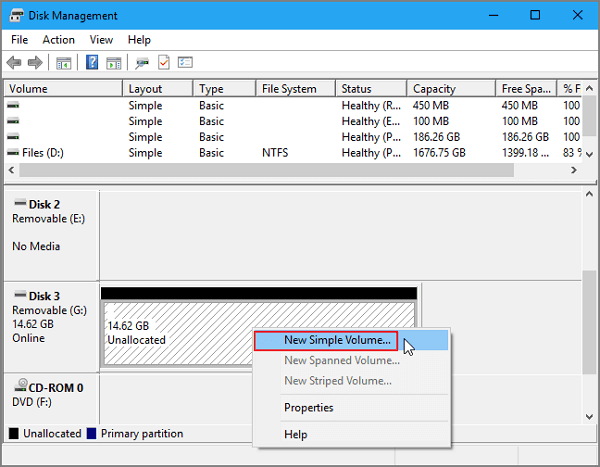
If the device shows the SD card as unallocated, it can't be opened on the computer. To resolve this, create a new volume for the SD card. This can be done manually or using software, as described in the linked page.
Step 1. Connect the unallocated SD card to a PC, right-click on This PC/My Computer, select Manage, and then Disk Management.
Step 2. Right-click on the unallocated space on the SD card, select "New Simple Volume" from the context menu.
Step 3. Set the partition size, drive letter and file system (NTFS), etc. and click "Finish" to complete the process.
4. Other Fixes for SD Card Won't Read Issue
If the SD card partition doesn't appear in Disk Management but can be seen in Device Manager, it's likely due to the partition not being properly recognized by the operating system. This can happen if the SD card is not formatted in a way that's compatible with the Windows operating system, or if there's an issue with the SD card reader or the drive itself.
- Update the SD card driver
- Change SD card reader, adapter, or USB port
If the Device Manager and Disk Management can't recognize your SD card, it's likely due to a driver issue or corrupted system files. Try updating your SD card reader driver, or reinstalling it.
- Send it to a local device repair center
- Give up this SD card and buy a new one
That's all about how to fix the "SD card won't read or open" issue.
Related Articles
- How to Fix WD My Passport Access Denied in Windows 10 and Windows 11
- Fixed: USB Device Malfunctioned and Not Recognized in Windows
- Fix/Repair Unallocated External Hard Drive without Losing Data
- Seagate 4TB External Hard Drive PS4/Xbox One [Full Guide]
- Genshin Impact Screenshot Folder Missing? Get It Back Now!
Your Genshin Impact Screenshot folder is missing without any signal. How to fix this error and restore lost Genshin Impact pictures? This post gives you the best solutions to find the missing Genshin Impact screenshot folders and restore lost Genshin Impact screenshots. - Hogwarts Legacy Missing Save | Recover Hogwarts Legacy Lost Save
If Hogwarts Legacy is missing a save on your PC, you can try checking the local game folder to restore the save, or restore from the Steam cloud if available. If no backups exist, you can attempt data recovery using Deep Data Recovery or seek professional data recovery services.
Products
Articles & Tutorials
- Data Recovery
- Data Backup
- File Recovery
- File Backup
- System Backup and Restore
- Disk and Partition Clone
- Technical articles
- Mobile articles
- Disk Master Help
- Windows Data Recovery Tutorials
- Windows Secure Delete Tutorials
- Windows Partition Management Tutorials
- Windows File Backup and Restore Tutorials
- Windows System Backup and Restore Tutorials
- Windows Disk Backup and Restore Tutorials
- Windows Clone Tutorials