Seagate 4TB External Hard Drive PS4/Xbox One [Full Guide in 2022]
We often delete existing games on our PS4/Xbox One to make room for a new one, as consoles have limited storage capacity and can only hold a few games at a time. This can be frustrating, especially when we have to get rid of a game we enjoyed just to play a new one. Fortunately, consoles can be expanded with an external hard drive, just like a computer, allowing us to store more games and keep our library intact.
The The Seagate 4TB External Hard Drive is a portable storage solution that allows users to store and access multiple games easily, with 4TB of storage sufficient for multiple AAA titles. It is compatible with PS4, Xbox One, Windows, and Mac computers, and is easy to use, requiring only a plug-in and play setup with the included USB 3.0 cable.
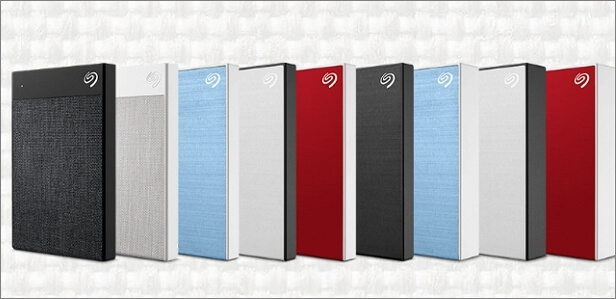
The Seagate 4TB External Hard Drive is a great value at $76.49 on Amazon, offering impressive speed and compatibility with USB 3.0/2.0. It's perfect for expanding PC storage, gaming, or backing up important files, with thousands of satisfied customers giving it a thumbs up.
Seagate 4TB External Hard Drive PS4 and PS5
This section will discuss whether a 4TB external drive is compatible with the PlayStation, how to set it up, and troubleshooting steps if it doesn't work as expected.
1. Does Seagate 4TB External Hard Drive Work with PS4 and PS5?
The Seagate 4TB External Hard Drive is compatible with both the PlayStation 4 and the PlayStation 5, and can be connected using the included USB 3.0 cable.
2. How to Set Up a 4TB External Hard Drive for PS4 and PS5?
PlayStation consoles have limited storage options, with 500GB or 1TB capacities, which can only hold 10-20 games, making it insufficient for a veteran gamer. To expand your storage, a PS4 external hard drive is the solution, offering 4TB of space to store over 100 PlayStation games. To set up your Seagate 4TB external hard drive, you can follow the steps to connect and utilize it with your console.
Step 1. Connect the USB 3.0 cable given with the hard drive to any console's USB ports. A message will pop up on your screen saying that a new device is available.
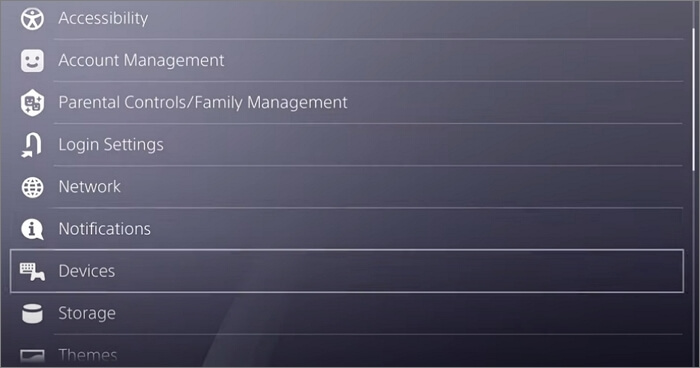
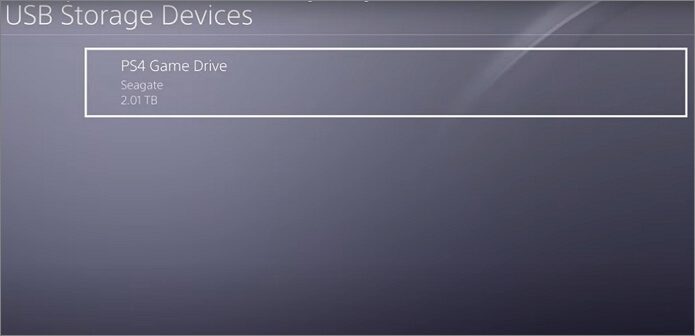
Step 2. The PS4 has automatically detected the Game Drive in the USB Storage Devices section of the Settings menu.
Step 3. To format a drive as extended storage, simply select the drive and choose "Format As Extended Storage" from the options. Follow the subsequent prompts to complete the process. That's it!
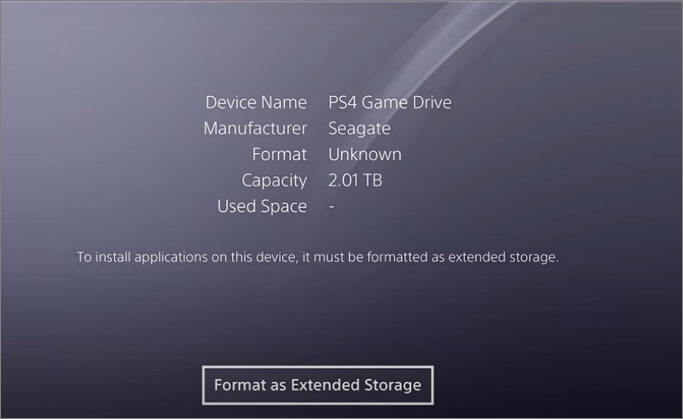
Follow these steps to set up your Seagate 4TB external hard drive for your console:
3. How to Fix the Seagate 4TB External Hard Drive PS4 Not Working?
Reports of PS4 external hard drive issues have been flooding in, with many users experiencing problems getting their external drives to work on their consoles. Several factors can contribute to these issues, and we'll explore them in more detail.
- To check if your external hard drive is not damaged or defective, first, ensure it is properly connected to your computer. Then, check if the drive is recognized by your computer by looking for it in the file explorer or disk management.
- Check if the external HDD is properly connected to the console via the USB Ports.
- The PS4 can only recognize one storage device at a time, so if there's already one connected, it won't remember a new one.
- If you still have an older version of the software on your PS4, update it to the latest version.
To verify if your external hard drive is not defective, try connecting it to a PC and then follow these steps: 1) Open File Explorer and check if the drive is visible, 2) Check if the drive is recognized by the operating system, 3) Run a disk check to ensure the drive is not corrupted, and 4) Try transferring files to and from the drive to test its functionality. If the drive is not visible, recognized, or functioning properly, it may be defective and require replacement.
- Connect the external drive with your PC via a USB port.
- Check for a notification message indicating that the system recognizes the hard drive and is ready to use.
- If you didn't get the message, go to My Computer, and check to see if the drive is visible there.
- If the PC doesn't recognize the drive, you can fix the issue by formatting it.
- If your PC recognizes your external hard drive but labels it defective, it's likely time to get a new one, as the old one is no longer functional.
Seagate 4TB External Hard Drive Xbox One
The 4TB external drive may not work with Xbox, but you can try setting it up by plugging it in and following the on-screen instructions. If it doesn't work, you can try restarting your Xbox, checking the drive's compatibility, or contacting Xbox support for further assistance.
1. Does Seagate 4TB External Hard Drive Work with Xbox One?
The Seagate 4TB external hard drive is compatible with all platforms, including PlayStations, Windows/Mac, and Xbox One, making it a versatile option for users.
2. How to Set Up a Seagate 4TB External Hard Drive for Xbox One?
To use an external hard drive as extended storage for your Xbox One, insert the hard drive into the Xbox One's USB port, then navigate to the System menu, select Storage, and choose the external hard drive as the new storage location for your games. You can also format the external hard drive to be used specifically for games, which will free up space on your console's internal storage. This will allow you to store and play games from the external hard drive, effectively increasing your console's storage capacity.
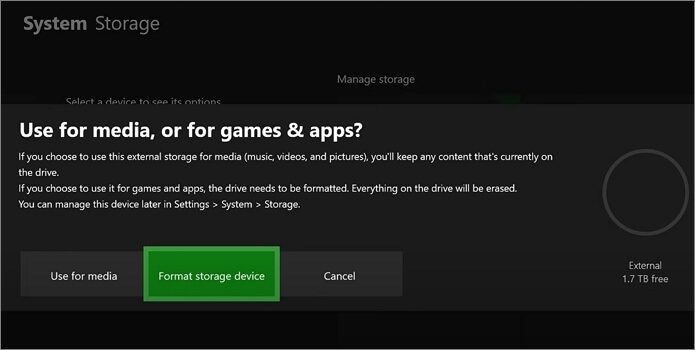
To use an external drive on Xbox One, you'll need to format it first, which will erase any existing data, making space for new games. This process is initiated when you first plug in the drive.
To avoid losing data, back up all necessary files from the external hard drive. If you're not prompted to format the drive, manually initiate the process by following the steps. This will ensure a smooth transition to the new drive.
Step 1. To find your drive, go to the Settings app, click on System, then Manage Storage, and your drive will be listed under the Manage Storage option.
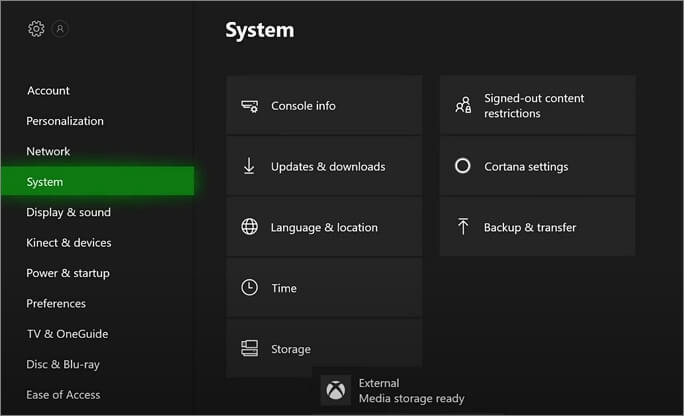
Step 2. Format the selected drive to prepare it for storing new games and apps, and once the formatting process is complete, it will be ready to use for playing and saving games.
Step 3. Turn off the Xbox One before unplugging the hard drive to ensure utmost protection to your data.
3. How to Fix the Seagate 4TB External Hard Drive Xbox One Not working?
This issue can be caused by several factors, including several factors.
Fix 1. Check the Requirements of Your Xbox One External Hard Drive:
- Check and see if you're using a USB 3.0 interface or later.
- Check if you have got a storage capacity of <256GB.
- There must be a partition on the external hard drive.
- The Xbox One has a limitation on the number of storage devices that can be connected at the same time. Specifically, only three storage devices can be connected simultaneously.
Fix 2. Update Your Xbox One:
- Press the Xbox button on your console, and go to the Guide menu.
- Select System and then go to the Settings tab.
- Now, choose the System under Settings and click on the Update option.
- To manually update your device, you can follow these steps:
Fix 3. Change the Storage Power Management
- Just follow the above steps and navigate through the Settings tab.
- There, click on Power & Startup.
- Choose the Power mode & Startup option and change the Power mode to Instant-on mode.
- To change this setting, you can uncheck the option named "When Xbox is off, turn off storage" which is located somewhere in the settings menu, allowing your Xbox to continue storing data even when it is turned off.
Seagate 4TB External Hard Drive Data Recovery
To avoid losing your valuable data, you can use data recovery software to retrieve it from a failed hard drive or other storage devices. This software can scan the drive, identify the recoverable data, and copy it to a safe location. Some popular data recovery software options include Deep Data Recovery, Disk Drill, and Recuva.
If your Seagate 4TB external hard drive experiences data loss, you can use Deep Data Recovery software to recover your lost data. This software can efficiently restore deleted or permanently deleted files from various storage devices, including internal hard drives, external hard drives, SSDs, USB drives, SD cards, and more.
Qiling data recovery software offers two flexible scanning modes: Quick Scan and Advanced Scan. Quick Scan uses a basic algorithm to search for deleted data, resulting in faster recovery, while Advanced Scan goes deeper into the drive sector for a more thorough recovery. Additionally, you can preview lost files before recovering them.
Besides, Deep Data Recovery can repair corrupted files after Seagate data recovery, including fixing damaged Microsoft Office documents, videos, photos, and PDFs.
Step 1. Connect your external hard drive to your computer using a correct USB cable, then run Deep Data Recovery. Choose the file types you want to recover and click "Fast Scan" to begin the process.

Note: You can choose different search modes based on where and why the data was lost.
Step 2. You can find your external disk under the "External drives" section, and this software supports a wide range of popular brands, including WD, Seagate, Toshiba, LaCie, SanDisk, Samsung, and more.
Select the external hard drive and then click the "Scan" button.

Step 3. The software starts to scan and finds lost and deleted data, displaying the results in an organized manner. As the scan progresses, more data is recovered and displayed, allowing users to quickly find specific files or folders by type or by searching for a specific file name in the search box.

Step 4. After running Deep Data Recovery's scanning algorithms, you can preview the found files and select the ones you want to recover. To do this, simply click "Recover" on the desired files. It's essential to save the recovered data to a different drive than the original Seagate drive to prevent data overwriting.
Conclusion
The Seagate 4TB external hard drive is a highly adaptable storage solution that works seamlessly on all platforms, including consoles like the PlayStation 4 and Xbox One. With its comprehensive tutorials, users can easily configure it to meet their specific needs, making it a versatile and reliable option for expanding storage capacity.
You can prevent unexpected data loss or recover valuable deleted data from your Seagate 4TB external hard drive using Deep Data Recovery, ensuring your data is never lost, even if it's deleted.
Related Articles
- Fixed: USB Device Malfunctioned and Not Recognized in Windows
- Fix Saved Game Corrupted Error on Xbox 360
- How to Recover Permanently Deleted Files from Dropbox
- Memory Card Unlocker: How to Unlock SD Card Without Losing Data
- Hogwarts Legacy Save Data Gone on PS5/PS4, Recover It Now!
If your Hogwarts Legacy save data has gone missing on your PS5/PS4. You can recover the disappeared game data by trying Qiling game data recovery software first. - How to Fix Character Encoding in PDF | Weird Symbols Fixes
How to fix character encoding in PDF? This page explains what causes PDF file corruption and guides you to repair the PDF file that shows junk characters or PDF's weird symbols with the repair tool - Qiling Fixo Document Repair.
Products
Articles & Tutorials
- Data Recovery
- Data Backup
- File Recovery
- File Backup
- System Backup and Restore
- Disk and Partition Clone
- Technical articles
- Mobile articles
- Disk Master Help
- Windows Data Recovery Tutorials
- Windows Secure Delete Tutorials
- Windows Partition Management Tutorials
- Windows File Backup and Restore Tutorials
- Windows System Backup and Restore Tutorials
- Windows Disk Backup and Restore Tutorials
- Windows Clone Tutorials