How to Fix Character Encoding in PDF | Weird Symbols Fixes
In this article, you'll learn:
- What Is PDF Special Characters Problem [PDF Corruption]
- How to Fix Character Encoding in PDF [5 Solutions]
- FAQs About How to Fix Character Encoding in PDF Files
PDF stands for Portable Document Format, which is a file format that contains printed documents encoded as an electronic image. Many users face issues with corrupted PDF files, such as garbled text problems, and seek remedies to fix these issues.
You're experiencing issues copying text from a PDF and pasting it into another document. This is likely due to the font encoding used in the PDF. To resolve this, try using a PDF viewer that allows you to extract text, such as Adobe Acrobat or SmallPDF. Alternatively, you can use an online tool like PDFCrowd or Online-Convert to extract the text and then copy and paste it into your desired document. If you're using a specific PDF viewer, try updating it to the latest version.
Fixing character encoding in PDFs can be a frustrating issue, but there are solutions available. The problem often arises when PDFs are created or edited, resulting in garbled text that's difficult to read. Fortunately, there are 5 ways to resolve this issue, which will be covered in this article, providing an overview of the problem and offering practical solutions to fix the character encoding in PDF files.
What Is PDF Special Characters Problem [PDF Corruption]
A PDF file may become damaged and display gibberish due to various situations such as uploading, downloading, combining, or copying issues, as well as potential viruses or malware on the computer. Additionally, opening the PDF with unsupported software can also cause it to display weird characters.
The character encoding in PDF problem typically manifests as incorrect or garbled text display when a PDF is opened or printed, often due to issues with character encoding, font substitution, or incorrect mapping of characters to their corresponding Unicode code points. This can result in characters being displayed as gibberish, incorrect accents, or missing characters altogether.
- 🔣There could be several reasons for this issue. It's possible that the PDF contains fonts or formatting that are not compatible with Word, or that the PDF was created with a different encoding or character set.
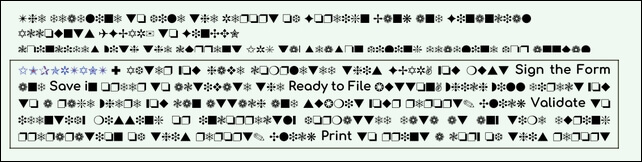
- 🌀When copying text from a PDF, it becomes gibberish.
- 👎Characters in a text object cannot be mapped to Unicode.
- ⏹️The PDF text turns into squares.
- 🕶️The PDF file is either unreadable or displays blank pages interspersed with distorted or garbled text.
How to Fix Character Encoding in PDF [5 Solutions]
The character encodes prevent you from viewing the PDF file no matter how many times you open and close the PDF program. So what do we do now? Here are the 5 different methods.
- Solution 1. Check for Updates of PDF Viewers
- Solution 2. Repair Character Encoding in PDF with Software
- Solution 3. Repair Damaged PDF Files Online
- Solution 4. Reinstall PDF Readers
- Solution 5. Restore the Previous PDF File Version
Solution 1. Check for Updates of PDF Viewers
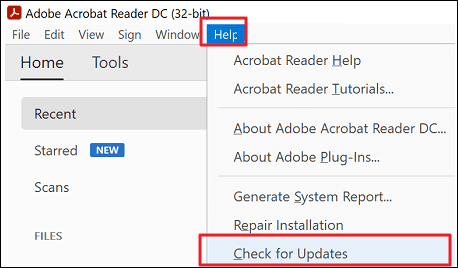
Check for updates and open the PDF in the most recent version of the PDF app, as it is this version that is to blame for the garbled text issue. You can first try to repair the PDF file using Adobe Acrobat.
Step 1. On your PC, start Adobe Acrobat.
Step 2. Select "Check for Updates" under "Help".
Step 3. If the issue persists, try reinstalling Adobe Acrobat Reader or the PDF viewer you're using, as a corrupted installation can cause problems with displaying PDF files. Additionally, check for any updates to your operating system or the PDF viewer, as outdated software can also cause issues.
Solution 2. Repair Character Encoding in PDF with Software
If the problem persists after updating the PDF reader, it's possible that the PDF file itself is corrupted. In this case, consider using third-party software like Qiling Fixo Document Repair.
This program efficiently repairs PDF files and helps resolve character encoding issues in PDFs, providing a quick solution to fix character encoding in PDFs.
- Use a data recovery software like Deep Data Recovery Wizard to scan and repair corrupted files from various storage devices, including hard disk drives (HDD), solid-state drives (SSD), USB flash drives, external hard drives, and more. The software can recover deleted, formatted, or corrupted files, and supports various file systems, including NTFS, FAT32, and HFS+.
- It supports all current Windows OS from Windows XP to Windows 11, as well as macOS.
- The software can also fix damaged Excel files, Word documents, images, and videos, in addition to repairing corrupted PDFs.
If you are interested in the file repair tool and this article, don't forget to mark This guide by sharing it on Facebook, Twitter, or SNS.
Solution 3. Repair Damaged PDF Files Online
If you need to fix a corrupted PDF, there are 5 online tools that can help, and I've tested them to find the best free option. If you only need to repair one or two PDFs with garbled character encoding issues, the following pdf-online websites are good choices to try.
- ilovepdf.com
- sejda.com
- pdf2go.com
- pdf-online.com
- pdf.recoverytoolbox.com
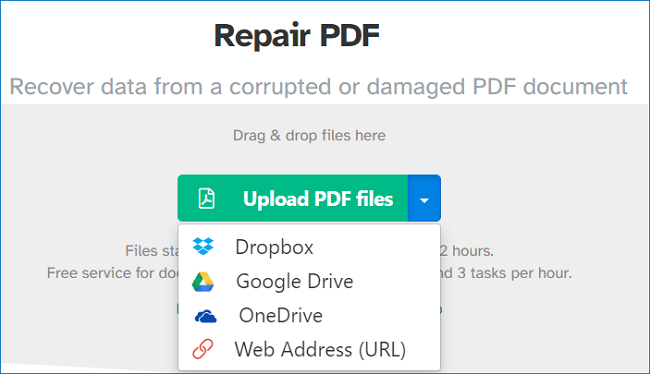
How to Repair PDF Files Online [Easy Guide]
For users who need to repair damaged PDF files but don't know where to start, there are several online tools available that can help. Five popular and efficient options include the tools below.
Solution 4. Reinstall PDF Readers
If a PDF file contains character encoding pages and Adobe Reader can't open or read it, try using another PDF reader to see if the issue is with Reader or the file.
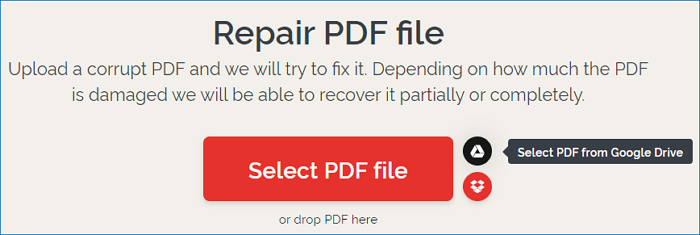
To repair corrupted files, you can manually uninstall and reinstall the program, which will eliminate conflicts and restore settings to their original defaults.
Here are the steps to reinstall Adobe Reader on Windows:
Step 1. Download the installation zip file from the website or app store to any place on your PC.
Step 2. Extract the zip file and open the Setup.exe file.
Step 3. If you copied the zip file to the "Adobe" folder on your desktop, you would have extracted and copied the zip file to a folder named "Adobe" on your desktop.
C:UsersDesktop/Adobe/Acrobat_2020_Web_WWMUIAdobe Acrobat/Setup.exe
Step 4. The Setup.exe file must be double-clicked to begin the installation.
Step 5. To complete the installation, follow the on-screen directions.
| ⚠️Warning: To avoid installation issues, do not start the Setup.exe file from within the installer zip file. |
Solution 5. Restore the Previous PDF File Version
Users of Windows can restore the previous version of the inaccessible PDF file using the built-in backup utility tool, allowing them to recover their lost data.
Step 1. To access "Update and Security", click "Windows" and choose "Settings".
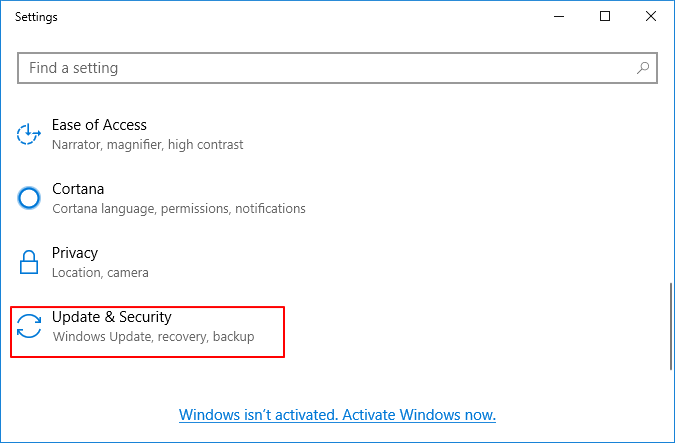
Step 2. Restore the backup version to access your PDF file.
You can also attempt the File history tool to restore the earlier version of the file if you haven't created a backup.
Step 1. In Windows Explorer, select your file and then click "Properties."
Step 2. To restore, go to the previous versions tab.
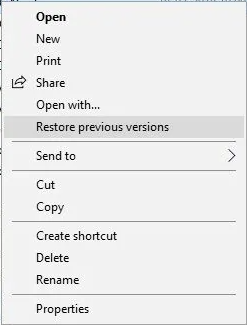
Step 3. To determine if the most recent version of the PDF file will return your file to the system, examine the PDF files' earlier iterations by clicking on them.
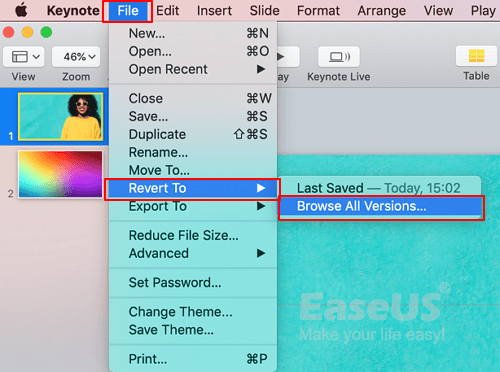
To recover a previous version of a Word document on a Mac, first, open Word and go to the "File" menu, then select "Manage Versions" or "Version History" depending on your Word version. If you don't see this option, check if you have the "Track Changes" feature enabled, which allows you to see previous versions of your document.
Learn how to recover previous versions of Word documents on Mac in 5 ways on this page. You'll find the information you need to retrieve earlier drafts of your Word documents, making it easier to work on your projects with confidence. Read more to get started.
Conclusion
PDF documents are often considered safe and reliable, but in certain situations, a corrupted file or a machine without the necessary tools can result in weird character encoding, making it necessary to try one of the five methods mentioned in the article.
The most secure and effective solution for repairing damaged documents is using Qiling Fixo Document Repair. This tool is ideal for both non-technologists who need to perform basic data restoration and advanced users who want to tackle more complex data loss cases.
FAQs About How to Fix Character Encoding in PDF Files
Here are 4 additional questions about how to fix character encoding in PDF. Check here for the answers.
1. When do I copy text from a PDF, why it becomes gibberish?
When pasting text from a PDF, the resulting text may appear as gibberish due to issues with the typeface used in the PDF. This is often caused by the PDF fonts not having Unicode tables, which are necessary for translating glyph indices to characters using a standard encoding, leading to incorrect or unreadable text during copy and paste operations.
2. How to fix PDF text turn into squares?
If your PDF text has turned into squares, it's likely that the file needs repair. You can either use a PDF repair online tool or try a desktop tool like Qiling Fixo Document Repair, which can help fix corrupted and damaged PDF files.
3. What are the reasons behind the PDF file corruption?
A PDF file may be harmed if the hard drive, USB flash drive, or SD card malfunctions or fails suddenly, due to factors such as overheating, electrical shorts, faulty connecting or disconnecting.
4. Why is my PDF printing with weird characters?
The issue lies in the PDF creator not embedding the fonts for the characters, possibly due to using a non-standard font encoding. This results in the characters not properly mapping to Unicode, requiring the authoring file to be revised and a new PDF created to resolve the issue.
Related Articles
- Top 10 Best Hard Drive Repair Software
- Recover Deleted Folders on Windows 10/11 [5 Quick Methods]
- The Best SSD Data Recovery Software for SSD Data/File Recovery
- Genshin Impact Game Folder Empty, Get the Answers Here!
If you're experiencing an empty Genshin Impact game folder, you can find the solution here. The post provides answers on why your Genshin Impact game folder might be empty and how to fix it. - How to Recover Deleted Files from Recycle Bin in Windows 7
If you want to recover deleted files from the recycle bin in Windows 7 or restore the recycle bin itself, follow this step-by-step guide for Windows 7 recycle bin recovery. - How to Recover Permanently Deleted Photos in Windows 10
You can recover permanently deleted photos in Windows 10 by using Deep Data Recovery. This software can restore deleted photos from the previous version and backup files, allowing you to retrieve your lost images.
Products
Articles & Tutorials
- Data Recovery
- Data Backup
- File Recovery
- File Backup
- System Backup and Restore
- Disk and Partition Clone
- Technical articles
- Mobile articles
- Disk Master Help
- Windows Data Recovery Tutorials
- Windows Secure Delete Tutorials
- Windows Partition Management Tutorials
- Windows File Backup and Restore Tutorials
- Windows System Backup and Restore Tutorials
- Windows Disk Backup and Restore Tutorials
- Windows Clone Tutorials