How to Repair PDF Files Online [Easy Guide]
Five Best Online PDF Repair Tools:
PDF, or Portable Document Format, is a widely used file type that offers better compatibility and stability, making it a popular choice for various applications, including official statements, resumes, and product/company introduction brochures.
Many users have encountered PDF file corruption and are seeking solutions to recover their damaged files. If you're experiencing issues opening a PDF file due to corruption, there are online tools available to help you repair and recover your important data. In this article, we'll explore several online PDF repair tools that can assist you in fixing your corrupted PDF files.

PDF Corruption Reasons
Searching for PDF errors in Google yields numerous error messages such as "Failed to Load PDF Document" or "Adobe Reader Update Failed Error 1635". These issues can arise from various reasons, including outdated Adobe Reader, corrupted PDF files, incorrect PDF viewer settings, or even malware infections.
- Device failure: External hard drives and USB flash drives can be prone to issues, such as bad sectors on the external hard drive or a complete breakdown of the USB flash drive.
- Corruption during transfer: When transferring PDF files between PCs or storage devices, bad internet or transmission interruption can damage the files.
- Malware on your system: Malware would corrupt your computer files without notice.
- Various Windows errors: Many uncertain Windows errors would also damage PDF files.
Now it's time to repair corrupted PDF files. Here we list five popular online tools for you to choose from.
1. ilovepdf.com
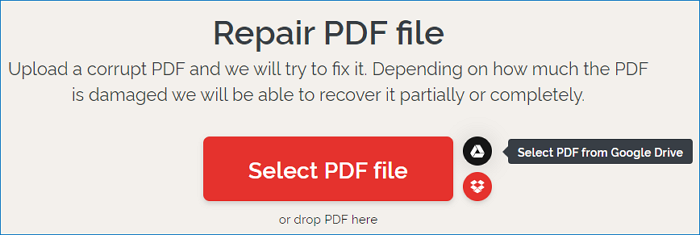
ilovepdf offers a simple yet powerful web design, allowing users to repair PDF files without signing up or logging in. The platform provides two easy upload modes: selecting PDF files from your computer or dragging and dropping them into the recovery zone. Additionally, it supports file recovery from popular cloud storage services like Google Drive and Dropbox.
The free version of ilovepdf allows users to repair 2 PDF files at a time, while the premium version provides the ability to repair multiple files simultaneously.
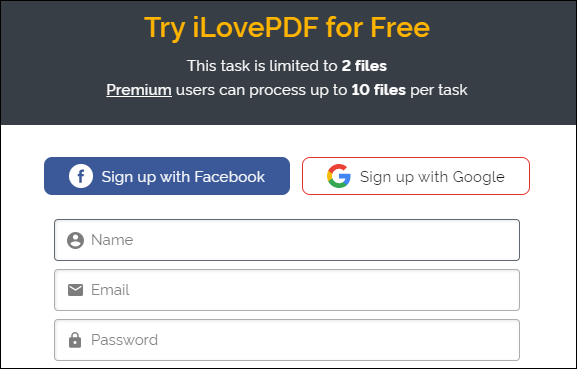
Once the repairing process is finished, you can download the repaired PDF file directly to your computer, making ilovepdf a suitable choice for users who only need to repair one or two files in an emergency.
2. sejda.com
The second tool we'd like to introduce is from sejda, which has a simple and clear interface similar to ilovepdf. You can choose to drag & drop PDF files to the recovery zone, upload files from your computer, or access files from cloud drives such as Dropbox, Google Drive, and One Drive.
Sejda allows private PDF file uploads that are deleted after 2 hours, and offers free repair of up to 200-page or 50 Mb documents, with 3 tasks per hour, with optional paid upgrades for more documents.
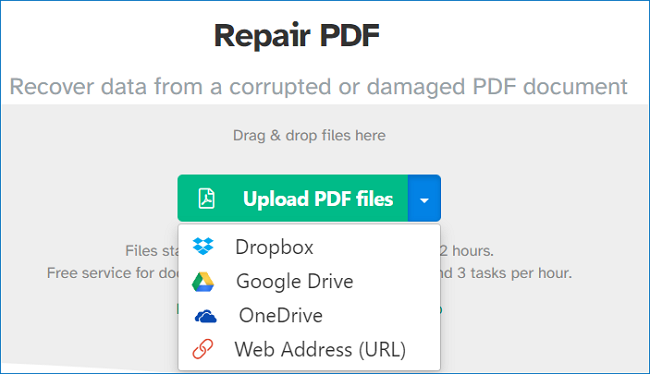
Compared to ilovepdf, sejda's upload speed is slower. This is because sejda's repair mechanism works simultaneously with the upload process, which can take longer. Once the repair is complete, sejda will notify you that your document is ready. You can then preview the repaired document and download it to your computer.
3. pdf2go.com
The online PDF repair tool pdf2go has a layout similar to ilovepdf, allowing users to drag & drop files, upload from their computer or cloud drive, including Dropbox and Google Drive. Unlike ilovepdf, pdf2go also enables users to enter a URL to extract the PDF file directly from it.
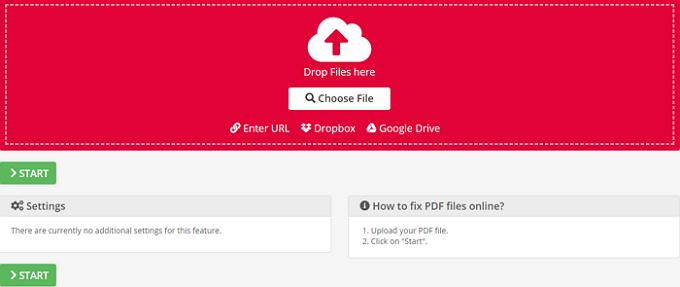
When you're done repairing your PDF file, you'll see a notice and options to download the repaired file to your computer, upload it to a cloud drive, or create a QR code to share. Additionally, you can access further editing features like splitting, merging, or editing the PDF.
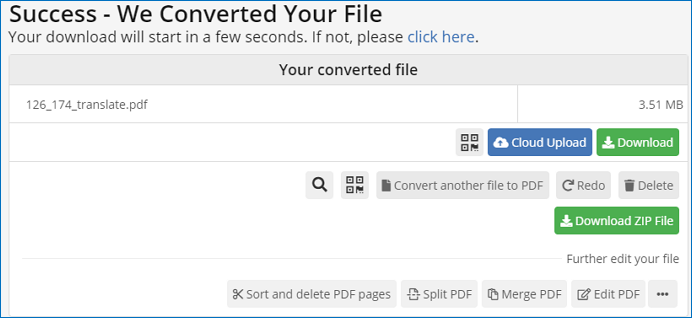
4. pdf-online.com
The fourth tool we want to introduce is pdf-online, an online PDF repair tool with a slightly older page design. Despite its age, it still performs well in repairing PDFs.
To use pdf-To repair a PDF file online, you can't directly upload a file, but instead, you select the damaged PDF file from your computer.
After loading a PDF file, you have various options to consider. You can choose to analyze the PDF files alone, recover a cross-reference table, rebuild streams, or rebuild fonts, among other possibilities. (Note: I've kept the original text's wording and structure, but condensed it into a single paragraph.
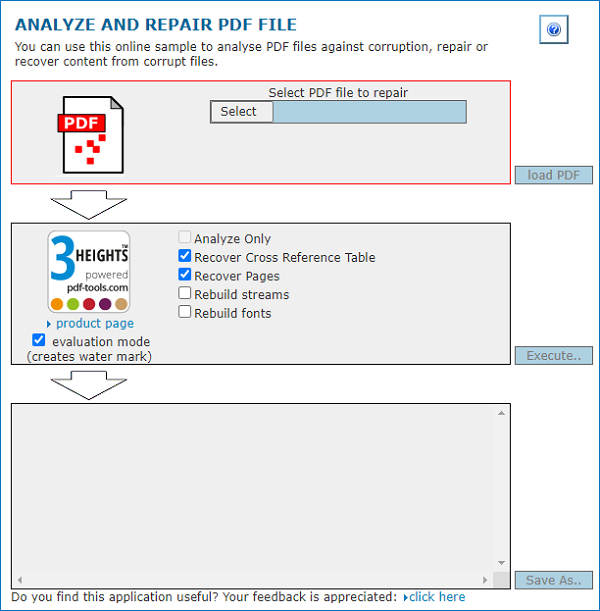
After the repair process is complete, click the "Save as" button to save the repaired PDF file to a different location, ensuring the original file remains intact.
5. pdf.recoverytoolbox.com
The last online PDF repair tool we recommend is pdf.recoverytoolbox, which can be downloaded to your computer or used online. However, to use the online repair feature, you'll need to enter your email address first.
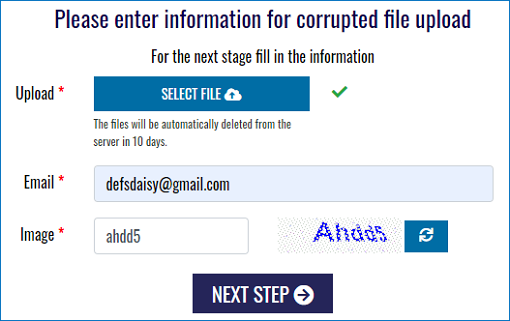
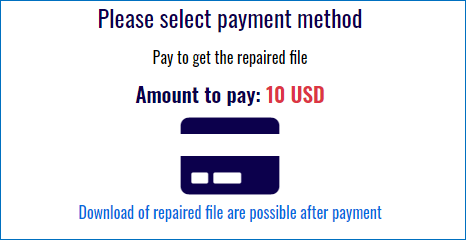
After uploading the PDF file and entering the email address, the recoverytoolbox will start to repair and restore your file. You can preview the repaired PDF document, but to download the repaired file, you need to pay a fee of $10.
How to Recover & Repair PDF Files Offline
If a PDF file becomes corrupted, it may not only be damaged but also lost, making it impossible to locate on your computer. In such cases, online repair tools are ineffective, and you'll need to use data recovery and repair software to recover the file.
Deep Data Recovery is a tool that can repair corrupt PDF documents stored on external storage media, and also extract text, comments, labels, and graphics from the PDF file.
You can download the Deep Data Recovery tool from the button below, and follow the step-by-step guide to recover and repair your PDF files.
Step 1. Launch Deep Data Recovery. Select file types and click "Fast Scan" to begin the recovery process.

Note: You can choose different search modes based on where and why the data was lost.
Step 2. Click the "Scan" button to scan the disk with corrupted documents, and this software allows you to fix damaged Word, Excel, PPT, and PDF files in the same steps.

Step 3. Qiling data recovery and repair tool will scan for all lost and corrupted files, allowing you to search by file type or enter a specific file name in the search box.

Step 4. Deep Data Recovery can automatically repair damaged documents, allowing you to preview and recover repaired Word, Excel, and PDF files to a safe location.
The Bottom Line
If you need to recover one or two PDF files, online tools like ilovepdf, sejda, pdf2go, and pdf-online are good choices, offering powerful and free services. However, if your PDF files are lost and corrupted, you may want to consider using PDF repair software like Deep Data Recovery to find and repair them.
Related Articles
- Solved: Hard Drive Not Showing Files Though They Still Exist
- How to Burn ISO to DVD on Windows 10/11 (Step-by-Step Tutorial)
- All You Need to Know About a Rooted Device
- Top 6 Best Data Recovery Services
- How to Recover Deleted Files from NTFS Partition/Drive/External Hard Drive/Formatted NTFS Drive
Here are the guides for recovering deleted files from an NTFS partition, NTFS external hard drive, restoring files from a damaged, corrupted, or formatted NTFS disk or partition. - How to Recover Deleted Audio Driver on Windows 7
If you've accidentally deleted the audio driver on your Windows 7 computer, You can recover the deleted audio driver efficiently by following some helpful tips.
Products
Articles & Tutorials
- Data Recovery
- Data Backup
- File Recovery
- File Backup
- System Backup and Restore
- Disk and Partition Clone
- Technical articles
- Mobile articles
- Disk Master Help
- Windows Data Recovery Tutorials
- Windows Secure Delete Tutorials
- Windows Partition Management Tutorials
- Windows File Backup and Restore Tutorials
- Windows System Backup and Restore Tutorials
- Windows Disk Backup and Restore Tutorials
- Windows Clone Tutorials