Solved: Hard Drive Not Showing Files Though They Still Exist
| Workable Solutions | Step-by-step Troubleshooting |
|---|---|
| 1. Reconnect Hard Drive | Reconnect the internal or external hard drive on your computer...Full steps |
| 2. Recover Files or Show Hidden Files | Run Deep Data Recovery and choose the exact external drive where you lost data...Full steps |
| 3. Fix Internal/External HDD | Type cmd in the Windows search box, right-click on "Command Prompt" and choose...Full steps |
If your hard drive is not showing files though they still exist, this page will guide you through the process of fixing the issue and restoring all missing files from your internal or external hard drive with ease.
To fix the issue, go through the entire guide and follow the steps carefully. This will ensure that all your files are restored and the drive is functioning normally again.
Why Are My Files Not Showing Up in Internal/External Hard Drive
Windows users have reported that their local hard drives, external HDDs, USB flash drives, pen drives, or memory cards show up in Windows Explorer, but the files and folders within them are not visible when the device is opened.
If you're unable to see files and folders saved to your external HDD in Windows 11/10/8/7, there are several potential causes to consider. To resolve the issue, you'll need to investigate and address the underlying problem. The causes may vary depending on the specific version of Windows you're using, but some common culprits include issues with file system drivers, file system corruption, or problems with the external hard drive itself.
Causes of Files Not Showing in External Hard Drive Though They Still Exist Issue
The "hard drive not showing files though they still exist" error can be caused by various factors, leading to storage drive contents disappearing without being noticed, including issues such as file system corruption, incorrect file permissions, or hardware problems with the hard drive itself.
- The power supply is not stable
- File system errors that make the entries to your files inaccessible
- The files and folders are hidden, and you disable the option to show hidden files, making them invisible and inaccessible unless explicitly shown.
- A virus or malware can hide, delete, or encrypt files on your hard drive, making them inaccessible.
- Others including hardware issues, hard drive getting corrupted, and more
To find missing files on your hard drive, follow these 3 stages. First, check your system's file search function, such as Windows Search or Spotlight on Mac, to see if the files are still on your internal or external hard drive. If they're not found, proceed to the next stage. Next, use a file recovery software, like Deep Data Recovery or Disk Drill, to scan your hard drive and potentially recover deleted or missing files.
How to Fix Hard Drive Not Showing Files Though They Still Exist
If your drive isn't showing files, it's not necessary to pinpoint the exact cause. Your top priority should be finding a reliable way to access or locate the existing files.
To fix the error "data not showing in hard drive" or "files not showing in external hard drive," follow these three stages: first, check if the external hard drive is properly connected and recognized by your computer, and if not, restart your computer; second, try to access the external hard drive from the computer's file explorer or disk management tool; third, if the issue persists, try to recover your files using data recovery software or by seeking professional help.
- #Stage 1. Reconnect Hard Drive
- #Stage 2. Recover Files or Make Files Showing Up in Hard Drive
- #Stage 3. Fix Internal/External Hard Drive to Work Normally
The procedure can also be applied to fix files not showing in USB flash drives, SD memory cards, and other devices. You can use it to find and restore missing files from your hard drive or external hard drives. Let's get started with the process to recover all missing files now.
#Stage 1. Reconnect (Internal/External) Hard Drive to Make Files Show Up
If your internal or external hard drive files are not showing up due to unstable power supply, you can try fixing the issue by ensuring a stable power source. This can be achieved by plugging the hard drive into a different power outlet or using a surge protector to regulate the power supply. Additionally, checking the hard drive's power cable for any damage or loose connections can also resolve the issue.
If your internal or external hard drive connection is loosened, it may not show up on your computer, preventing you from accessing your saved files. To resolve this, simply reconnect the drive, and your files should reappear.
Step 1. Reconnect the internal or external hard drive on your computer.
To Reconnect Hard Drive:
- Shutdown PC, open the computer case with a screwdriver.
- Check the power cable and SATA cable. If they are broken, replace with a new one.
- Reinstall the device by connecting its power cable and SATA cable to the PC, ensuring the wires are securely tightened, and then restart the computer.
To Reconnect External Hard Drive:
- In Explorer, right-click to eject the external hard drive.
- If your USB cable is damaged or broken, it may not be functioning properly. In this case, try replacing it with a new one to see if that resolves the issue.
- Reconnect the external hard drive to the PC via a securely attached USB connection cable.
Step 2. Check if files show up on the hard drive.
Open the Windows File Explorer, and check to open your hard drive or external hard drive and see if files show up.
If the recovery process is successful, you'll be able to access your files. If not, move to Stage 2 and follow the tutorial steps to bring all your hard drive files back with ease.
#Stage 2. Recover (Not Showing) Files or Make Files Showing Up in Hard Drive
This solution applies to restore missing, hidden, or not showing files due to device file system errors, file hiding, or data removal by viruses.
As stated above, many factors may cause your hard drive files missing. For example, the virus infection that deletes or hides your files from showing up. To recover the files, here you have 4 methods to try:
- Method 1. Use File Recovery Software - Easiest
- Method 2. Showing Hidden Files
- Method 3. Use CMD
- Method 4. Using CMD Alternative
For the easiest solution, Qiling hard drive recovery software can give you the best solution.
Method 1. Recover Missing or Not Showing Files with File Recovery Software
Qiling Data Recovery Wizard can recover hidden or missing files on Windows 11/10/8/7 by using its all-in-one solution.
Show Hidden Files with Qiling
- Recover lost or deleted files, documents, photos, audio, music, and emails with ease, thanks to effective recovery tools that can help you retrieve what's been lost.
- You can recover files from a formatted hard drive, emptied recycle bin, memory card, flash drive, digital camera, and camcorder using specialized software. These tools can scan the device and retrieve deleted or formatted files, even if the data was previously emptied from the recycle bin.
- The software supports over 1000 file types, including document files like DOC/DOCX, spreadsheet files like XLS/XLSX, presentation files like PPT/PPTX, audio files like AIF/AIFF, M4A, MP3, image files like JPG/JPEG, and video files like AVI, MP4, among others.
Retrieve all existing or lost files with ease by using a tool that can recover hidden, removed, or inaccessible files on your hard drive.
Step 1. Select file types
Launch Deep Data Recovery, select the desired file types, and click "Fast Scan" to initiate the recovery process.

Note: You can choose different search modes based on where and why the data was lost.
Step 2.Connect your external hard drive to your computer using a correct USB cable. Once connected, run Deep Data Recovery and you will see your external disk listed under External drives. This software supports all popular external disk brands, including WD, Seagate, Toshiba, LaCie, SanDisk, Samsung, and more.
Select the external hard drive and then click the "Scan" button.

Step 3. Once the scan process begins, the software identifies and displays all lost and deleted data, organizing the recovered files in an easily accessible format. Users can quickly locate specific files or folders by type or search for exact file names in the search box.

Step 4. After scanning, you can preview the files found by Deep Data Recovery's algorithms. Select the desired files and click "Recover" to save them to a different drive than the original Seagate drive, avoiding data overwriting.
Don't save the recovered files to your original drive, and then move to Stage 3 to repair and make your drive viable and secure for saving files again.
Method 2. Show Hidden Files in Hard Drive or External Hard Drive
People often hide confidential files to keep them private, but if they accidentally hide them or make them invisible, their hard drive may not show the files, even though they still exist.
To show hidden files on your hard drive or external hard drive, simply unhide them. To do this, follow these steps:
Step 1. Double-click "This PC" to open File Explorer.
Step 2. To open your hard drive or external hard drive, locate it on your computer and double-click on it to open it. This will allow you to view the contents of the drive and access the files and folders stored on it.
Step 3. To view hidden items, go to the "View" tab and select "Hidden items" in the Show/hide section.
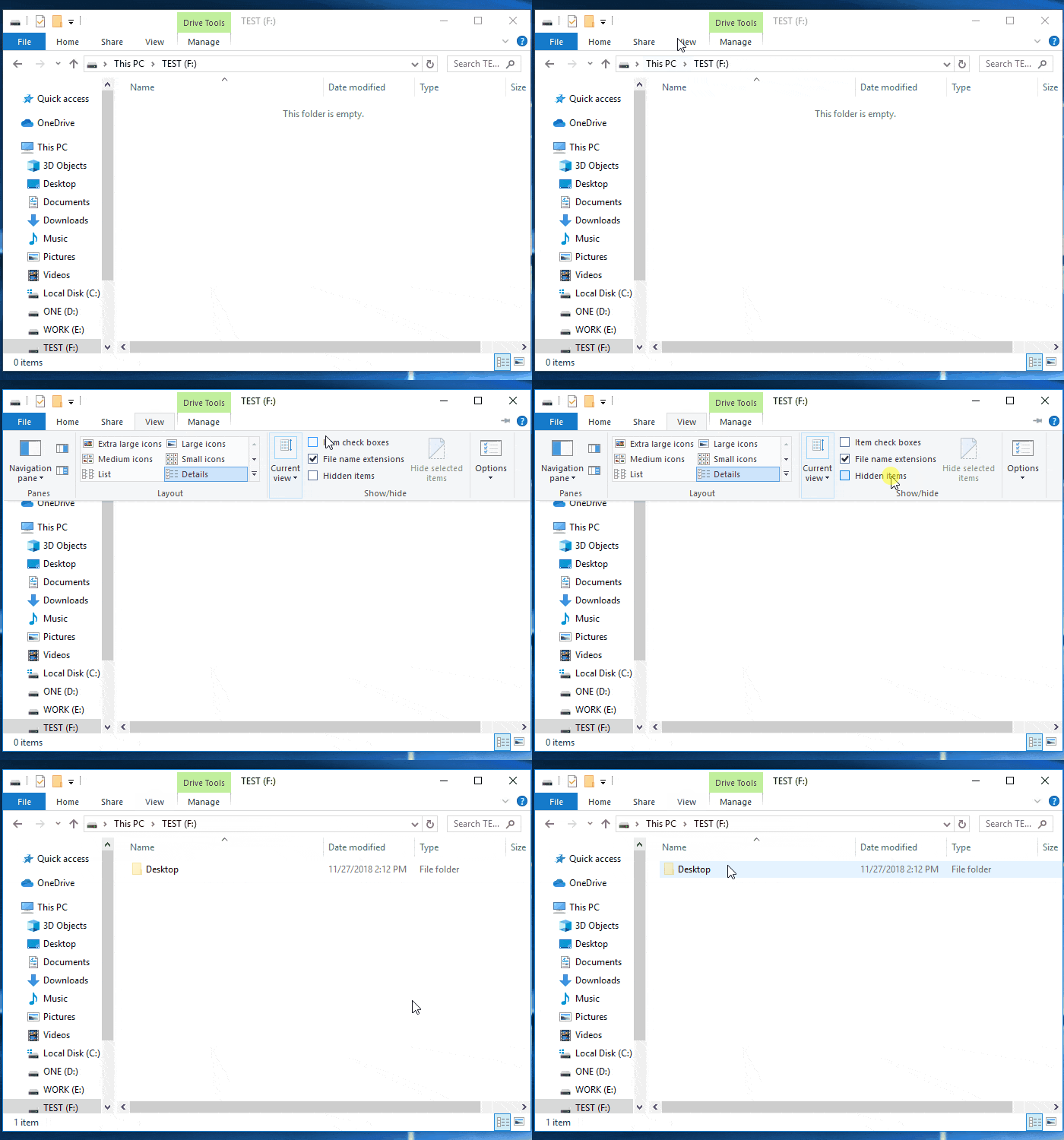
After the steps are completed, you will be able to check the hidden or missing files in your hard drive again.
Also Read: Show Hidden Files on USB and Memory Card.
Method 3. Retrieve Files that Were Hidden/Deletes by Virus Using CMD
Some users have reported experiencing a "file loss" issue on their hard drive, which may be caused by viruses or malware. For instance, a shortcut virus can hide the original data, creating a shortcut of the files that displays on the drive, making it seem like the files have been lost.
To restore files hidden by a virus or malware, run the following CMD command lines:
Step 1. Running antivirus software is essential to clear viruses and malware from your hard drive and PC, ensuring a safe and secure computing experience.
Step 2. If files are not showing on your external hard drive, try connecting it to your PC. This will allow you to see the contents of the drive and troubleshoot any issues.
Step 3. Type cmd in Windows Search box, right-click Command Prompt, select "Run as Administrator".
Step 4. Type the following command lines and hit enter each time:
- E (Replace E with the drive letter of your hard drive or external disk that is not showing files.)
- del *.lnk
- attrib -s -r -h *.* /s /d /l
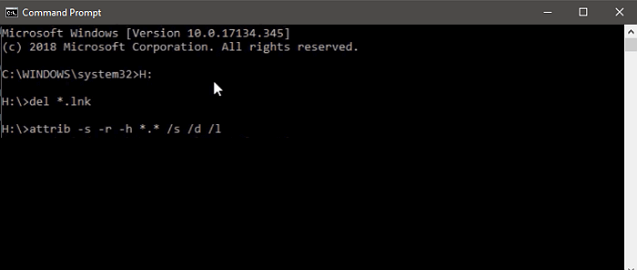
Step 5. Type exit when the process completes.
To recover hidden files from hard drive using CMD:
Step 1. Press Windows + S keys, type cmd in Windows Search box.
Step 2. Right-click Command Prompt, select "Run as Administrator".
Step 3. Type the command line attrib -h -r -s G:\*.* /s /d and hit Enter.
To view hidden files on your device, you can use the command 'ls -a' in the terminal. This will display all hidden files, denoted by a dot at the beginning of their name. You can then navigate to the device and check the hidden files.
Step 4. Type exit to close the command prompt.
Method 4. Find Hidden Files on Hard Drive Using CMD Alternative
Manual execution of the command line is not recommended for non-professionals due to the risk of causing harm, and instead, a tool like Qiling CleanGenius is suggested for its ease of use and one-click functionality.
To show hidden files using this 1-click-fix software, follow these simple steps:
Step 1. DOWNLOAD Qiling CleanGenius for Free.
Step 2. Start Qiling CleanGenius, choose "Optimization" on the left panel. Next, click "File Showing" on the right panel.
Step 3. Select the hard drive and click "Execute".
Step 4. After the operation completes, click the here link to check the hidden files.
After this, you can reconnect your device to the computer and check if the hidden files show up.
Note This is not the end. You still have one last move to go, which is to fix the device error, making your hard drive available for saving data again. Check out how to fix your hard drive device error in Stage 3.
#Stage 3. Fix Device Error and Format to Reset Hard Drive
This fix is used to resolve file system errors that prevent access to files on a hard drive or external hard drive, and ultimately reset the device to a usable state.
If your external hard drive or USB pen drive is not showing data files due to file system errors or hard drive corruption, you can try two tips to make your drive work normally again. These tips may help you recover your files and folders.
#1. Using Command Prompt to Fix Internal Problems on Hard Drive
- Warning
- Running chkdsk may resolve hard drive errors, but it can also lead to total data loss. Therefore, it's recommended to perform data recovery beforehand and then proceed with the CMD method.
Step 1. Type cmd in the Windows search box, right-click on "Command Prompt" and choose "Run as administrator".
Step 2. Type chkdsk g: /f and hit Enter.
"g" is the drive letter, so please replace it with the drive letter of your external hard drive.
CHKDSK is a command in Windows that checks and fixes errors on a hard drive or external drive. If corruption is found, it can repair the drive.
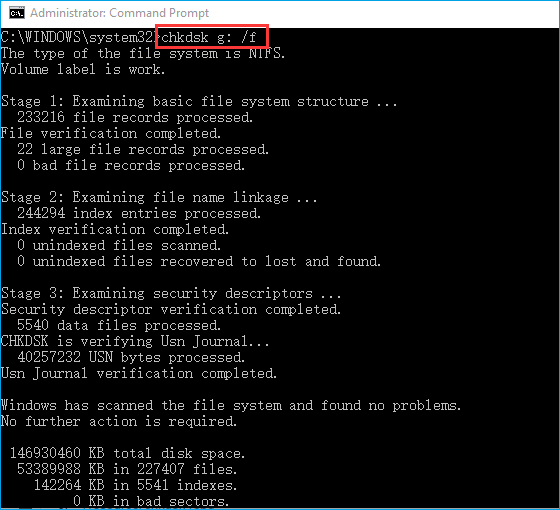
Step 4. Type exit when the process completes.
After formatting the hard drive or external hard drive, you can proceed to the next guide to format the device to NTFS or exFAT, effectively resetting its file system and making it secure for saving and displaying files again.
When formatting a drive, remember to let Deep Data Recovery scan your entire drive first, so it can find and recover all missing data before any formatting occurs, preventing potential file loss.
#2. Format or Reformat Hard Drive/External Hard Drive
To use a hard drive or external hard drive without issues, it's recommended to format it to a Windows-supported format, specifically NTFS, to ensure normal functioning.
Refer to the steps here to make your device usable again:
Step 1. Connect the external hard drive to your PC.
Step 2. Right-click "This PC" > Select "Manage" > "Disk Management".
Step 3.To format a drive or partition, right-click on the target drive or partition and select the "Format" option from the context menu.
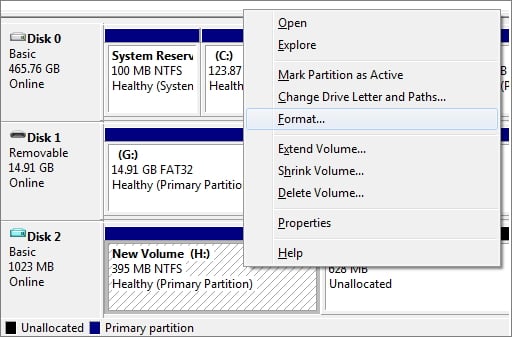
Step 4.To format the drive, select "NTFS" as the file system, check the box next to "Quick Format", and click "OK".
Now, your device is available for saving data, and you may save the found files back to your external or internal hard drive again.
Now, You Are Good To Use the Hard Drive and Files
If your hard drive is not showing files that still exist in Windows 11/10/8/7, try reconnecting the drive to your computer first, as this may resolve the issue.
If you can't see the files, Qiling Data Recovery Wizard can help. It's the easiest way to recover all your files.
After restoring, if files are not showing, you can run the CHKDSK command to fix the hard drive error and reformat the device to NTFS to save data again.
FAQs about Files Not Showing in Hard Drive
If you're experiencing issues with your hard drive not showing files, you might find the answers to your questions below. Check out the Q&A section to see if your issue is addressed, and hopefully, you'll find the solution to your problem.
1. What is taking up space on my hard drive Windows 10/8/7?
To see what's taking up space on your PC in Windows 7/8/10, follow these two simple steps. Firstly, click on the Start button, then type "disk cleanup" in the search bar and select the appropriate result. This will open the Disk Cleanup tool, which shows you a list of files and folders taking up space on your computer.
Step 1. Show hidden files on the hard drive.
You may revert to Method 2 in Stage 2 for help.
Step 2. To analyze your hard drive and identify what's taking up space, you can use the built-in Disk Cleanup tool on Windows or the About This Mac feature on a Mac. On Windows, go to File Explorer, right-click on the hard drive (usually C:), and select "Properties.
- Go to "Settings" > "System" > "Storage".
- To free up space on your computer, click on the hard drive partition that's taking up the most space. This shows you a list of files and folders on that partition, allowing you to identify and delete any unnecessary files or programs that are consuming a large amount of space.
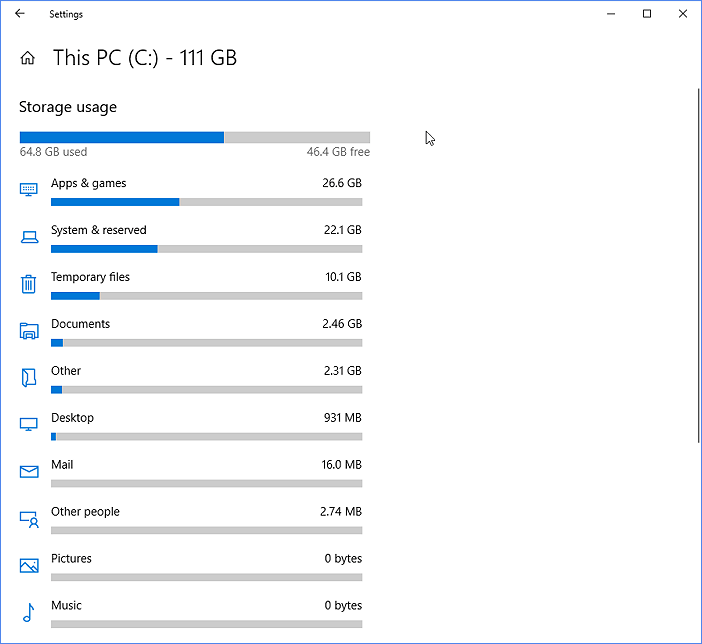
The space on your hard drive is being taken up by files and folders, including operating system files, program files, and user data. You can free up space by deleting unnecessary files, emptying the recycle bin, and uninstalling unused programs. Additionally, you can use the Disk Cleanup tool to remove temporary files and system files that are no longer needed.
2. How do I show hidden files on my external hard drive in Windows 10/11?
- 1. Open File Explorer and go to the View tab.
- 2. Click Options and choose the "Change folder and search" options.
- 3. On the View tab, look for the Advanced settings area.
- 4. Check "Show hidden files, folders, and drives" and click "OK".
3. How do I fix my external hard drive not recognized error?
If an external hard drive becomes unrecognizable, it may be due to a faulty USB port, outdated hard drive drivers, a virus attack, or a device failure error.
You can try the five ways to fix it:
- Try a different USB
- Uninstall and reinstall external hard drive driver
- Turn on USB Root Hub
- Show all hidden files
- Use Registry Editor
If your Seagate external hard drive is not being detected or recognized, try the following: Check the power cord and USB connection to ensure they are securely connected. Restart your computer and try to access the drive again.
Related Articles
- How to Recover Deleted Files from Hard Drive
- How to Recover Deleted Call Recordings on Android [2022 Guide]
- How to Fix Excel 2016 Opens and Closes Immediately in 4 Ways
- Hard Drive Not Showing Up or Detected in Windows? Learn How to Fix
- Undelete Windows Server 2016: Recover Deleted Files Windows Server 2016
With Qiling Windows Server data recovery software, you can recover deleted files on Windows Server 2016 due to system updates, careless deletion, formatting, or unexpected virus attacks, and get your data back right now. - The Best Photo Recovery App/Software for Any Device
Keep calm if you lose photos from an Android phone, iPhone, Windows PC, Mac laptop, or a camera. This post provides you with the best photo recovery software for iPhone, Android, Windows, and Mac. Free download the best photo recovery software to recover deleted photos from any device.
Products
Articles & Tutorials
- Data Recovery
- Data Backup
- File Recovery
- File Backup
- System Backup and Restore
- Disk and Partition Clone
- Technical articles
- Mobile articles
- Disk Master Help
- Windows Data Recovery Tutorials
- Windows Secure Delete Tutorials
- Windows Partition Management Tutorials
- Windows File Backup and Restore Tutorials
- Windows System Backup and Restore Tutorials
- Windows Disk Backup and Restore Tutorials
- Windows Clone Tutorials