Undelete Windows Server 2016: Recover Deleted Files Windows Server 2016
Windows Server 2016, like other Windows operating systems, can suffer from data loss due to reasons such as careless deletion, hard drive formatting, system failure, emptying the recycle bin, or virus attacks. As a result, users often seek a solution to recover lost data on Windows Server 2016, as well as earlier versions such as 2012, 2008, and 2003.
Learn how to recover deleted files on Windows Server 2016 with the simple yet powerful Deep Data Recovery software. This guide will walk you through the process of using Deep Data Recovery to recover deleted files in just a few clicks, making it a reliable solution for Windows Server data recovery.
Free Download the Best Windows Server 2016 Data Recovery Software
Deep Data Recovery offers comprehensive and easy data recovery solutions for Windows users, including Windows Server users, and is efficient in undeleting and recovering deleted files in Windows Server 2016 and other versions.
Deep Data Recovery to Quickly Retrieve Lost Data
- Recover lost files with ease! Whether it's a Word document, photo, audio, music, or email, you can retrieve it from any storage device effectively.
- Data recovery software can restore deleted, formatted, and inaccessible data in various data loss scenarios, including accidental deletion, hardware failure, virus attacks, and formatting errors. These tools can recover files from different storage devices, such as hard drives, solid-state drives, USB drives, and memory cards, and can also handle data loss due to physical damage, water damage, or other forms of corruption.
- Restore lost data on Windows Server 2008, 2012, 2016, and 2019.
Step-by-Step Guide to Recover Deleted Files Windows Server 2016
To recover deleted files in Windows Server, download the Qiling Windows Server file recovery tool on your computer and follow the steps to retrieve the lost files.
Step 1. Launch Qiling file recovery software on your Windows computer, select the desired file types, and click "Fast Scan" to initiate the recovery process.

Note: You can choose different search modes based on where and why the data was lost.
Step 2. Click on the location where you lost the files, and then click the "Scan" button. This will start the search process.

Step 3.The software will immediately start scanning the drive, displaying deleted files soon after. If you find the files you need during the scan, you can stop the scan. To find the target file quickly, you can use the file format filter.

Step 4.Select files such as Word, Excel, PDF, photos, videos, or emails, and click the "Recover" button. You can then browse for a different location to save the recovered files.
Undelete Windows Server 2016 from Previous Versions
On Windows Server 2016, users can recover deleted files by accessing previous versions if the Windows backup feature was enabled beforehand, eliminating the need for data recovery software.
Here's how:
Step 1. To find the folder that contained deleted files on Windows Server 2016 or other versions, follow these steps: Open the Command Prompt as an administrator. Type the command "icacls C:\path\to\folder" (without quotes), replacing "C:\path\to\folder" with the actual path to the folder you're investigating.
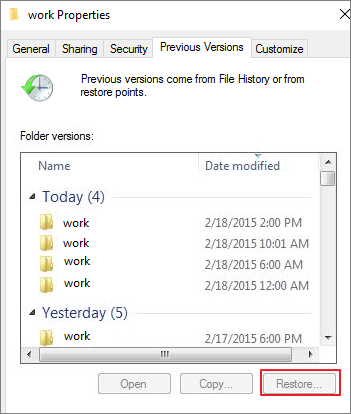
Step 2. To access previous versions of a folder, right-click on the folder and select "Properties". In the Properties dialog box, click on the "Previous Versions" tab.
Step 3. To restore the wanted version, select it and click "Restore". Then, save the restored version to a different location or filename using the File/Save As command.
Undelete Files on Windows Server 2016 in Time
On Windows Server, recovering deleted files using previous versions is often ineffective due to the fact that most users don't enable the Windows backup feature, making it difficult to restore lost files.
To recover deleted files on Windows Server, we recommend using professional file recovery software promptly to avoid new data overwriting. Qiling Windows Server data recovery software allows you to recover permanently deleted files on all common Windows Server systems in just three steps, making it easy to restore any lost files.
Protection - How to Avoid Data Loss on Windows Server
Prevention is always better than cure, and this holds especially true when it comes to data loss. To avoid any potential data loss, taking some proactive steps can be beneficial.
- Creating Windows Server data backups is a crucial step in data protection, helping to prevent data loss in case of system crashes, hardware failures, or other unforeseen events. By regularly backing up data, organizations can ensure business continuity and minimize downtime, ultimately reducing the risk of financial losses and reputational damage.
- Operate carefully: To avoid misoperations is highly necessary
- Use anti-A virus removal software or program is a type of tool designed to scan, detect, and eliminate all types of viruses, spyware, and malware from a computer system on a regular basis.
- Find a powerful data recovery solution for Windows Server 2016
If you need to create Windows Server backups, Qiling Backup Advanced Server will help you back up all your data easily. If you lose important Windows server data and have no backups, data recovery software can help you recover it.
Related Articles
- Get Deep Data Recovery for Mac Full Crack with Key
- How to Recover Data After Low Level Format
- Top 8 Best Professional Data Recovery Software Update
- Recover Deleted Files from USB Flash Drive/External Hard Drive
- Easiest Way for How to Recover Deleted Files from a Toshiba External Hard Drive
To recover files from a Toshiba external hard drive, use Deep Data Recovery and follow these 3 easy steps: scan the drive, preview the recoverable files, and retrieve the desired data. - An Effective Way to Recover Deleted Files in Windows
When you are emptying recycles bin, mistakenly deleting files. Your can free download this deleted file recovery tool to recover deleted files in Windows and other storage devices.
Products
Articles & Tutorials
- Data Recovery
- Data Backup
- File Recovery
- File Backup
- System Backup and Restore
- Disk and Partition Clone
- Technical articles
- Mobile articles
- Disk Master Help
- Windows Data Recovery Tutorials
- Windows Secure Delete Tutorials
- Windows Partition Management Tutorials
- Windows File Backup and Restore Tutorials
- Windows System Backup and Restore Tutorials
- Windows Disk Backup and Restore Tutorials
- Windows Clone Tutorials