Recover Deleted Folders on Windows 10/11 [Quick]
Recover Deleted Folders Overview
Almost every computer user will encounter data loss issues, and most users will lose files and folders due to accidental deletion. Fortunately, it is possible to recover deleted folders on their computers, and there are five different methods that can help achieve this.
Data loss can occur due to various reasons beyond accidental deletion, including hardware or software failures, viruses, power outages, or human errors.
- 😈Man-made sabotage. Your files and folders may be lost if your laptop or computer is stolen, damaged, or if the hard drive crashes.
- ⚡Virus and Computer viruses and malware can cause files and folders to be deleted without warning, making it easy to encounter this issue even when using the computer properly.
- ⚔️Software confliction. Some applications may cause conflicts, requiring additional time to save work when these conflicts occur.
- 💾Hard drive corruption. Hard drive corruption can occur unexpectedly, resulting in the loss of essential data stored on the drive. Since it's impossible to predict when or if corruption will happen, it's crucial to regularly back up your data to prevent losing important information.
- 😨Accidental formatting. If you format a hard drive without any backups, you will lose all the files and folders on the drive.
To recover deleted folders on Windows, try the following 5 methods and detailed tutorial. These steps can help you recover deleted folders on Windows 10/11.
Method 1. How to Recover Deleted Folders with Software
To recover deleted folders on Windows, the most recommended method is to use data recovery software, such as Deep Data Recovery, which can quickly restore deleted folders even in situations like accidental deletion, power off, system crashes, or internal hard drive corruption.
- To recover deleted files from your desktop on Windows 10, you can try restoring them from the Recycle Bin. The Recycle Bin is a temporary storage location for files and folders that have been deleted, and it's usually located on the desktop.
- You can recover deleted folders from various storage devices, including internal hard drives, USB flash drives, external hard drives, and more.
- When recovering files and folders, consider your needs before repairing external hard drives or after formatting the HDD/SSD.
- Most files can be recovered even if the deleted folders are included, such as videos, photos, emails, documents, and audio.
To recover deleted folders on Windows, launch Qiling Data Recovery Wizard and follow this guide.
Step 1. Select a folder to scan for lost files
Launch Deep Data Recovery, click on the location where the folder was lost, and then click "Scan" to begin scanning for the lost folder.

Step 2. Find and preview found files in the lost folder
If you remember the folder name, type it into the search box to quickly locate the lost files. Once found, open the folder and double-click on the files to preview them. Alternatively, use the Filter feature to find specific types of files.

Step 3. Recover and save the lost folder
Select the folder and files you need, click "Recover", and choose a new secure location on your PC or cloud storage like OneDrive, Google Drive, or Dropbox to keep the recovered data.

Method 2. Retrieve Deleted Folders from Recycle Bin
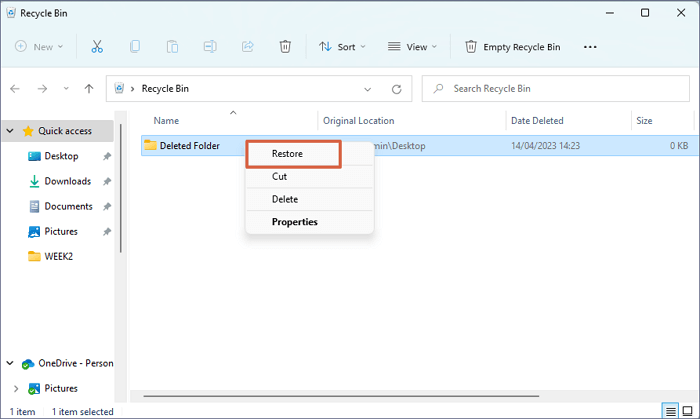
If you delete your folders using the right-click on Windows 10, you can find the Recycle Bin and restore your deleted folders.
Step 1. To avoid deleting folders with their contents, make sure you're not using the Shift + Delete shortcut, and be aware that this method is different from regular deleting. Shift + Delete doesn't send files to the Recycle Bin, so you won't find deleted folders there.
Step 2. The Recycle Bin is a default icon on the desktop that resembles a trash can, allowing users to easily access and manage deleted files.

Step 3. Double-click the Recycle Bin icon, navigate to the deleted folder, right-click it, and choose "Restore" to recover it.
Method 3. Recover Deleted Folders by Restoring to Previous Version
If you have Windows restore points, you can restore Windows 10/11 to a previous version, which is sometimes referred to as a "shadow copy". This means that if you've accidentally deleted folders, you may be able to recover them by restoring your system to a previous point when they were still intact. To do this, you'll need to access the System Restore feature in Windows, which can be done by searching for "System Restore" in the Start menu, or by using the Windows key + S to open the search bar. From there, you can follow the prompts to select a restore point and complete the restore process.
Step 1. If File Explorer is not responding on Windows 11/10, you can restart it to fix the problem. To do this, open the File Explorer on Windows 11/10.
Step 2. Navigate to the upper folder of the deleted one.
Step 3. If a top folder on a drive was deleted, you can restore it by right-clicking the drive and selecting the option to restore prior versions.
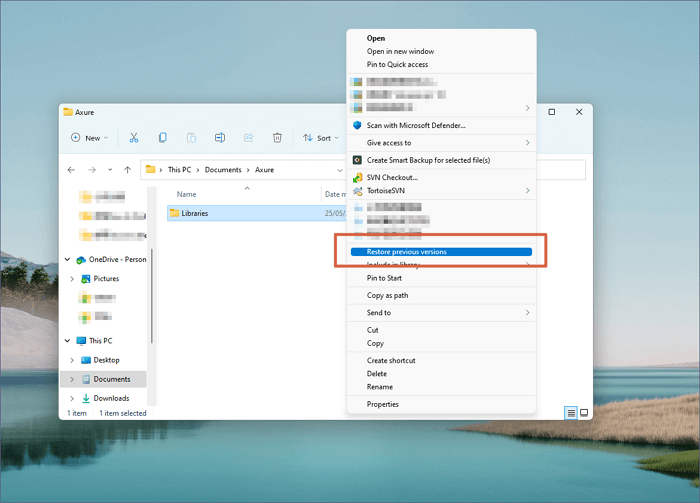
Step 4. To restore a deleted folder, select the most recent backup that includes it and click on the "Restore" option.
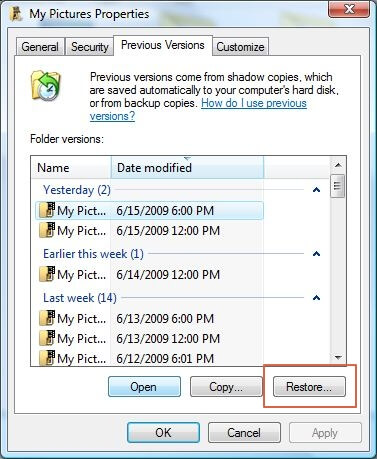
Method 4. Restore Deleted Folders with Backup and Restore
If you haven't manually created any backups, it's worth checking Windows Backup and Restore, which can potentially rescue lost folders with system backups. This built-in utility can help restore deleted folders, and you can find a tutorial on how to do it.
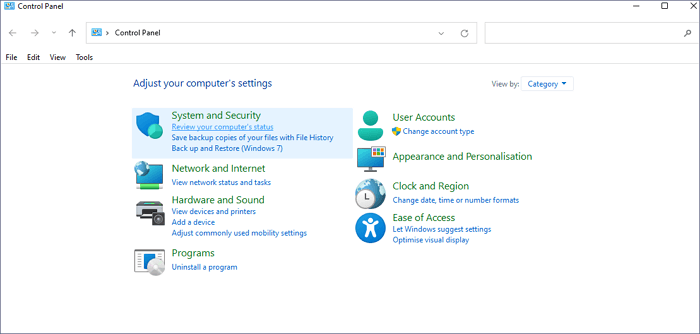
Step 1. To open the Control Panel on Windows 10/11, you can use the search box. Simply click on the Start button, type "Control Panel" in the search box, and press Enter.
Step 2. Click "System and Security", and you will see many options.
Step 3. Click on the "Back Up" tab in the left-hand side of the window, then click on the "Set up automatic backup" button.
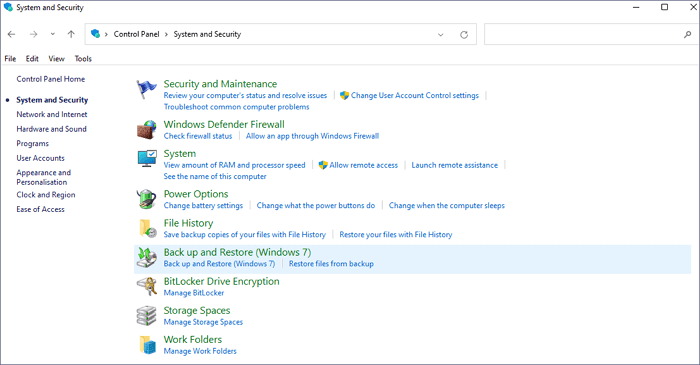
Step 4. Click "Restore my files" and then search for lost folders by clicking "Browse for folders".
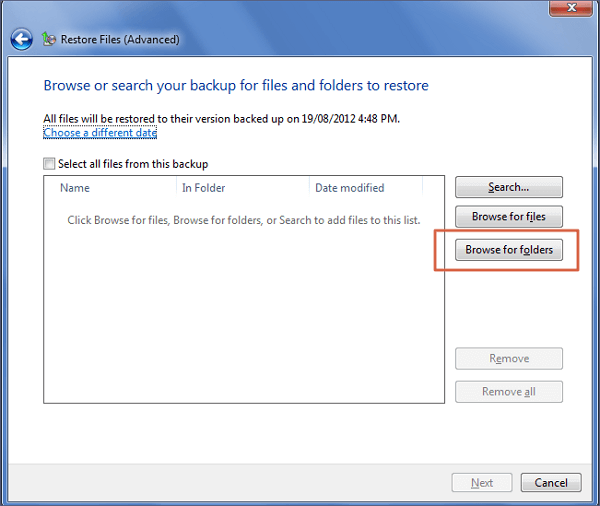
Step 5. If you're unable to find a specific folder, you can try searching for it. If you still can't find it, you can check your computer's recycle bin or trash folder to see if it's been accidentally deleted.
If you've accidentally deleted a folder on your Windows computer, don't worry! You can still recover it using the built-in File Recovery feature.
Method 5. How to Recover Deleted Folders with File History
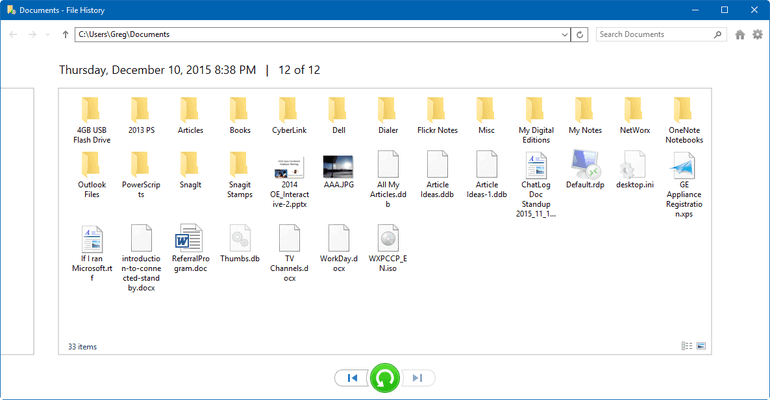
To recover deleted folders on Windows, you can use File History, which regularly copies files from your Favorites and Contacts directories, Desktop, and Libraries. This method is relatively easy to use, allowing you to recover deleted folders by following a straightforward process.
Step 1. To access the File History option, open the Control Panel, click on System and Security, and then select File History.
Step 2. To recover deleted data, select the folder containing the deleted folders and choose the correct record that holds the deleted data.
Step 3. Click on the Restore button, and the selection will come back once you press the Restore button.
Summary
If you've lost a deleted folder, we recommend trying the five methods we suggested. Fortunately, Windows 10 and 11 offer various tools to help recover lost data. If you don't have a backup on your computer and Windows Backup and Restore isn't activated, you may want to try Qiling data recovery software.
Recover Deleted Folders FAQs
If you have more questions about recovering deleted folders on Windows, don't leave this page. You can check four frequently asked questions to learn more:
1. How to recover permanently deleted files on Windows?
To recover permanently deleted files on Windows, you'll need Deep Data Recovery.
- 1. Launch the software and hover on the target drive or folder where you lost your files.
- 2. The recovery process will begin. You can preview the files to ensure they can be opened after recovery.
- 3. Click the Recover button to recover deleted files.
2. Why a deleted folder is not in the Recycle Bin?
Deleted files may have been permanently removed if they weren't in the Recycle Bin, freeing up space that can be overwritten by new data. Alternatively, the folder might not have been deleted, but rather moved to another partition.
3. Where can I find recently deleted folders?
Recently deleted folders on Windows can be found in the Recycle Bin. After deletion, files and folders are moved to the Recycle Bin by default. To recover them, right-click in the Recycle Bin and select 'Restore'.
4. What is the best folder recovery program?
To recover lost folders on Windows, you can use various recovery software. These programs can help you retrieve deleted folders by scanning your computer's hard drive and recovering lost data.
- 1. Deep Data Recovery
- 2. Recuva
- 3. PhotoRec
- 4. Recover My Files
- 5. Wise Data Recovery
Related Articles
- SnowRunner Lost Save Files on Steam/PS/Xbox | SnowRunner Recovery
How to Fix SnowRunner lost save files on PC, PS, Xbox, or Switch. We will introduce detailed methods to help you find lost game files, and you can use Deep Data Recovery to recover lost game files quickly. - 5 Ways to Troubleshoot Video Not Working on Zoom
Having issues with Zoom Meetings' video? Here are 5 Ways to Troubleshoot Video Not Working on Zoom for crystal-clear videos and uninterrupted meetings. Besides, download Qiling video repair software to repair corrupted Zoom recordings as soon as possible. - Witcher 3 Missing Saves | How to Restore Witcher 3 Game Saves
Witcher 3 missing saves on PC? We are here to help you recover Witcher 3 missing saves; five methods will be mentioned in this guide. You'll know how to recover missing data on different devices. - [Official & Latest] Deep Data Recovery Key 3.1 and Qiling License Code
Stop trying to use Qiling data recovery crack, keygen, or serial number. Deep Data Recovery 3.1 with the official license code and serial key is available here for you to download. With the Qiling data recovery key, you can activate Deep Data Recovery legally and recover your data in the safest way. - Top 5 Best Free Data Recovery Software for Windows in 2023
Here are the top 5 best free data recovery software for Windows 11/10/8/7 to download: You can use free file recovery software to recover lost or deleted files on your Windows PC. - How to Undelete Files in Windows 11/10
I accidentally deleted a file? Can I get deleted files back or undelete in Windows PC. This article explains how to undelete files in Windows 11/10.
Products
Articles & Tutorials
- Data Recovery
- Data Backup
- File Recovery
- File Backup
- System Backup and Restore
- Disk and Partition Clone
- Technical articles
- Mobile articles
- Disk Master Help
- Windows Data Recovery Tutorials
- Windows Secure Delete Tutorials
- Windows Partition Management Tutorials
- Windows File Backup and Restore Tutorials
- Windows System Backup and Restore Tutorials
- Windows Disk Backup and Restore Tutorials
- Windows Clone Tutorials