5 Ways to Troubleshoot Video Not Working on Zoom
With video conferencing, we can now converse with others from the comfort of our own homes, a trend that has rapidly grown over the past few years. Zoom, among other tools, has become a popular choice to meet the demands of remote meetings, making it easier than ever to connect with others from anywhere in the world.
Zoom users have experienced video difficulties during conversations, which can be uncomfortable and damage virtual relationships. This article will discuss the causes of this issue and provide 5 ways to troubleshoot video not working on Zoom.
| Workable Solutions | Step-by-step Troubleshooting |
|---|---|
| Restart Your PC | Click the "Start" Button at the bottom left of your PC. Select "Power"...Full steps |
| Update Your Camera Driver | Go to "Start", then search and click on "Device Manager". Then, scroll down and...Full steps |
| Reinstall Zoom | Type "Control Panel" into the Windows search bar to launch it...Full steps |
| Unblock Zoom | Choose Windows from the menu in the screen's bottom left corner. Select "Settings"...Full steps |
| Run Built-in Troubleshooting | Run the Zoom software on the computer. Hit the "Settings" icon in the upper right...Full steps |
Causes of Video Not Working on Zoom
Zoom calls' video freezes can be caused by a variety of factors, including internet connectivity issues, poor video quality, outdated software, and hardware limitations, which can be frustrating during meetings, but there are possible solutions to resolve these issues.
Zoom users may experience video issues due to poor internet connection, outdated software, or hardware incompatibility, which can be resolved by restarting the app, updating software, or using a different device.
Bad internet connectivity: Video quality problems, such as freezing, lag, and buffering, can be caused by slow or unpredictable internet speeds.
Outdated software: To get the best experience, it's crucial to have the most recent Zoom version and the operating system installed.
Incorrect camera settings: If the camera is not accessible from the settings, video won't function during Zoom meetings. If the camera is not accessible, you can try restarting the app, checking for updates, or reinstalling the app to resolve the issue.
Hardware problems: Make sure your laptop camera isn't blocked or covered by anything, such as a piece of paper or a sticker, which could be causing the issue.
Firewall or security software: Zoom may not be able to access your camera, microphone, or other necessary hardware due to your firewall or antivirus program blocking the necessary permissions.
5 Ways to Fix Zoom Webcam Not Working
If you're experiencing issues with your webcam during Zoom meetings, don't worry, it's a common problem that can be easily resolved. Various reasons such as poor internet connection, outdated software, or hardware issues can cause this issue. Fortunately, these problems can be quickly fixed by following some simple and comprehensive techniques, which can be found in the article below.
Method 1. Restart Your PC to Fix Zoom Camera Not Working
If you're experiencing issues with your Zoom camera, restarting your computer may resolve the problem. This simple step resets your computer's hardware and software settings to their default state, potentially resolving any issues with your camera. To try this, simply restart your computer and then relaunch Zoom to see if the problem has been resolved.
Step 1. Click the "Start" Button at the bottom left of your PC.
Step 2. Select "Power," and after that, "Restart" from the options provided.

Method 2. Update Your Camera Driver to Fix Video Not Working on Zoom
To get a crisp video on Zoom, update your camera driver as it regulates how your camera communicates with your computer, potentially enhancing its functionality and video quality.
Step 1. Go to "Start", then search and click on "Device Manager".
Step 2. To find the cameras, first scroll down and look for "Cameras" from the sidebar menu.
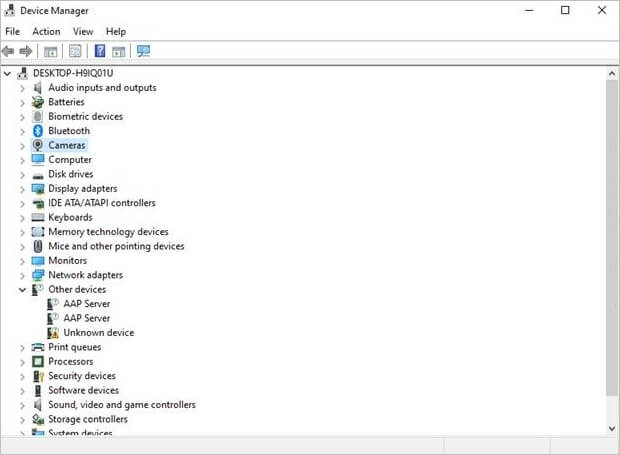
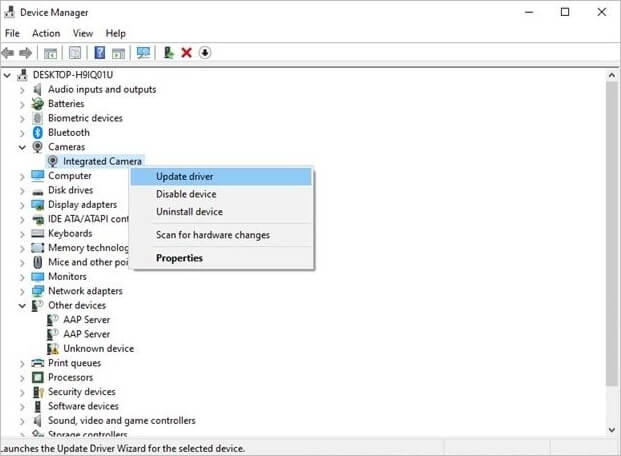
Step 3. To update the camera driver, click on the Start menu and select the "Device Manager" option. From the dropdown table, right-click on the camera you wish to update and select the "Update driver" option.
Step 4. Select "Update driver" from the menu and wait for your driver to be updated.
Method 3. Reinstall Zoom to Fix the Video Not Working
To resolve video issues with Zoom, reinstall the program to ensure a seamless video experience. This can be done by uninstalling and then reinstalling Zoom, which will provide the necessary resources to fix problems with the operating system or other software. To proceed, go to the Control Panel, select "Uninstall a program," and follow the prompts to remove Zoom. Once complete, restart the computer and then reinstall Zoom from the official website. This should resolve any video issues and provide a smooth video experience.
Step 1. To launch the Control Panel, simply type "Control Panel" into the Windows search bar.
Step 2. Select "Uninstall a Program" in the Control Panel.
Step 3. To uninstall Zoom, go to "Programs and Features", select "Large or Small Icons" to ensure the correct view, and then click on "Zoom" from the list of programs to initiate the uninstall process.
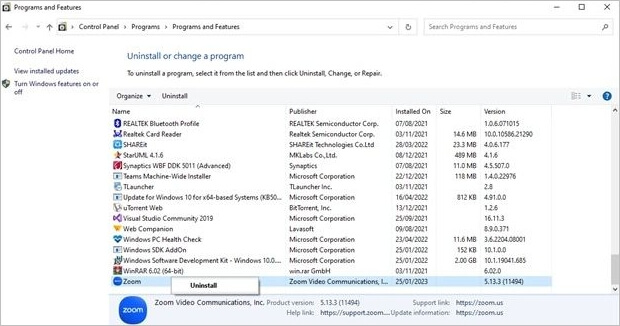
Step 4. When prompted, select "Yes" to complete the uninstallation.
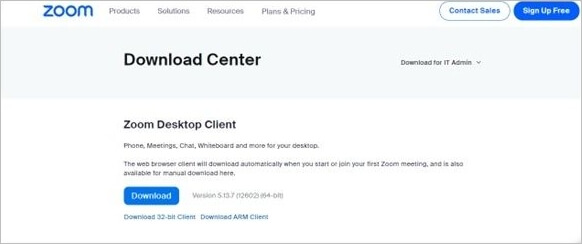
Step 5. Visit the Zoom download website to download and install the latest version of Zoom.
Method 4. Fix Zoom Video Not Working by Unblocking Zoom
If you're experiencing Zoom video troubles, the solution might be to unblock the app. Zoom can become restricted for various reasons, which can interfere with video quality. To resolve the issue, ensure that Zoom has access to the necessary tools and resources by unblocking it. You can do this by going to.
Step 1. To access settings on Windows, click on the Start menu located in the bottom left corner of the screen, then select "Settings" from the menu that appears.
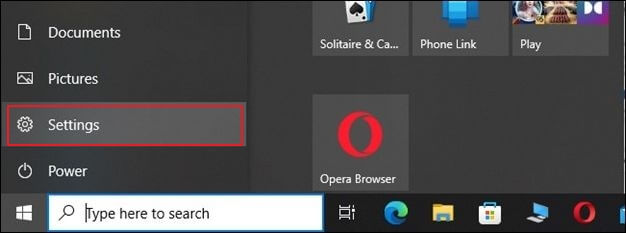
Step 2. From the drop-down option under Settings, choose "Privacy."
Step 3. Choose "Camera" from the "Privacy options" menu on the left.
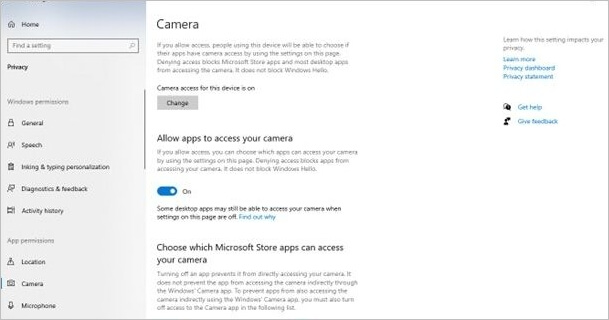
Step 4. To enable camera settings, turn them on if they are not already on, and ensure the Zoom app has access to the camera.
Method 5. Run Built-in Troubleshooting to Fix the Error
If you're experiencing issues with a video bug on Zoom, this section is for you! Zoom's built-in debugging tool can help identify and resolve typical technical problems causing video hiccups, and following the instructions can help launch the built-in troubleshooting feature.
Step 1. Run the Zoom software on the computer.
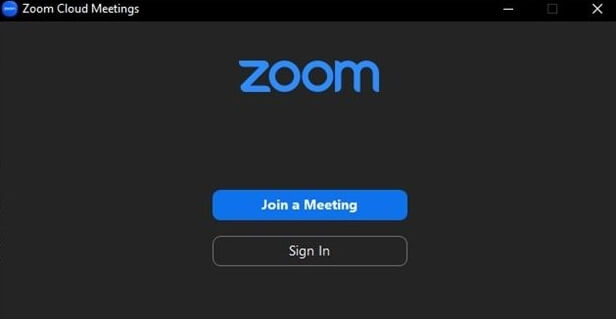
Step 2. The settings icon in the upper right corner of the app is typically represented by a gear or cog icon. It may also be labeled as "Settings" or have a similar name, depending on the app.
Step 3. After choosing "Video" from the settings panel's menu on the left, proceed accordingly.
Step 4. The "Troubleshooting" link redirects to a new panel that lists various issues that might be encountered by users, along with potential solutions to resolve them. The panel also contains a search bar where users can input specific error messages to find relevant solutions. Additionally, the panel provides a list of recent issues and their corresponding solutions, allowing users to quickly access previously encountered problems and their resolutions.
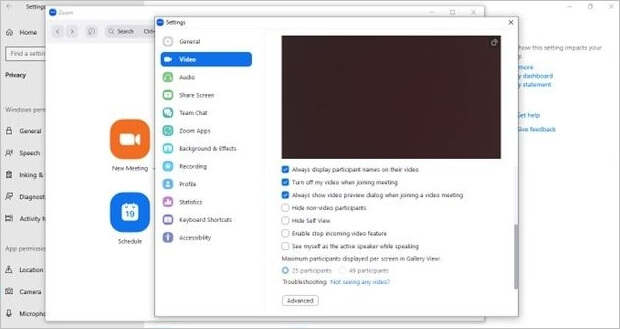
Step 5. If you're having trouble accessing your webcam on Zoom, you can try turning it on in your PC's settings or downloading the Zoom app again. If that doesn't work, you can visit Zoom's Support Center for further assistance.
Bonus Tip How to Repair Corrupted Zoom Videos
Fixing corrupted Zoom videos can be done with video restoration software. Tools like Remo Repair AVI and Stellar Repair operate by examining the damaged video file and trying to salvage as much of the original data as possible.
Deep Data Recovery is a software that fixes corrupted videos by utilizing its wide range of features, making it a reliable option for restoring damaged videos to their original state.
- The system has a high repair success rate, making it an efficient and reliable solution.
- This tool fixes various video issues, including audio-video synchronization problems and header corruption.
- Supports various video formats including, MP4, AVI, MOV, and MKV.
- The repair process for video files is done without modifying the original file, ensuring it remains safe to use.
- This program can recover and fix videos from various storage devices, including hard drives, SSDs, USB flash drives, pen drives, and more.
Download the MP4 video repair tool to fix damaged Room meeting videos.
Step 1. Run Deep Data Recovery, select the drive containing the corrupted videos, and click "Scan" to initiate the process.

Step 2. This program scans all files on a selected drive, displaying both existing and lost files, and allows users to filter by file type, including video formats like MP4, MOV, and GIF, or search by camera brand to quickly find files to repair.

Step 3. When you can preview the video, the software has already fixed it for you. Click "Recover" to restore the fixed videos to a different location, avoiding data overwriting.

Conclusion
Fixing Zoom's video malfunction can be frustrating, but there are several solutions to try. Updating your Zoom software and repairing the video file with video restoration software are two possible options. However, for a range of video issues, using Qiling free data recovery software may be the most effective solution. Each method has its advantages and may work better for specific problems, but with these options, you can resolve the issue and continue to enjoy your online meeting sessions.
Zoom Camera Not Working FAQs
After exploring the causes and their solutions in detail, you may still have some questions. Some of them are addressed below.
1. How do I get my video to work on Zoom?
To get video on Zoom to work, ensure a stable and fast internet connection, correctly connect and enable your camera and microphone in Zoom settings, restart your device, and ensure you have the latest Zoom software version installed.
2. Why is my video not showing me on Zoom?
If Zoom meetings are disappearing, it could be due to a weak internet connection causing slow video transmission, incorrect camera settings in the Zoom app, an outdated Zoom app, or a problem with the drive server.
3. How do I give access to Zoom?
To grant participants access to Zoom, send an invitation with a unique meeting link, schedule a meeting and invite attendees via email or calendar, set up a recurring meeting, or create a Zoom Room. The procedure may vary slightly depending on whether you use the free or paid version.
4. Is Zoom video conferencing free?
Zoom offers users free and paid video conferencing options, with the free version having basic features like unlimited meetings for up to 40 minutes, and the paid version offering advanced features and support, including unlimited group meetings for up to 30 hours.
Related Articles
- Overwritten CCTV File Recovery: How Can I Recover CCTV/DVR Files
- The Best SSD Data Recovery Software for SSD Data/File Recovery
- [SOLVED] Repair Corrupted Photos: JPG/JPEG Repair on Windows
- How to Recover Data from Micro SD Card
- [5 Solutions for macOS] Recover Deleted Files After Updating to Catalina
How to recover deleted files after updating to Catalina? This article teaches you five ways to recover lost files on macOS Catalina. You can recover deleted files with Time Machine, recovery software, iCloud, Apple Support, and by checking the Mac folder. - Recover Deleted LINE Attachments on iPhone/Android
If you've accidentally lost LINE attachments, they can be recovered. Qiling MobiSaver is a reliable tool that can help you retrieve deleted or lost LINE attachments from your iPhone or Android device.
Products
Articles & Tutorials
- Data Recovery
- Data Backup
- File Recovery
- File Backup
- System Backup and Restore
- Disk and Partition Clone
- Technical articles
- Mobile articles
- Disk Master Help
- Windows Data Recovery Tutorials
- Windows Secure Delete Tutorials
- Windows Partition Management Tutorials
- Windows File Backup and Restore Tutorials
- Windows System Backup and Restore Tutorials
- Windows Disk Backup and Restore Tutorials
- Windows Clone Tutorials