[SOLVED] Repair Corrupted Photos: JPG/JPEG Repair on Windows
In this article, you'll learn:
- Overview: Why Should Repair Corrupted Photos
- 7 Solutions: How to Repair Corrupted Photos 🔥
- How to Prevent Photos from Becoming Corrupt
- Repair Corrupted Photos FAQs
Overview: Why Should Repair Corrupted Photos
Photos taken on your phone, camera, or other devices are often saved to your computer for easier viewing and storage, but the files can become corrupted in Windows 10/11, causing issues when viewing photos.
This article will share 7 quick and safe ways to repair corrupted photos on Windows 10/11. Corrupted photos can occur due to various circumstances such as software glitches, virus attacks, or physical damage to the storage device, resulting in loss of valuable memories and data.
- ✍️A mistake occurs during data writing or reading.
- ❌You refuse to let the system finish the tasks related to your photographs.
- 🔋Your computer's power supply fluctuates.
- ⌛Image data stored on a storage media can degrade over time due to exposure to a harsh or long-term environment.
To learn about the best photo repair tools, you can read the following post, which highlights the top 11 best photo repair software for PC.
Top 11 Best Photo Repair Software for PC/Mac
The top ten best photo repair tools are available to restore damaged pictures, allowing users to revive and enhance their cherished memories.
7 Solutions: How to Repair Corrupted Photos
If you find that your photos are corrupted or won't open, you can resolve the issue in Windows 10/11 by using the following fixes, which also work with Windows 8 and 7. To start, check if the issue is caused by a faulty storage device, and if so, replace it with a new one. Next, try using a different photo viewer, such as IrfanView, to see if the problem is specific to the default viewer.
- 1. Use Qiling Deep Data Recovery Software to Repair Corrupted Photos
- 2. Convert Damaged Photos to Another Format
- 3. Update the Windows Photo Viewer
- 4. Try a Different Photo Viewer to Open Corrupted Photos
- 5. Repair the Microsoft Photos Apps
- 6. Open Images in Internet Browsers
- 7. Run SFC Scannow Commands to Repair Corrupted Photos
#1. Use Qiling Deep Data Recovery Software to Repair Corrupted Photos
Qiling Deep Data Recovery is a method designed to repair corrupted photos for Windows users, offering the highest success rate among available methods.
With the help of the Qiling Fixo software, you may effectively fix damaged photos in a variety of conditions, as well as repair corrupted videos and documents like Word and Excel files.
- Damaged photo recovery software can restore JPEG or JPG files that are corrupt or damaged, allowing you to salvage and view your cherished memories.
- Several corrupted JPEG files can be fixed simultaneously.
- You can repair damaged JPEG files from various storage devices, including a laptop, external hard drive, SD card, and USB flash drive, using a reliable photo repair software like Photo Repair or JPEG Repair. Simply download and install the software, select the damaged JPEG file, and follow the on-screen instructions to repair the file. The software will scan the file, detect the damage, and attempt to repair it.
- After the scan, you can preview the restored JPEG files.
To repair corrupted photos, download Qiling Deep Data Recovery and follow its steps. This software can help recover and repair damaged images, allowing you to restore them to their original quality.
Step 1. To proceed, select the specific file location you'd like to scan and then click the "Scan" button.

Step 2. After the process, select the "Deleted Files" and "LostFiles" folders in the left panel. You can then apply the "Filter" feature or click the "Search files or folders" button to locate the deleted files.

Step 3. To recover the files, click the "Recover" button and save the restored files in a different location than the original one, such as a USB drive or an external hard drive.

#2. Convert Damaged Photos to Another Format
If you're unable to access your photos, try checking if they're simply hidden or if you've accidentally deleted them. You can also try restarting your device or checking if the photos are stored in a different location, such as a cloud storage service. If none of these solutions work, it's possible that the photos themselves are damaged, but it's worth trying to recover them using photo recovery software.
The easiest step is to convert the format of the damaged photo files, which can be done using a free online format converter. This process involves changing the file format of the damaged photos to see if it resolves the issue, allowing you to access the file by opening it again.
🔎See also:
#3. Update the Windows Photo Viewer
Users may experience issues viewing photos due to outdated Windows Photo Viewer, so upgrading it is recommended.
Windows Photo Viewer can only be upgraded through a Windows 11 system upgrade, as it is not available on the Microsoft Store. To upgrade, follow these instructions.
Step 1. To update Windows, open the Start menu and select the "Settings" icon. From there, navigate to the "Update & Security" option.
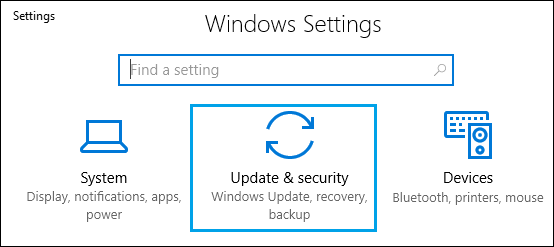
Step 2. Select "Check for updates" when you click on "Windows Update".
Step 3. The box next to "Windows Photo" is tiny, so check it after clicking on the "Install Updates" option.

Windows Photo Viewer Can't Display This Picture Windows 11/10/8/7
To fix the Windows Photo Viewer can't display this picture error on your Windows 10 computer, try reinstalling the Photos app, updating Windows, checking the image file format, and ensuring the image file is not corrupted. You can also try using a third-party photo viewer like IrfanView or XnView. If the issue persists, consider resetting Windows 10 or seeking further assistance from Microsoft Support.
After the update is finished, try to open the photo file. If it still doesn't work, restart your system. If you're still having issues, you can refer to the Microsoft guide for further assistance.
#4. Try a Different Photo Viewer to Open Corrupted Photos
If the Windows Photo Viewer still can't open JPG/BMP/PNG/GIF files after adjusting the file extension and size, try opening them with a different photo viewing program. You can download a third-party photo viewer or editor like PhotoShop to open the images.
If Photoshop is unable to display GIF or TIFF files properly, you can try opening them in another program, such as MS Paint or other image editing tools, to view them correctly.

These four methods are easy to operate. Before learning the other three methods, don't forget to share This guide on Facebook, Twitter, or SNS to mark it.
#5. Repair the Microsoft Photos Apps
If the Photo apps on Windows 11 are corrupted or experiencing errors, you may be unable to open image files or photos, leading you to mistakenly believe the issue is with the photos themselves. To resolve this, you can try repairing the Photos app by following a series of steps.
Step 1. To open Windows Settings, hold the Windows key and the "I" key on the keyboard at the same time.
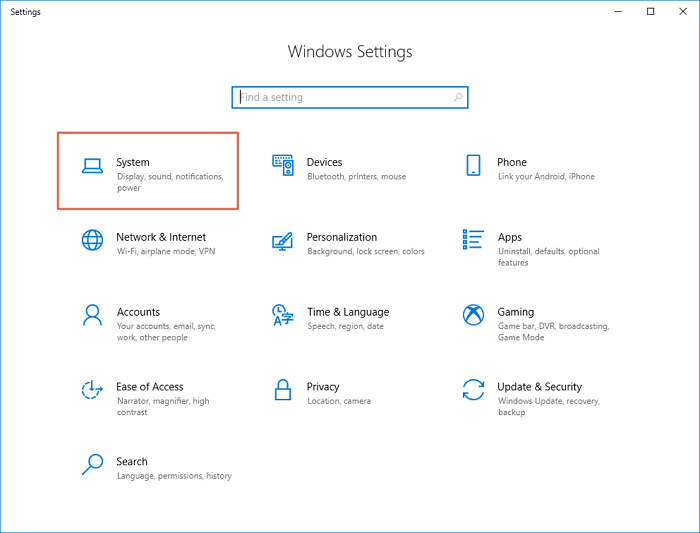
Step 2. Select "Apps" > "Apps & features".
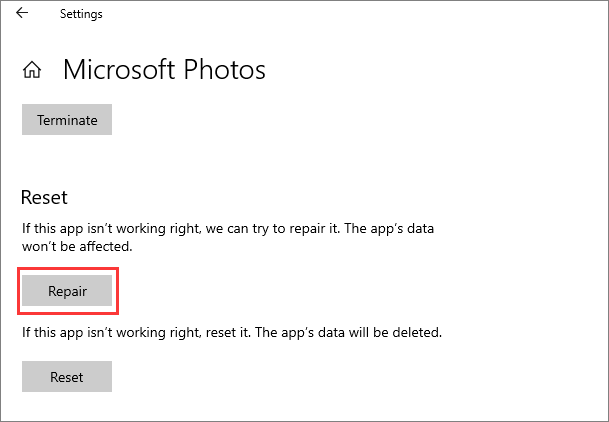
Step 3. To access the advanced options in Microsoft Photos, select the "Microsoft Photos" option from the list and then click on "Advanced options".
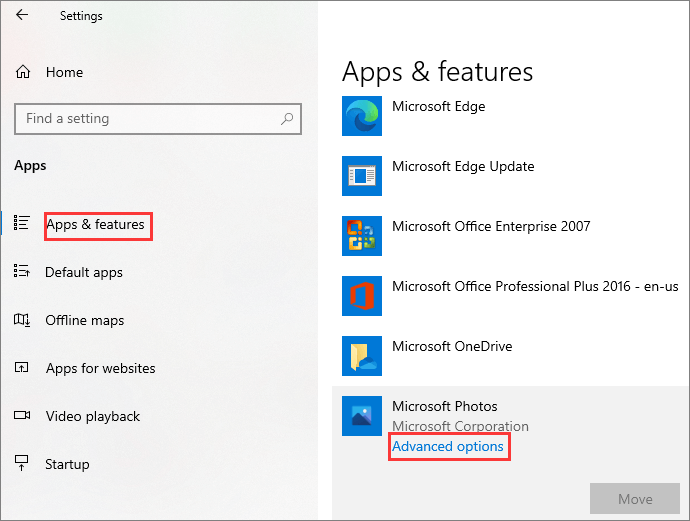
Step 4. Finally, scroll down the page and choose "Repair".
If this method is not working, try other approaches instead.
#6. Open Images in Internet Browsers
Here are the steps to open your photographs on a web browser:
Step 1. To access a website, open a web browser such as Internet Explorer, Edge, Chrome, Opera, or Safari on your device.
Step 2. To resolve the issue, you need to identify the corrupted image files and remove them from the browser. This can be done by locating the specific image files that are causing the problem and dragging them into the browser.
Step 3. Verify that the image opens.

#7. Run SFC Scannow Commands to Repair Corrupted Photos
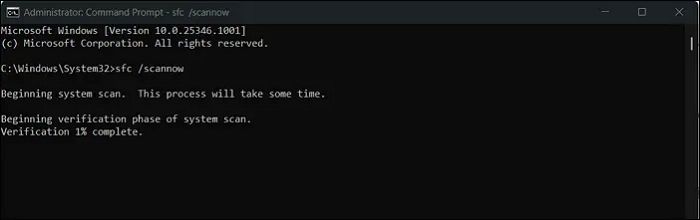
If you get a disk error, your photos or other files might get corrupted. You can use the System File Checker (SFC) to fix damaged or missing photo files, in addition to using a disk repair tool like CHKDSK to scan and repair disk errors.
Step 1. To open the Command Prompt as an administrator, press the "Win" key and then enter cmd into the search box. Click on the "Run as administrator" option from the search results.
Step 2. Select "Run as administrator" when you right-click "Command Prompt".
Step 3. Execute the command - sfc /scannow
How to Prevent Photos from Becoming Corrupt
To prevent photo loss, damage, and corruption, it's essential to regularly back up your images. This is the most effective way to protect your photos from being lost or damaged. By backing up your photos, you can ensure that your memories and important images are safe and secure.
- 👁️🗨️Keep an eye on your computer's performance. If you're experiencing frequent blue screen errors, overheating, or other issues, or if you hear clicking noises, it's likely that your computer's hardware is damaged and needs to be repaired. To resolve this, investigate the problem by checking for any loose connections, dust buildup, or worn-out components.
- 📸Never edit files that are directly stored on your camera Before working with your photographs, make a copy of them on your computer. Instead of cutting and copying them, simply copy your photos to your desktop. This will help prevent any accidental loss or damage to your original files, whether they're on a CD, DVD, or SD card.
- 🗂️Organize your image files across different physical spaces. Data corruption can occur on any files on a hard drive, not just those in a specific folder or partition, affecting the integrity and usability of the files.
Conclusion
With digital storage media, photo corruption is a common issue due to various causes. Fortunately, you can easily fix faulty photos in Windows 10/11 stored on any internal or external storage media by following the instructions in this article.
We use the Qiling Fixo Photo Repair tool to recover thumbnails from severely damaged photos and restore hundreds of photos at once, all in the same or different file formats.
Repair Corrupted Photos FAQs
Here are 4 additional questions about repairing corrupted photos. Check here for the answers.
1. How to repair corrupted jpeg files online?
You can use the following online picture-repairing tool:
The repair photo online tool - OfficeRecovery can repair corrupted photos, but it's expensive, with a $9.9 fee per photo or $59 for 2 days and 30 works. A more cost-efficient and secure option is Qiling Fixo Photo Repair.
2. How to restore corrupted photos on an Android phone?
If the photos are stored on an SD card, you can remove the card and connect it to your computer. Then, run a CHKDSK (Check Disk) scan on the SD card to check for bad sectors and repair any issues. This may help recover your photos.
If you've stored damaged photos on your Android phone's internal storage, you can transfer them to your PC via USB cable and use desktop tools like Qiling Fixo Photo Repair or online photo repair tools to restore them.
3. How to repair corrupted photos on Mac?
To resolve the photo corruption issue, you can try downloading a photo restoration program like Qiling Data Recovery Wizard, using another photo recovery tool, or modifying the file extension on your own. If these methods don't work, consider contacting data recovery services for assistance.
4. Can corrupted photos be recovered?
Corrupted photos can be fixed with specialized third-party photo repair software, such as Qiling Fixo Photo Repair, which can recover images from various storage media including computer disks, memory sticks, and external hard drives.
Related Articles
- The Top 10 Data Recovery Services in Bay Area, CA Near Me
- Chicago Data Recovery Services [HDD, SSD, RAID]
- How Long Does It Take | 1 TB Data Recovery
- [Solved] Windows Cannot Access the Specified Device Path or File
- Tears of the Kingdom Corrupted Data | PC and Switch Fixes
If you're experiencing Tears of the Kingdom corrupted data issue on PC or Nintendo Switch, you can use Deep Data Recovery to find lost game files. To troubleshoot the issue on Switch, check the game's save data, update the game to the latest version, and try deleting and reinstalling the game. - Where Are Steam Games Stored? How to Locate
Where are Steam games stored? In this guide, you will learn the Steam game location on Windows, macOS, and SteamOS. When you encounter Steam games accidental deletion, you can restore Steam game files with Deep Data Recovery.
Products
Articles & Tutorials
- Data Recovery
- Data Backup
- File Recovery
- File Backup
- System Backup and Restore
- Disk and Partition Clone
- Technical articles
- Mobile articles
- Disk Master Help
- Windows Data Recovery Tutorials
- Windows Secure Delete Tutorials
- Windows Partition Management Tutorials
- Windows File Backup and Restore Tutorials
- Windows System Backup and Restore Tutorials
- Windows Disk Backup and Restore Tutorials
- Windows Clone Tutorials