What Is SFC Scannow Command? How to Fix Corrupted Files Using This System File Checker
What Is SFC Scannow Command
The SFC Scan command is a utility that scans Windows system files, including DLL files, and automatically repairs corrupted or damaged ones by replacing them with a cached version.
The System File Checker Scannow command is a useful tool that checks system settings and restores them to their default state if issues are found, helping to troubleshoot Windows-related errors.
Another possible reason for Windows errors is corrupted system files. Even if the SFC Scannow command doesn't find any damaged files, it can still fix other Windows-related errors that may cause future inconvenience.
The SFC Scannow command is a useful tool for verifying the integrity of Windows system files, even when there are no apparent issues. It can be run on any Windows PC to ensure all system files are in good condition.
To run the SFC Scannow command, you need to access the Command Prompt with administrative rights, and the scan will check for system file violations. If issues are found, you can review the CBS.log File to see which specific files are corrupted.
To run the SFC Scannow command on your Windows PC, open the Command Prompt as an administrator by searching for "cmd" in the Start menu, right-clicking on the Command Prompt result, and selecting "Run as administrator." In the Command Prompt window, type "sfc /scannow" and press Enter. The SFC Scannow command will scan and replace corrupted system files with a cached copy, which can help resolve issues with your Windows installation.
How to Run SFC Scannow Command on Windows?
To run the SFC Scannow command on your Windows system, simply open the Command Prompt as an administrator, type 'sfc /scannow' and press Enter. This command will scan and repair corrupted system files, helping to resolve any issues with your Windows functions.
Step 1. To get the Windows Search Bar, press the Windows key on your keyboard.
Step 2. Type Command Prompt in the Search Bar.

Step 3. Click on "Run as administrator".
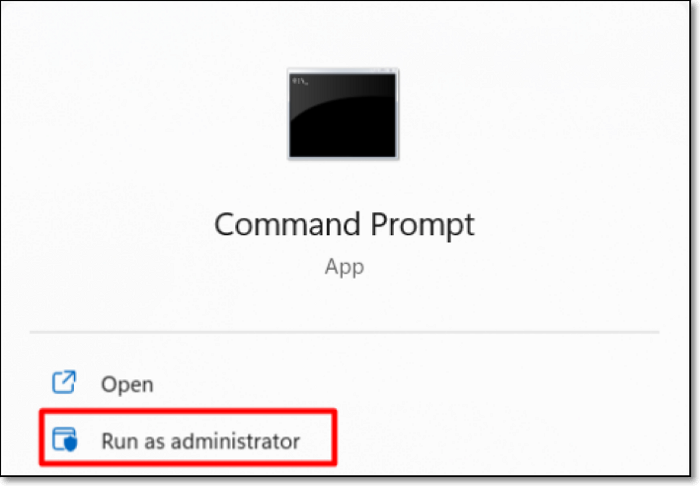
Step 4. Type the mentioned command in the Command Prompt:
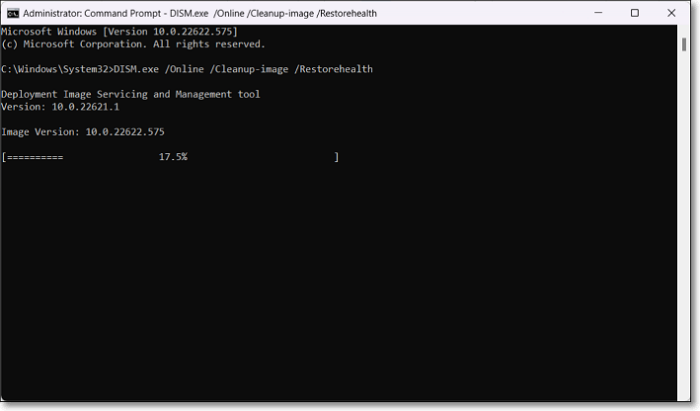
DISM.exe /Online /Cleanup-image /Restorehealth
Step 5. The DISM scan is now visible in the Command Prompt, showing its progress.
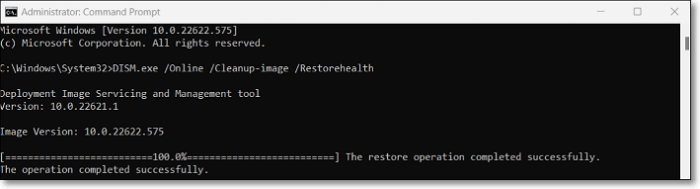
Step 6. Once the scan is completed, you will see a scan completion message indicating the scan has finished and the results will be displayed on your screen.
The restore operation completed successfully. The operation completed successfully.
Step 7. To execute the System File Checker Scannow command in the same Command Prompt window, follow these steps:
sfc /scannow
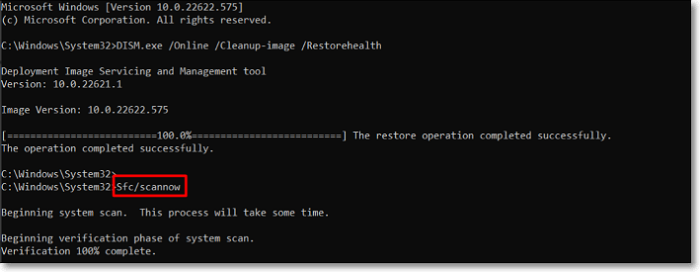
Step 8. You will now see that the SFC Scan is in progress. Wait until the verification is completed. If the command doesn't work, read the guide below on how to fix it.
Fixed: SFC (SFC / SCANNOW) Is Not Working on Windows
The System File Checker (SFC), a utility in Windows, allows users to scan for corruptions in Windows system files and restore corrupted files, as stated by Microsoft Windows Support.
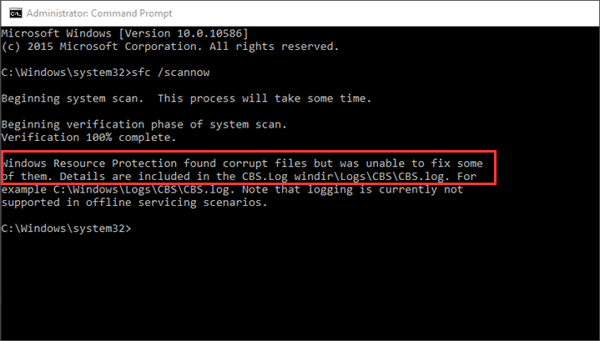
Step 9. If the scan is completed, you will be shown a message indicating whether the scan was successful or not. If the scan was successful, you will see a message saying that the scan is complete and you can proceed with the next steps. If the scan was not successful, you will see an error message indicating what went wrong.
Windows Resource Protection did not find any integrity violations.
Windows Resource Protection could not perform the requested operation.
Windows Resource Protection found corrupt files and successfully repaired them. Details are included in the CBS.Log %WinDir%\Logs\CBS\CBS.log.
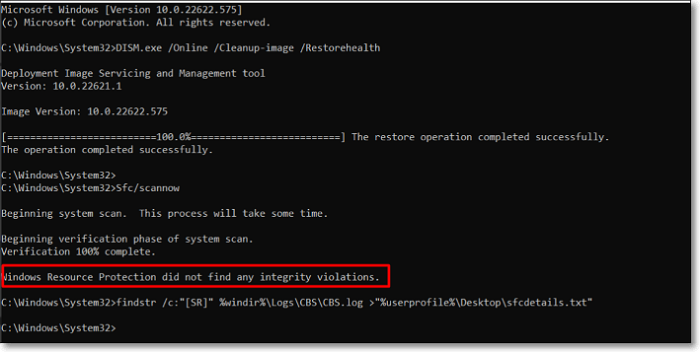
If you see the "Windows Resource Protection could not perform the requested operation" message after running the SFC Scannow command, you'll need to boot your PC into Safe Mode and run the same command again. Once you've finished, you can view the System File Checker scan logs in the PendingDeletes and PendingRenames folders located at %WinDir%\WinSxS\Temp.
How Do I Fix Corrupted Files with SFC Scannow?
To repair corrupted system files, use the System File Checker Scan now command, which can be executed by following the steps: run the Command Prompt as an administrator, type "sfc /scannow" and press Enter, then wait for the scan to complete, and finally restart your computer to apply the changes. This process will automatically repair any corrupted system files.
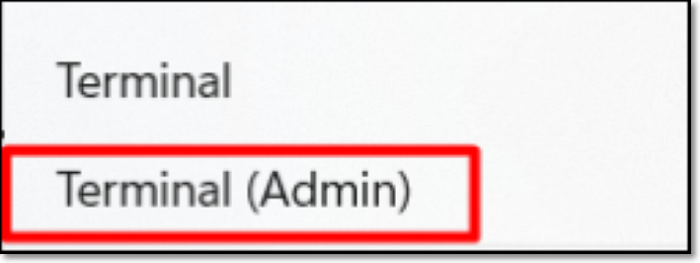
Step 1. To open the Terminal as an administrator, right-click on the Windows icon and select Terminal (Admin) from the available options.
Step 2. Copy and paste the mentioned command in the Terminal.
sfc /scannow

Step 3. The verification phase has started and will soon be completed. You can check the progress of the scan in the same window.
Step 4. Once done, close the console and reboot the system.
Is SFC Scannow Good to Run?
Running the System File Checker Scannow command can be beneficial for the system by checking and fixing corrupted system files, but it may also cause issues if not used properly, as it can delete system files that are required for some programs to function correctly. So, it's essential to use it with caution and only when necessary.
Executing the SFC /Scannow command may alter system settings to default, which could be risky if not done carefully, potentially leading to issues and a poor user experience if not executed properly.
Before running the System File Checker Scannow command, it's recommended to take a backup of your Windows system, as this is a minor drawback of the SFC Scannow command.
Running the SFC Scannow command once a month is sufficient to keep your system healthy. Running it every day would be unnecessary and a waste of resources. You can run the command once a month to ensure your system is running smoothly.
You now have a good understanding of the SFC Scannow command. Using the System File Checker tool is quite straightforward, and you can follow the methods mentioned above to use it with ease.
Related Articles
- Primary vs. Extended Partition | Compare Their Features and How to Manage Them
- What Is Verbose Mode Mac and How to Boot into It? [2022 Guide]
- What Is SMB? Server Message Block Protocol Explained
- What Is Dynamic Routing and What are the Dynamic Routing Protocols
- Windows KB Update: KB3194798 | KB 3192441 | KB 3192440
You may have already known the Windows Operating System update. However, do you know what Windows KB update means? If you are looking for information on it, this article will introduce all the information you need to know, including the definition, how to update it, the significance of it, etc. - How to Fix Drive Is Not Accessible Access Is Denied on Windows 11
Feeling distressed when Windows 11 prevents you from using an external hard drive? You can fix the 'disk is not accessible access denied' error and use Deep Data Recovery to retrieve deleted files from inoperable disks, making it possible to recover lost data.
Products
Articles & Tutorials
- Data Recovery
- Data Backup
- File Recovery
- File Backup
- System Backup and Restore
- Disk and Partition Clone
- Technical articles
- Mobile articles
- Disk Master Help
- Windows Data Recovery Tutorials
- Windows Secure Delete Tutorials
- Windows Partition Management Tutorials
- Windows File Backup and Restore Tutorials
- Windows System Backup and Restore Tutorials
- Windows Disk Backup and Restore Tutorials
- Windows Clone Tutorials