What Is Verbose Mode on Mac and How to Boot into It?
The various operating modes on Mac allow users to save their data and troubleshoot issues based on immediate needs. One such mode is verbose mode, used at startup to detect different Mac problems. This feature is particularly useful when it comes to troubleshooting, enabling users to identify and resolve issues efficiently.
The verbose mode on Mac allows users to boot their computer in a mode that displays detailed system information, enabling them to troubleshoot and diagnose issues. To boot into verbose mode, Mac users can quickly follow a few steps, which will be explained in this article. We will also cover the top fixes to resolve the issue if a Mac gets stuck in verbose mode, providing users with a comprehensive guide to booting their Mac in this mode easily and quickly.
What is Verbose Mode Mac?
Verbose mode on Mac computers is a booting mode that replaces the graphical startup screen with a set of command lines, providing detailed information about what the computer is doing during the startup process. This mode can help detect and troubleshoot issues such as problems with third-party applications or a white screen, allowing users to gain a deeper understanding of their Mac's startup process.
Developers read technical text line by line to understand the details of problems on Mac systems. However, the verbose mode on Mac only provides messages indicating issues, such as "failed," "terminated," or "error," without providing detailed information.
How to Boot Your Mac into Verbose Mode?
Here are the detailed steps to boot your Mac into verbose mode:
For Intel-based Mac computers:
Step 1. Shut down the Mac system.
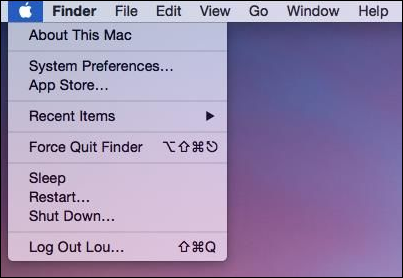
Step 2. Restart the Mac, and as soon as it starts booting, press the Command + V keys.

Step 3. Wait until you see white text on the screen and release the keys.
Step 4. The verbose mode will display command lines that need to be carefully watched.
For Mac with Apple Silicon:
You can start your Mac in verbose mode by default, which can be helpful when shutting down the system. To do this, you can boot your Mac with Apple Silicon in verbose mode by following these quick steps:
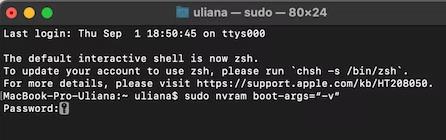
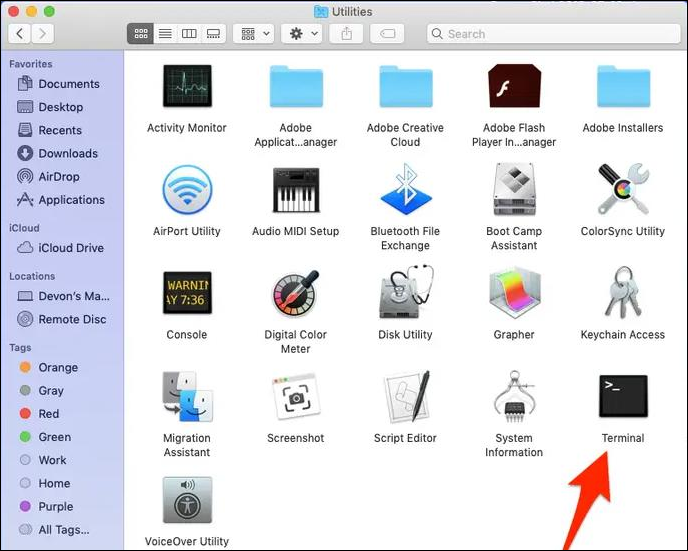
Step 1. Launch "Terminal" from "Utilities "in the "Applications" menu.
Step 2. Type the command "sudo nvram boot- args="-v" and press "Return."
Step 3. The admin password is not needed for this task. You can simply quit the terminal by typing `exit` or pressing `Ctrl + D` to exit the terminal.
What if Mac Gets Stuck in Verbose Mode?
If your Mac gets stuck in verbose mode, there are methods to resolve the issue. For Intel-based Mac and Apple Silicon Mac users, booting into verbose mode can be achieved quickly using the methods mentioned earlier. However, if you find yourself stuck in verbose mode, you can try two methods to resolve the issue and boot your Mac normally again.
Method 1. By Using Terminal
To disable verbose mode from the Terminal menu, follow these quick steps. First, click on Terminal in the menu bar to open the Terminal application.
Step 1. Click on the "Terminal" menu in the "Utilities" menu.
Step 2. To reset the boot arguments, you can run the command "sudo nvram boot-args=" and then restart your computer. This will clear the boot arguments and allow you to boot normally.
Step 3. Check if the problem is solved.
Method 2. By Resetting the NVRAM
The second method to get rid of the stuck verbose mode in Mac is to reset the NVRAM (Non-volatile random-access memory) of the system. The quick steps for the same are:
Step 1. Turn off the Mac and turn it on again.
Step 2. Hold the "Option," "Command," and "P" keys, and then press the "R" key until you hear the startup sound for the second time on non-T2 models, or until the Apple logo appears and disappears for the second time on T2 models.
Step 3. Check if Mac boots normally.
Conclusion
Macintosh users can easily understand the verbose mode, which starts with a quick definition of this startup mode. Even beginners can follow the detailed steps to boot their Mac in this mode, and detailed solutions are provided for cases where the Mac gets stuck in verbose mode, allowing users to tackle this startup mode independently.
Using the terminal command or resetting the NVRAM can ensure seamless booting of verbose mode in Mac, providing a behind-the-scenes experience that can quickly verify the problem in your Mac, giving users a graphical interface.
FAQs
After exploring the verbose mode in Mac details, here are answers to frequently asked questions related to verbose mode.
1. What are the differences between verbose mode and safe mode?
The verbose mode in Mac provides detailed behind-the-scenes information, replacing the graphical interface. In safe mode, only the essential kernel extensions necessary for running the Mac are loaded. The verbose mode describes the behind-the-scenes details of the Mac and replaces the graphical interface.
2. What is DEBUG and verbose?
DEBUG offers detailed diagnostic information to users, fetching data needed for diagnosing, troubleshooting, and testing various applications. In contrast, its verbose mode only verifies the error on Mac.
3. How do you check for verbose logging?
To check for verbose logging on a Mac, you can quickly do so by checking the system logs. You can do this by opening the Console app, which can be found in Applications/Utilities, and then clicking on the "All Messages" or "Debug" button to see all the system logs.
- Go to "Workflow Settings" in "Workflow designer."
- Select the check box for enabling verbose logging.
- The changes will be saved and the dialog box will close.
- If the option is not available, verbose logging is not enabled for the system. The verbose logging option is not available.
Related Articles
- Tape Data Recovery Glossary
- Does Wireless Network Switch Exist? Find the Answer
- Network Switch vs. Router: What's the Difference
- What Is a File Server? Definition and How It Works.
- JPG VS JPEG: What's the Difference
Wondering what the difference between JPG and JPEG image formats is? Find it out in this JPG VS JPEG post! - League of Legends Account Recovery: How to Get Riot Account Back
Lost access to your League of Legends account? Learn how to recover your Riot account without email, password, or username. Also restore lost game replays and highlights with Qiling data recovery software.
Products
Articles & Tutorials
- Data Recovery
- Data Backup
- File Recovery
- File Backup
- System Backup and Restore
- Disk and Partition Clone
- Technical articles
- Mobile articles
- Disk Master Help
- Windows Data Recovery Tutorials
- Windows Secure Delete Tutorials
- Windows Partition Management Tutorials
- Windows File Backup and Restore Tutorials
- Windows System Backup and Restore Tutorials
- Windows Disk Backup and Restore Tutorials
- Windows Clone Tutorials