Where Are Steam Games Stored? How to Locate
Steam is a popular game platform where users can download and install games, communicate with others in the Steam Community, and install on Windows PC, Mac computers, and Steam Deck. Some users may need to locate Steam game files for data recovery, game corruption, or backup purposes. This guide will guide you in finding the location of Steam games on Windows, macOS, and SteamOS.
Where Are Steam Games Stored on Windows
Some Windows PC users who have changed the default game save location on Steam may have trouble finding their saved game files in the Steam default game folder, as they are now stored elsewhere on their computer.
How to Find Steam Games Default Save Location
To find the default storage location for Steam games on your Windows PC, follow this tutorial. The games are typically stored in the following location: C:\Program Files (x86)\Steam\steamapps\appmanifest_*.
Step 1. Open the File Explorer on Windows 11/10.
Step 2. Steam games are stored in the "C:\Program Files (x86)\Steam\steamapps\common" directory. You can copy this address to open the Common folder on your PC, where you'll find your Steam games.
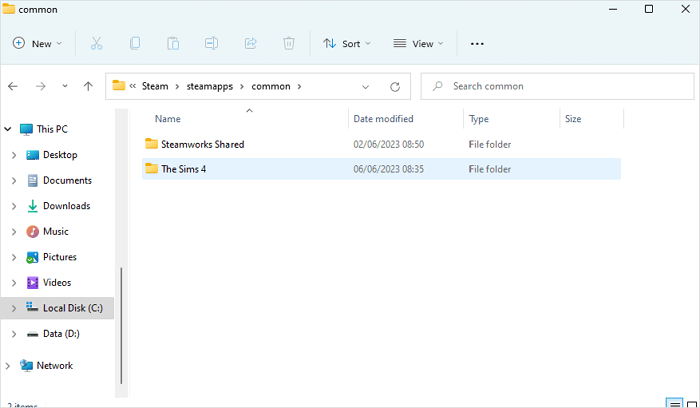
Step 3. To back up your game folder, locate the folder with the specific game name, then copy and paste it to an external hard drive. This will create a duplicate of the entire game folder, allowing you to easily restore your game data if needed.
- Tip
- Frequent backups of game files can help resolve unexpected issues like Hogwarts Legacy missing saves or SnowRunner lost saves by restoring game files and replacing corrupted ones.
How to Change Steam Default Game Location
To change Steam's default game installation location, follow these steps:
Step 1. To change the settings in Steam, launch the Steam app on your PC.
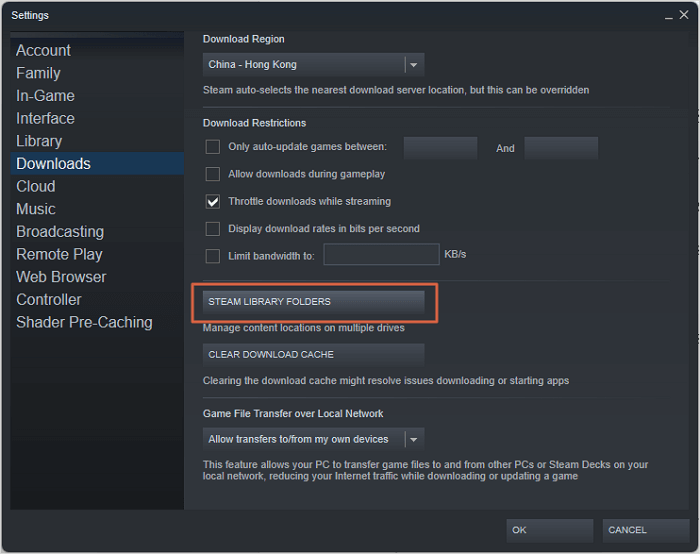
Step 2. To access the Steam Downloads settings, follow these steps: Open the Steam client, click on the "Steam" menu, and select "Settings." In the Settings window, click on the "Downloads" tab.
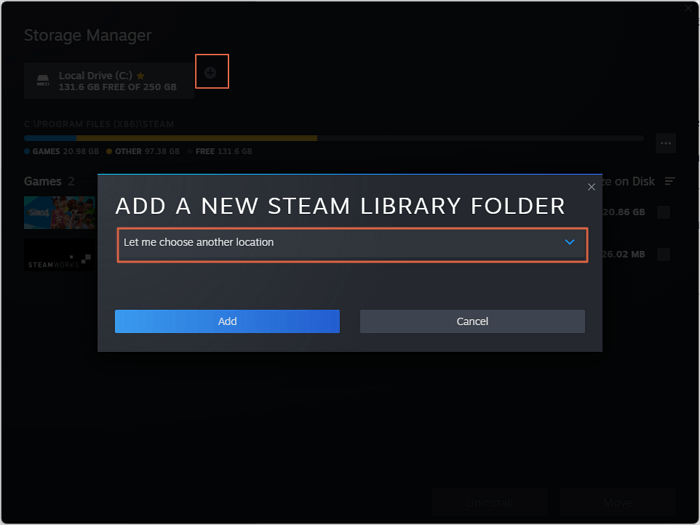
Step 3. Open the Storage Manager window, click the "+" button, and select "Let me choose another location" to add a new game location.
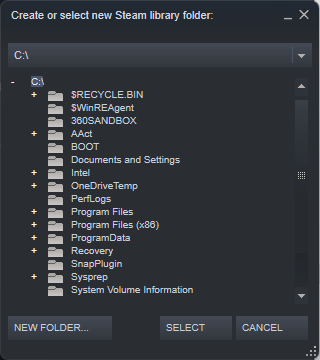
Step 4. You can choose a location when the new window appears.
If you want to share all the tutorials with your friends, you can click on the share button below to share this page easily.
How to Recover Deleted Steam Game Files
If you can't find game files on your computer or they've been accidentally deleted, check the Recycle Bin on Windows 10. If the files are still there, you're in luck! If not, and you don't have Steam backups, you can try using Deep Data Recovery to restore the missing files.
This recovery software is helpful because it provides a range of useful features, including tips to learn more about its capabilities. By checking out these tips, users can gain a better understanding of how the software can assist them in recovering lost data.
- While you can re-download deleted games, game saves are lost in the process. To recover deleted game files on PC, you'll need a game recovery program.
- If you accidentally delete some game recordings or screenshots, you can easily recover them on your PC using a handy tool. This tool can help you get back deleted photos and videos, so you don't have to worry about losing your favorite game moments or memories.
- If you lose important game backups on an external hard drive, you can still restore the data with the Qiling recovery tool for external hard drive data recovery.
Check out this tutorial to learn how to find lost Steam game files using Deep Data Recovery.
Step 1. To proceed, select the precise file location and then click the "Scan" button.

Step 2. After the process, select the "Deleted Files" and "LostFiles" folders in the left panel. You can then apply the "Filter" feature or click the "Search files or folders" button to find the deleted files.

Step 3. Click the "Recover" button and save the restored files in a location different from the original one.

Where Are Steam Games Stored on Mac
After learning where Steam games are stored on a Windows PC, it's time to find Steam games on a Mac computer. On a Mac, whether you're using an iMac or a MacBook, the process is similar because Macs run the same operating system, macOS.
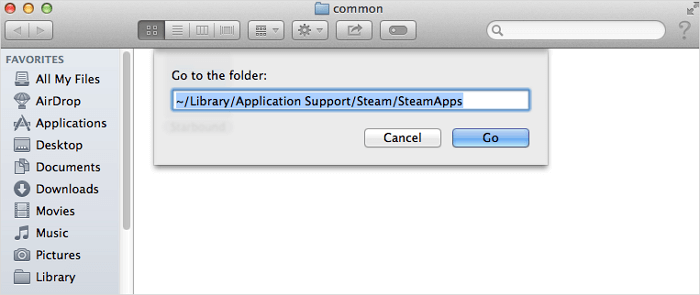
Step 1. To access the Go to folder option on a Mac, open the Finder and select Go from the top menu bar, then choose Go to folder... from the dropdown menu.
Step 2. To access your Steam games, navigate to the following path: ~/Library/Application Support/Steam/SteamApps. Simply type this path into your file system to access your Steam game folder.
Here is an additional reading about Steam's quit unexpected issues:
Where Are Steam Games Stored on Steam Deck
The Steam Deck is a new video game console that allows users to play Steam games without a computer. When using the console, some users may need to copy games to the local PC, and are wondering where the games are stored on the Steam Deck.
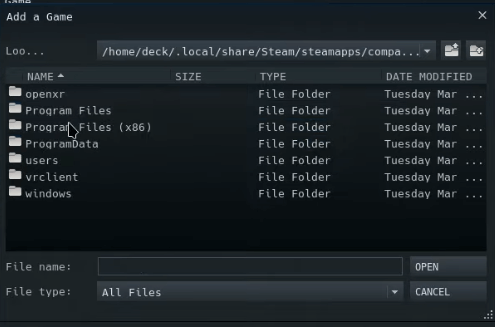
Step 1. Enter the Desktop Mode on Steam Deck.
Step 2. Go to the Steam game folder by following this path /home/deck/.local/share/Steam/steamapps/compatdata/.
After learning all the tutorials, you should be able to find Steam games on your Windows PC, Mac computer, and Steam Deck. Don't forget to share this article with more friends!
Conclusion
We have provided the detailed folder location to help you figure out where Steam games are stored on Windows, macOS, and SteamOS. If you can't find Steam games on Windows or macOS, you can redownload the games or recover game files with Deep Data Recovery. This data recovery software has both Windows and Mac versions, and you can download a trial version.
Where Are Steam Games Stored FAQs
If you're having trouble finding Steam games on different devices, you might have some questions. Check out the Q&A below to get your answers:
1. How to restore missing downloaded files on Steam?
You have multiple solutions to restore missing downloaded files Steam:
- 1. Restore lost games from Steam Library
- 2. Add installation Libraries/folders
- 3. Rename the ClientRegistry.blob file
- 4. Restore lost Steam game files
- 5. Remove local content and reinstall
2. What is the Steam game location on a Windows PC?
Steam games are stored in C:\Program Files (x86)\Steam\steamapps\common, where you can access them by copying and pasting this address into File Explorer.
3. How to add a new Steam Library on Windows?
To add a new Steam library, go to Steam settings, then Steam Downloads, and click on the "STEAM LIBRARY FOLDERS" section. From there, click the "+" button and select "Let me choose another location" to add a new game location.
4. Does Steam store your games?
Steam stores your games in your library and also in the cloud, allowing you to download and install them on any device as many times as you want after purchasing them.
Related Articles
- Cloud Drive Data Recovery: Recover Data from WD, Dropbox, Google
- How to Recover Deleted Files After Windows 10 Updates [Fast and Safe]
- Deleted File Recovery Software Free Download Full Version with Key
- How to Show Hidden Files Windows 10 [4 Simple Ways]
How to show hidden files in Windows 10? It is not difficult to show hidden files in Windows 10, and you'll learn four ways to unhide or find disappeared files on Windows 10. Keep reading the guide to get detailed information. - IMO Delete Message Recovery: How to Recover IMO Chat History
If you deleted your chat history in the IMO app, you can try using a third-party IMO chat recovery software to recover the deleted or lost content, including photos, videos, audio, and other media files. - 4 Working Ways to Recover Lost Files After macOS Monterey Update
If you've lost files after updating to macOS Monterey. There are practical ways to recover them, and Qiling Mac data recovery software is a standout option for its ease and efficiency.
Products
Articles & Tutorials
- Data Recovery
- Data Backup
- File Recovery
- File Backup
- System Backup and Restore
- Disk and Partition Clone
- Technical articles
- Mobile articles
- Disk Master Help
- Windows Data Recovery Tutorials
- Windows Secure Delete Tutorials
- Windows Partition Management Tutorials
- Windows File Backup and Restore Tutorials
- Windows System Backup and Restore Tutorials
- Windows Disk Backup and Restore Tutorials
- Windows Clone Tutorials