How to Show Hidden Files Windows 10 [4 Simple Ways]
In this article, you'll learn:
- Method 1. Find Hidden Files Windows 10 with Data Recovery Software
- Method 2. Show Hidden Files Windows 10 in File Explorer
- Method 3. Show Hidden Files Windows 10 with Command Prompt
- Method 4. Show Hidden Files in Windows 10 with Control Panel
Why Files Are Hidden on Windows 10
Sometimes, files on your Windows 10 PC may vanish without a trace, only to be discovered later as hidden files. This can be frustrating, especially when you're sure you haven't moved or deleted them.
In such cases, the files are likely hidden due to various reasons. To show hidden files in Windows 10, you can follow the methods below to unhide them and understand why they were hidden in the first place.
- 🥷On Windows 10, system files are hidden by default. To view them, you need to manually unhide the files.
- 🧑🤝🧑If someone intentionally hides your files, it could be due to a deliberate action, such as a friend accessing your laptop without permission and hiding your files. This might be done without your knowledge or consent, making it seem like a mysterious disappearance of your files.
- 📁Administrators can modify group settings and hide specific files or folders from public view online.
- 🦠Be cautious when downloading software to avoid getting attacked by a computer virus or malware. Some viruses can intentionally delete files.
- 🗑️When you accidentally delete files while cleaning drive C for more space, you can check the Recycle Bin to see if the files are still there.
If you're having trouble finding certain files on Windows 10, it's not always clear whether they're hidden or deleted. Fortunately, there are four methods you can use to track down your target files and show hidden files on Windows 10.
Method 1. Find Hidden Files Windows 10 with Data Recovery Software
| Difficulty: ⭐ | Time: 5 Mins ⏱️ |
If you're unsure whether files are hidden or deleted, you can try using the Windows recovery tool to help find them. The data recovery software can scan the chosen hard drive and locate any lost or deleted files on Windows 10. Options like Deep Data Recovery may be a good choice, and you can download the trial version for either Windows or Mac.
Qiling recovery software has many outstanding features:
Photo Recovery
Recover deleted photos from various devices such as laptops, external hard drives, digital cameras, SD cards, and USB flash drives. This software can help you find disappeared family photos, selfies, and screenshots with ease.
Restore deleted video files, including popular formats like MP4, MOV, MKV, AVI, 3GP, and M4V, using Deep Data Recovery, eliminating the need to worry about lost important videos.
Document Recovery
Qiling can help you recover deleted Word documents, as well as other types of documents like Excel files, PDF files, and PowerPoint files.
NAS Recovery
NAS data recovery is supported, allowing recovery of hidden files from various NAS devices, such as Synology, Seagate, Western Digital, and QNAP.
If you're a new Windows 10 user with limited computer knowledge, don't worry - you can still use Deep Data Recovery. This handy tool has a simple interface and we'll provide a detailed tutorial to help you show hidden files in Windows 10.
Step 1. Select the virus-infected drive to scan
To recover files infected by a virus, run a virus file recovery software on your Windows PC and select the disk that was attacked by the virus to scan for lost or hidden files.
- If the issue is with an HDD where files were hidden or deleted by a virus, it's recommended to install the software on a different volume or an external USB drive to prevent data overwriting.
- If the infected device is an external hard drive, flash drive or memory card, you can install the software on the local drive of the computer, as it won't affect the external device.

Step 2. Check all scanned results
Deep Data Recovery will immediately start a scan process to find deleted or hidden files on the virus-infected hard drive. To quickly locate wanted files, you can use the Filter or type grouping feature to display only pictures, videos, documents, emails, etc.

Step 3. Preview and recover deleted/hidden files
After the scanning process is complete, you can view the recovered files. Select the files you want to recover and click the "Recover" button. Save the recovered files to a different and secure location on your computer or storage device, not the original location where they were lost.

If you find this product helpful, you can share it with others by recommending it to them or sharing this page on social media.
Method 2. Show Hidden Files Windows 10 in File Explorer
| Difficulty: ⭐ | Time: 2 Mins ⏱️ |
In Windows 10, all files and folders will be organized and visible in File Explorer, and you can easily change the settings to show hidden files.
Step 1. To open File Explorer, click the document icon in the menu bar or click the Windows icon and open it.
Step 2. To view hidden files in Windows 10, click the "View" button in File Explorer, then select "Hidden Items" from the dropdown menu. A checkbox will appear beside it, check the box to see all the hidden files in Windows 10.
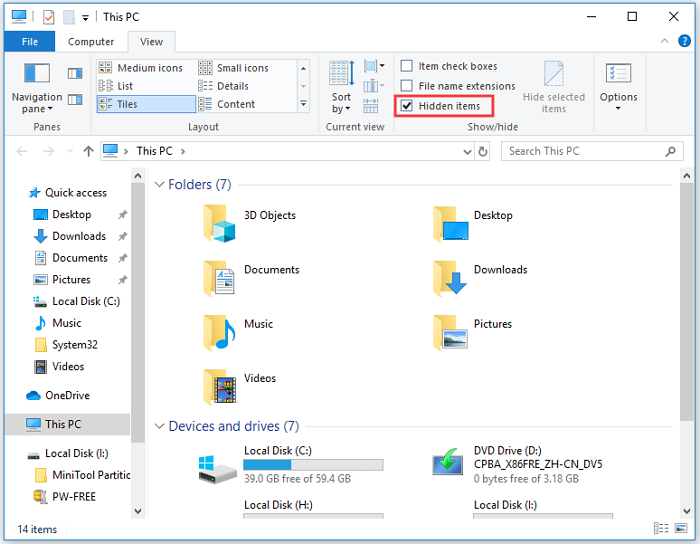
If you're having trouble opening File Explorer on Windows 10 or it's not responding, there are several solutions you can try. Firstly, try restarting your computer as this can resolve the issue.
To fix File Explorer not opening in Windows 10 or Windows 11, try restarting the File Explorer process, resetting File Explorer, or running the SFC and DISM tools to scan and replace corrupted system files.
If the issue persists, try booting in Safe Mode and checking for any conflicting third-party software, or resetting Windows to its default settings.
If File Explorer won't open from the taskbar in Windows 10 or Windows 11, you can try restarting the File Explorer process, checking for corrupted system files, or running a System File Checker scan.
Additionally, ensure that File Explorer is not set to open in a different application and that the taskbar is not set to show only frequently used apps. You can also try running a System Restore to a point before the issue started.
Method 3. Show Hidden Files Windows 10 with Command Prompt
| Difficulty: ⭐⭐⭐ | Time: 10 Mins ⏱️ |
To show hidden files with CMD in Windows 10, you can use the command line "dir /a" followed by the path to the directory you want to view. For example, to view the hidden files in the root directory, you would type "dir /a" and press Enter. This will display a list of files, including hidden ones, in the directory.
Step 1. To boot into the Command Prompt on Windows 10, you can use the search box to find the Command Prompt, and then click on "Run as Administrator" to ensure you have the necessary permissions.
Step 2. To search for files of all types on drive C, type attrib -h -r -s /s /d C:\*.*, and to search for files of all types on drive D, type the same command with C replaced by D.
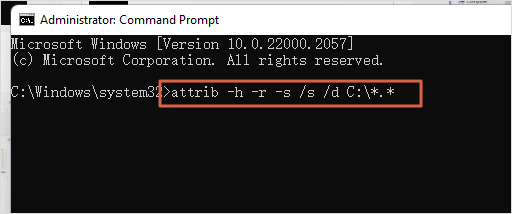
To show hidden files in Windows 11, you can follow these steps. First, open File Explorer and click on the "View" tab.
3 Ways to Show Hidden Files/Folders in Windows 11
Windows 11 hidden files not showing; how to fix this error? To fix the issue, check the File Explorer settings, enable the "Show hidden files" option, and restart File Explorer.
If the issue persists, you can try resetting File Explorer or updating the Windows 11 operating system. You can also run the SFC tool to scan and replace any corrupted system files that might be causing the issue.
Method 4. Show Hidden Files in Windows 10 with Control Panel
| Difficulty: ⭐⭐ | Time: 5 Mins ⏱️ |
To show hidden files in Windows 10, you can use File Explorer, Command Prompt, or the Control Panel. In File Explorer, click "View" and select "Hidden items" to display hidden files.
Alternatively, you can use the Command Prompt by typing "dir /a" and pressing Enter. The steps below focus on using the Control Panel method.
Step 1. Use Windows 10 search bar to launch Control Panel.
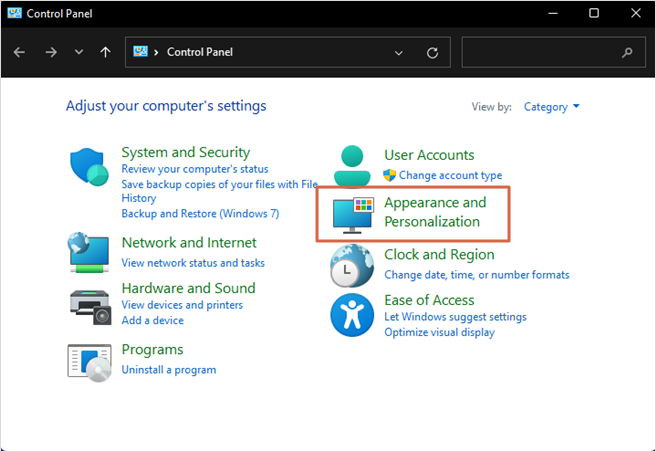
Step 2. Click "Appearance and Personalization" in the Control Panel window.
Step 3. Click "File Explorer Options".
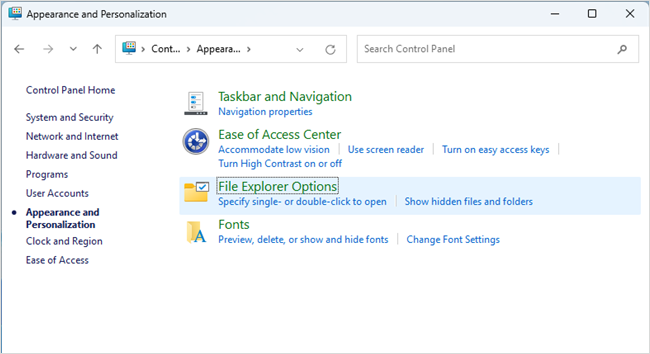
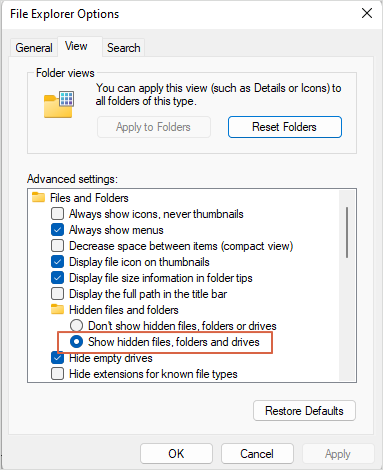
Step 4. To view hidden files, folders, and drives, open the settings window, click "View", and select "Show hidden files, folders, and drives". This will allow you to see all files, folders, and drives, including hidden ones. You can refer to the provided screenshots for a clearer understanding of the process.
After reading all the possible solutions to show hidden files in Windows 10, you may already find target files or folders. Don't hesitate to share all the methods with more Windows 10 users!
Conclusion
To show hidden files in Windows 10, you can follow the steps mentioned in this article. Alternatively, you can use Command Prompt or Control Panel to unhide files.
Having data recovery software like Deep Data Recovery can also be helpful for recovering hidden files. You can download this software today to be prepared.
View Hidden Files Windows 10 FAQs
The following Q&As can lead you to get more information about hidden files issues:
1. How to view hidden files on a USB drive?
You can use the same method in this article to show hidden files on a USB drive:
- 1. Show hidden files in USB in File Explorer
- 2. Show hidden files in USB with Deep Data Recovery
- 3. Show hidden files in USB with CMD
- 4. Show hidden files in USB with Control Panel
2. Show hidden files not working on Windows 10. How to fix it?
If Windows 10's feature to show hidden files isn't working, your files may be deleted. You can use Deep Data Recovery to recover deleted files in just three steps: scan, preview, and recover.
3. How to show hidden files in Windows 11?
To view hidden files in Windows 11 with File Explorer, follow these steps:
- 1. To open File Explorer on Windows 10, click on the document icon in the menu bar.
- 2. Click View > Show > Hidden items.
4. Can I show hidden files in Windows 10 using CMD?
To show hidden files in Windows 10, you can use the command line in CMD to execute the operation. Simply launch CMD and type in attrib -h -r -s /s /d C:\*.* to show all hidden files.
Related Articles
- Recover Files Deleted Long Time Ago
- Fix Exracted Files or Files Not Showing in Folder Windows 10
- Chrome Cache Viewer to View/Recover Google Chrome Cache Files
- How to Restore Previous Version of Excel File
- Free Toshiba HDD Recovery: Perform Toshiba Hard Drive Recovery for Free
Download free Toshiba hard drive recovery software, scan the drive to recover deleted, formatted, inaccessible data, and retrieve with simple clicks. - Battle of Hard Drives: Fusion Drive vs. SSD vs. HDD. Which Is Better?
Fusion Drive, SSD, and HDD can be compared based on price, speed, performance, and potential risks. This comparison can help you choose the right hard drive for your Apple computer, Windows PC, or laptop.
Products
Articles & Tutorials
- Data Recovery
- Data Backup
- File Recovery
- File Backup
- System Backup and Restore
- Disk and Partition Clone
- Technical articles
- Mobile articles
- Disk Master Help
- Windows Data Recovery Tutorials
- Windows Secure Delete Tutorials
- Windows Partition Management Tutorials
- Windows File Backup and Restore Tutorials
- Windows System Backup and Restore Tutorials
- Windows Disk Backup and Restore Tutorials
- Windows Clone Tutorials