NAS Data Recovery Software: Recover Data from NAS
What Exactly Is NAS
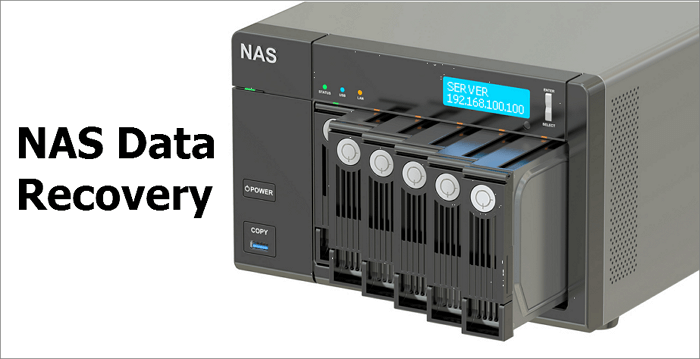
A NAS (Network Attached Storage) device is a dedicated data storage server that connects to a network and provides file sharing functions across platforms. It typically includes storage devices, such as disk arrays or CD/DVD drives, and embedded system software to facilitate cross-platform file sharing.
This tutorial will guide you on how to access your RAID-based NAS drives and retrieve your data before formatting, resetting, or re-configuring the NAS configuration.
Common NAS Data Loss Scenarios
A RAID-Data loss on NAS (Network-Attached Storage) devices could be attributed to various reasons. These include hardware failures, such as faulty hard drives or power supply issues, which can cause data corruption or complete loss.
- Accidental deletion or formatting
- Abrupt power failure or improper shutdowns
- Server overheating
- Virus or malware attack
- OS crashes or other errors
- Hardware controller failure
- Multiple disk failure
NAS Data Recovery Software Free Download
If you have data issues with your NAS, such as being unable to access data, accidentally deleting data, formatting the disk, or experiencing data loss due to a virus attack, you can try using special NAS data recovery software to recover your data.
Qiling NAS data recovery software is a top-notch data recovery tool that offers various file recovery services, including emptied Recycle Bin recovery, formatted hard drive recovery, lost partition recovery, deleted file recovery, NAS and cloud data recovery, and more.
Highlights of Qiling NAS data recovery software are as follows.
Supported NAS Disk Brands:
Qnap, Synology, Lacie, Iodata, Buffalo, DLink, Seagate, Western Digital, and Thecus NAS devices can be configured as a single drive, RAID 0, RAID 1, or RAID 5, offering flexibility and redundancy for data storage and protection.
Supported Operating Systems:
32-bit and 64-bit versions of Windows 7, 8, 10, 11, and Windows Server 2003, 2008, 2012, 2016, 2019 are supported.
Supported File Types:
- Documents: Word (DOC/DOCX), Excel (XLS/XLSX), PPT (PPT/PPTX), PDF, HTML/HTM etc.
- Photos can be in various formats, including JPG/JPEG, TIFF/TIF, PNG, BMP, GIF, PSD, CRW, CR2, RAW, SWF, SVG, and DNG.
- The supported video formats include AVI, MOV, MP4, M4V, 3GP, WMV, MKV, FLV, SWF, RM/RMVB, and MPEG among others.
- Other Files: Audio files, email, archives, and more
How to Recover Data from NAS Server Directly
Qiling NAS data recovery software makes it easy to restore data from NAS devices. Simply follow these steps to recover your NAS data:
Step 1. Select file types and click "Fast Scan" to start
To recover data from a NAS device using Deep Data Recovery, download and install the software on your Windows 11/10 64-bit computer. Once open, select "NAS Recovery" and choose the desired file types. Click "Fast Scan" to begin the recovery process.

Note: You can choose different search modes based on where and why the data was lost.
Step 2. Select a NAS server and start recovering.
All NAS servers will be automatically listed, choose your target NAS device and click "Scan".

Step 3. Enable SSH service on the NAS server.
To enable SSH service for remote access, go to the "Control Panel > Terminal & SNMP" and check the box next to "Enable SSH service". Note the port number for remote access, then proceed to Deep Data Recovery and click "Next".
Step 4. Connect to the NAS server remotely.
This software will automatically detect your IP and Port, all you need to do is input your user name and password. If the IP address or Port is not correct, you can manually correct it. Once done, simply click "Connect Now".
Step 5. Recover lost/deleted NAS data
After installing Qiling data recovery software, it will connect to your NAS and initiate a scanning process. Once the scan is complete, you'll be able to view all deleted, lost, or existing files on your NAS server.
To recover lost files on a NAS, use the search feature to locate them, select the desired files, and then click "Recover" to save them to a different location.

How to Recover Data from NAS Hard Drive Step by Step
To recover data from a NAS, you would remove the disk from the NAS, connect the hard drive to your PC, and then use data recovery software to extract and save files.
Before recovering data, you need to:
1. Remove the disk from the NAS, then power off and unplug the disks one by one.
- Important
-
To avoid confusion when reassembling the NAS, it's recommended to label the disks according to the bay they were originally in. This way, you can easily put them back in their correct positions. Additionally, when removing the drives, ensure you don't void the warranty by following the manufacturer's guidelines.
2. To connect the drive to your PC, use SATA cables to directly connect the disk to the motherboard or use a USB-to-SATA adapter with power, and wait for the disks to appear on the PC. When prompted to initialize or format the connected NAS devices, refrain from doing so.
3. To ensure a smooth recovery process, it's essential to have enough external/internal hard drive or network storage space that is equivalent to or larger than the volume of data recovered from the failed NAS drives. This will provide a safe and sufficient space to store the restored data, preventing any potential issues or losses during the recovery process.
4. Download NAS recovery software: Deep Data Recovery.
After preparing the necessary tools and permissions, launch Qiling file recovery software on a PC to recover data from Synology NAS or other NAS services.
Step 1. Select file types and click "Fast Scan" to start
Run Qiling file recovery software on your Windows PC, select the desired file types, and click "Fast Scan" to initiate the recovery process.
Note: You can choose different search modes based on where and why the data was lost.
Step 2. Scan the RAID drive
Choose the RAID drive from which you wish to recover data, click "Scan", and wait for the scanning process to finish, which will display the deleted files one by one.
Step 3. Find and preview lost RAID files
Users can quickly find deleted or lost files using the "Filter" feature, and they can also search for lost RAID drive files by their file name or extension using the "Search" function.
Step 4. Restore lost RAID drive files
Select the desired files and click "Recover". Then, navigate to a secure location to save these files.
How to Recover NAS Data with Manual Service
If you're struggling with managing NAS/RAID drives, consider seeking the help of experts. Qiling's Manual Data Recovery Service offers a range of services following a free diagnosis, providing a reliable solution to your data management needs. Contact them now to get assistance.
Consult with Qiling data recovery experts for one-on-one manual recovery service. We offer a range of services following a FREE diagnosis, including repairing damaged RAID structures and restoring data from all RAID levels, utilizing the expertise of our decades-experienced engineers.
- Data can be restored from all RAID levels, including RAID 0, RAID 1, RAID 5, RAID 6, RAID 10, and others.
- Recover data from enterprise RAIDs, including QNAP, Synology, WD, Buffalo, and more, with our expert services. Our team can help you retrieve your valuable files and data from these complex storage systems, even in cases of hardware failure, corruption, or other issues.
- Retrieve lost RAID data caused by any issues
- Fix disks that become GPT protected partitions
- Recover data from RAID remotely, no need to ship
More Information on NAS Data Recovery
If you've lost data on your NAS (Network-Attached Storage) device, don't panic! While it's frustrating to lose important files, there are ways to recover them.
NAS and RAID
A Network-Attached Storage (NAS) system consists of hardware and software components. The hardware includes one or more hard disks, processors, and RAM enclosed in a hard disk box, while the software is an operating system that manages access and network connectivity. Many NAS devices have multiple hard disks, which can be configured in a RAID (Redundant Array of Independent Disks) setup to ensure data redundancy and provide a single, high-speed storage unit. This setup allows for the connection of two or more hard disks to operate as a single, large storage device.
Most NAS devices use RAID (Redundant Array of Independent Disks) to ensure data consistency and fault tolerance. Many NAS vendors offer proprietary RAID management systems that can combine multiple hard disks into complex RAID systems, but users don't need to be experts in RAID technology to use them.
How Much Does a NAS Cost?
A NAS (Network-Attached Storage) device can be a significant investment, especially if you plan to store a lot of multimedia files. The device itself can cost several hundred dollars, and you'll also need to factor in the cost of hard drives, which can range from $50 to $200.
However, NAS is more cost-20 TB of cloud storage costs $500 a month, which is more expensive than paying a few thousand dollars for NAS storage and disk drives. This makes NAS storage a more cost-effective option in the long run.
NAS VS SAN
SAN (Storage Area Networking) technology builds upon traditional DAS (Data Acquisition Station) technology, offering high-speed access to large numbers of data blocks. At its core is the SAN switch, which serves as a high-speed data exchange channel, providing low latency, high data consistency, wide connectivity, remote support, and flexible management.
NAS (Network-Attached Storage) is a dedicated file server that separates storage devices from servers, centrally managing data to free up bandwidth, boost performance, and lower costs. This approach is more cost-effective and efficient than using server storage.
While SAN is ideal for large data block access, NAS provides flexible personal and enterprise disk space services, making it suitable for various industries such as office automation, advertising, education, and finance. NAS is particularly applied in areas that require large data storage, including email space registration, FTP servers, multimedia, and image industries.
Conclusion
Network Attached Storage (NAS) devices are ideal for large data volumes that exceed desktop hard disk storage, allowing multiple devices to share files and media. However, if data loss occurs while using a NAS, using professional NAS data recovery software can quickly recover important data.
Related Articles
- How to Recover Deleted Files from Laptop/PC on Windows 10/8/7
- Recovered Files Won't Open or Not Opening
- How to Recover Data from Diskpart Cleaned Disk by Accident
- How to Access User Folder on Old Hard Drive Windows 10/11
- 3 Ways | How to Recover Deleted Photos from Laptop Windows 11/10
If you've accidentally deleted photos from your Windows 10 laptop, there are ways to recover them. - How to Recover Data from Formatted Hard Disk in Windows 10/11
Recovering data from a formatted hard disk in Windows 10 is now a manageable task. With the best data recovery software, you can easily retrieve files from a formatted hard drive in Windows 10, 8, or 7.
Products
Articles & Tutorials
- Data Recovery
- Data Backup
- File Recovery
- File Backup
- System Backup and Restore
- Disk and Partition Clone
- Technical articles
- Mobile articles
- Disk Master Help
- Windows Data Recovery Tutorials
- Windows Secure Delete Tutorials
- Windows Partition Management Tutorials
- Windows File Backup and Restore Tutorials
- Windows System Backup and Restore Tutorials
- Windows Disk Backup and Restore Tutorials
- Windows Clone Tutorials