SnowRunner Lost Save Files on Steam/PS/Xbox | SnowRunner Recovery
SnowRunner Lost Save Files [Causes & Impact]
If you are a big fan of cross-SnowRunner is a game that combines snow, vehicle simulation, and adventure, making it a must-play for fans of country vehicles. It's available on multiple platforms, including Steam, Xbox, PlayStation, and Nintendo Switch, offering an immersive experience for players.
In SnowRunner, users often spend a lot of time navigating vehicles and terrains, but some players encounter frustrating issues, such as losing their saved files, forcing them to start over from the beginning. This problem can arise due to various reasons, including.
- 🎮Unexpectedly game crashed. If the SnowRunner application crashes, it may result in the loss of unsaved data.
- 📈Update SnowRunner incompletely. If the game's update progress is interrupted, you may lose some essential game files.
- ❌Storage device corruption. You cannot save data on this drive if the storage device is damaged or corrupted. However, you can repair corrupted hard disks without formatting in many ways.
- 👿Virus and Malware. If your computer is infected with a virus, it can put all the files on your PC at risk of being lost or deleted randomly.
If you're experiencing issues with SnowRunner not saving or other problems, you can try resetting your gaming console, such as an Xbox One, PS 4/5, or Nintendo Switch, to see if it resolves the issue.

If you've lost your saves in SnowRunner, don't worry, this guide explains what to do. We'll show you how to recover your lost saves on PC, PS, Xbox, and Nintendo Switch. Remember to mark this page by sharing it.
How to Fix SnowRunner Lost Save Files on PC with Software
Using data recovery software can be a solution when you don't have local backups or auto backup service, allowing you to recover deleted game files, especially if malware has hidden or deleted them.
If you're unable to find lost game files for SnowRunner, you can use Deep Data Recovery software to quickly and easily recover deleted files.
The Qiling recovery program allows you to protect your SnowRunner game saves, providing a safeguard against potential data loss. With this tool, you can ensure the integrity of your game progress and avoid the frustration of losing your hard-earned achievements. By utilizing Qiling, you can rest assured that your SnowRunner game saves are secure and recoverable, giving you peace of mind as you play and experiment with the game.
- If you've accidentally deleted game files on your PC, don't worry! Qiling can help you recover them.
- This software supports SD card recovery and can recover lost data from various devices such as USB drives, external hard drives, and digital cameras, among others.
- Recover deleted files from a PC or laptop, including images, documents, videos, and audio, using data recovery software or tools that can help restore lost data from the device's storage drive.
Now, you may wonder how to recover SnowRunner lost game files with Deep Data Recovery. Check the following tutorial and recover game data:
Step 1. Select a location and start scanning
Launch Deep Data Recovery, select the partition where data was lost, and click "Scan" to initiate the scan process.

Step 2. Filter and preview files
Use the file format filter on the left or upper right corner to find the specific files you need, and then click the "Preview" button or double-click a file to preview its content.

Step 3. Recover lost data or files
To recover lost data, select the file that contains the lost data, check the box next to it, and click the "Recover" button. This will transfer the data to a secure location.

Recover SnowRunner Lost Saves with Local Files
To fix the progress lost issue in SnowRunner on PC, you can try moving the local files manually. This method can help restore your lost game progress. If you notice that the game is running with new progress, you can follow the tutorial to resolve the issue.
Step 1. To back up SnowRunner game files, go to the C Drive, then navigate to Users > your username > Documents > My Games > SnowRunner > base > storage, and copy the entire storage folder to a safe location for backup purposes.
Step 2. Go to the "backupSlots" folder and find a folder named with a string of numbers.
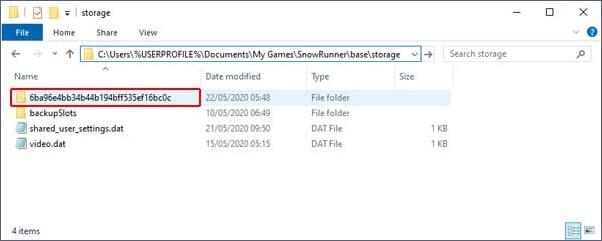
Step 3. Open the first folder, then open the second folder, copy the files from the second folder to the first folder, replace them, and repeat this process with the remaining folders.
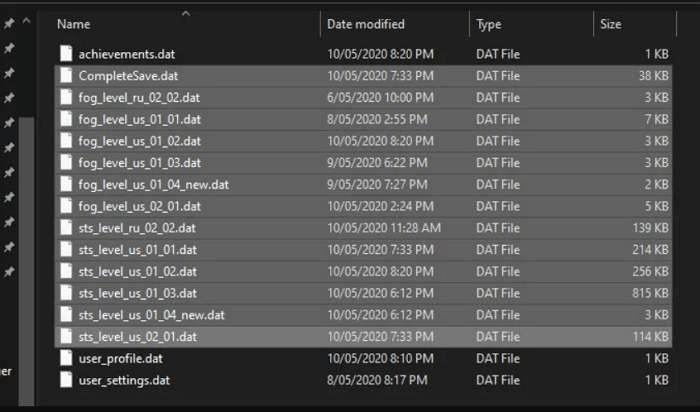
Step 4. After doing this, relaunch SnowRunner on the PC to check.
Hogwarts Legacy Missing Save | Recover Hogwarts Legacy Lost Save
If your Hogwarts Legacy save is missing on your PC, there are four possible solutions. Firstly, check if the save is hidden in the game's folder. Secondly, try verifying the game's files through Steam or the Epic Games Store. Thirdly, if you're using a cloud save, check if it's syncing correctly.
How to Restore SnowRunner Saves on PS/Xbox/Switch
To recover lost game saves for SnowRunner on consoles, backups are essential. We'll cover the process of restoring saves on PlayStation 5, Xbox Series X, and Nintendo Switch, providing a solution for users who have lost their game progress.
How to Recover SnowRunner Saves on PS5:
To recover lost game data on PS5, you should be a member of the PS Plus service and enable automatic backup.
Step 1. Open PS5 settings with the controller.
Step 2. Scroll down and select "Saved Data and Game/App Settings".

Step 3. To continue playing SnowRunner on your PS5, select "Saved Data (PS5)" from the game's menu, then choose SnowRunner and download the game data from cloud storage to your console's storage.
How to Reset PS5 Without Losing Data [2 Tested Methods]
Is your PS5 not working smoothly? It's time for a reset! There are multiple ways you can reset PS5. Reset PS5 without losing data
How to Recover SnowRunner Saves on Xbox Series X:
Xbox allows users to back up game data, and you can follow a tutorial to recover saved game data on the Xbox Series X.
Step 1. Use the Xbox controller to navigate to Settings > System > Backup & Transfer.
backup-transfer-xbox-one
Step 2. You can back up SnowRunner game files to a local or USB flash drive for safekeeping. This allows you to easily transfer your game data and save files between devices or in case of a system failure.
Step 3. The option "Restore a backup" allows you to recover lost saves in SnowRunner by restoring a previously saved backup. This feature is useful when you accidentally delete or lose your game saves, and you want to revert back to a previous state.
How to Restore SnowRunner Saves on Nintendo Switch:
To restore lost files on Nintendo Switch, you don't need to pay for Nintendo Online service, as you can easily backup and restore game data on the console itself. This means you can recover SnowRunner lost files without incurring additional costs.
Step 1. Choose SnowRunner on the Nintendo Switch.
Step 2. To access the SnowRunner game data settings, press the -/+ buttons.
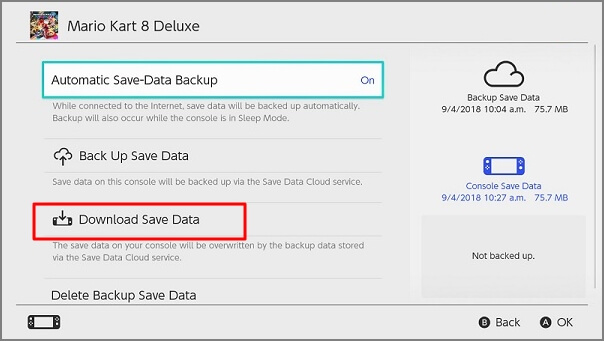
Step 3. To manage SnowRunner saves, you can back up, restore, or delete backups. Additionally, you can choose to download saved data from the cloud by selecting "Download Save Data".
Unfortunately, the methods above did not resolve the SnowRunner progress loss issue. The game's developers have acknowledged the problem and are working on a fix, but a timeline for resolution has not been provided. In the meantime, players are advised to save their progress frequently to minimize potential losses.
Bonus Tip: How to Avoid SnowRunner Lost Save Files
To avoid data loss while playing SnowRunner, follow these tips: save your game frequently, use cloud saves or external hard drives to back up your progress, and consider using a save manager to keep your saves organized. This will help ensure that your saved files are safe and you can continue playing without worrying about losing your progress.
- To ensure your SnowRunner progress is safe, it's recommended to back up your saved files to an external drive or cloud storage. This will prevent loss of data in case your game data gets corrupted or your computer experiences issues.
- In the event of an incomplete update, it's crucial to update the game in a stable environment to ensure a smooth and successful update process. This can be achieved by creating a stable and controlled environment, such as a virtual machine or a dedicated server, where the update can be applied and tested without affecting the live game.
- Regularly check the hardware and storage device for any signs of sudden corruption to prevent data loss.
- Scan malware and computer viruses often to avoid file loss.
- Try not to use Mods and unofficial patches on SnowRunner.
To avoid lost SnowRunner save files, it's essential to follow some simple tips. First, make sure to save your game regularly, especially after completing challenging missions or achieving significant progress.
Conclusion
SnowRunner is a popular vehicle simulation game available on multiple platforms. If you've lost your saves, don't worry - this guide explains what to do. Our guide provides step-by-step instructions on how to recover your lost saves on PC, PlayStation, Xbox, and Nintendo Switch. To make the process even smoother, you can also download the functional recovery software, Deep Data Recovery, and start the recovery process today!
SnowRunner Lost Save Files FAQs
Check the following additional information about SnowRunner lost save files:
1. How to fix Hogwarts Legacy not saving?
4 methods to fix Hogwarts Legacy not saving on PC
- 1. Fix the corruption
- 2. Disable antivirus to troubleshoot
- 3. Verify file integrity
- 4. Run Hogwarts Legacy as administrator
2. Do you know the SnowRunner file location on the PC?
The SnowRunner file location on your PC can be found at C Drive > Users > username > Documents > My Games > SnowRunner > base > storage.
3. Can I recover SnowRunner lost saves on PC?
To recover SnowRunner lost saves on PC, you can use Deep Data Recovery, a software that specializes in recovering deleted files, including game saves. With Deep Data Recovery, you can scan your computer for deleted files, including your SnowRunner saves, and recover them if they are still available on your hard drive.
- 1. Download this software and use it to scan your C drive.
- 2. To recover lost saves in SnowRunner, you can restore the game folder, which contains all the game's files, including saves. A search utility can be used to quickly locate the target files.
- 3. Select SnowRunner game files and recover them.
4. What is error code 10001 on SnowRunner?
To resolve the 10001 error in SnowRunner when downloading mods, try checking the mod's compatibility with your game version, ensuring the mod folder is correctly placed in the game's mods directory, and verifying the mod's integrity by redownloading it from the modding platform. If the issue persists, restart the game and check for any updates. If you're still experiencing issues, try reinstalling the mod or seeking assistance from the modding community.
Related Articles
- Cloud Drive Data Recovery: Recover Data from WD, Dropbox, Google
- A Complete Guide to Recover Data from Broken RAID 0, 1, 5, 10 [SOLVED]
- Ext4 File Recovery: How to Recover Deleted Files from Ext4 Linux
- 2023 HGST Hard Drive Recovery: How Do I Recover Data from HGST Hard Drive
- [Official & Latest] Deep Data Recovery Key 3.1 and Qiling License Code
Stop trying to use Qiling data recovery crack, keygen, or serial number. Deep Data Recovery 3.1 with the official license code and serial key is available here for you to download. With the Qiling data recovery key, you can activate Deep Data Recovery legally and recover your data in the safest way. - How to Recover Deleted Files in Windows 10 (7 FREE Ways)
How to recover deleted files in Windows 10? This tutorial covers several effective ways to help you undelete files or restore permanently deleted files on Windows 10.
Products
Articles & Tutorials
- Data Recovery
- Data Backup
- File Recovery
- File Backup
- System Backup and Restore
- Disk and Partition Clone
- Technical articles
- Mobile articles
- Disk Master Help
- Windows Data Recovery Tutorials
- Windows Secure Delete Tutorials
- Windows Partition Management Tutorials
- Windows File Backup and Restore Tutorials
- Windows System Backup and Restore Tutorials
- Windows Disk Backup and Restore Tutorials
- Windows Clone Tutorials