How to Fix Hogwarts Legacy Not Saving [For Steam/PS5/Xbox Players]
| Workable Solutions | Step-by-step Troubleshooting |
|---|---|
| Fix 1. Fix the Corruption to Solve Hogwarts Legacy Not Saving | Open the Run application by typing "Run" into the start search box. In the window that appears...Full steps |
| Fix 2. Disable Antivirus to Troubleshoot Hogwarts Legacy Not Saving | Type in Windows security settings in the search window. On the screen that appears. click "Virus...Full steps |
| Fix 3. Verify File Integrity to Fix Hogwarts Legacy Not Saving | Run Steam on the PC, and open the Library menu. Right-click Hogwarts Legacy and choose "Properties"...Full steps |
| Fix 4. Run Hogwarts Legacy as Administrator to Fix the Not Saving Issue | Firstly, you should run Steam as an administrator under the capability menu. Then, you should access...Full steps |
| Fix 5. Fix Hogwarts Legacy Not Saving on PS5 and Xbox | Open your PS5 and use the controller to open the settings menu. Then, you should click on System...Full steps |
While playing Hogwarts Legacy on PC, PS5, or Xbox, players may encounter game issues like Hogwarts Legacy not saving, which can be frustrating for those who want to explore the wizard world. This problem can arise due to game file corruption, viruses, or internal file missing. However, there are solutions available, and one method to recover Hogwarts Legacy missing save is by using Deep Data Recovery software, which can help resolve the issue.
1. Fix the Corruption to Solve Hogwarts Legacy Not Saving
The Hogwarts Legacy save files may become corrupted, leading to issues with saving or autosaving. To resolve this, follow a guide to clear the corrupted files.
Step 1. To open the Run application, type "Run" into the start search box, which will bring up the Run dialog box, allowing you to type commands and execute them directly.
Step 2. To access the Local AppData folder, press the Windows key + R to open the Run dialog box, type in %localappdata% and hit enter. This will take you to the folder where Windows stores temporary data and application settings.
Step 3. Then we need to open Hogwarts Legacy saved folder.
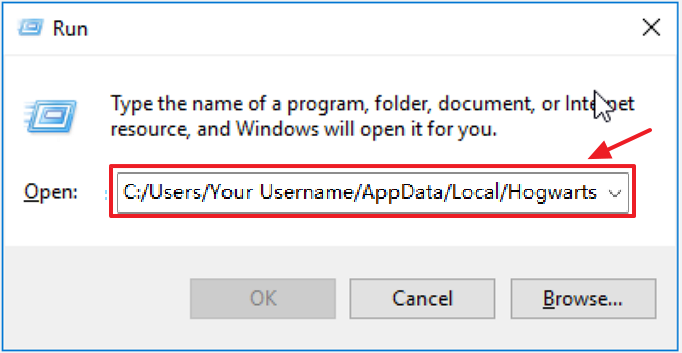
Step 4. To prevent data loss, you can use a backup program to create a copy of the Config and SaveGames folder, and then safely remove the original folders.
Step 5. Restart the Hogwarts Legacy and try to save the progress again.
2. Disable Antivirus to Troubleshoot Hogwarts Legacy Not Saving
If you're experiencing issues with Hogwarts Legacy not saving on Steam, try shutting down your antivirus program, such as Windows Defender Antivirus, to avoid lost progress. To disable Windows Defender Antivirus, go to the Start menu, type "Windows Security," and click on the result. Then, click on "Virus & threat protection settings," and toggle off the switch under "Virus & threat protection.
Step 1. Type in Windows security settings in the search window.
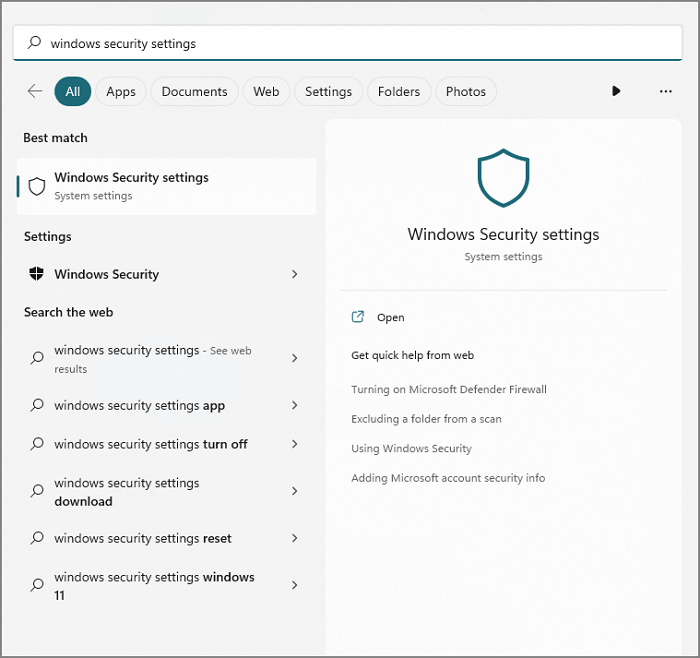
Step 2. On the screen that appears, click "Virus and Threat Prevention".
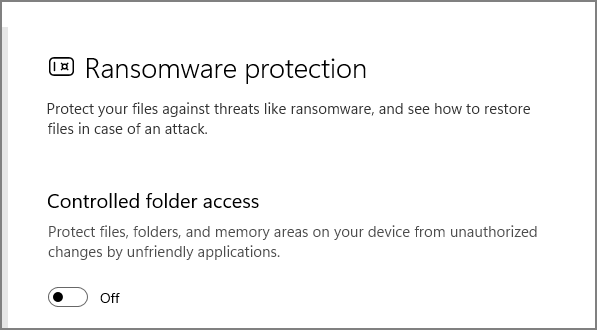
Step 3. From the menu, select "Ransomware Prevention".
Step 4. The screen that appears will have "Controlled Folder Access" disabled.
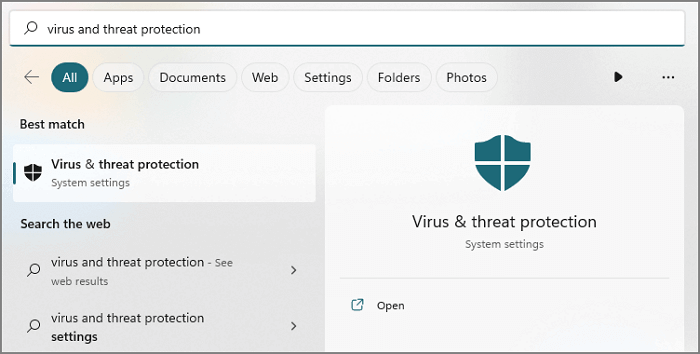
Step 5. To open the Start search screen and access Virus and threat protection, simply type "virus and threat protection" into the search bar. This will quickly locate and display the relevant option, allowing you to access and manage your Windows Defender settings.
Step 6. Click on "Manage Settings" and turn off the Real-time Protection.
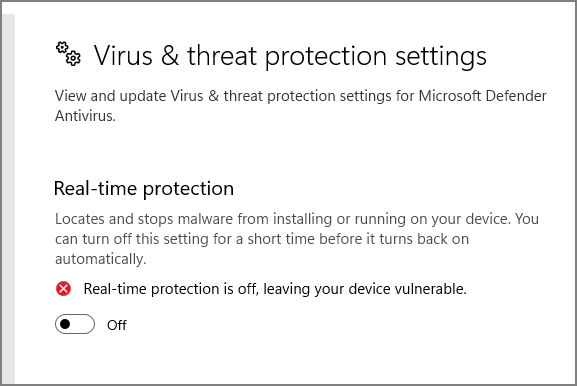
Step 7. In the Virus & Threat Protection menu, add Hogwarts Legacy and saved files as an exception, allowing them to be accessed without restrictions. This will prevent the antivirus software from flagging them as suspicious or deleting them by mistake.
3. Verify File Integrity to Fix Hogwarts Legacy Not Saving
If you're experiencing issues with Hogwarts Legacy not saving, try using Steam's built-in verify feature to check the game's file integrity. To do this, navigate to the Steam Library, right-click on Hogwarts Legacy, and select "Properties.
Step 1. Run Steam on the PC, and open the Library menu.
Step 2. Right-click Hogwarts Legacy and choose "Properties".
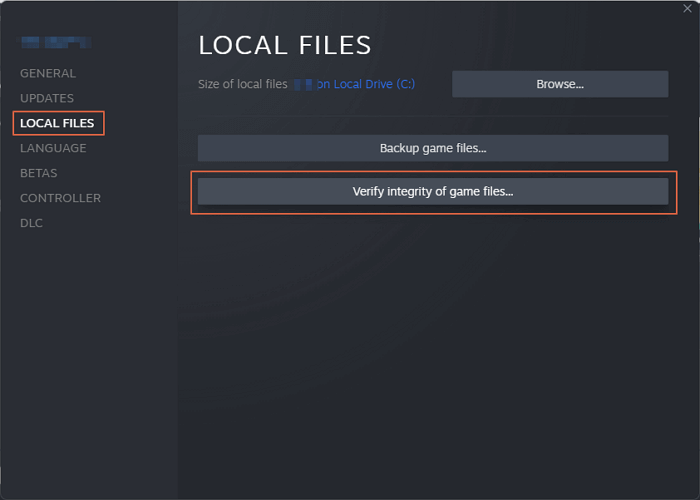
Step 3. To resolve the issue, click on the "Local Files" tab and select "Verify integrity of game files…".
4. Run Hogwarts Legacy as Administrator to Fix the Not Saving Issue
If you're having trouble saving your progress in Hogwarts Legacy on PC, try running the game as an administrator to resolve the issue.
Step 1. To resolve the issue, run Steam as an administrator by right-clicking on the Steam icon and selecting "Run as administrator" from the context menu. This should allow you to access the Steam Client Bootstrapper.
Step 2. Then, you should access Hogwarts Legacy's game folder.
Step 3. Find a file named "HogwartsLegacy.exe" and click "Properties".
Step 4. To resolve the issue, open the Capability window, then run Hogwarts Legacy as an administrator. This involves right-clicking on the game's executable file, selecting "Run as administrator" from the context menu, and then clicking "Yes" to confirm.
5. Fix Hogwarts Legacy Not Saving on PS5 and Xbox
Some players of Hogwarts Legacy on PS5 are experiencing an issue where their game progress is not being saved, possibly due to a lack of storage space. To resolve this, resetting the PS5 or Xbox console may resolve the issue, allowing players to save their game progress.
How to Reset a PS5:
Step 1. Open your PS5 and use the controller to open the settings menu.
Step 2. Then, you should click on System.
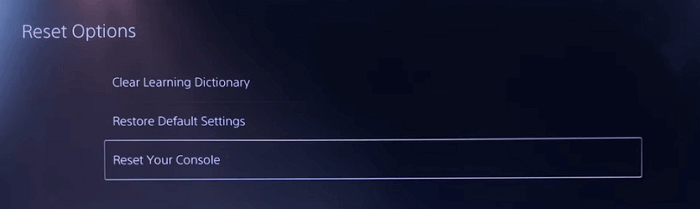
Step 3. Open the Reset Option under the System Software menu.
Step 4. To reset your PS5, look for the "Reset Your Console" button and follow the on-screen guide. This will guide you through the process of resetting your console.
How to Reset an Xbox:
Step 1. Open the guide by pressing the Xbox button.
Step 2. To view system information, go to Settings > System > Console info.
Step 3. You can choose to reset your console to its original factory settings, which will remove all games, data, and settings, or keep the games and only remove the data and settings.
Note: Before factory resetting your PS5 or Xbox, make sure to back up your essential game data to prevent losing progress and save files. This will ensure that you can restore your games to their previous state after the reset.
Recover the Lost Hogwarts Legacy Savings Files with Software
If you're experiencing issues with Hogwarts Legacy not saving your game progress, don't worry, we can help you recover lost save in Hogwarts Legacy. To do this, you'll need to access the game's autosave feature, which is usually located in the game's save folder. The location of this folder varies depending on your platform, but you can find it by checking your game's settings or online documentation. Once you've accessed the autosave folder, you can copy the most recent autosave file to a safe location, such as your desktop or documents folder. This will allow you to recover your lost game progress and continue playing from where you left off.
To recover lost game progress and screenshots, download a reliable game recovery tool, such as Deep Data Recovery, which can help you restore your lost data easily.
This software can do many things for a game player:
- This software supports data recovery for various platforms, including PS5, PS4, Steam, and Xbox, allowing users to recover lost or deleted files and games from their consoles and gaming accounts.
- The data recovery software can recover deleted game saves from Cyberpunk 2077 and other popular games like Hogwarts Legacy and Civilization VI, allowing players to restore their progress and continue playing without starting over from scratch. This can be especially helpful for players who have invested significant time and effort into their games, and can be a lifesaver for those who have lost their saves due to hardware failures, software glitches, or other unforeseen circumstances.
- To recover lost game files, including account information, screenshots, and game recordings, you can try the following steps. First, check if the game's cloud save feature is enabled, and if so, access your account on the game's website or mobile app to retrieve your saved data.
Summary
Although it's frustrating, some players may encounter the Hogwarts Legacy not saving issue. Fortunately, this problem can be easily resolved on Steam, PS5, and Xbox. If you lose any important game files during the fixing process, you can use Deep Data Recovery to recover them.
Hogwarts Legacy Not Saving FAQs
Here are some additional questions about Hogwarts Legacy, you should keep reading and find useful information from the answers below:
How to Fix Hogwarts Legacy lost save on Xbox?
You have three ways to fix Hogwarts Legacy lost save on Xbox:
- 1. Recover Hogwarts Legacy lost savings from Xbox Cloud.
- 2. Recover Hogwarts Legacy lost savings with Deep Data Recovery.
- 3. Retrieve Hogwarts Legacy lost savings with recovery experts.
How long will it take to finish all the story line in Hogwarts Legacy?
Hogwarts Legacy is an open-world game that can take around 30-35 hours to complete, focusing mainly on the plot. However, due to its open-world nature and numerous side tasks, players may spend significantly more time exploring and completing additional activities.
How to pause Hogwarts Legacy on PS5?
The PlayStation and Xbox controller pause buttons can be used to temporarily pause games, even during cutscenes, by pressing the respective button momentarily. This technique is effective on both consoles.
Is Hogwarts Legacy a cross-save game?
Will there be a cross-No, cross-save functionality won't be available in Hogwarts Legacy on launch day.
Related Articles
- Bash Profile on Mac - One Post for All Information
- How to Fix It Looks Like Windows Didn't Load Correctly
- 4 Proven Ways to Fix Erase Process Has Failed on Mac
- How to Recover Overwritten Word Document No Previous Version [Full Ways]
- [Fixed] Error Code 0x80070005 on Windows Update, System Restore, or Microsoft Store
Fix error code 0x80070005 (Access Denied) on Windows Update, System Restore, and Microsoft Store. Learn 5 proven methods to resolve permission issues and restore your system. - Everything You Need to Know About Ethernet Hub
Learn what an Ethernet hub is, how it works, its types, and the differences between hubs, switches, and routers. A complete guide to Ethernet hub networking basics.
Products
Articles & Tutorials
- Data Recovery
- Data Backup
- File Recovery
- File Backup
- System Backup and Restore
- Disk and Partition Clone
- Technical articles
- Mobile articles
- Disk Master Help
- Windows Data Recovery Tutorials
- Windows Secure Delete Tutorials
- Windows Partition Management Tutorials
- Windows File Backup and Restore Tutorials
- Windows System Backup and Restore Tutorials
- Windows Disk Backup and Restore Tutorials
- Windows Clone Tutorials