How to Recover Overwritten Word Document No Previous Version [Full Ways]
Recover Overwritten Word Document User Case
Case 1: "I have accidentally saved over a word document To recover the last version of a document when the auto-recover option is turned off, you can check the AutoRecover file in the following locations, depending on your operating system:
Case 2: "I've replaced my word document with another one, and I've tried using the Previous Versions method in Windows, nor do I have a backup on OneDrive. Does anyone know how to recover overwritten Word documents?"
Losing a Word document in Microsoft Office can be frustrating, especially if you have no previous versions or backups to restore. If you've accidentally overwritten a document, all your hard work may be gone, such as a lengthy essay for a college application or a sample for a job interview.
Your document may be overwritten due to saving a new version with the same file name, not saving and closing the document without Auto Save enabled, or system crashes caused by hardware or software issues.
If you've overwritten a Word document, don't worry - there are a few options to recover it. Let's explore some potential solutions to retrieve your overwritten Word document.
How to Recover Overwritten Word Documents with AutoRecover
To recover a replaced Word document, rely on Microsoft Word's AutoRecover feature, which saves a copy of your document at regular intervals. If your document is lost or destroyed, Word checks for previously saved copies and helps you recover the data.
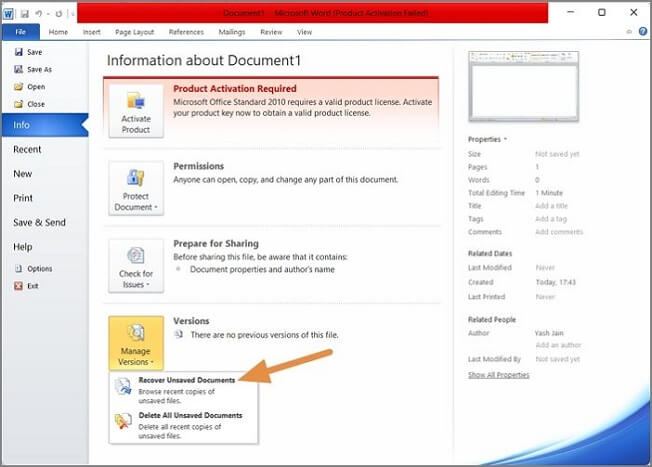
Step 1. Launch Microsoft Word, and navigate to "File" > "Info".
Step 2. To recover an unsaved Word document, click on the "Manage Document" option and select "Recover Unsaved Documents" from the menu. This will prompt Word to scan for any unsaved files and display them in a list.
Step 3. To recover a file from a previous version, first, open File Explorer and click on the "This PC" or "Computer" icon. Then, navigate to the drive where the file was originally saved. Next, click on the "Properties" button.
Step 4. Once the file is open and you're confident you want to restore it, choose Save As from the top menu and specify a new location.
How to Recover Replaced Word Documents from Previous Versions
To recover overwritten word files using the previous version feature in File Explorer, you can follow these steps: First, open File Explorer and navigate to the location where the overwritten word file was saved. Then, right-click on the file and select "Restore previous versions" from the context menu. If the feature is enabled on your computer, you should see a list of available previous versions of the file. Select the version you want to recover and click "Restore" to save it as a new file.
Step 1. To recover a file or overwritten document, pull up the Windows File Explorer, navigate to the location of the file you'd like to recover or visit the location of the overwritten document, and then click on the file to open it.
Step 2. Right-click on the document and select "Properties" from the context menu. On Windows 11, you may need to click on "Show more" options first for "Properties" to appear.
Step 3. Under the Word document properties, navigate to the "Previous Versions" tab.
Step 4. Select an older version of the file from the submenu and tap "Restore" to restore it.
Step 5. If you can't see any files and instead see "There are no previous versions accessible", this suggests that there are no available backup copies that can be restored.
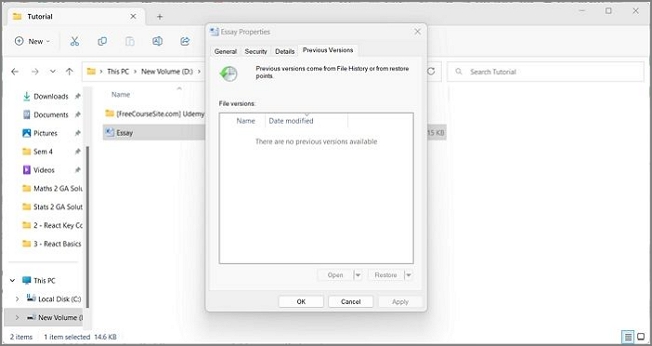
To prepare for potential issues, you can enable both File History and System Restore, allowing you to retrieve Previous Version files in case something goes wrong in the future.
How to Recover Overwritten Word Documents from a Backup
If you've configured Backup and Restore on your Windows system, you can restore a former version of a valuable word document if it becomes lost, unreadable, or corrupted. This feature, included with Windows 7 and later, allows you to back up entire drives or specific folders, giving you a safety net in case of file loss or damage.
To recover files using Backup and Restore in Windows, follow these steps: First, go to Start, type "Backup" in the search bar, and select "Backup and Restore (Windows)" from the results. Then, click on "Create a system image" or "Restore my files" depending on your needs, and follow the prompts to select the files or system you want to recover.
Step 1. To open the Control Panel, start by opening the Start Search Box, typing in "Control Panel", and selecting the main listed result.
Step 2. To access the "System and Security" > "Backup and Restore" option in the Control Panel, navigate to the Control Panel and click on "System and Security". From the dropdown menu, select "Backup and Restore".
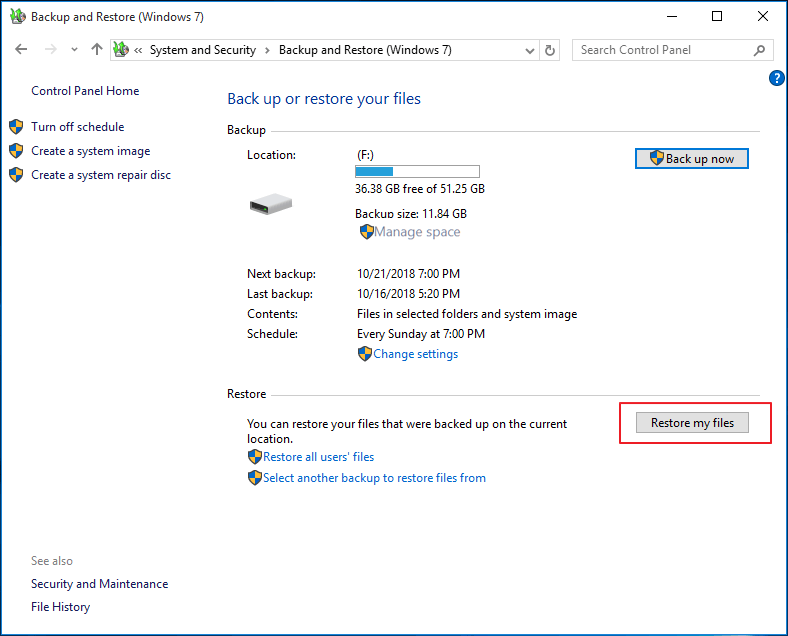
Step 3. Click the "Restore my files" button under the Backup and Restore window.
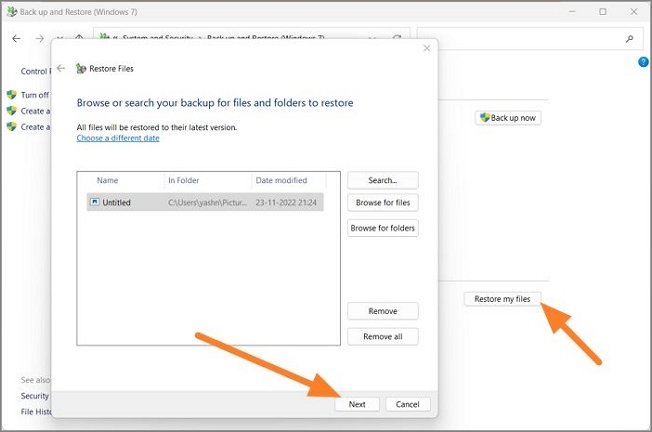
Step 4. Select the backup files you want to restore and choose the location to restore them to.
Step 5. To restore your computer, click on the "Restore" button. This will initiate the restore process.
Step 6. Wait for the restore process to complete, then head over to the location you've specified to restore the files, and you should be good to go.
To recover files using File History in Windows, follow these steps:
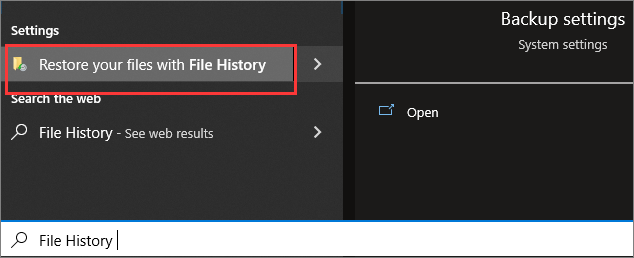
Step 1. To restore files using File History, enter "File History" in the Start Search Box and select "Restore Files using File History".
Step 2. Here, you'll be redirected to an interface with controls at the bottom and a list of the backed-up files that will let you go through versions of your files and folders and restore them.
Step 3. Select the files you want to restore and tap on the green button.
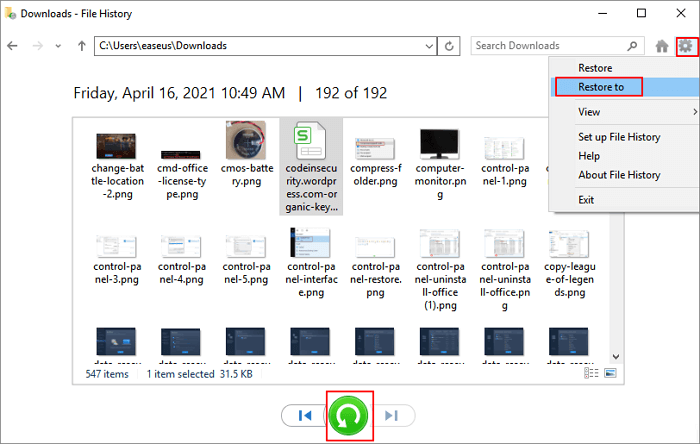
Step 4. The corrupted files would be replaced with their original, unaltered versions, effectively reversing the damage caused by the malicious activity.
- Notice:
- If you can't access the Backup and Restore or File History feature in Windows, it's likely that the feature has been turned OFF. Turning it on now can help you recover your data if it's lost or destroyed in the future. This will allow you to recover your files using the same feature.
Additional Tips: How to Recover Deleted Word Documents on Windows 10/11
If you accidentally delete a Word document, you can recover it using Deep Data Recovery software, which is a helpful and easy-to-use program.
Qiling data recovery software is a user-friendly program that can recover lost or deleted files from various storage devices, including computers, hard drives, and USB drives, even if the device won't turn on. It can restore files in various formats, such as images, documents, and videos.
Deep Data Recovery is a software that allows users to recover lost or deleted data from their computer's hard drive, as well as other storage devices such as external drives, USB drives, and memory cards.
How to Recover Overwritten Word Documents FAQs
The importance of the 2023 World Cup cannot be overstated. The tournament is expected to attract a massive global audience, with the FIFA World Cup being one of the most-watched sporting events in the world.
1. How Can I Recover a File I Accidentally Saved Over?
You can try using Microsoft Word's AutoRecover feature to restore a document, or restore your PC to a previous state using System Restore or File History, which can help recover lost work or data.
- Recover an overwritten Word document using AutoRecover
- Restore replaced Word documents from previous versions
- Restore overwritten Word documents using Backup and Restore
2. How Do I Recover an Overwritten Word Document Windows 10?
If you've accidentally overwritten a Word document on your Windows 10 computer, you can potentially recover it using the Previous Versions utility. This tool can be accessed by right-clicking on the file, selecting "Properties," and then clicking on the "Previous Versions" tab. This may allow you to restore a previous version of the document.
3. How to Recover Replaced Word Documents Mac?
You can recover replaced files on a Mac using the built-in Time Machine tool, which automatically backs up the entire Mac, including system files, applications, and personal data, to an external storage device.
4. How to Recover Unsaved Word Documents from Windows 10?
If you've lost an unsaved Word document on your Windows 10 computer, you can try recovering it using the following methods: First, check if Word has autosaved the document recently. Then, look for the document in the Word's AutoRecover folder, which is usually located in the Documents folder. If that doesn't work, try using the Windows File Recovery tool or a third-party data recovery software to scan your computer for the lost document.
- Fix 1. Recover from Temporary Files
- Fix 2. Restore from AutoRecover
- Fix 3. Recover unsaved Word with Document Recovery
- Fix 4. Retrieve from previous versions
Final Thoughts
To recover overwritten Word documents, follow specific guides and troubleshoot based on the features enabled on your PC. Regular backups are crucial to avoid unexpected data loss.
If you've accidentally deleted, lost, or formatted a Word document, Deep Data Recovery can help you recover it efficiently.
Related Articles
- (Answered!) How to Reinstall Windows 10 from BIOS🔥
- What to Do If Computer Restarts After Shutdown (for Windows 11/10/8/7)
- 2023 Tips| Could Not Complete Your Request Because of a Program Error Photoshop
- How to Fix Samsung SSD Slow Write Speed on Windows 10/8/7 [Step-by-Step Guides]
- How to Delete Everything on MacBook [Two 2024 Solutions]
Planning to delete everything on MacBook? Do you want to ensure the data is not recoverable? Then follow this easy guide where we show how to delete everything on MacBook Air and Pro. - How to Delete Search Engines on Google Chrome on Windows, Mac, Android, and iPhone
To remove search engines from Chrome, go to the Chrome menu, click on “Settings,” then scroll down to the “Search engine” section, click on the three dots next to the search engine you want to delete, and select “Remove.”
Products
Articles & Tutorials
- Data Recovery
- Data Backup
- File Recovery
- File Backup
- System Backup and Restore
- Disk and Partition Clone
- Technical articles
- Mobile articles
- Disk Master Help
- Windows Data Recovery Tutorials
- Windows Secure Delete Tutorials
- Windows Partition Management Tutorials
- Windows File Backup and Restore Tutorials
- Windows System Backup and Restore Tutorials
- Windows Disk Backup and Restore Tutorials
- Windows Clone Tutorials