How to Fix Samsung SSD Slow Write Speed on Windows 10/8/7 [Step-by-Step Guides]
If you're experiencing slow write speeds with your Samsung SSD, don't worry - there are some simple and easy-to-perform solutions to help you resolve the issue.
Samsung SSDs are generally faster than traditional hard disk drives (HDDs), and Samsung's models have consistently delivered good performance. However, like any other hardware, they can also experience issues, including slow read/write speeds.
Why Samsung SSD Slow Write Speed Appears
Samsung SSD slow write speed may be caused by various factors, including outdated firmware, incorrect configuration, or compatibility issues with the system, which can lead to reduced write performance.
- SSD gets low disk space
- Bugs on your SSD
- Performance and compatibility issues
You can click the link to get more information about this issue:
How to Fix NVMe SSD Slow Write Speed Issue
If your NVMe SSD is experiencing slow write/read speeds, there are several fixes you can try to speed it up. On this page, you'll find 8 solutions to help resolve the issue and get your NVMe SSD working at its best.
Now that you have learned about the causes of the issue, let us move on to the fixes.
How to Fix Samsung SSD Slow Write Speed - 5 Fixes
The article discusses five fixes to address the issue of slow writing speed on Samsung SD cards and 870 QVO drives, which can also apply to other Samsung storage devices.
Make sure to use an administrator account for these suggestions.
Fix 1. Monitor Samsung SSD Status
Monitoring SSD status is essential as it provides an early warning system for potential issues and helps determine the lifespan of the SSD based on the total read and write counts.
To check the SSD's status, you can download and use the tool Qiling Disk Master, which features a tool called DiskMark that tests the SSD's read or write speed efficiently.
Features of DiskMark:
- Checks for Speed, I/O, and Delay
- This tool allows users to test multiple SSD drives with predefined and configurable test data and block size. It enables users to evaluate the performance of their SSD drives under various conditions, providing valuable insights for optimization and selection.
- Supports Sequential read, Random read, Sequential Read, and Random write
- Save the report in xlsx format, which you can refer to later to compare performance with other drives.
Follow the guide below to monitor the Samsung SSD status:
Step 1. Launch Qiling Disk Master. Click the download button to activate the "Surface test" feature under the "Disk management" tab page.
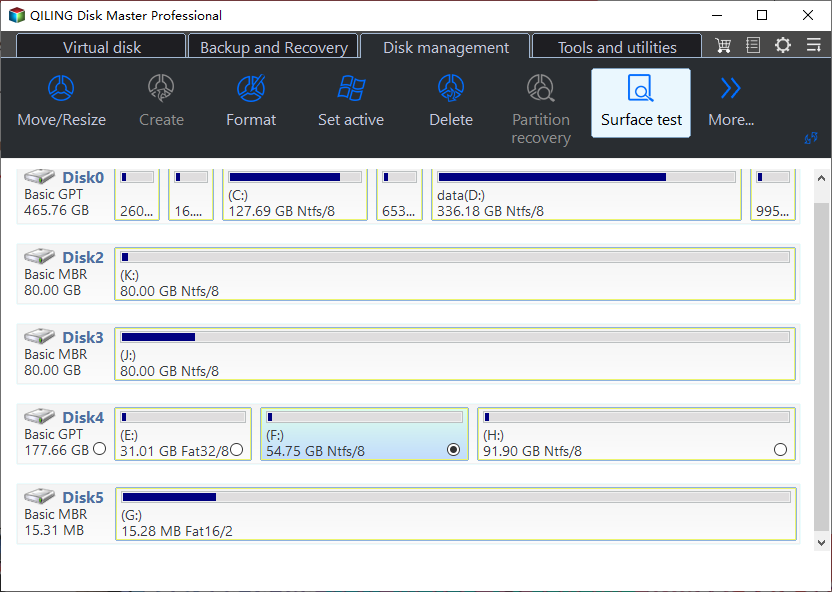
Step 2. Select the target drive, test data, and block size from the list box options to proceed with the task.
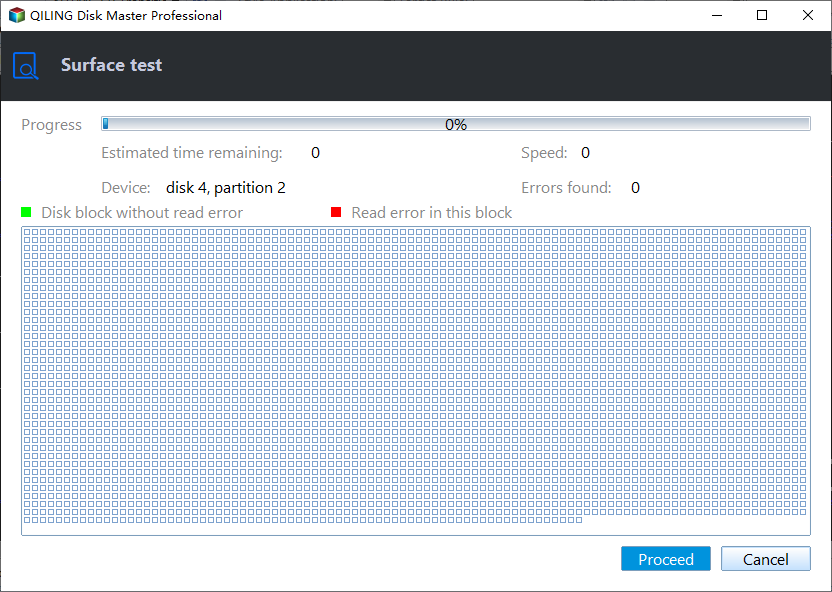
Step 3. Once everything is configured, click "Proceed" to begin the disk test, which will display sequential read speed, I/O, and Delay data.

The Qiling Disk Master DiskMark tool is a software that provides detailed disk performance analysis and benchmarking capabilities, allowing users to measure and evaluate the read and write speeds of their storage devices, including hard drives, solid-state drives, and other types of storage media. It offers various testing modes and scenarios to simulate real-world usage, providing insights into the disk's performance under different conditions.
- Test SSD read/write speed
- Run SD card speed test
- Run Micro SD card speed test
- Run external hard drive speed test
You are sure to enjoy what it brings to you. Now, we're going to move to the second fix.
Fix 2. Free Up Hard Drive Space
In this method, you can use the Qiling Disk Master tool to free up hard drive space on your Samsung SSD.
Qiling Disk Master Professional is a reliable disk management application that has a simple user interface and is easy to use, making it more efficient and effective to extend partitions with it than finding alternative ways to free up space on your hard disk.
Click the link below to learn how to free up hard drive space on your Samsung SSD.
To free up hard drive space in Windows 10/11, follow these steps: delete temporary files, uninstall unused apps, empty the recycle bin, and delete unnecessary system files. Use the built-in Disk Cleanup tool to automatically delete unnecessary files, or use third-party software like CCleaner to scan for and remove temporary files.
Many people struggle with cluttered computer hard drives, making it difficult to install new applications or games, and leading to frustration and disorganization.
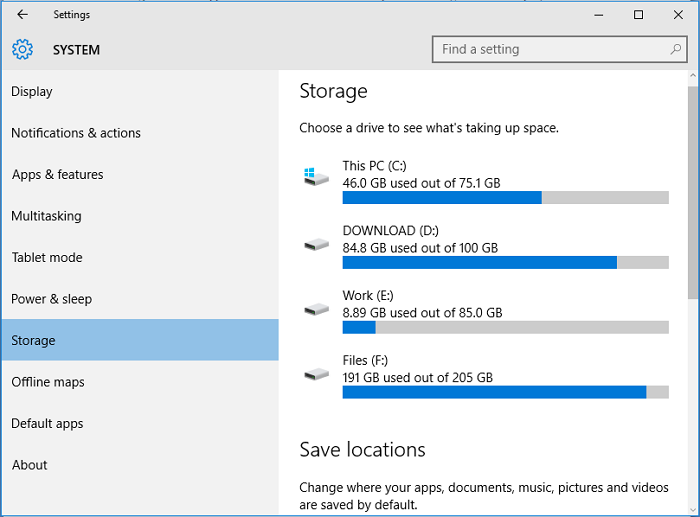
With the help of Qiling Disk Master, you can easily manage your SSD and optimize its speed. To fix low disk space, download it to try.
Fix 3. Update Samsung Magician
Samsung Magician, a program for optimizing and managing Samsung hard drives, also provides firmware updates and tools to fix bugs. If your Samsung SSD becomes slow, you can download the latest version of Magician, run it, and accept all firmware upgrades to see if it resolves the issue.
Step 1. You should go to the Samsung website to get the latest Samsung Magician software.
Step 2. Launch Samsung Magician.
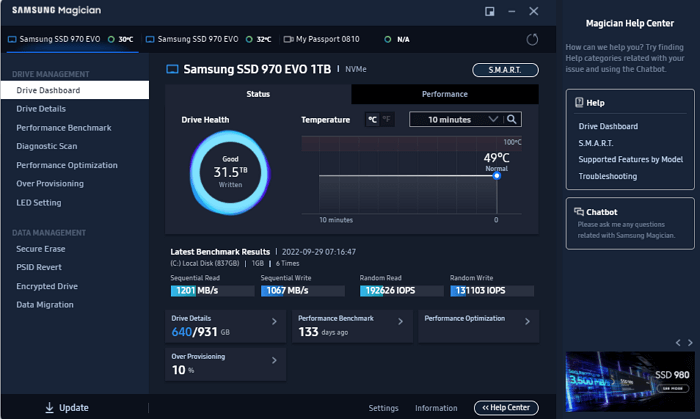
Step 3. Click on the Update button at the bottom left corner of the Samsung Magician window.
Step 4. To update the firmware of your Samsung SSD, look for the "Update" option for Firmware Update. Once you find it, click on it to proceed, and then confirm by clicking OK.
Step 5. After completing the process, open the Samsung Magician software on your PC to check if the firmware is updated.
This should increase your Samsung SSD's write speed.
Fix 4. Choose High-Performance Mode
Since the battery is a crucial part of the laptop, the power plan may limit the power supplied to the SSD, which can lead to slow performance if the SSD needs to draw more power to increase its performance.
To resolve the slow write speed issue with your Samsung SSD, set your PC to its highest performance mode. This will help optimize the drive's performance and address the write speed problem.
Follow the steps to change the Power Plan in Windows
Step 1. To access the power plan on your Windows device, simply press the "Win" key and the "S" key at the same time, which will open the search bar. From there, you can type in "power plan" and select the relevant result to access and manage your device's power settings.
Step 2. Click Choose a power plan.
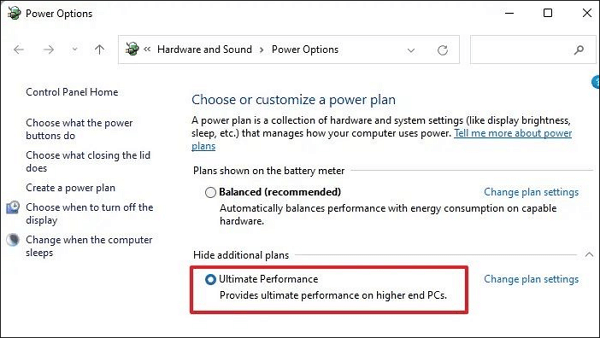
Step 3. To enable the Ultimate performance option, click on the "Show additional plans" button and then select the Ultimate performance option. This will allow you to use the maximum performance capabilities of your computer.
If you choose the Balanced Power Plan or anything lower, the SSD may not get the additional power it needs to operate at peak efficiency, which can result in poor transfer, read, and write speeds.
Fix 5. Run the TRIM Command
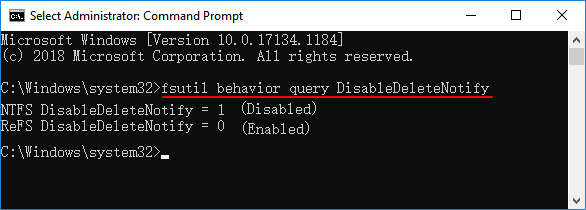
If your Samsung SSD is performing slowly under Windows 10/8/7, ensure that Write Cache and AHCI are activated in your hard drive settings. Additionally, make sure TRIM is enabled to improve garbage collection efficiency and sustain SSD speed over time. To do this, follow these steps.
Step 1. Open and run Command Prompt as administrator.
Step 2. To check if TRIM is enabled on your system, open the Command Prompt and type the command "fsutil behavior query DisableDeleteNotify" and press Enter. If the result is 0, it means TRIM is running, and if the result is 1, it means TRIM is disabled.
Step 3. To resolve the issue, type the command "fsutil behavior set DisableDeleteNotify 0" and press Enter. If the result is 1, it means the command was successful. If not, you may need to try a different solution.
Conclusion
The post suggests several methods to address the slow write speed issue with Samsung SSDs, including monitoring the SSD status, freeing up space on the storage driver, updating the firmware, and updating software, to help resolve the problem.
To resolve the issue, you can switch to a high-performance power plan to provide your SSD full power. This can be done by going to the Power Options in the Control Panel and selecting the High Performance plan. Additionally, you can try other solutions in this manual, which are compatible with both Windows 10 and 11.
You may also like:
Samsung SSD Slow Write Speed FAQs
If you have questions about SSDs' slow write speed, you're not alone! There are many frequently asked questions surrounding this topic. For example, what's the main reason behind the slow write speed of SSDs?
1. Why is my SSD write speed so slow?
When an SSD (solid-If your state drive (or SSD) is not working fast enough, it could be due to a variety of reasons. One common cause is the drive's limited storage capacity, which forces it to work harder and rely more heavily on RAM, ultimately slowing down overall performance.
One of the main reasons to consider an SSD is to improve the performance of your computer. However, if you have enough storage, you may not need to upgrade to an SSD, as your current storage may be sufficient. Additionally, the lifespan of an SSD is also a factor to consider, as it can be affected by various factors, including the number of write cycles and the quality of the SSD itself.
2. How do I fix a slow write speed?
To improve slow write speed, you can regularly scan and clean your hard drive, defragment it periodically, reinstall Windows every few months, and disable hibernation. Additionally, converting your hard drive from FAT32 to NTFS can also enhance SSD write speed.
3. Should you use rapid mode on a Samsung SSD?
Rapid mode on some Samsung SSDs enables faster read and write speeds, but requires more power and may reduce the SSD's lifespan. It's best used for specific tasks like copying large files.
Related Articles
- How to Install macOS on External Drive [macOS Ventura/Monterey]
- Outlook 2016 Not Working with Gmail | How to Fix
- How to Recover Unsaved/Lost/Corrupted Adobe Acrobat Files on Windows PC
- How to Fix 'Windows Could Not Complete the Installation' Error
- How to Fix a Media Driver Your Computer Needs Is Missing in Windows
Having trouble to 'fix a media driver your computer needs is missing in windows' error? Not anymore, as to solve it, you'll get multiple ways ahead. - How to Fix Raw Drive Without Format Using CMD [Quick & Safe]
this guide will focus on how to fix RAW drive without format using CMD. And you will also get the best alternative of CMD to fix RAW drive quickly and safely.
Products
Articles & Tutorials
- Data Recovery
- Data Backup
- File Recovery
- File Backup
- System Backup and Restore
- Disk and Partition Clone
- Technical articles
- Mobile articles
- Disk Master Help
- Windows Data Recovery Tutorials
- Windows Secure Delete Tutorials
- Windows Partition Management Tutorials
- Windows File Backup and Restore Tutorials
- Windows System Backup and Restore Tutorials
- Windows Disk Backup and Restore Tutorials
- Windows Clone Tutorials