Outlook 2016 Not Working with Gmail | How to Fix
Outlook is a widely used email client globally, with Microsoft's Outlook being a key feature in every Windows release since 1996. The 2016 version stands out as a popular and outstanding iteration, particularly among users.
Users often complain about Outlook 2016 not working with Gmail, but the issues are generally not harmful or unfixable. To resolve the problem, a few fixes can be tried, such as reconfiguring the email account, updating the Outlook software, or checking the Gmail account settings. By trying these simple solutions, users can get Outlook 2016 working with Gmail again.
Microsoft 2016 may not work due to issues such as IMAP errors, preventing users from accessing their inbox, or other login problems, even after turning off Two-Factor Authentication (TFA).
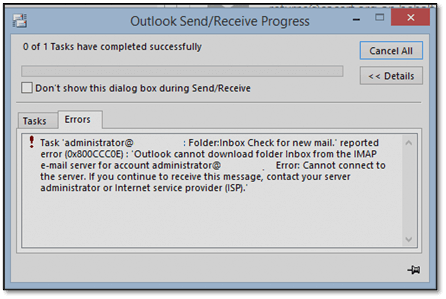
There are times when users turn off or tweak IMAP settings to resolve the issue of Outlook 2016 not working with Gmail, but these setting changes don't always work. Let's continue to explore further to find the right fix for this problem.
Preparation before Troubleshooting
The first thing we're going to do is prepare before trying to troubleshoot the issue. If you end up failing to fix the issue, you can't risk losing your important emails. Therefore, we're going to prevent any data loss during troubleshooting by creating a backup of your Outlook.
To create a backup of your Outlook 2016, you can use a third-party tool like Qiling Disk Master, a professional Outlook backup software, to back up your emails before proceeding.
- The ability to backup any system tool, such as Microsoft Outlook, and its features to a cloud drive would provide a secure and convenient way to preserve important data and settings. This feature would allow users to access their backed up information from anywhere, at any time, and would also provide a safeguard against data loss due to hardware failure, software corruption, or other unforeseen events.
- Backup Thunderbird profile and emails with ease
- Security zone to protect your email backups from virus attacks
- With our customizable scheduled backup and restore feature, you can have peace of mind knowing that your important files and data are safely backed up and easily restorable. This convenient feature allows you to set up automatic backups at regular intervals, so you can focus on other things while we take care of the rest.
- Clone or transfer your Outlook to another PC quite easily
There are many other features besides this, but some key features to know about using Qiling Disk Master to create an Outlook backup include. So, download it and use it to create a backup of your Outlook.
Step 1. Download and install Qiling Disk Master on your computer, then click on the "Backup and recovery" tab page.
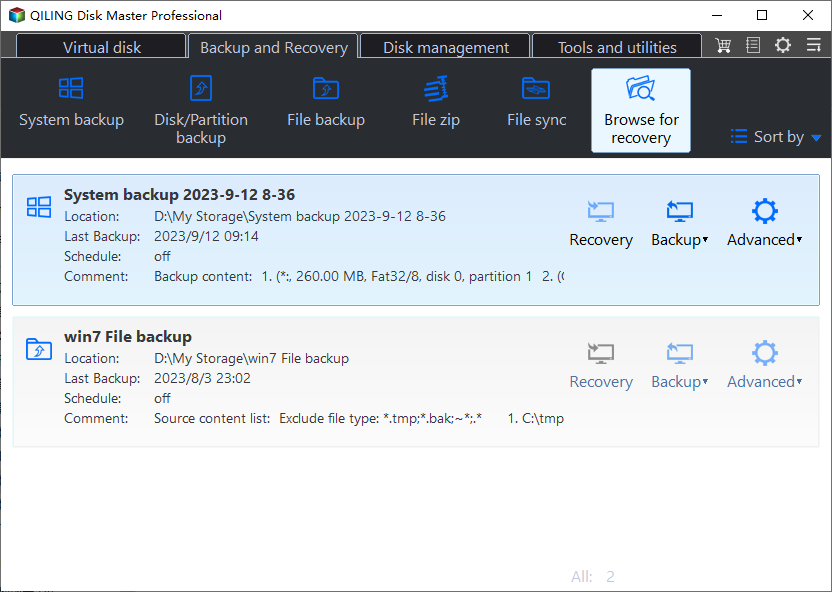
Step 2. To make a backup of your software applications, click "File backup".

Step 3. All supported apps, including Outlook, are listed on the screen. Scroll down to find the app you want to back up, with more apps such as game apps and other mailboxes like Thunderbird and Gmail gradually being supported.

Step 4. Choose a location for the backup, such as a cloud service, NAS, or external hard drive, to ensure the backup is safe and not dependent on the computer's functionality.

Step 5. You can customize your backup settings by clicking the "Option" button, which allows you to schedule backups daily, weekly, monthly, or upon a specific event. This feature also enables you to set differential or incremental backup according to your needs.

Step 6. Once you've completed the settings, click "Proceed" to initiate the backup process. The time required will vary based on the size of your source data, but the process is generally quick.
4 Solutions to Fix Outlook 2016 Not Working with Gmail
The main reasons behind email login issues are often simple and easily solvable. The most common cause is entering the wrong password or username, which can be easily corrected. Additionally, incorrect settings in email clients like Outlook or Gmail can also cause problems, making it essential to double-check these settings before trying to log in.
To sum it up, here are a few reasons that might be causing it:
- Outdated outlook application
- IMAP settings aren't enabled in your Gmail account
- Google doesn't trust Outlook and may block it by default, but this can be resolved by enabling the "Less secure app" setting in your Google account, allowing you to access your account through Outlook.
- Gmail requires 2-step verification to log into another client, i.e., Outlook 2016
- Virus infection in your PC or malware preventing log-in
These are some of the most common reasons people face issues with Outlook 2016 not working with Gmail. So, let's talk about the four possible solutions for it.
Solution 1. Enabling IMAP in Gmail Settings
To resolve the issue, enable IMAP in Google settings to prevent your account from logging into another source, which is a common reason behind Gmail not working with Outlook 2016.
Step 1. Head into Gmail and go to Settings.
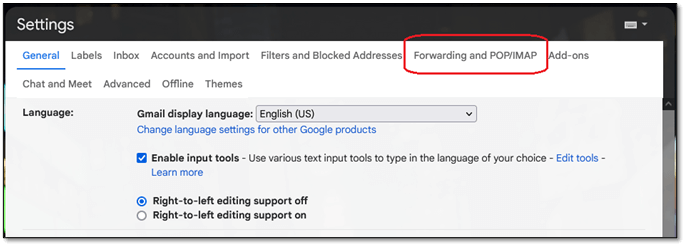
Step 2. Once you're in All Settings, find and click the Forwarding and POP/IMAP section.
Step 3. Under the IMAP access(A) segment, find and Enable IMAP(B).
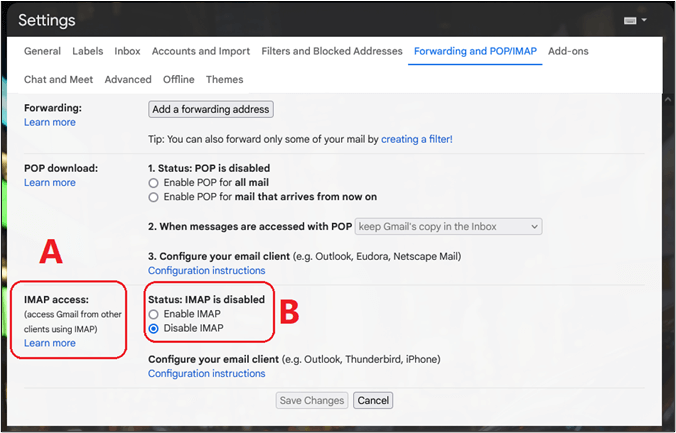
Step 4. Save changes.
To resolve the issue of not being able to log into your Gmail account through Outlook 2016, save the setting to allow less secure apps, and then try logging in again. This should resolve the problem.
Solution 2. Allow Less Secure Apps
To allow less secure apps to access your Gmail account, go to the Google Account settings, then select "Security" from the menu, and toggle the switch next to "Less secure app access" to the "On" position. This will allow Outlook 2016 to access your Gmail account.
Steps. To enable less secure app access on Google, go to My Accounts, switch to the Security tab, and under Less secure app access, click on Turn on access.
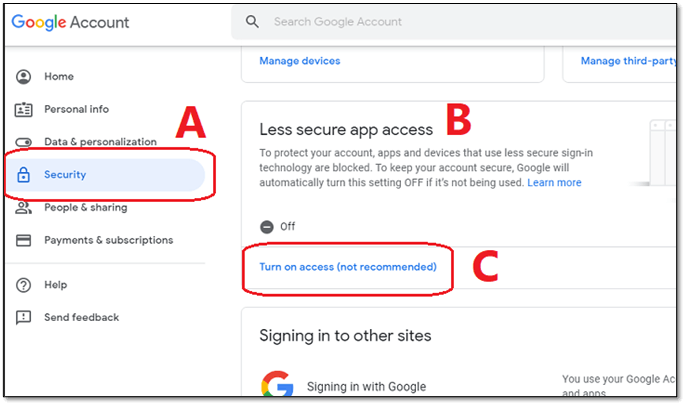
Sign into your account again using the correct credentials to resolve the issue.
Solution 3. 2-Step Verification
If you're trying to sign in but not conducting a 2-step verification set up by you or your admin, you can either set it up or turn it off in your Google settings.
Step 1. To turn off 2-step verification in Google settings, go to Google settings, click on Security, and under the Signing into Google section, toggle off 2-step verification.
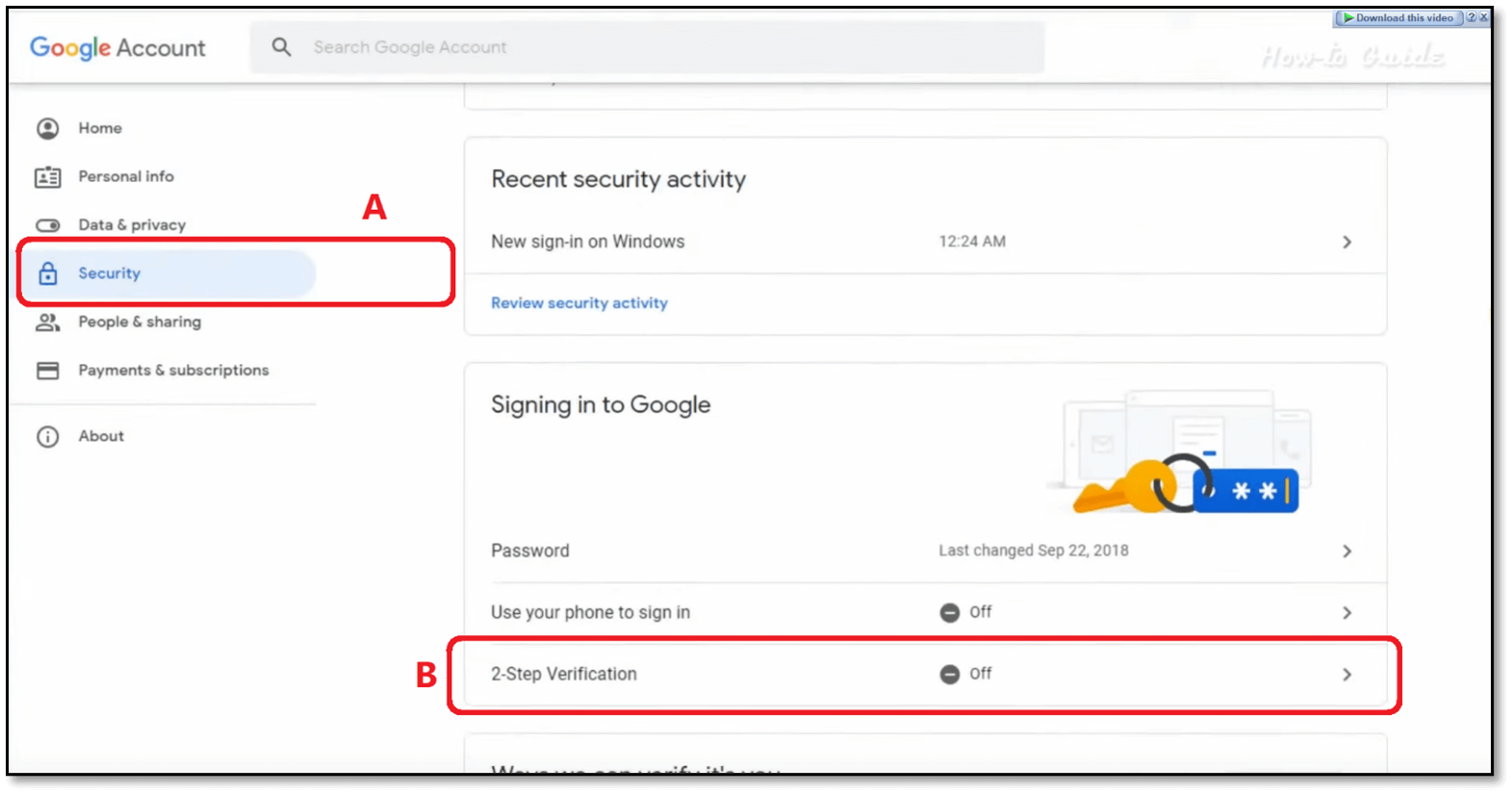
Step 2. Save settings
If you're having trouble signing in to your account, try disabling and re-enabling the "Remember me" option. Once you try signing in again, you will see the problem has been fixed if this option was enabled. If not, try the next and final solution.
Solution 4. Incorrect Username Or Password
For Gmail users with multiple accounts, it's not uncommon for only one account to be logged into on their phone or PC browser, with the rest synchronizing automatically.
If your admin is the only one who knows the password, especially if it's provided by your workplace, you can obtain credentials from your workplace.
If the login credentials are incorrect, there are chances your username or password may not be correct - hence you'd have to recover the credentials.
Sum Up
Here are some possible fixes to get Gmail working with Outlook 2016: try updating Outlook 2016 to the latest version, check the account settings to ensure the Gmail account is correctly configured, disable and re-enable the Gmail account in Outlook, and clear the cache and cookies in the browser. If none of these solutions work, you can also try restarting your computer or reinstalling Outlook 2016. These steps should help resolve the issue and allow you to access Gmail from your Outlook 2016 once again.
Create a backup of your Outlook emails using Qiling Disk Master before making any changes to your system. This will ensure that your data is safe in case you need to recover or reinstall Outlook.
Outlook 2016 Not Working with Gmail FAQs
1. Why is Gmail not working through Outlook?
Gmail's IMAP setting must be enabled to access messages and download them to a PC, and if it's not, it won't work in any client except for Google's apps and services, which might be the reason it's not functioning.
2. Is Outlook 2016 still supported by Gmail?
Despite Google's announcement that Outlook 2016 will no longer receive support after May 2022, many users still rely on it. It is recommended to upgrade to Outlook 2019 to ensure continued support and security.
3. How do I sync my Outlook 2016 with Gmail?
Once you enable IMAP in your Google settings, it will allow your Gmail to synchronize with the Outlook app, but it may take a few minutes for emails to appear in your inbox.
Related Articles
- Copy Speed 0 Bytes: How to Fix File Transfer Speed Drops to Zero Windows 10
- 4 Ways to Select Multiple Files on Mac? [Quick Tips]
- How to Download and Install ADB Drivers on Windows 11[2024 Updated]
- How to Stop Windows 10 Deleting Files Automatically
- What Is an Active Partition in 2024, Everything You Need to Know
Learn what an active partition is, when Windows needs one, and how to set or fix an active partition safely. - AHCI VS NVMe: Which Is Better? What's Their Difference?
Compare AHCI and NVMe SSD technologies by speed, compatibility, interface, and upgrade value to decide whether NVMe is worth it.
Products
Articles & Tutorials
- Data Recovery
- Data Backup
- File Recovery
- File Backup
- System Backup and Restore
- Disk and Partition Clone
- Technical articles
- Mobile articles
- Disk Master Help
- Windows Data Recovery Tutorials
- Windows Secure Delete Tutorials
- Windows Partition Management Tutorials
- Windows File Backup and Restore Tutorials
- Windows System Backup and Restore Tutorials
- Windows Disk Backup and Restore Tutorials
- Windows Clone Tutorials