What Is an Active Partition in 2024, Everything You Need to Know
The system and boot partitions are crucial for booting Windows, and understanding them is essential, especially if you need to change the active partition. Familiarizing yourself with your Windows partition setup is key to making informed decisions about partition management.
An active partition is the primary partition where the operating system is installed. To make a partition active using third-party software, you can use efficient tools that allow you to easily manage and configure your partitions. This approach provides a more straightforward and user-friendly way to make a partition active, making it easier to manage your system's partitions.
What Is an Active Partition in Windows 11/10/8/7
An active partition is a designated partition on a hard drive that holds the operating system's boot files, enabling the PC to start. In a multi-boot system, only one partition per hard drive can be active, and it's usually the one containing the operating system. For example, in a Windows system, the active partition is the one with Windows. When switching between operating systems, the PC is rebooted and the new OS's partition is marked as active.
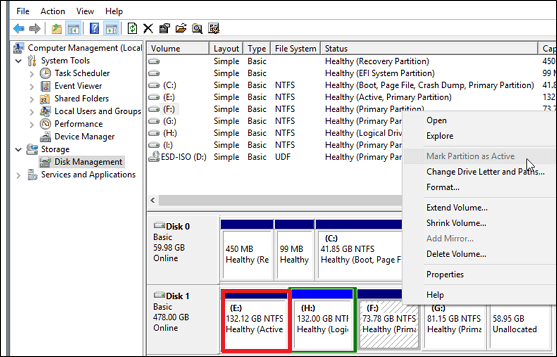
In a single OS setup, the C drive is permanently active and primary.
Importance:
The active partition is a key component of the operating system, enabling the organization of data on a hard drive. On a single hard drive, multiple primary partitions can be set, but only one can be designated as the active partition at any given time.
Which Partition Should Be Active
The active partition in Windows is typically the system partition of the OS, which must also be the boot partition and contain BCD and BOOTMGR. This partition is usually marked as "active" and is often the partition labeled as "C" by default, especially after a fresh installation of Windows 10, where it is referred to as the "System Reserved" partition.
In MBR disks booted in compatibility mode in CSM or BIOS, a specific condition applies, and for GPT disks, the EFI system partition should be used instead of the "active" flag, as Windows can boot GPT disks using UEFI mode.
However, you can change it based on your requirements or situation. Now, let us know how to make a partition active on Windows.
You can fix the issue by going to the BIOS settings, selecting the correct drive as the boot drive, and saving the changes. If you're still having trouble, you can try booting from a USB drive or CD/DVD with a live Linux distribution to access your files.

What Should I Do After Accidentally Marked Drive C Active
If your PC can't boot after you accidentally marked the wrong drive as active, and you're wondering how to mark the correct system partition active, this article is for you.
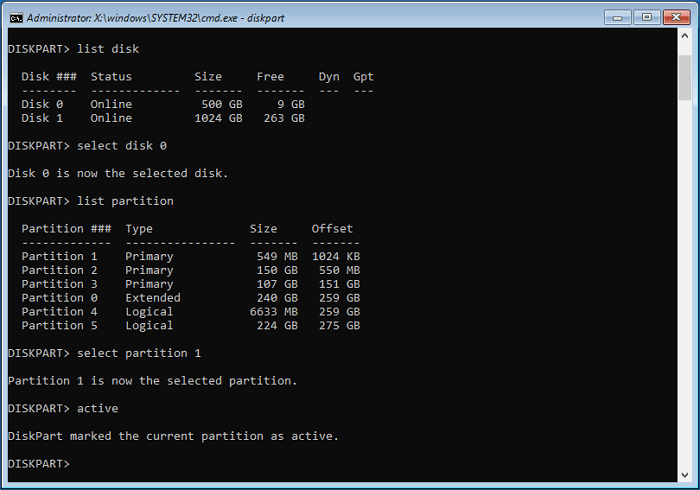
How to Make a Partition Active - A Professional Tool
If you want to make a partition active in Windows, you can do so, but if you find the process too technical, consider using Qiling Disk Master software to make it easier.
Qiling provides facilities for creating and modifying partitions, including a "Set Active" feature to make a partition active.
Features
Qiling Disk Master is a tool that offers several key features, including the ability to clone, back up, and restore disks, as well as the option to create a bootable USB drive. It also supports the cloning of disks to different types of storage, such as SSDs and HDDs, and allows for the creation of a bootable USB drive that can be used to boot up a system.
- It helps convert MBR to GPT for upgrading to Windows 11.
- It can set a partition active and move the active flag from one partition to another.
- This software may display indications of low disk space while in use.
- You get the option of manually adjusting the partition size on the disk through "Manual adjustment".
- It helps extend or shrink the partition size on the disk, regardless of the partition layout.
- It helps to format drives to their full size using file systems like FAT32 or NTFS, making them compatible with various systems and devices.
- It converts NTFS to FAT32 without formatting, making it compatible with non-PC systems, Smart TVs, digital cameras, and other devices.
You can download Qiling Disk Master and choose from its various versions, including options for Home, Business, Free, Professional, and Enterprise users, allowing you to select the one that best suits your needs.
Conclusion
We'll help you understand what an active partition is and how it functions on your Windows PC. We'll also provide a simple solution to managing the active partition by introducing you to a useful software.
Qiling Disk Master has various variants to suit different needs.
You may also like:
What Is an Active Partition FAQs
If you have any further questions about your Windows PC partition, check out these frequently asked questions. They provide more information on the topic.
1. Do I need an active partition?
To ensure your system disk runs actively, you need to set it as the active partition. This can be done by accessing the Disk Management utility in Windows, right-clicking on the system disk, and selecting "Mark as active". This will make the system disk the active partition, allowing your PC to boot normally.
2. Can I delete an active partition?
You can't delete the active partition, as it's used for booting your PC. Deleting it would also remove your data and OS, making it an undesirable option.
3. What happens when you make a partition active?
The Windows partition is marked as active by default, and if any other partition is active, the system will show "OS not found" upon reboot. This is because the active partition is the one that contains the operating system, and the system relies on it to boot up properly. If another partition is active, the system will not be able to find the operating system, resulting in the error message. This is the reason why the Windows partition is always marked as active.
Related Articles
- How Do I Format an SD Card in Linux? [100% Working Solution]
- 5 Best Free Adobe CC alternatives You Don't Want to Miss
- How to Fix Samsung 980 Pro Slow Write Speed Efficiently [5 Ways]
- How To Switch Monitors 1 and 2 On Windows 10 Computer
Do you have multiple monitors connected to your Windows 10 Computer? Do you want to know how to change monitors 1 and 2? Then follow this guide on how you can Switch Monitors 1 and 2 On Windows 10 Computer - Is RAID 0 SSD Worth It for Gaming [Complete Guide in 2023]
Are you curious about this question: is RAID 0 SSD worth it for gaming? This article covers everything about RAID 0, and you can know the complete answer about RAID 0 SSD for gaming. - Is Windows 11 Good For Gaming? Your Best Answer in 2024!
Is Windows 11 good for gaming? Should I upgrade to Windows 11? To know this answer, you should know the features in Windows 11 that are dedicated to gaming. Qiling will lead you to get the complete answer to Windows 11 gaming performance and how to optimize it.
Products
Articles & Tutorials
- Data Recovery
- Data Backup
- File Recovery
- File Backup
- System Backup and Restore
- Disk and Partition Clone
- Technical articles
- Mobile articles
- Disk Master Help
- Windows Data Recovery Tutorials
- Windows Secure Delete Tutorials
- Windows Partition Management Tutorials
- Windows File Backup and Restore Tutorials
- Windows System Backup and Restore Tutorials
- Windows Disk Backup and Restore Tutorials
- Windows Clone Tutorials