What Should I Do After Accidentally Marking Drive C Active?
If your PC can't boot after marking drive C active by mistake, you'll need to mark the correct system partition active. This typically involves identifying the correct system partition, usually marked as 'System Reserved' or 'EFI System Partition' in Disk Management, and then setting it as active. This will allow your PC to boot properly again.
If you mark the C drive as active, you'll encounter an error message saying "Unable to load MBR" when trying to boot your PC. This happens because the MBR can only load the boot files from the correct partition with the boot files marked as active. If the C drive is active, the MBR will try to load the boot files from it, resulting in the error. The correct partition with the boot files needs to be marked as active for the MBR to load the boot files and start the PC.
In the next section, we will learn about the different partitions on a PC, their functions, and which ones should be active to resolve such errors.
Which Partition Should Be Active
The system partition, also known as the system volume, is a partition on a hard drive or solid-state drive (SSD) that contains the operating system and its core files. It's the primary partition where the operating system is installed. The boot partition, on the other hand, is a separate partition that contains the boot loader, which is responsible for loading the operating system into memory when the computer starts up.
In older OS versions, the system and boot partitions were combined in one partition, usually on drive C. However, since Windows 7, these partitions can be either merged or separated, and multiple system and boot partitions can exist if there are multiple operating systems on the PC.
Guide on System Partition and Boot Partition
When installing Windows OS on a new hard disk, the system and boot partitions are separate. The system partition contains the system reserved data (500MB for Windows 10, 350MB for Windows 8, and 100MB for Windows 7), while the C drive is the boot partition.
There is a System Reserved partition, which can only have one on a disk, and all boot programs for installed Windows OS are automatically saved to this system partition, while other drives can have multiple boot partitions.
The System partition, which contains boot programs like BOOTMGR and BCD or NTLDR and boot.ini, is called the System partition. It needs to be active for Windows to boot successfully. This partition can be on drive C or exist separately as a System Reserved partition.
If you have multiple Windows OS versions on your device, you need to set the partition of the required OS version to be active in order to boot your PC, especially when you have multiple system partitions on one disk.
The system and boot partition consist of various files and programs that are essential for the system's operation. These include the kernel, device drivers, bootloaders, and other system files, which are stored in a specific directory structure.
System partition mainly holds:
- 1. Windows Boot Manager (BOOTMGR) is a part of the boot volume record that starts your operating system by executing the winload.exe file.
- 2. The BCD ( Boot Configuration Database) program, which replaces the boot.ini.
- 3. Win RE: The Windows Recovery Environment, labeled System in Disk Management.
Boot partition mainly holds:
The boot partition on a PC, which is typically labeled as C:, contains all the necessary files for the Windows operating system to function properly. This includes the Windows OS itself, as well as any installed applications and their data. The boot partition is essentially the "root" of the Windows installation, and it's where the operating system loads from when the computer starts up.
When you boot your computer, the Master Boot Record (MBR) searches for the active system partition and reads the files on it, including BOOTMGR. BOOTMGR then reads the Boot Configuration Data (BCD) to determine the menu entries, and invokes the winload.exe to load the kernel and core device drivers, allowing Windows to boot.
Solve Accidentally Marked Drive C Active Issue - 2 Methods
We offer two solutions to help you resolve this issue, and you can choose the one that best fits your needs. You can either use one of these methods or select the one that works best for you.
To resolve the issue of a drive being marked as active when it shouldn't be, you can use Qiling Disk Master. This tool allows you to safely remove the active flag from the drive, preventing any potential data loss or system crashes. By using Qiling Disk Master, you can regain control over your system and ensure that the correct drive is marked as active.
To resolve the issue of Drive C being accidentally marked active via Windows installation media, follow these steps: Boot from the Windows installation media, select your language and other preferences, and click Next. Click on the Repair your computer option, then select Troubleshoot, and choose Command Prompt. Type `diskpart` and press Enter, then list disk by typing `list disk` and press Enter.
To solve the issue and set the correct system partition as active, follow the two methods below.
Way 1. Solve Accidentally Marked Drive C Active Issue via Qiling Disk Master
Qiling Disk Master is a partition software that allows easy management of partitions on hard drives, SSDs, and external disks. One of its exclusive features is the ability to set a partition as active with just one click, which can be particularly useful in preventing Windows from failing to boot from an MBR disk. By using Qiling Disk Master, users can quickly set the required system partition on their PC as active, making it a useful tool for maintaining their computer's stability.
Step 1.Run the Qiling partition manager software and navigate to the disk map. Right-click on the target partition and select "Advanced" from the context menu.
Step 2. Then, select "Set Active" from the drop-down menu.
This tool helps manage disk partitions, free up hard drive space, and optimize USB drives and external hard drives, all from a user-friendly interface. It enables you to perform complex operations on your hard drives with ease, making it a valuable asset for maintaining your disk performance.
Way 2. Solve Accidentally Marked Drive C Active Issue via Windows Installation Media
If you have a bootable CD, DVD, or USB flash drive, you can use Windows Installation Media to resolve the issue. If you need help creating one, follow the detailed steps in the articles.
Step 1: To boot a computer and enter the BIOS settings, start by booting the computer using a bootable Windows Installation media, such as a CD, DVD, or USB drive. During the booting process, enter the BIOS settings by pressing a specific key, which varies by computer model.
Step 2: You will be redirected to the installation setup. Set your language and time, and you will see the below screen. Click on "Repair your Computer".
Step 3: To troubleshoot, go to Advanced Options and select Command Prompt. Then, enter the following commands one by one and hit Enter after each entry.
- diskpart
- list disk
- select disk 2 (2 means the number of the disk you will operate)
- list partition
- select partition n (n is the number of the correct system partition)
- active
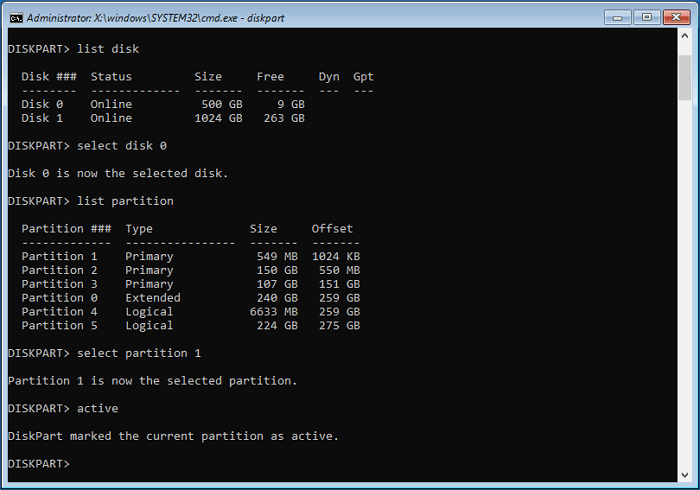
To troubleshoot issues with your computer booting normally, try running the commands to fix the problem, then reboot your computer. This should resolve the issue. If not, check the links below for further assistance.
The Final Verdict
To fix the issue of accidentally marking drive C active, follow these steps: First, check your system partitions in detail using the Qiling Disk Master, which can be done in a single click. Alternatively, you can manually complete this process using your BIOS settings. This will help resolve booting problems on your computer.
You need to be careful when typing commands to avoid data loss. Qiling Disk Master is a reliable choice as it allows you to set the boot partition without losing data. Download this tool to try it out, and you'll likely be pleased with the results.
What Should I Do After Accidentally Marked Drive C Active FAQs
Frequently asked questions on a particular topic include queries such as what, why, when, how, and who, among others. These questions are often asked by individuals who are seeking information or clarification on a specific issue. The answers to these FAQs can provide valuable insights and help users better understand the topic at hand, making it easier for them to make informed decisions or take action.
1. What happens if I mark the partition as active?
The active partition is responsible for loading or booting a computer, containing all boot and OS files, and is typically marked as a system partition on the computer's local disk.
2. How do I mark a drive as active?
To create a bootable USB drive for Windows, you can use a professional software tool like Qiling Disk Master or manually use the command prompt with the help of Windows Installation Media. The easier method is to use the software tool.
Step 1. Download and Launch Qiling Disk Master.
Step 2. Right-click the target hard drive and choose "Advanced."
Step 3. Select "Set Active" to execute Task.
3. Should the C drive be an active partition?
The System Reserved partition, or sometimes the C drive, is set to active to boot the computer. The system partition is usually set to active, and it depends on the drive containing the system partition, which is typically the drive where the operating system is installed.
Related Articles
- How to Fix Windows 10 Update with Error Code 0x800F0922 Issue
- What Is MBR Maximum Size [Full & Quick Guide]
- How to Fix "Unable to Connect to Virtual Disk Service" Windows 10/11
- How to Activate Windows 10 for Free Permanently in 2023
- How to Increase Hard Drive Speed on Windows 10 [Step-by-Step Guide]
To increase hard drive speed on Windows 10, consider freeing up space by removing unnecessary files, enabling write caching, or using software that helps manage it, as outlined in our post on how to Increase Hard Drive Speed on Windows 10. - How to Fix Insert Media Some Files Are Missing Windows 10
If you meet the insert media some files are missing Windows 10 error, Try this post. It offer you 4 methods to fix this problem with simple steps to follow and clear screenshots.
Products
Articles & Tutorials
- Data Recovery
- Data Backup
- File Recovery
- File Backup
- System Backup and Restore
- Disk and Partition Clone
- Technical articles
- Mobile articles
- Disk Master Help
- Windows Data Recovery Tutorials
- Windows Secure Delete Tutorials
- Windows Partition Management Tutorials
- Windows File Backup and Restore Tutorials
- Windows System Backup and Restore Tutorials
- Windows Disk Backup and Restore Tutorials
- Windows Clone Tutorials