How to Fix Insert Media Some Files Are Missing Windows 10
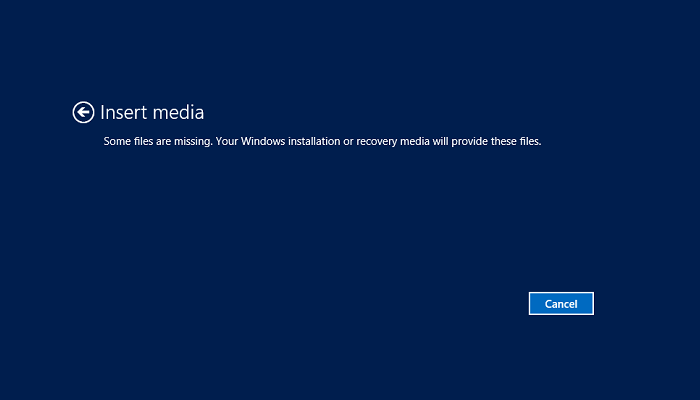
— The error "Insert Media files are missing" typically occurs when the system is unable to locate the necessary installation or recovery media (e.g., a Windows installation DVD or USB drive) to complete the reset process. This can happen if the media is not properly inserted, if it's damaged, or if the system is unable to read it. To fix this, you can try the following: Ensure the installation or recovery media is properly inserted and functioning.
Microsoft's innovative function allows users to reset their Windows 10 system to its original state using a recovery image created during the initial installation. This feature can help resolve common system problems by restoring the system to its default settings.
The existence of the reset function can theoretically help users resolve issues, but in practice, many users encounter a problem resetting their PC.
When prompted by Windows about "Insert Media files are missing," you may be confused. This issue can be resolved using one of four methods, which are outlined in this article. By following these steps, you should be able to fix the "Insert Media Some Files Are Missing" error without needing the original CD/DVD.
Clear steps and screenshots accompanying each method for you to follow are shown below.
Why Insert Media Some Files Are Missing
The error "Insert Media files are missing. Your installation or recovery media will provide these files" occurs due to a variety of reasons, including corrupted or missing media files, incorrect boot order, or a malfunctioning BIOS. It can also be caused by a faulty hard drive, incorrect disk configuration, or a problem with the UEFI firmware.
- System File Corruption
When performing activities on your Windows 10 computer, system files may become damaged, leading to reset failure. This risk is heightened by visiting unknown or risky websites to download files.
- Windows Cannot Access Files
When a computer experiences unexpected events like crashes or power failures, it can lead to inconsistent disk clusters on the hard disk. This can cause Windows 10 to struggle accessing files, resulting in an error prompt.
- Device Driver Obsolete
When the device driver in the computer is not compatible with the latest version of Windows 10, the problem of "Insert Media files are missing" will also occur.
4 Fixs to Insert Media Some Files Are Missing without the Original CD/DVD
After analyzing the possible causes of the "Insert Media files are missing" issue, we've identified four corresponding solutions to help you resolve the problem with ease. These solutions can be implemented to address the issue and get your media files back on track.
- Run the System File Checker (SFC)
- Run Deployment Image Servicing and Management Tool
- Create New Windows Account
- Reinstall Windows 10
Run the SFC (System File Checker)
To fix system file corruption, use the System File Checker command, specifically the SFC Scannow command, which can quickly repair or replace any damaged files in Windows 10.
Here are the specific operation methods:
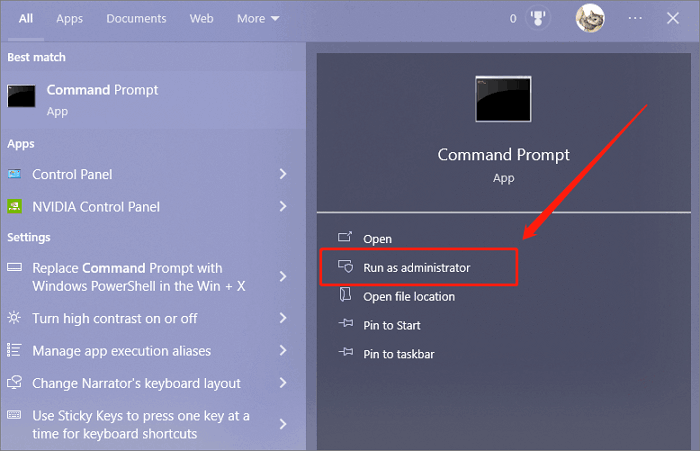
Step 1. To run the Command Prompt as administrator in Windows 10, type "Command" in the search box and run the Command Prompt as administrator.
Step 2. Copy the command we offered here and press the Enter key:
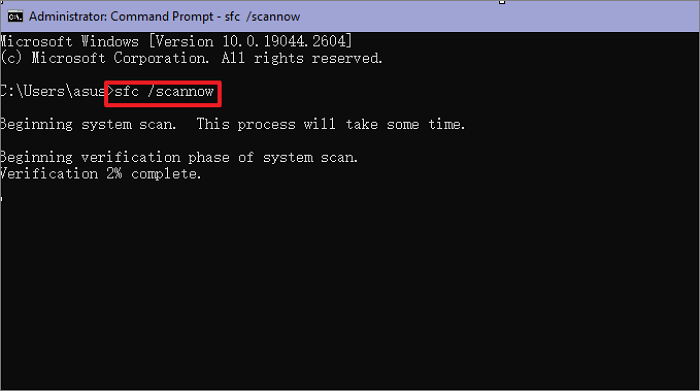
This command will scan all system files, replacing any damaged files in the process, and then reset the system. Please wait a moment for the scan to complete and check if the system functions normally afterwards.
Run the DISM (Deployment Image Servicing and Management)
If the System File Checker (SFC) tool cannot resolve your issue, you'll need to use the Deployment Image Servicing and Management (DISM) tool to check and potentially repair or replace the faulty file, as it may be a more comprehensive solution to the problem.
Now follow the easy steps below.
Step 1. Run the Command Prompt as administrator.
Step 2. Type the command we offered here and press the Enter key:
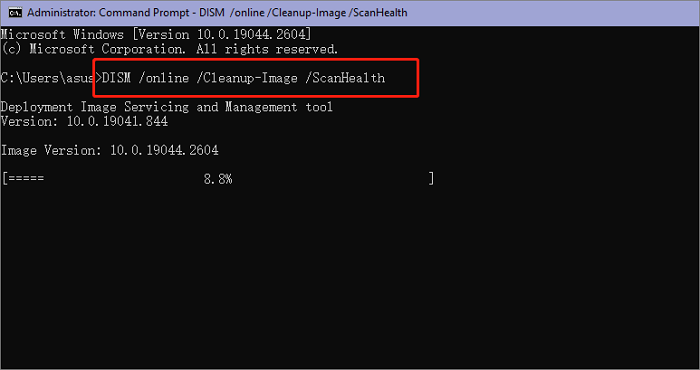
Step 3. After the execution of the last command, type the below command and press Enter key again.
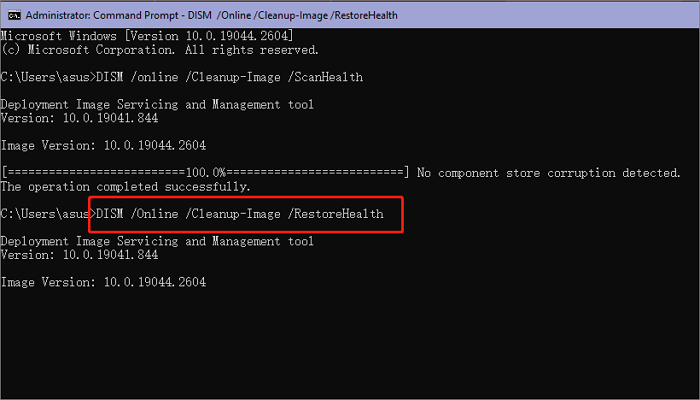
Step 4. After completing all the processes, restart your Windows 10, and verify if the issue with "Insert Media files are missing" persists.
Create New Windows Account
If the issue persists after running SFC and DISM tools, you can create a new Windows 10 account to see if the system can be successfully reset.
The steps to create a Windows account are as follows:
Step 1. To access the Manage your account app in Windows 10, type "account" in the search box and open the Manage your account app.
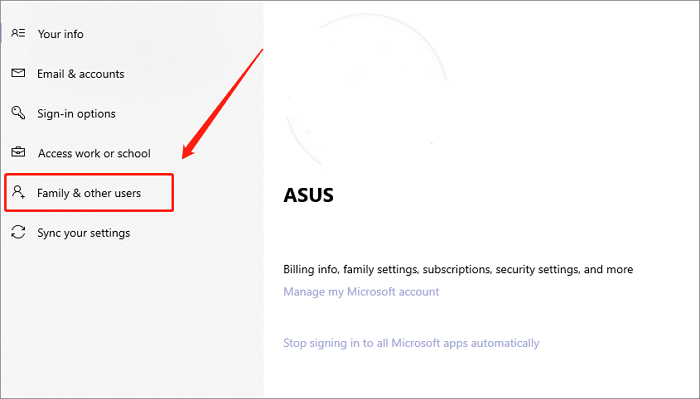
Step 2. To add someone else to this PC, select the "Add someone else to this PC" option under Other users.
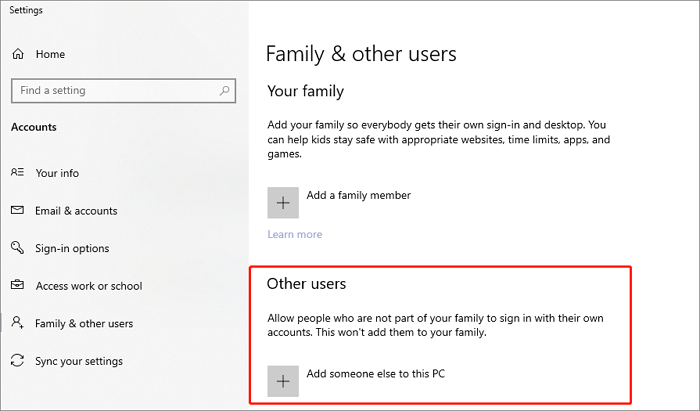
Step 3. Now you can follow the prompts and create a new account.
After creating a new Windows account, try resetting your PC again to see if the issue with "Insert Media files are missing" persists.
Reinstall Windows 10
If none of the above methods work, you can try the ultimate solution, which is to reinstall Windows 10. This method is highly effective in resolving all system problems.
Before reinstalling the system, create a backup of your computer data, including files, programs, and settings, to prevent losing important information. You can refer to the article on things to back up before reinstalling Windows for guidance.
I recommend using Qiling Disk Master Pro to back up your computer if you don't have a USB. This mature and powerful backup software can automatically back up your entire computer, including the operating system, files, app data, and disk, and save all your data in free cloud space.
After backing up your data, please refer to the following steps to reinstall the system.
Step 1. Download Windows 10 installation media.
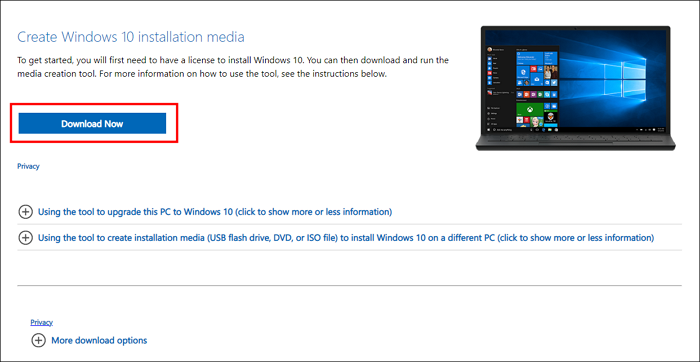
Step 2. Create an installation ISO file and click the "Set up" button to open it.
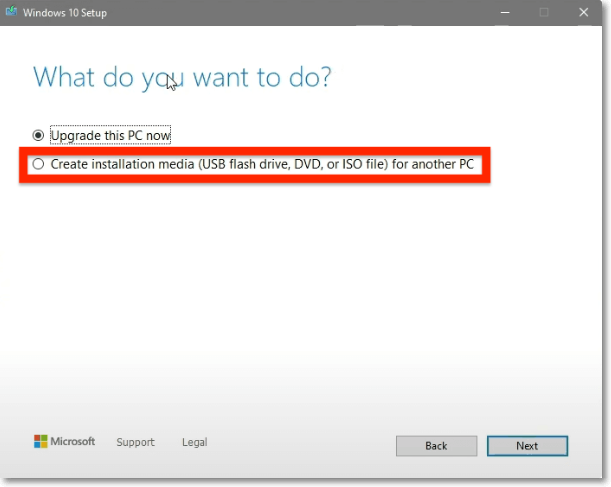
Step 3. To access the "Download and install updates" and "Change what to keep" options, click on the "Update & Security" tab in the Windows Settings. From there, you can select the "Windows Update" option and then click on the "Download and install updates" button.
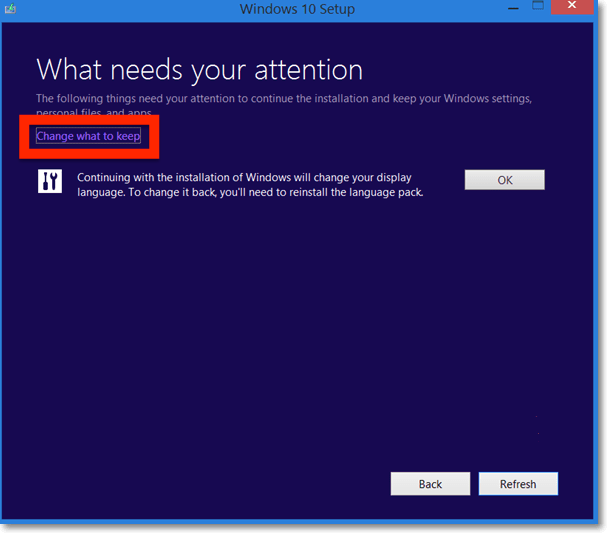
Step 4. If you've made backups with Qiling before, you can skip the prompt asking to keep apps and files by hitting the Nothing button. If you haven't, choose other options.
Step 5. To complete the installation, follow the prompts on the screen. Hit the Next button and continue through the setup process.
After reinstalling Windows 10, all system problems will be resolved, and you won't encounter the "Insert Media files are missing. Your installation or recovery media will provide these files" error again.
Conclusion
When resetting your Windows 10 computer, you might encounter the "insert media some files are missing" issue due to system file corruption or an outdated device driver, making it difficult to access files.
The post provided four potential solutions to a problem, but recommended backing up the computer with Qiling Disk Master Pro before attempting the most extreme solution, reinstalling Windows 10, to prevent data loss.
FAQs
1. How do you fix insert media some files are missing?
There are 4 ways to fix the issue of some files being missing when trying to insert media.
Method 1. Run the System File Checker (SFC)
Method 2. Run deployment image servicing and management tool
Method 3. Create a new Windows account
Method 4. Reinstall Windows 10
2. What format for Windows install media?
To run the Windows 10 install media, you should have a FAT32 format USB flash drive.
Related Articles
- This Device Cannot Start Code 10 - 12 Methods Included
- Fix: There Was a Problem Resetting your PC in Windows 10/8.1/8
- How Do I Format an SD Card in Linux? [100% Working Solution]
- Fix Windows 10 Computer Keeps Freezing Randomly
- What Is an Intrusion Prevention System (IPS)?
An intrusion prevention system (IPS) monitors and blocks malicious network traffic in real-time. Learn how IPS works, its types, benefits, and how it protects against cyber threats. - Invalid Value for Registry JPG/JPEG/PNG Files on Windows 10? Fix it Now!
If you're unable to open JPG, JPEG, or PNG images in the photo app on Windows 10 and receive an “invalid value for registry” error, try the practical methods outlined here to resolve the issue and restore access to your image files.
Products
Articles & Tutorials
- Data Recovery
- Data Backup
- File Recovery
- File Backup
- System Backup and Restore
- Disk and Partition Clone
- Technical articles
- Mobile articles
- Disk Master Help
- Windows Data Recovery Tutorials
- Windows Secure Delete Tutorials
- Windows Partition Management Tutorials
- Windows File Backup and Restore Tutorials
- Windows System Backup and Restore Tutorials
- Windows Disk Backup and Restore Tutorials
- Windows Clone Tutorials