How to Perform Windows Automatic Backup [Step-by-step Guide]
Introduction
If you're struggling with backup steps and plans, it can be frustrating. This guide will provide a detailed guide on Windows automatic backup. But before we dive in, let's quickly define what Windows backup means - it's a process of creating copies of your important files and data to prevent loss in case of a system failure or other issues. We'll cover this in more detail, so keep reading.
Windows backup involves copying files or databases to a secondary location to preserve them in case of device failure or catastrophe, providing a safe way to keep data. However, manual backup plans can be troublesome for non-professional users.
Windows does not enable automatic backups by default, but users can manually configure Windows Backup to perform automatic backups. This can be done by scheduling backups to run at regular intervals, such as daily or weekly, and can be set to run automatically without requiring user intervention. Additionally, Windows has a built-in feature called File History that allows users to automatically back up their files to an external drive or network location. However, this feature is not enabled by default and must be configured by the user.
Does Windows Make Automatic Backups?
Windows has a built-in automatic backup program called File History, which allows users to perform automatic backups. Additionally, users can also automatically back up their data using third-party backup software available for Windows.
Users have the flexibility to choose between two methods for performing Windows automatic backup, depending on their specific needs. To use these tools, follow the detailed steps outlined below.
Besides, there is a link to help if you have questions such as:
How to Perform Windows Automatic Backup - 2 Ways
To perform a Windows automatic backup, you can use the built-in backup programs or third-party backup software. Windows has a built-in feature called File History that allows you to automatically back up your files to an external drive or network location. You can also use third-party software such as Qiling Disk Master to schedule automatic backups of your system and files.
Here are two ways to perform Windows automatic backup in one paragraph:
Method 1. Use Windows Backup Software
The two methods described below will guide you through setting up Windows automatic backup. Choose the one that best fits your needs.
Way 1. Windows Automatic Backup Using Qiling Backup Home
Qiling Backup Home is an efficient backup tool that enables users to easily perform a Windows automatic backup. It supports backups of files, partitions, and even the entire system, and allows users to create an automatic backup plan in full, incremental, or differential backup mode.
To enable Windows automatic backup using Qiling Backup Home, follow these steps. First, download and install Qiling Backup Home on your Windows system.
Step 1. To begin the backup process, click the File backup button.

Step 2. A list of both local and network files are shown on the left-hand side of the screen. Expanding the directory allows users to select the files to back up.

Step 3. To store the backup, follow the on-screen instructions and select the desired location.

Step 4. To ensure the backup is secure, select the encryption option and set a backup schedule by clicking on "Options" within the "Backup Options" section.

You can also choose to start the backup at a certain time in Backup Scheme by clicking Options, along with many other customizable options available.

Step 5. You can store the backup file on your computer, in Qiling's cloud service, or on a network-attached storage device (NAS).

Step 6. Qiling Backup allows users to save backup copies of their files on either a third-party cloud drive or the company's own cloud storage.
To back up your data on a third-party cloud drive, select Local Drive and scroll down to add Cloud Device, then fill in your account information.
Step 7. To start a backup, click on the "Proceed" button. Once the backup process is complete, the backup job will be displayed as a card on the left-hand side of the screen. Clicking on this card will provide more information on how to manage the backup job.

What Else Can Qiling Backup Home Do?
Qiling Backup Home offers additional features beyond automatic Windows backup, including:
- Disk and system clone
- Multi-path, Cloud storage available
- Send email notifications after backup
- Backup hard drive to another hard drive
- File, folders, and even system and disk backup
Qiling Backup Home is a multifunctional software that can back up any kind of data while keeping it safe. If you're experiencing backup problems, simply downloading it may be the solution.
Way 2. Windows Automatic Backup - File History
File History allows users to automatically back up files and keep a record of all changes, with customizable backup frequency options such as every 10 minutes, 15 minutes, 20 minutes, 30 minutes, 1 hour, and more.
To perform Windows automatic backup with File History, follow these steps: First, make sure your Windows device is connected to a network drive, such as an external hard drive or a network share, that has enough free space to store your backup files. Next, go to Settings > Update & Security > Backup, and toggle on the switch to turn on File History.
Step 1. To update and secure your device, go to Settings > Update & Security > Backup > Backup Using File History.
Step 2. Select what you want to back up.
Step 3. Choose a location for your backups.
Step 4. Click "More options" if you have more backup requirements.
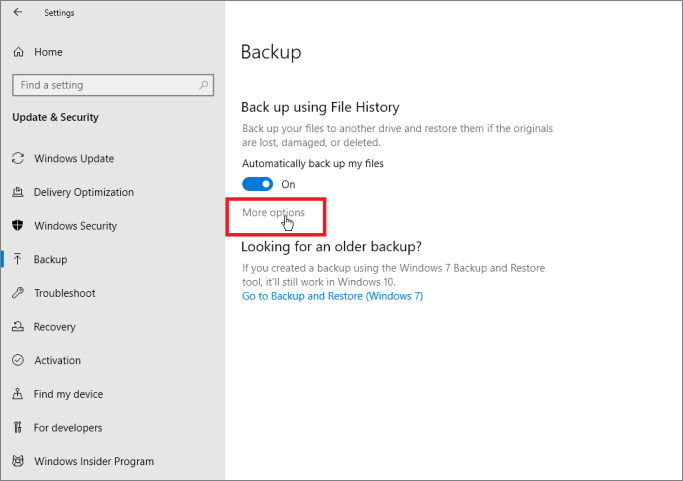
Step 5. Turn on the Automatically Backup.
Step 6. To change the frequency of automatic backups, you can modify the Windows Backup settings. By default, Windows backup files every hour, but you can adjust this frequency to suit your needs.
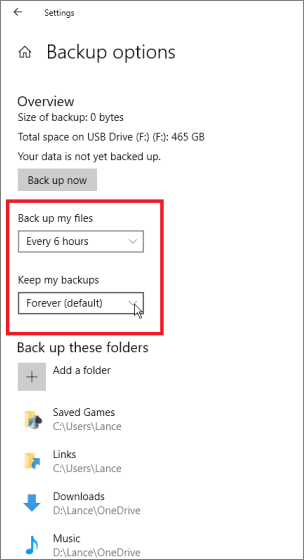
To finish a Windows automatic backup plan with File History, you can follow these steps. First, make sure the File History feature is enabled on your computer. Then, connect an external drive to your computer and set it up as a backup drive in File History.
Tip. There is a link to help if you are curious about :
Conclusion
To perform Windows automatic backups, users can use either File History or Qiling Backup Home. While both options are available, Qiling Backup Home is a better choice for those who are not computer experts or want to complete their backup plans with ease, as it offers a simple click-based process.
FAQs About Windows Automatic Backup
Do you have any other questions about Windows automatic backup? If you do, this part lists some questions related to Windows automatic backup. Hope it can help.
1. What does automatic backup do?
Automatic backup can automate the whole backup process, allowing devices or programs to back up files, folders, and data without human intervention if the user turns on the option.
2. How do I automatically back up my computer?
To automatically back up your computer, follow these steps: First, choose a backup method, such as external hard drive, cloud storage, or a backup service. Next, set up the backup software or service, which may involve creating an account and configuring settings.
Step 1. Turn on File History and choose the content you want to back up.
Step 2. Choose a location where you want to store your backups.
Step 3. Turn on the automatic backup option.
In this way, you can have an automatic backup practice.
3. How do I automatically back up files to my NAS?
Follow this guide, and you back backup files to NAS.
Step 1. Launch Qiling Backup Home and select what you want to back up.
Step 2. Click on the "Options" button to set up automatic backup.
Step 3. Choose NAS as your backup location.
Then, you can back up your files to NAS.
Related Articles
- How to Compress Backups with a Free Backup Tool
- How to Create an Image Backup in Windows 10 [ 2022 Update]
- Top 7 Best Auto Backup Software for PC Updated in 2022 [FREE DOWNLOAD]
- How to Backup External Hard Drive to Dropbox [ Recommend 3 Ways]
- Migrating from Dropbox to Google Drive: A Step-By-Step Guide 2022
If you're considering switching from Dropbox to Google Drive, you can follow a simple step-by-step guide to migrate your files seamlessly. Alternatively, you can use third-party software to transfer your files, making the process even easier. - Tutorial: Move Apps to USB/Thumb Drive/SD Card in Windows OS
This page enables you to install or move installed Apps from a Windows PC to a USB, thumb drive, or SD card using the Qiling PC Transfer software.
Products
Articles & Tutorials
- Data Recovery
- Data Backup
- File Recovery
- File Backup
- System Backup and Restore
- Disk and Partition Clone
- Technical articles
- Mobile articles
- Disk Master Help
- Windows Data Recovery Tutorials
- Windows Secure Delete Tutorials
- Windows Partition Management Tutorials
- Windows File Backup and Restore Tutorials
- Windows System Backup and Restore Tutorials
- Windows Disk Backup and Restore Tutorials
- Windows Clone Tutorials