How to Backup External Hard Drive to Dropbox [3 Recommended Ways]
External hard drives have been a staple for data storage, but with the rise of cloud platforms, many users now rely on services like Dropbox to store their important information. Despite this shift, backing up external hard drives to Dropbox still offers several advantages.
- Unrestricted access. Dropbox allows you to access your photos, music, and films from anywhere with an internet connection, making them available to you at any time.
- Avoid physical damage. Dropbox's data centers are designed to be resilient against natural disasters, such as earthquakes, hurricanes, and floods. They are built to withstand extreme weather conditions and are equipped with backup power systems, fire suppression systems, and other safety features to ensure that data is not lost in the event of a disaster.
- High cost-effectiveness. Most external hard drives are pricey, with options like Seagate and Western costing a pretty penny. You don't have to break the bank, though - using Dropbox can be a more affordable alternative.
To back up external hard drives to Dropbox, you can either do it directly on the web or use the Dropbox Desktop app, or explore third-party backup software options.
Backup External Hard Drive to Dropbox with Disk Backup Software
The easiest way to back up external hard drives to Dropbox is by using professional disk backup software, specifically Qiling Backup Home.
Qiling Backup is a tool that allows you to back up your local disk, external hard drive, and NAS to Dropbox, as well as back up Dropbox to an external hard drive. This file-level backup tool is designed to help you quickly and safely backup files to the cloud, and also supports backing up to Google Drive and OneDrive.
Qiling Backup allows for automatic backup, enabling users to schedule backups and have their external hard drive backed up to Dropbox without manual intervention.
While Dropbox does not natively support directly backing up an external hard drive with a single click, you can easily work around this by using Qiling Backup to upload the contents of your external hard drive to Dropbox through your computer.
Step 1. Start with selecting the Disk backup button.

Step 2. You can use the software to back up a whole disk or a specific partition. Choose the one that suits your needs.

Step 3. Select the destination where you want to save the backup.

Step 4. For disk/partition backup, you can save the backup to either a local drive or a network-attached storage (NAS) device.

Step 5. After the backup process is completed, your task will be displayed. Click the "Advanced" button to further manage your backup, such as recovering it or creating an incremental backup.

How to Backup External Hard Drive on Dropbox Web
You can use the Dropbox website to back up your external hard drive without downloading the Dropbox app on your computer. This is a good option for small back-ups, but may not be suitable for larger collections of files and folders.
Now you can visit Dropbox web and get ready.
Step 1. Sign in with your Dropbox account, or create one on the Dropbox website if you don't have one yet.
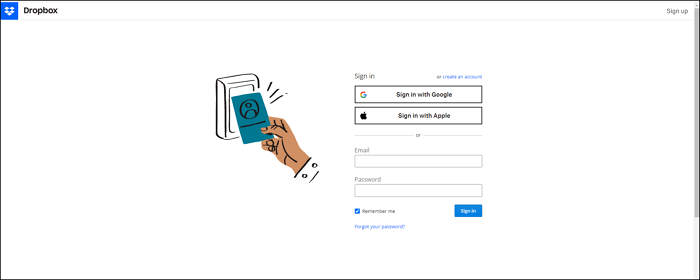
Step 2. Plug in your external hard drive.
Step 3. Click "Create new file" and choose upload files/folders, or drag files and folders to this page directly.

Backup External Hard Drive with Dropbox Desktop
You can download Dropbox Desktop from their official website, set it up, and create a Dropbox folder on your computer. This folder can then be used to back up your external hard drive with just a few simple steps.
Step 1. Make sure your computer can recognize your external hard drive.
Step 2. Open the Dropbox folder on your computer or laptop.
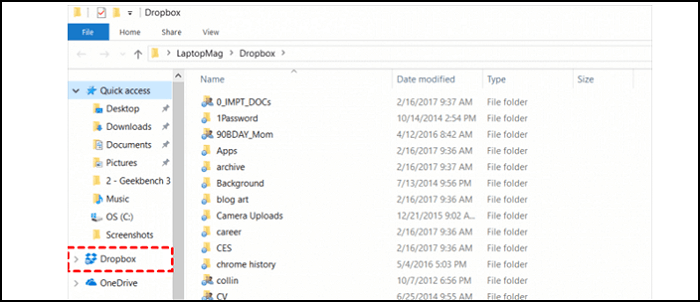
Step 3. Drag the files and folders you want to back up from your external hard drive into this Dropbox folder.
Bottom Line
Three ways of backing up external hard drives to Dropbox are fast and safe, with Qiling Backup being a highly recommended tool. This tool allows for frequent backups and also supports additional features such as cloning a PC to a new PC, as well as system and disk cloning.
Backup External Hard Drive to Dropbox FAQs
Here are some frequently asked questions about backing up your external hard drive to Dropbox.
How do I backup my hard drive to the cloud?
You can easily back up your hard drive to the cloud using professional backup software such as Qiling Backup.
- 1. Choose disk backup in the backup contents.
- 2. Choose the target hard disk and click "Next".
- 3. Choose your destination, and you can find popular cloud platforms by clicking "Local Drive" and scrolling down.
- 4. Then click "Backup Now".
How do I sync an external folder to Dropbox?
Syncing an external folder to Dropbox with Dropbox Desktop is a straightforward process.
- 1. Right-click the files or folders you want to sync.
- 2. Choose "Dropbox Folder Sync".
- 3. Click "Sync with Dropbox".
How do I move files from USB to Dropbox?
The most efficient way to transfer files from a USB drive to Dropbox is by using backup software, with Qiling Backup being a top recommendation.
- 1. Choose disk backup in the backup contents.
- 2. Choose the target USB and click "Next".
- 3. To access Dropbox, select the destination and click "Local Drive" then scroll down to find Dropbox.
- 4. Then click "Backup Now".
Related Articles
- How to Copy and Backup Files without Admin Rights
- Acronis Imaging Software for Windows 11/10/8/7 Free Download
- Create Bootable USB Without Any Software Using CMD
- [100% Efficient] Create Windows 10 Image Backup with 2 Ways
- 7 Ways to Clean Up C Drive in Windows Server 2022/2019/2016
To clean up the C drive in Windows Server, consider the seven methods outlined on our page, specifically tailored for Windows Server 2022/2019/2016, to effectively declutter and optimize the C drive. - Access Your Computer from Anywhere | Remote Access
Remote access allows you to access your computer from anywhere, whether it's from a different computer, a friend's phone, or a cybercafe, using various software options and following detailed steps.
Products
Articles & Tutorials
- Data Recovery
- Data Backup
- File Recovery
- File Backup
- System Backup and Restore
- Disk and Partition Clone
- Technical articles
- Mobile articles
- Disk Master Help
- Windows Data Recovery Tutorials
- Windows Secure Delete Tutorials
- Windows Partition Management Tutorials
- Windows File Backup and Restore Tutorials
- Windows System Backup and Restore Tutorials
- Windows Disk Backup and Restore Tutorials
- Windows Clone Tutorials