Acronis Imaging Software for Windows 11/10/8/7 Free Download
Why Do We Need Imaging Software?
Disk imaging software is used to create a complete snapshot or "image" of your hard drive, including the operating system, programs, settings, and files. This makes it easier to manage backups, restore your system after a crash, and prevent data loss.
What Is Acronis Imaging Software?
Acronis Imaging Software is now called Acronis Cyber Protect Home Office, a software that safeguards your device and data from various threats, including disk failures, cyberattacks, theft, or accidents. It offers everything you need to protect your device and data, serving individual users.
How to Back up Data via Acronis Imaging Software
Acronis Cyber Protect Home Office allows users to back up both Windows and Mac system images, but this guide focuses on backing up data for Windows computers.
Step1. Launch Acronis Cyber Protect Home Office and click Backup.
Step2. Click Add backup.

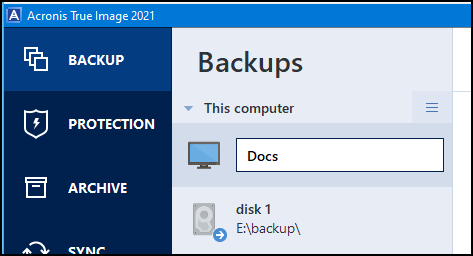
Step3. Change the default backup name if you want.
Step4. Click the backup source.
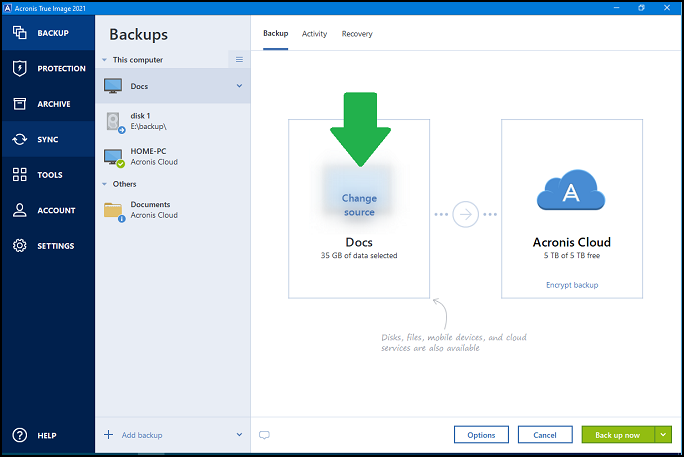
Select the type of items you want to back up. It supports various file types, including documents, pictures, videos, and more. You can also choose a partition backup, disk backup, or specific files. This will ensure that you have a comprehensive backup of your important data.

Step6. Choose backup destination.

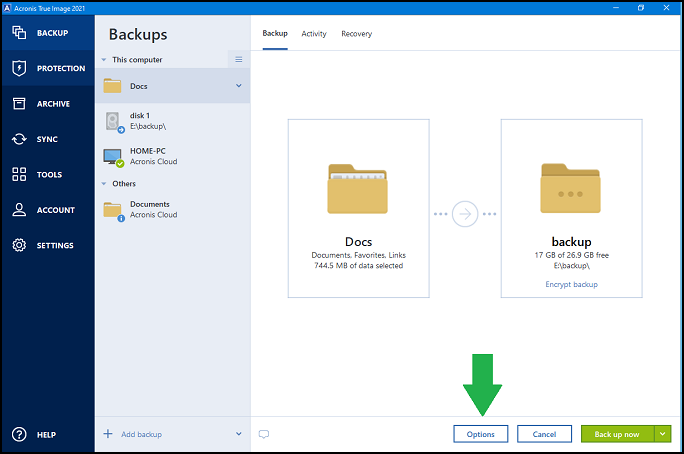
Step7. Click options to set advanced settings, including schedule, archive cleanup.
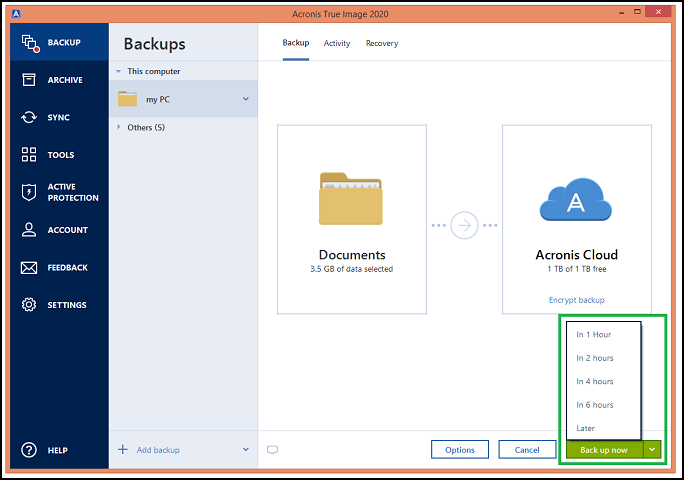
Step8. Click Back up now or select another start time option.
Acronis Imaging Software may not be ideal in every situation, as it has limitations, such as the inability to rename online backups, and a relatively high price. Considering these drawbacks, it's worth exploring other backup options, making Qiling Backup a suitable alternative for data backup needs.
Best Acronis Imaging Software Alternative
What is Qiling Backup
Qiling Backup is a free and reliable backup software with 13 years of experience. It boasts a simple yet powerful user interface that enables users to create backups of files, partitions, and entire system clones, including Windows 10 and other system versions. Additionally, it supports saving backups to local drives, NAS, networks, and even cloud storage.
The outstanding merits are below:
- The software supports more advanced options like a backup scheme, incremental backup, or differential backup, making backups more efficient according to your needs, requiring only a few clicks.
- Safe: It supports encrypting the partition backup images to make your data safe, protecting it from unauthorized access.
- It can automatically back up files and clone a hard disk drive to a solid state drive (SSD) for faster performance.
How to back up data via Qiling Backup
You can get a hands-on experience with this alternative software by downloading and completing the backup process. The operation is surprisingly easy, even for beginners.
Step 1. To begin the backup process, click the File backup button.

Step 2. On the left side of the screen, both local and network files are displayed. The directory can be expanded to select the files to back up.

Step 3. Please follow the on-screen instructions to select the desired location for storing the backup.

Step 4. To secure your backup, click on Options in Backup Options and set the backup schedule, ensuring that the backup is encrypted.

In Backup Scheme, you can set the backup to start at a specific time and explore other customizable options.

Step 5. You can store the backup file either on your computer, in Qiling's cloud service, or on a network-attached storage device (NAS).

Step 6. Qiling Backup allows customers to store backup copies of their files on either a third-party cloud drive or the company's own cloud storage.
To back up your data on a third-party cloud drive, select Local Drive and scroll down to add Cloud Device, then fill in your account information.
Step 7. Click on "Proceed" to start a backup. When the backup process is completed, it will be displayed as a card on the left-hand side of the screen, and a click will allow you to view more details about handling the backup job.

FAQs
1. How much does Acronis Cyber Protect Home Office cost?
Acronis Cyber Protect Home Office offers a 30-day free trial and supports three types for one computer.
Essential at $49.99 per year.
Advanced at $89.99 per year.
Premium at $124.99 per year
2. Does Acronis slow down PC?
Acronis Active Protection monitors applications for suspicious behavior and may temporarily slow down programs without a valid digital signature that attempt to modify many files in a short period of time, as a security measure against ransomware.
3. How long does Acronis take to backup?
The backup time for a 1 GB file with an 18Mbps upload connection over WiFi is less than 15 minutes.
Related Articles
- 3 Ways | How to Backup OneDrive to External Hard Drive in Windows 10 [Full Guide]
- How to Create an ISO Image from a Hard Drive for Windows 11/10/8/7
- Dell OS Recovery Tool Windows 11/10: Windows Backup and Recovery Option
- Top 6 Best Incremental Backup Software for Windows 10 [2022 Guide]
- How to Do Offsite Backup? [2022 Three Ultimate Guide]
Learn how to do offsite backup to protect your data from disasters, hardware failures, and cyber threats. - Clear & Easy | How to Make A CD Bootable (Also Works with DVD)
Learn how to make a CD bootable for Windows installation, system recovery, and PC diagnostics. This step-by-step guide covers creating a bootable CD from a Windows ISO file and from your own system using Nero and Qiling Backup.
Products
Articles & Tutorials
- Data Recovery
- Data Backup
- File Recovery
- File Backup
- System Backup and Restore
- Disk and Partition Clone
- Technical articles
- Mobile articles
- Disk Master Help
- Windows Data Recovery Tutorials
- Windows Secure Delete Tutorials
- Windows Partition Management Tutorials
- Windows File Backup and Restore Tutorials
- Windows System Backup and Restore Tutorials
- Windows Disk Backup and Restore Tutorials
- Windows Clone Tutorials