How to Do Offsite Backup? Three Best Solutions for Data Protection
Offsite backup is a popular data protection method that keeps your data safe by storing it in a remote location. This guide provides three simple solutions for performing offsite backup, making the process significantly easier for you.
Everything You Should Know About How to Do Offsite Backup
Offsite backup is a distinct backup type from local backup, where data is stored remotely, often in a cloud or another physical location. Understanding its definition, advantages, and disadvantages is essential before exploring how to implement an offsite backup system.
Offsite Backup Meaning: What is Offsite Backup?
You back up your data online or through a network, allowing you to access it from another device. If data corruption occurs, you can implement a disaster recovery plan.
There are typically two ways to perform an offsite backup:
1. Backing up data to an external device, such as tape, allows for the transfer and storage of the backup on another device via network transfer protocol.
2. You can back up your data to the cloud and then access it from another computer by logging into your cloud account.
Offsite Backup Advantages and Disadvantages
Offsite backup provides a safeguard against data loss due to disasters, but it also has its own set of drawbacks, such as added costs, potential security risks, and the need for regular maintenance.
Advantages
1. Protect data from disaster
The data is located in a secure location, protected from natural disasters like fires and floods.
2. Access and manage data
Data can be accessed and managed from anywhere using the network or FTP since it is transferred through the network.
3. Expandability
Cloud storage allows for flexible expansion to meet your needs, freeing up local disk space.
Disadvantages
1. Transfer speed
Offsite backup may be slower due to internet dependence, potentially affecting transfer speeds and full recovery times.
2. Cyberattacks
Off-site backup requires the use of the network and may be subject to network attacks.
Offsite backup, despite its drawbacks, is a convenient option that makes it worthwhile as a backup solution. Three ways to perform an offsite backup will be introduced next.
How to Do Offsite Backup: Easy Offsite Backup Solutions
Doing an offsite backup is not difficult. There are three solutions available. You can perform an offsite backup automatically or manually, and I will detail the steps using the simplest method for each approach.
Method 1: Do Offsite Backup with Qiling Backup
Qiling Backup Home is a powerful software that allows for easy backups and restores of files, systems, disks, and partitions. It also offers offsite backup capabilities, providing a convenient way to safeguard data in case of emergencies or data loss.
- Automatic backup daily, weekly, or monthly.
- You can backup directly to the cloud, such as backing up an SD card to Google Drive.
- Backup the image to an FTP server.
Qiling Backup is a convenient tool for making offsite backups, allowing users to choose between backing up to an FTP server or the cloud for their offsite backup needs.
Step 1. To begin the backup process, click the File backup button.

Step 2. The left-hand side of the screen displays lists of both local and network files, allowing you to expand the directory and select the files to back up.

Step 3. Follow the guidance on the screen and choose the place where you want to store the backup.

Step 4. To set up a backup, ensure it is encrypted and schedule it by clicking on Options in Backup Options.

You can choose to start the backup at a certain time in Backup Scheme by clicking Options, and there are other customizable options available to explore.

Step 5. You can save the backup file on your computer, in Qiling's cloud service, or on a network-attached storage device (NAS) for safekeeping.

Step 6. Qiling Backup allows customers to store backup copies of their files on either a third-party cloud drive or on the company's own cloud storage.
To back up data on a third-party cloud drive, select the Local Drive option and scroll down to add a Cloud Device. Next, fill in the account information for the cloud drive you want to use.
Step 7. To start a backup, click on the "Backup Now" button. Once the backup process is complete, the backup job will be displayed as a card on the left-hand side of the screen. Clicking on this card will allow you to view more details about the backup job and manage it further.

Qiling Backup offers a range of backup options, including full, incremental, and differential backups, allowing you to customize your backup strategy. Additionally, you can perform automatic backups to external hard drives or OneDrive, providing a convenient and secure way to protect your data. These features, along with others, make Qiling Backup a reliable and efficient solution for all your backup needs.
- Email backup
- System image
- Backup encryption
- Clone disk free
- Clone PC to new PC
Method 2: Do Offsite Backup with Google Drive
Google Drive is a cloud backup tool that allows you to back up local files, including photos, pictures, and videos, and access them from another computer by logging in. Additionally, Google Drive offers 15GB of free cloud storage space. To make an offsite backup with Google Drive, you can follow a series of steps.
Step 1: Download "Backup and Sync" and log into your Google account.
Step 2: Choose "My computer" on the left side.
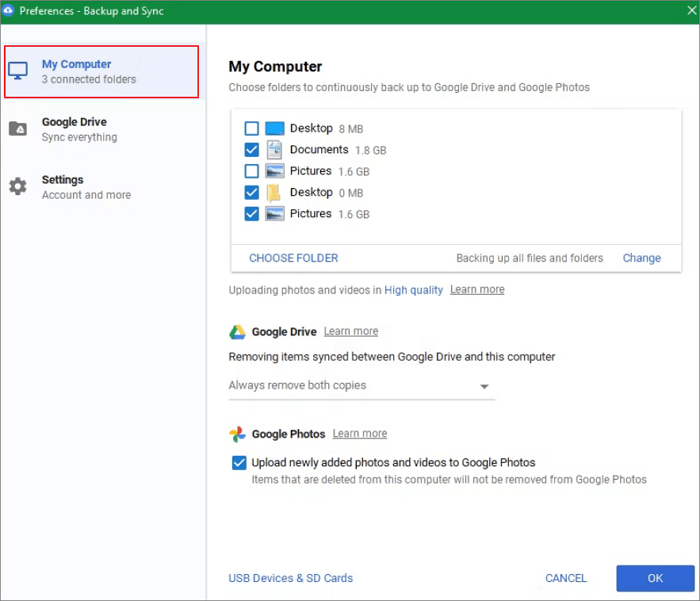
Step 3: To back up your data, choose what you want to back up and open Google Drive. Then, follow the on-screen instructions to select the files and folders you want to back up.
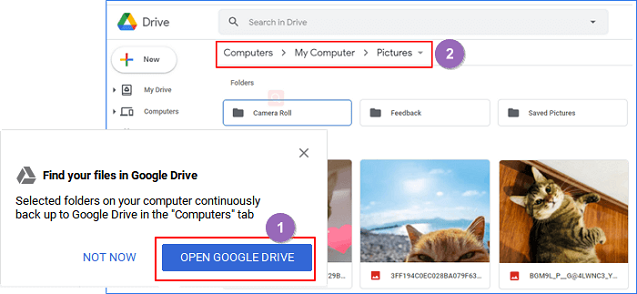
Step 4: Click "OK" to begin the offsite backup process.
Tip: Dropbox, IDrive, and OneDrive are good alternatives to Google Drive. If you want to use other clouds for offsite backup, you can click a button and follow the steps to do so.
Method 3: Do Offsite Backup by Using FTP
File Transfer Protocol (FTP) is a standard protocol used to transfer files over a network, traditionally used for offsite backups. However, using FTP for backups can be complicated, requiring you to first back up files to a storage device and then use FTP commands on another computer. If you're unsure about using FTP for backups, here are the steps to use FTP commands in Windows.
Guide 1: Log in to FTP
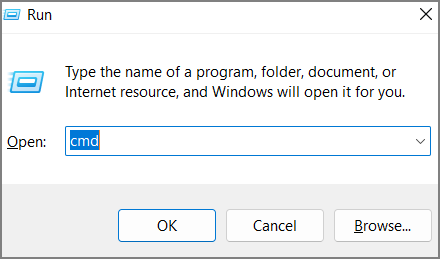
Step 1: Open the "Run" window by clicking "Windows + R."
Step 2: Type "cmd" to open a command window.
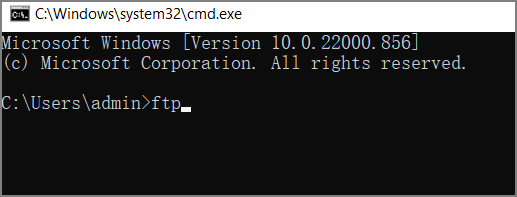
Step 3: Type "ftp" to enter FTP mode.
Step 4: Open the IP address/domain name of the FTP server, for example, "open 169.254.234.241".
Step 5: To complete the FTP connection, please input your username and password.
Guide 2: Upload files
Step 1: To upload a file, you can use the command "put" followed by the name of the file. For example, "put file.txt".

Step 2: Use "ls (or dir)" command to view current directory files.
Guide 3: Download files
Step 1: To set the download location for the file, use the command "lcd" followed by the local directory path where you want to save the file. For example, if you want to download the file to the "Downloads" folder, you would use the command "lcd Downloads".
Step 2: To download files or multiple files, use the command "get" or "mget" followed by the path and file name(s). For example, "get /path/to/file.

Step 3: Input "!dir" to see the file you just downloaded.
Guide 4: Disconnection
Step 1: Input "bye" to finish the process.

Onsite Backup VS Offsite Backup
Onsite backup and offsite backup are two essential methods for protecting data, each serving distinct purposes. Onsite backup involves storing backup copies of data on-site, typically on a local server or external hard drive, providing immediate access to the data. In contrast, offsite backup involves storing backup data in a separate, remote location, such as a cloud storage service, to ensure data safety in the event of a disaster or equipment failure.
1. Onsite and offsite backup destinations store data in different locations. Onsite backups are saved on a local device like a hard drive or tape, while offsite backups are stored on a remote server and accessed through the network or FTP server.
2. Onsite backups allow for immediate access to data even without a network connection, whereas offsite backups rely on a network connection to access the data.
3. Offsite backup is safer than onsite backup as it can protect data from natural disasters and physical damage, and stores data on multiple servers, reducing the risk of data loss. However, onsite storage devices are vulnerable to physical damage.
Both backup methods have their advantages and disadvantages. To ensure safety, it's recommended to set up multiple backups. A mixed model can be considered for secure backups, combining the benefits of both methods to provide a comprehensive backup solution.
Conclusion
Offsite backup methods are discussed in this article, but Qiling Backup offers a more comprehensive and simpler approach. It provides multiple backup paths and methods, ensuring that your valuable data is not lost. To safeguard your data, start backing up now!
FAQs About How to Do Offsite Backup
This article has introduced three solutions on how to do an offsite backup, and below are some frequently asked questions about the topic.
1. What are the advantages of off-site backup?
Performing offsite backups can provide better protection for data by preventing losses due to natural disasters like floods and fires, and enabling timely recovery in case of a disaster.
2. Is cloud backup offsite backup?
Cloud backup, which stores data on the internet rather than a local location, is a form of offsite backup that combines both geographic and logical storage, making data accessible from anywhere.
3. What is the difference between on-site and off-site backups?
On-site backup involves storing backups on a local device, like a hard drive, whereas off-site backup requires storing backups at a separate location, like a network server.
Related Articles
- Windows 10 Incremental Backup | Wise Backup Method
- Reset Lenovo Laptops with OneKey Recovery Without Data Loss
- Backup Red Dead Redemption 2 Save Files [ 2 Plans]
- How to Create a Backup Windows 10 with the Least Effort
- (Quick & Easy) How to Backup COD Warzone with Steps
To quickly and easily back up your Call of Duty: Warzone game data with Qiling Backup Home, simply download and install the software, then follow the easy-to-use interface to select the files and folders you want to back up, including your Warzone game data. - How to Backup Computer to SanDisk Extreme Portable SSD [Windows & Mac]
Here is a guide to tell you how to back up computer to SanDisk Extreme Portable SSD. This guide will explain why we should do an external drive backup. Of course, it will give you five easy methods to back up an external hard drive. Hoping these methods can fix your issues.
Products
Articles & Tutorials
- Data Recovery
- Data Backup
- File Recovery
- File Backup
- System Backup and Restore
- Disk and Partition Clone
- Technical articles
- Mobile articles
- Disk Master Help
- Windows Data Recovery Tutorials
- Windows Secure Delete Tutorials
- Windows Partition Management Tutorials
- Windows File Backup and Restore Tutorials
- Windows System Backup and Restore Tutorials
- Windows Disk Backup and Restore Tutorials
- Windows Clone Tutorials