How to Create a Backup Windows 10 with the Least Effort
Introduction
On Windows 10, a system image backup creates a full backup to a USB device, including Windows installation data, apps, settings, files on the system disk, and additional drives if needed.
Computer backups can help you recover from system failures, faults, or infections, and are especially important for Windows 10 users who need to upgrade their system. If your machine won't start due to a defective driver or update, a backup can be a lifesaver. This article explains how to create a comprehensive backup of your computer using Windows 10's built-in features, as well as how to restore individual files.
Does Windows 10 Have aGood Backup Program?
Windows 10 users need a backup application, but it can be hard to choose with so many possibilities. Fortunately, Windows 10 includes two built-in options: File History and Backup and Restore, both of which are good for data backups.
1. File History
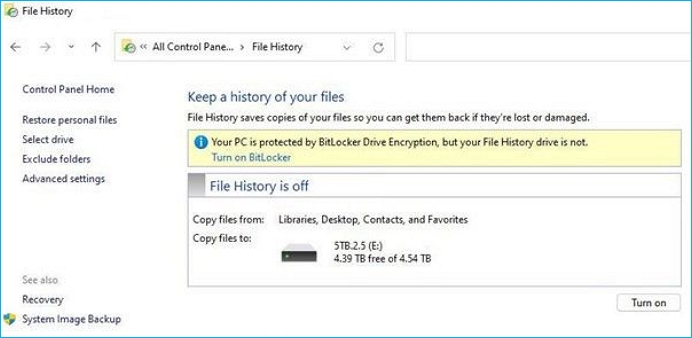
File History is a feature in Windows that automatically backs up your files and folders to an external drive, such as a USB drive or network location. It runs in the background and doesn't require any user interaction, making it a convenient and hands-off way to protect your important files.
2. Backup/restore (Windows 7)
Windows 7's Backup and Restore application is a conventional tool that allows users to select what to back up, where to store it, and how often to run it, also enabling the creation of system image backups or hard disk backups.
How to Create a Windows 10 File Backup?
To use File History to back up your data, select a location such as a USB or network disk to save your files, which helps protect your data against crashes or other PC issues, and note that File History only backs up documents, music, pictures, videos, desktop, and offline OneDrive data, allowing you to add files or folders from elsewhere to these directories for backup.
To set up a network drive or a linked external drive, connect a fresh external drive to your computer. If prompted, select it and enable file history. This will allow you to access and sync files across devices. By following these steps, you can easily link your external drive to your computer and start using it as a network drive.
Step 1: Open Start Menu and search File History.
Step 2: Click to open File History (Control Panel).
Step 3: Select Choose an external or network drive.
Step 4: Turn on File History.
How to Create a Windows 10 System Image Backup?
System images create a backup of all data on your personal computer at a specific point in time. To create a system image backup, follow these steps.
Step 1: To access the Backup and Restore (Windows 7) feature, right-click the Start button, select Control Panel, then navigate to System and Maintenance, and finally select Backup and Restore (Windows 7) from the menu.
Step 2: To create a system image, select "Create a system image" from the menu on the left side of the window, and then proceed through the steps in the wizard.
Step 3: To request an administrator password or confirmation, type in the administrator password or confirm the prompt if required. This will allow the system to perform actions that require elevated privileges.
Note: To create a system image from a disk, the drive must be formatted with the NTFS file system before the image can be produced. If the image will be stored on a hard drive or flash drive connected to a USB port, that device also needs to be formatted with NTFS.
How to Create a Full, Differential, and Incremental Backup in Windows 10?
Google suggests various apps, platforms, and storage media for backing up your hard drive, with some being easier to use than others. It lists several common hard disk backup solutions to help you decide.
1.Full System Backups
A full system backup can take a significant amount of time, especially if you're using an online backup service with slow internet. However, creating a comprehensive system backup is essential, and you should do it as soon as you acquire a new computer. This process can be time-consuming, but it's necessary to ensure that you have a backup plan in place. By making at least one full-system backup, you can quickly restore your hard disk to factory default settings if needed, making it a crucial step in maintaining your device's integrity.
2.Computer Hard Drive Backups
Backing up data to a local drive, such as a backup hard disk or recovery partition, is a simple and quick process, especially for systems with multiple disks. The steps to back up data to a local drive vary depending on the type, but it typically involves copying data from the primary drive to a designated backup drive. This process can be completed using various methods, including copying data to a backup hard disk or recovery partition.
3.File and Folder Backup
In situations where comprehensive hard disk backups are impractical, consider backing up key files and folders instead. This approach is suitable when storage space is limited or internet speeds are slow. Focus on saving essential documents, images, and other irreplaceable information in a few designated folders, making it easier to establish backups. This way, you can still protect your important data even when full-system backups aren't feasible.
4.Qiling Backup
Qiling's free backup program offers a user-friendly interface and robust backup features, allowing users to back up their entire disk, individual partitions, operating systems, and data to local storage, a network, or the cloud.
Users get access to premium backup features such as incremental and differential backups, scheduled backups, encrypted backups, customizable backup frequency, image reserve strategy, and more.
-FAQs
1.What is the easiest way to backup data in Windows 10?
To create a backup on Windows 10, press the Start button, then choose Settings > Update & Security > Backup, and select a drive for backing up using File History. Windows shows you a list of available backup devices, and you can choose a storage area for your copies.
2.Does Windows 10 do a full backup?
Using Windows 10's built-You can use the System Image Utility to generate a backup of your important files, or even create a complete copy of your computer to save in a remote location, such as a USB device or network disk, with removable storage being the preferred option as it allows you to unplug and relocate the device.
3.Which is better, system image or backup?
File backups are more convenient and take up less space than disk image backups, but image backups are preferable for full system restoration in case of a catastrophic event.
4. Can I backup Windows 10 to a flash drive?
To create a bootable USB for your Windows 10 system, you can also effectively back up your system by creating a system image to USB, which is a free alternative to investing in image backup software for your PC, as per Microsoft's guidance, which was previously based on Windows Backup and Restore.
Related Articles
- How to Install an SSD without Reinstalling Windows
- Restore your hard drive and operating system
- 2 Ways: How to Backup Partition to Image File for Free
- Create Windows 7 Recovery Disk from Another Computer In-Depth Guide 2022
- [Unstable Wifi] How to Fix Wifi Keeps Disconnecting in Windows 11
Fix unstable WiFi in Windows 11 with network reset, driver updates, adapter settings, and backup tips before advanced repairs. - How to Format the USB Drive Used as ChromeOS Recovery Medium
We usually back up computer data with a USB and the data take up all the storage of it. But what if we want to use it for other purposes? Maybe formatting it after transferring the data is a good choice. Today we shows you how to format the USB drive that you used as a ChromeOS recovery medium.
Products
Articles & Tutorials
- Data Recovery
- Data Backup
- File Recovery
- File Backup
- System Backup and Restore
- Disk and Partition Clone
- Technical articles
- Mobile articles
- Disk Master Help
- Windows Data Recovery Tutorials
- Windows Secure Delete Tutorials
- Windows Partition Management Tutorials
- Windows File Backup and Restore Tutorials
- Windows System Backup and Restore Tutorials
- Windows Disk Backup and Restore Tutorials
- Windows Clone Tutorials