7 Ways to Clean Up C Drive in Windows Server 2022/2019/2016
The necessity of cleaning up C drive in Windows Server computers
Having free space on your Windows Server C drive is crucial, as a lack of it can cause complications. Ensuring there is some free space on your C drive is essential for the smooth operation of your Windows Server.
In Windows Server, having no free space in the C drive can cause significant lags during operation. This can result in slow boot times and even system freezes. To prevent this, it's essential to regularly clean up your C drive to ensure there's sufficient free space available.
In Windows Server computers, you can easily and effectively clean up the C drive using seven easy methods. These methods include a series of steps that can be followed to free up disk space and improve system performance. By implementing these methods, users can ensure that their C drive is running smoothly and efficiently.
3. Move Big Programs from C Drive to Another Drive
5. Run System Cleanup and Large File Cleanup
6. Add More Space to System C Drive
Guide using the above methods for cleaning up C Drive in Windows Server computers
To effectively clean up your computer, you need to determine what you want to achieve with the clean up process. If you want to delete and get rid of useless files from your C drive, methods 1 and 2 are ideal. However, if your end goal is different, you may need to use a different approach.
To clean your C drive and enhance its storage, consider following alternative methods, which can also help your Windows computer run faster, free up C drive space, and increase its storage capacity.
1. Turn Off Hibernation
The C drive on a Windows Server computer contains a file called "hiberfil.sys" which is created during hibernation mode, saving the computer's current state.
Disabling hibernation can help save storage space on your C drive, but it means the system won't be able to save the state.
To turn off hibernation in your Windows Server 2022/2019/2016 computer, follow these steps:
Step 1: Open Command Line Interface (CMD).
To open the Command Prompt, press the Windows + R key to open the Run window, type cmd, and then press the Enter key. This will open the Command Prompt for you.
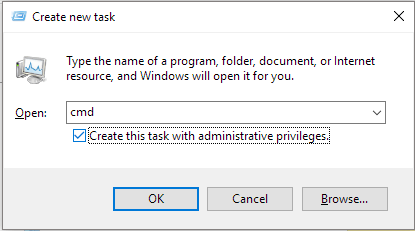
Step 2: Type "powercfg.exe /hibernate off" command in the CMD window and press the Enter key.
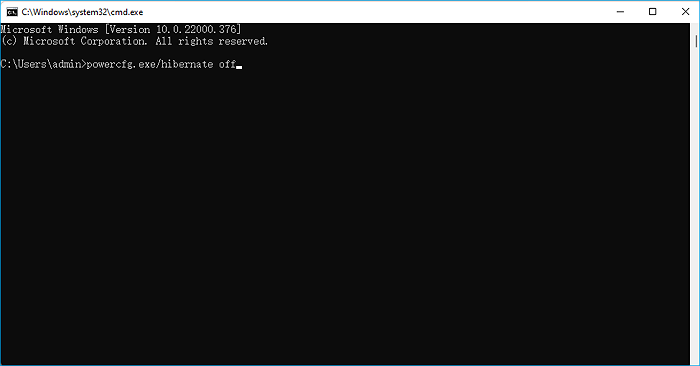
The command will disable hibernation, freeing up space on the C drive and cleaning it.
2. Run Disk Cleanup
On Windows Server, the C drive stores all files relevant to programs and server, but some are unnecessary and take up valuable space.
You can use Disk Cleanup to clean up your Windows Server C Drive by eliminating files such as useless data, temporary files, cached files, recycle bin, etc. To execute Disk Cleanup on your Windows Server, follow the steps below.
Note: Be cautious during server computer disk cleanup to avoid deleting essential files, only removing unnecessary ones to maintain system stability and security.
Step 1: Open properties of your Windows Server C drive.
To open the C drive properties, navigate to your file explorer, right-click on the C drive, and select properties.
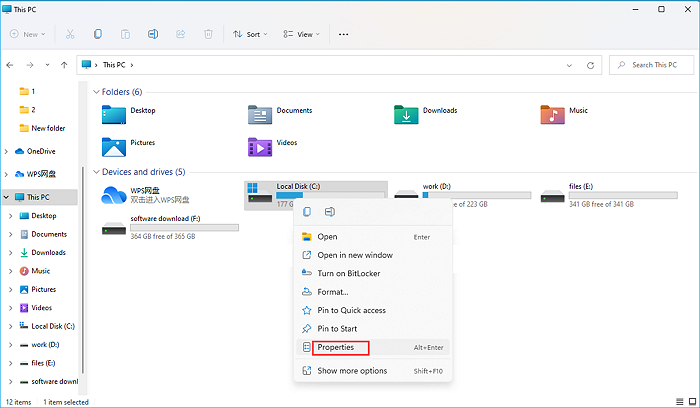
Step 2: From the opening pop-up box, select Disk Cleanup.
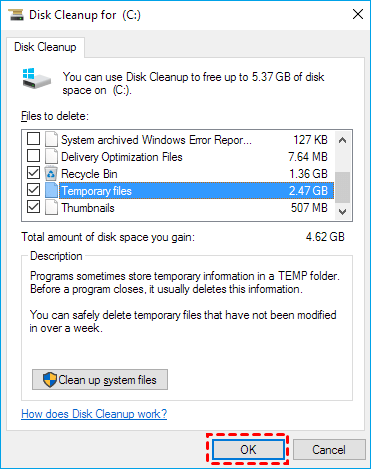
Step 3: Disk cleanup will show how much space on your C drive you can clear up.
Step 4: Check the boxes next to the files you don't require. When you're finished, press the OK button.
3. Move Big Programs from C Drive to Another Drive
To free up space on your Windows Server C drive, consider relocating extensive programs to another drive, allowing for a reduction in the C drive's storage usage.
Migrating an application is a complex process that goes beyond simply copying and pasting it from one location to another. This is because a program has many libraries and dependent modules that must be relocated correctly for the application to function properly in its new location.
The Qiling Disk Master Technician software allows for a seamless transfer of programs from the Windows Server C disk, eliminating the need to reinstall the applications.
The Qiling Qiling Disk Master Technician software is recommended for migrating installed applications. It features an app migration tool that allows you to move installed apps from one drive to another.
To quickly move installed programs from the C drive to another disk on Windows Server, follow these steps:
Step 1. Launch Qiling Disk Master and select transfer mode
To proceed, go to the "Backup and recovery" section on the main screen of Qiling Disk Master and click on "File sync".

Step 2. Select apps and another drive to transfer
1. Select the source partition and choose the applications, programs, and software (marked as "Yes") that you'd like to migrate.

2. To begin the migration, select the target device by clicking the triangle icon and choosing the desired drive or disk. Once selected, click "Proceed" to initiate the process.

Step 3. Finish the migration process
When the transferring process finishes, click "OK" to complete.
You can restart your PC to keep all the changes, and your migrated apps should run on the other drive again.
4. Uninstall Useless Apps
Uninstalling unnecessary applications can help free up space on a Windows Server computer's C drive by removing large, unused programs. This can create space for other useful applications.
To uninstall useless apps from C drive in your Windows computer, follow these steps: locate the apps you no longer need, right-click on them and select "Uninstall" or "Uninstall/Change" from the context menu, confirm the uninstallation by clicking "Yes" or "OK" in the pop-up window, and finally, restart your computer to complete the uninstallation process.
Step 1: Open Control Panel.
You can open the Control Panel by searching for it from the search button in your taskbar.
Step 2: From Control Panel, select Uninstall a program under the Programs section.
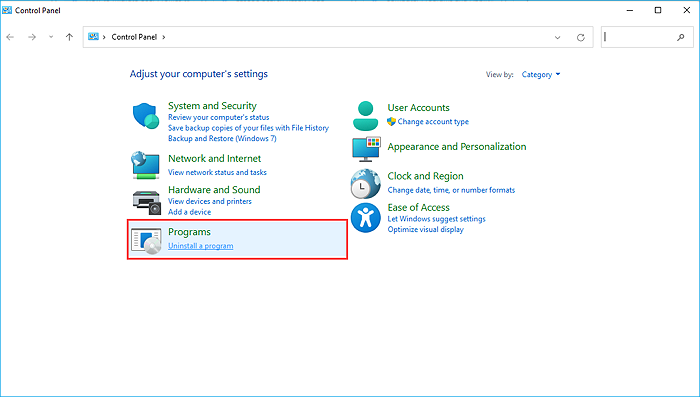
Step 3: Find the useless applications and uninstall them one by one.
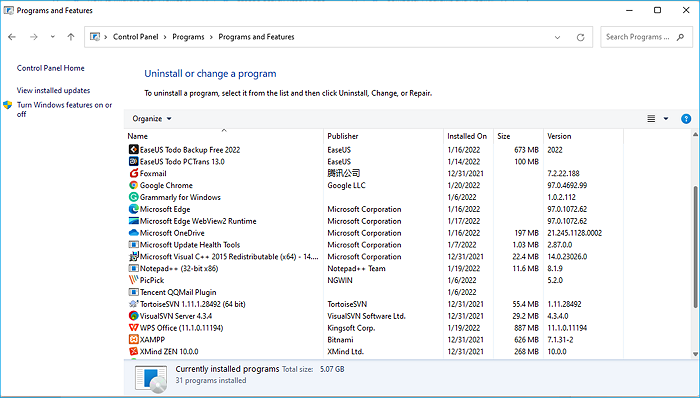
Note: You can also use Qiling Disk Master Technician to uninstall unnecessary applications.
5. Run System Cleanup and Large File Cleanup
The Qiling Disk Master Technician helps with System cleanup and Large File cleanup to free up space on the C drive, and the system cleanup feature removes useless and junk files from the C drive.
You can also relocate the User folder from the C drive to another location using Qiling Disk Master Technician software. This can help free up a significant amount of space on your C drive by utilizing two useful features of Qiling Disk Master Technician.
Windows Server users are highly recommended to download and install this software, which can then be used to execute System cleanup and Large File cleanup by following a series of steps.
Step 1. Open Qiling Disk Master on your computer. Click "System Cleanup" and click the "Scan" button to go on.
Step 2. When the scan completes, a list of junk files will be displayed. Carefully select the unwanted files to delete, being cautious not to mistakenly delete files that are essential for the normal operation of your computer or software.
Step 3. Click the "Clean up" button and confirm the cleanup operation to free up disk space. This can be done regularly to keep your disk space organized.
6. Add More Space to C Drive
Changing the current partitions to increase the size of the system C Drive carries a significant risk of data loss and system disruption if not done correctly.
To expand the space on your system's C drive, you'll need reliable partition management software. Qiling Partition Master Server Enterprise Edition is a highly rated program that can help you achieve this.
To add more space to your Windows server C driver, you can use the Qiling Partition Master Server program to expand the storage capacity of your C drive with just a few simple steps.
Option 1. Extend System C drive with unallocated space
- 1. Click on the System C: drive and select "Resize/Move".
- To add space to the C: drive, drag the system partition end into the unallocated space, effectively merging the two and increasing the size of the C: drive.
- To extend the C drive, click "Proceed" after selecting the option to extend the C drive. This will execute the operations and expand the C drive.
Option 2. Extend System C drive without unallocated space
- 1. To resize or move a partition, click on a large partition with sufficient free space on the system disk, then select the "Resize/Move" option.
- 2. To free up space, drag the end of the big partition to shrink it and make room for the unallocated space. Then, click "Proceed" to confirm the changes.
- 3. To resize the system drive, select it in the "Allocate Space From" section and choose the option to "Resize/Move".
- 4. To extend the C drive, drag the end of System C drive into the unallocated space. Then, click "Proceed" to save the changes and extend the C drive.
7. Turn on Storage Sense
If you're unable to clean the C drive on your Windows Server, the Storage Sense feature can assist. Available in Windows Server, enabling Storage Sense can automatically remove unnecessary files and data, helping to free up space on your system.
To enable Storage Sense on Windows Server, follow these steps: Storage Sense is a feature that allows you to automatically clean up temporary files, empty the Recycle Bin, and remove temporary files after a specified period. To enable it, go to Settings > System > Storage, and toggle the switch next to "Storage Sense" to the "On" position.
Step 1: Launch the Windows Settings application.
Step 2: Navigate to the Storage section of the System menu.
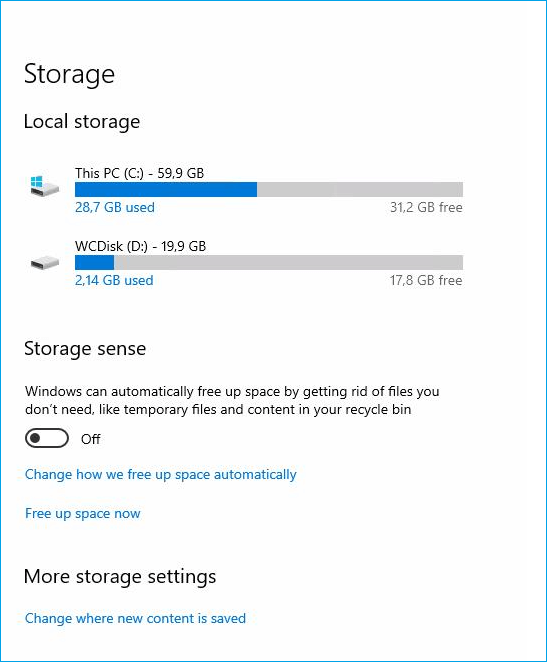
Step 3: Toggle the Storage Sense slider.
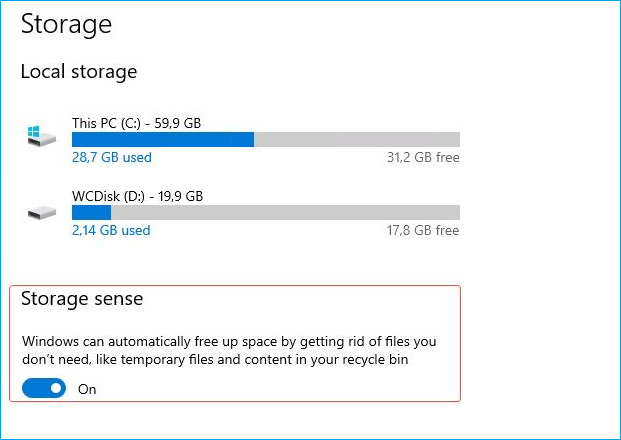
Step 4: Configure the storage sense settings.
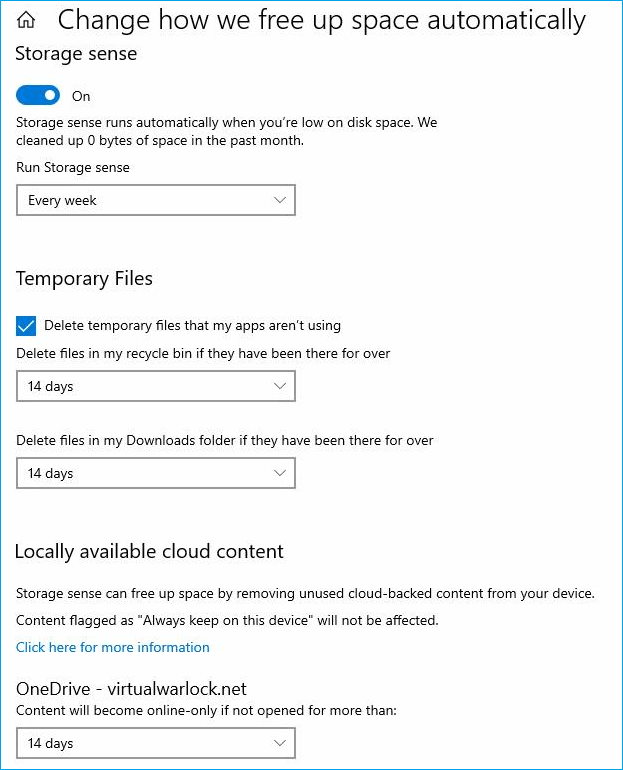
You can choose to use the default storage sense settings or customize them to your liking.
Conclusion
To avoid problems, clean up your C drive in Windows Server, where the operating system is usually installed.
When cleaning up the C drive in Windows Server 2022/2019/2016, you can use seven methods to achieve the cleanup. One effective approach is to turn off hibernation and perform disk cleanup to remove junk files, making space available on your system.
Other methods like moving applications, uninstalling apps, system cleanup, and file cleanup can also help optimize server performance.
Instead of manually cleaning up, it's recommended to use Qiling Disk Master Technician software, which simplifies the process with easy-to-follow steps.
Related Articles
- How to Move CCleaner to New Computer?
- Transferring Installed Programs from One Computer to Another Windows 11/10 - Here Is the Best Way
- Change Desktop Folder Location in Windows Server
- Transfer Files from PC to PC with Ethernet Cable on Windows 10 (Step-by-Step Guide)
- How to Transfer Adobe AIR to Another Computer
If you want to transfer your Adobe AIR files from one computer to another, this article will guide you on how to do it easily. - How to Transfer Adobe Creative Cloud to New PC Windows 11
To transfer Adobe Creative Cloud to a new PC Windows 11, back up your accounts and password, install Adobe Creative Suite, and then automatically transfer the Creative Cloud without reinstallation.
Products
Articles & Tutorials
- Data Recovery
- Data Backup
- File Recovery
- File Backup
- System Backup and Restore
- Disk and Partition Clone
- Technical articles
- Mobile articles
- Disk Master Help
- Windows Data Recovery Tutorials
- Windows Secure Delete Tutorials
- Windows Partition Management Tutorials
- Windows File Backup and Restore Tutorials
- Windows System Backup and Restore Tutorials
- Windows Disk Backup and Restore Tutorials
- Windows Clone Tutorials