Access Your Computer from Anywhere | Remote Access
You have a customized desktop at home that's tailored to your needs, with familiar apps and organized files. It's a device you'd love to carry everywhere, but it's not feasible to physically transport a desktop. Fortunately, you can access your desktop from anywhere using remote access software, allowing you to access it from another computer, a friend's laptop, or even a cybercafe, regardless of your location.
Accessing your computer from anywhere is now possible with various options available. You can use remote desktop software to connect to your computer from a different location, effectively turning any device into a computer terminal. Additionally, cloud computing services allow you to access your files and applications from any device with an internet connection, making it easy to work on the go. Furthermore, mobile apps and virtual private networks (VPNs) also provide secure and convenient access to your computer from anywhere, giving you the flexibility to work remotely or access your computer's contents from any location.
- 1. Using the TeamViewer application
- 2. Using Microsoft Remote Desktop Connection (RDP)
- 3. Creating a portable Windows USB drive
The best remote access tools include TeamViewer, which is easy to use, Remote Desktop Connection, which is a native tool but may be complex to configure, and a portable Windows USB drive, which is a specialized approach that allows you to take your Windows anywhere. These options will be explored in more detail in the next sections.
How to Use TeamViewer to Access Your Computer from Anywhere
The TeamViewer can be used on both Mac and Windows computers, requiring installation on both the home computer and the remote access computer. Additionally, creating a TeamViewer account is necessary to utilize the service.
TeamViewer is free for personal use, allowing users to connect home devices or assist family and friends. However, for commercial use, such as providing remote technical support to clients, a paid version is required.
Step 1. Login with your account with your ID and password.
Step 2. Enter the Partner ID of the computer you want to access, and choose to have a remote control or just to transfer files between two computers.
Step 3. To connect two computers using TeamViewer, start by installing the TeamViewer software on both computers. Then, open TeamViewer on both computers and click "Connect" to initiate the connection.
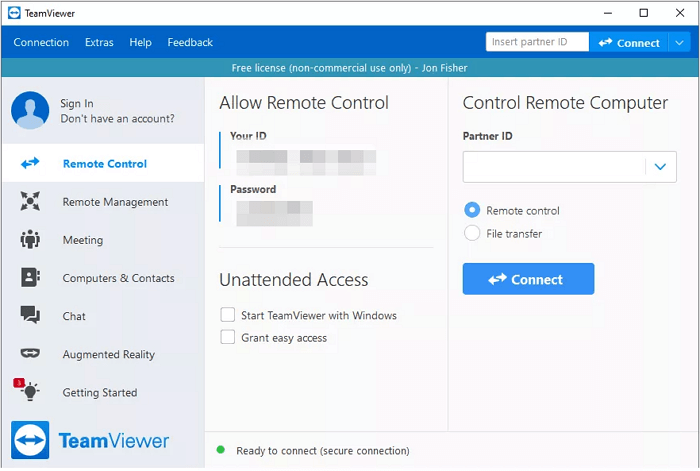
Note: To remotely access your computer, the target computer must be turned on and connected to a stable Internet, allowing for a seamless and uninterrupted connection.
The tool's remote access feature can disconnect if the internet speed drops slightly.
How to Set Up Microsoft Remote Desktop Connection
Windows has a native application called Remote Desktop Connection, but it's only available on Windows Professional or Higher versions, making it inaccessible to Windows Home users.
Step 1. Before starting, ensure that the option "Allow remote access to this computer" is enabled, which can be found in the start search window or in System Properties under the remote tab.
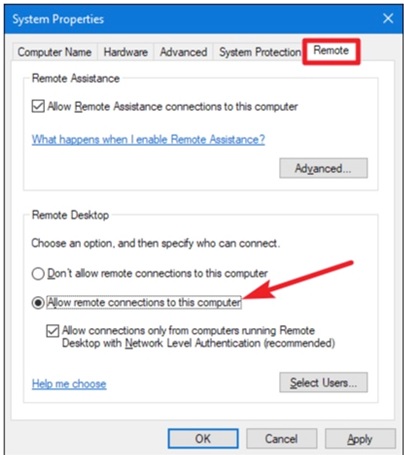
Step 2. Then launch Remote Desktop Connection from your computer.
Step 3. Once the application launches, type the name of the computer to which you want to connect, which is the same name given to it while installing Windows. You can also check the name by right-clicking on My Computer. After clicking on connection, it will prompt for username and password of the remote computer.
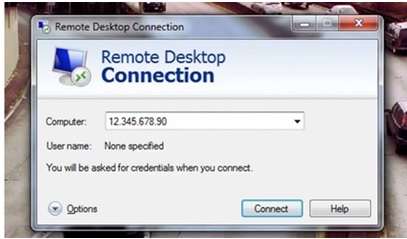
Accessing a remote desktop within the same network is relatively straightforward, but connecting from outside the network requires additional steps and expertise. To access remotely, you'll need to set up port forwarding on your router and have knowledge of your home computer's public IP address. However, if your connection resets and your public IP changes, you'll lose access to the old IP and won't be able to reconnect. This setup works seamlessly when connecting from the same network, but accessing from another network requires more complex configurations and additional information.
Create a Portable Windows USB Drive
Connecting to a remote desktop can be unreliable due to internet connection issues, but having a portable Windows USB drive can be a game-changer. With a USB drive, you can take a self-contained Windows environment with you, eliminating the need for a reliable internet connection. This makes it ideal for situations where internet access is limited or unavailable, such as in areas with poor connectivity or offline locations.
A portable Windows USB drive is essentially a clone of your computer's system drive, containing all system and boot files, allowing any computer to boot with the USB drive. Tools like Qiling OS2Go can help you create such a portable USB drive, making it a convenient and efficient way to have a fully functional Windows system on a USB drive. Qiling OS2Go stands out for its ability to create a portable Windows USB drive that can be used on any computer.
- Easy operation To create a portable USB drive, you can simply copy your desired files onto a USB drive. This can be done by plugging the USB drive into your computer, opening a file explorer, and dragging the files you want to the USB drive.
- Fewer requirements You don't need advanced computer knowledge to use OS2Go, and you don't need to turn on your computer when you're away.
- Lightweight If you need to use your own system, you can create a portable Windows USB drive, which allows you to carry your Windows installation on a USB drive and use it on any Windows-compatible computer, eliminating the need to carry your entire system.
If you're interested in using this tool, download it from the button below and follow our guide to create a portable Windows USB drive that allows you to access your computer remotely.
Step 1. To use Qiling OS2Go, first install it on your Windows computer, which will display the used space of your system drive. Then, plug in a USB drive that is larger than the system drive's used space. Next, choose the target USB drive and click Next to continue.
Step 2. Qiling OS2Go will notify you that the following operation would delete all data on your drive. Make sure to back up your important data before clicking the Continue button to proceed.
Step 3. Adjust the disk layout for the target drive to match the resource drive, or customize it according to your needs. If using a Solid State Drive as the Windows bootable drive, select the corresponding option and click Proceed.
Step 4. Qiling OS2Go will then start creating the portable USB drive. This process can take some time, depending on your operating system and network connection. Once the progress reaches 100%, the USB drive should be bootable.
Step 5. To install Windows on a new computer, start by inserting the portable Windows USB and turning on your computer. Press the key required to access the BIOS (usually F2, DEL, or F10), and then select the option to boot from the USB drive.
Note: To ensure a smooth booting process, it's crucial that the boot mode of both your portable USB and the target computer are identical, specifically either UEFI or Legacy. If they differ, you might encounter issues with booting.
Conclusion
Qiling OS2Go is the easiest and simplest approach to remote access among the three tools, but it's not a traditional remote access method. In contrast, Remote Desktop Connection is the most secure option, utilizing native Windows security features. However, connecting from a different network may present a different scenario.
Related Articles
- 3 Ways to Run EXE Files on Mac Computers
- What Is Bootable USB Drive? All You Should Know About Bootable USB Drive
- 2 Ways - How to Run Windows Apps on Mac
- Can I Use My Laptop Windows on My Desktop
- How to Transfer Adobe Flash Player to Another Computer?
Although Adobe Flash has been officially discontinued, there are still valid options to keep using Adobe Flash Player. You can explore alternative solutions to continue accessing Flash content, and if desired, easily transfer Adobe Flash Player to another computer to keep using it. - How to Transfer Adobe Photoshop from Windows 10 to Windows 11 without Reinstallation
Transferring Adobe Photoshop from Windows 10 to Windows 11 without reinstallation may seem tricky. But this guide will provide a solution to transfer Adobe Photoshop from Windows 10 to Windows easier and quicker.
Products
Articles & Tutorials
- Data Recovery
- Data Backup
- File Recovery
- File Backup
- System Backup and Restore
- Disk and Partition Clone
- Technical articles
- Mobile articles
- Disk Master Help
- Windows Data Recovery Tutorials
- Windows Secure Delete Tutorials
- Windows Partition Management Tutorials
- Windows File Backup and Restore Tutorials
- Windows System Backup and Restore Tutorials
- Windows Disk Backup and Restore Tutorials
- Windows Clone Tutorials