How to Transfer Adobe Flash Player to Another Computer?
Adobe Flash Player was a software that allowed users to view multimedia content, such as video and audio, on computers and mobile devices that supported it, and was compatible with various operating systems, including Linux, Windows, Mac OS X, and Solaris.
The Adobe Flash Player supported various data formats, including XML, SWF, AMF, and JSON, as well as multimedia formats like MP3, PNG, FLV, GIF, and JPEG.
Adobe announced it would stop supporting Flash Player due to security issues, and as of January 12, 2021, Flash content was no longer allowed to run.
Adobe recommends uninstalling Flash Player immediately, but if you still need to transfer it to another computer, this article will guide you through the process. Despite efforts to remove Flash installation links, it's still possible to transfer the Adobe Flash Player to another device.
Can You Still Use Adobe Flash Player?
Adobe has stopped supporting Flash Player due to security concerns, removed download links, and integrated a kill switch to stop Flash content from running.
While Adobe Flash Player is no longer supported, there are still situations where its usage might be warranted, such as accessing Flash games, videos, or sites. In such cases, alternative methods can be used to gain access to these contents.
Several Valid Options to Keep Using Adobe Flash Player
Now that Adobe Flash Player is officially dead, it is advisable to stop using it, but some scenarios may require running the software. In such cases, there are several options available to use Adobe Flash Player.
There are three options:
2. Ideo Content-Focused Option
#1 Browser-Focused Option
- Preserve a previous version of the browser
Using Adobe Flash Player can be effective when combining an older browser version with the latest Flash version, allowing for a separate whitelisted experience on specific websites. This combination works well with both RTMFP and RTMP applications.
However, it is crucial to note that security concerns are massive due to the system's vulnerability from using an outdated browser.
- Develop a custom Adobe AIR application
To keep using Adobe Flash Player, you can create an Adobe AIR application tailored to your needs, which will help with media or video playback.
Creating a custom AIR app is a relatively simple process that offers an SWF experience with the added support of RTMP and RTMFP functionality, making it compatible with various browsers and a great long-term solution.
The AIR app can be easily distributed and handled by business organizations, and is also easy to update. Its working is similar to Zoom's helper apps, where after installation, it self-launches and starts working when the application URL is typed into the browser.
#2 Video Content Focused Option
- Convert FLV to DASH or HLS
You have a large inventory of F4V or FLV videos that need to be converted to HLS format to reach iOS users, which requires organization to manage during the process.
Additionally, using a media server for live streaming videos can also enable output in HLS (HTTP Live Streaming) format. However, content conversion is more suitable for one-way video broadcasts, such as live streaming, rather than multi-point web conferencing scenarios.
#3 Find Alternatives
If the methods mentioned above do not work, you can consider alternative options such as using a different browser or device, clearing cache and cookies, or seeking help from customer support.
- Ruffle
Ruffle is a free, open-source Adobe Flash Player emulator that works on Linux, Mac, and Windows. To use it, simply double-click on a SWF file or enter the command "ruffle filename.swf" in the terminal.

Ruffle, a Flash emulator, provides a safe way to access Flash content. Written in Rust, a secure programming language, Ruffle offers protection from cyber threats, making it a reliable option.
- HTML5

HTML5 is a new standard that allows companies to play videos directly in the browser without the need for a separate player or plugin. Instead, the browser can automatically find and play the video using local resources, eliminating the need for downloads and installations.
- Adobe Animate CC
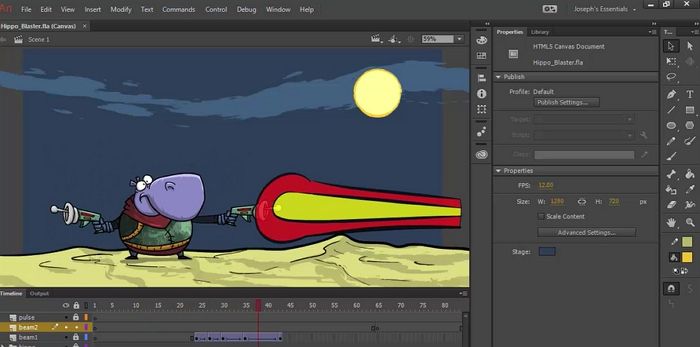
Adobe has replaced Flash Player and Editor with Adobe Animate CC, which can safely play original Flash files on any browser, and also supports HTML 5, allowing for browser-based game play.
How Do I Transfer Adobe Flash Player to Another Computer?
Here are two methods to transfer Adobe Flash Player to another computer:
Two methods:
1. Use Adobe Migration Software.
2. Use Install Disc.
Method 1. Use Adobe Migration Software (Recommended)
To transfer Adobe Flash Player to another computer, consider using professional migration software, such as Qiling Disk Master, which offers a hassle-free and safe way to transfer Adobe products, including Flash Player, to another computer without requiring extensive technical knowledge.
Qiling Disk Master is a reliable and efficient tool for transferring Adobe Flash Player between computers. It establishes a seamless connection between devices, allowing for easy transfer of the app and management of data. To initiate the transfer, select the PC to PC option, and if any issues arise, technical support is available to assist.
Features of Qiling Disk Master
- The process of transferring files such as programs, games, applications, and software from one computer to another is made easy by various methods and tools. This can be done using cloud storage services, external hard drives, USB drives, or even by creating a bootable USB drive with the transferable files.
- Saves time spent on copying and pasting necessary files.
- No need for a network to support file transfer.
- No data loss issues.
- Seamless data migration with one click.
- Free technical assistance.
- Different transfer modes.
- Extract data from dead PC.
- Easy to use and convenient.
To move your Adobe Migration Software to another computer, you can use this intelligent tool. It allows you to easily transfer your software to a new device, making the process quick and efficient.
Step 1. Run Qiling Disk Master on both PCs
To sync files on the source PC using Qiling Disk Master, select "File sync" on the main screen and proceed with the process.

Step 2. Connect two computers
1. Connect to your target PC via its IP address or device name and click "Connect".
2. To confirm the login password of the target PC, enter the password and click "OK".
If you didn't see the target PC in the listed devices, you can add it manually by clicking "Add PC" and entering its IP address or device name.

Step 3. Select apps, programs, and software and transfer to the target computer
1. You can select and choose what you want to transfer from the current computer to the target PC, tailoring the transfer process to your specific needs and preferences.
2. Click "Proceed" to initiate the transfer of selected applications and programs.

Method 2. Use Install Disc
To transfer Adobe Flash Player to another computer, you can use the install disc, but only if you have saved the install download. This method is not viable if you haven't saved the download, making it a limited option for transferring the player.
Step 1: Locate the Adobe Flash Installer location, and copy it.
Step 2: If you're using a USB drive as an install disk, you can copy and paste the installation file. However, if you're using a CD or DVD, you'll need to use burning software to write the file onto the disc.
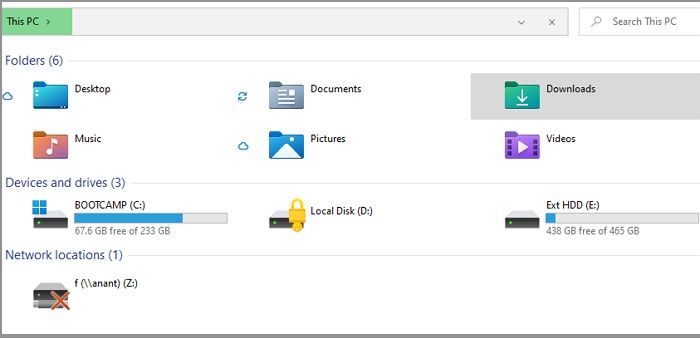
Step 3: During the burn process, you can choose to create an installer disc or simply write the contents to the disc.
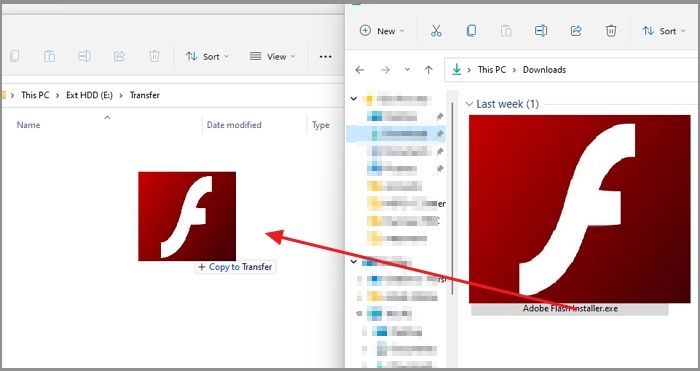
Step 4: To use Adobe Flash, plug the USB or insert the disc into the PC where you want to use it. Then either double click to start the installation or copy and run the installation file.
You can't copy the Adobe Flash Setup for an existing file because the components won't be registered with the OS.
Conclusion
Adobe Flash player, once a widely used plug-in, is now officially dead as Adobe no longer supports it and it's not compatible with current browsers. However, if you still want to run Flash content or play Flash games, there are some workarounds available, although they come with security risks that you should be aware of.
If you want to transfer Adobe Flash Player to another computer, you can opt for a professional data migration software like Qiling Disk Master, which is user-friendly and highly efficient, and download it to start using it now.
Related Articles
- How to Transfer Dropbox to New Windows 11
- How to Save/Run Microsoft Office to/from External Hard Drive
- How to Transfer Files Using Easy Transfer Cable Between Computers
- [Really Help] Move Adobe Acrobat to a New Computer
- How to Install A New CPU on A Motherboard? [Fresh Guideline]
With the recent releases of new CPUs from Intel and AMD, many users are looking to upgrade their processors to take advantage of the improved performance. - Is Google Drive Going Away? Get Clear Ideas Here!🥇
Find out whether Google Drive is going away and learn how to protect cloud files with reliable backup and storage options.
Products
Articles & Tutorials
- Data Recovery
- Data Backup
- File Recovery
- File Backup
- System Backup and Restore
- Disk and Partition Clone
- Technical articles
- Mobile articles
- Disk Master Help
- Windows Data Recovery Tutorials
- Windows Secure Delete Tutorials
- Windows Partition Management Tutorials
- Windows File Backup and Restore Tutorials
- Windows System Backup and Restore Tutorials
- Windows Disk Backup and Restore Tutorials
- Windows Clone Tutorials