How to Transfer Dropbox to New Windows 11
How to Transfer Dropbox to New Windows 11?
| Workable Solutions | Step-by-step Troubleshooting |
|---|---|
| 1. What is Dropbox? | Dropbox offers several secure and quick data-related services. You can download a Dropbox application...Full steps |
| 2. Transfer Dropbox to Windows 11 without Reinstallation | If you are looking for a quick and safe method to transfer Dropbox to Windows 11 without Reinstallation, you can...Full steps |
| 3. Manually Transfer Dropbox Data to New Windows 11 | You can transfer Dropbox files using the copy and paste functionality of Windows. Although, this takes...Full steps |
| 4. How to Change Location of Dropbox App on Windows 11? | As we all know, the Dropbox desktop app is a panacea for storing and transferring files on Windows...Full steps |
About Dropbox
Dropbox offers secure and quick data-related services, which can be accessed through a Windows PC or internet browser. However, without the Dropbox app on Windows or a phone, users may be unable to access features like automatic sync and notifications.
With the Dropbox application, you can easily upload your files and share them with other Dropbox users, or simply use it to back up your local files for cloud access. Dropbox ensures the security of your data with an encrypted system.
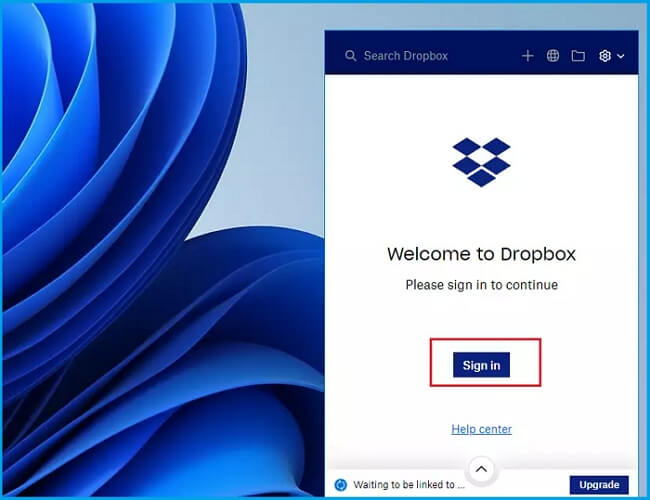
Installing the Dropbox program on your PC or laptop allows you to mirror your Dropbox files on your hard drive, making it easier to manage your data. The app creates a Dropbox folder on your C drive, where you can add files that will be automatically synchronized and stored on cloud storage, allowing you to access them anywhere without carrying your device.
Dropbox offers a limited free storage space of up to two gigabytes, but you can purchase extra storage to carry your essential data, which might be very expensive. Alternatively, you can transfer your Dropbox to another Windows PC.
Transferring your Dropbox from one Windows PC to another can be done in two essential methods. Firstly, you can use the Dropbox desktop application to transfer your files by syncing your Dropbox account on the new PC. This method allows you to access your Dropbox files on the new PC while keeping your original files intact.
Method 1. Transfer Dropbox to Windows 11 without Reinstallation
If you're looking to transfer your Dropbox files to Windows 11 without reinstalling, a data transfer tool can be a quick and safe solution.
The market is saturated with various data transfer software, making it challenging to find the best one for the job. However, with the right tool, you can easily transfer your Dropbox from a Windows 10 PC to a new Windows 11 PC without losing or corrupting a single file.
To transfer Dropbox to a new Windows 11 PC, use Qiling Disk Master's data transfer tool, which allows sharing all files without hassle and offers a free data transferring feature. Its premium plan enables moving countless files and ensures file security.
The software has been developed with advanced file transfer features, ensuring security and easy usability for sharing data, meeting individual file-sharing needs, and including features such as encryption, access controls, and user authentication.
Unlimited File transfer
This tool allows you to transfer unlimited files from your Dropbox to another system, sharing files, folders, apps, games, and settings without reinstalling Dropbox on your new Windows 11 PC, making it easy to transfer and manage data on your new and old Windows PC.
Efficiency and Accessibility
Qiling Disk Master has an intuitive interface that makes it highly efficient and reduces potential data transfer errors, allowing effortless and regular file transfer on all Windows versions, from the oldest to Windows 11.
Supports all file formats
This tool allows for the transfer of various file formats, including images (jpg, png), audio files (mp3), and more, from Dropbox to other cloud-based storage or Windows PCs, making it a convenient one-stop solution for file transfer.
File quality
Qiling Disk Master can transfer files without quality loss, allowing you to share Dropbox data offline in original quality to a new Windows 11 computer by sharing the root Dropbox folder in C drive.
Enhance Data Integrity
Transmitting data files via this tool ensures reliability and accuracy by preventing data loss, manipulation, or interference, making it ideal for important decisions, whether sharing with others or transferring between computers.
To transfer your Dropbox files to a new Windows computer, follow these steps. First, download the Dropbox desktop application on your new computer.
Step 1. Connect two computers
To enable remote disk access, ensure both computers are connected to the same local area network (LAN). On each computer, run Qiling Disk Master. On the source computer, switch to "PC to PC" mode and click "PC to PC".

Recognize the destination computer by its device name, then connect to it, input the account password or verification code of the target PC.

Step 2. Choose Dropbox to transfer
Now hover your mouse over the "Applications" category.

Locate the Dropbox, tick the box and click "Proceed".
Step 3. Start Dropbox transfer
Qiling Disk Master allows for seamless migration of cloud drive applications from one computer to another, eliminating the need for manual reconfiguration or data transfer.
Method 2: Manually Transfer Dropbox Data to New Windows 11
Transferring files from Dropbox to a new Windows 11 PC can be done more efficiently than copying and pasting, which can be time-consuming and may result in lost boot files. Instead, you can use the Dropbox preference option to change its root folder to the new PC, which is a more convenient and less error-prone method.
Step 1: Close all the running applications on your system that may be using Dropbox files.
Step 2: Open the Dropbox app, select Settings, and click on Preferences.
Note* If you're having trouble accessing Dropbox Preferences, you can try uninstalling and then reinstalling the Dropbox app to resolve the issue.
Step 3: Under the Preferences menu, click on the Sync tab.
Step 4: Under the Dropbox Folder Location, select Move.
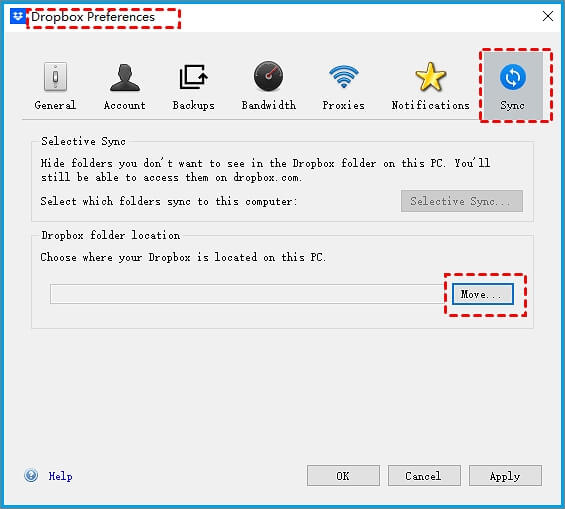
Step 5: Choose the new target location for your Dropbox root folder on your new Windows 11 PC.
Note* You can create folders on any drive of your Windows 11 system to organize your files as desired.
Step 6: Wait until all your Dropbox files move to the new folder. Click OK when all the data is transferred.
Step 7: To confirm all your files have been successfully moved to your new computer, log out of your Dropbox account and open the Dropbox desktop application on your new computer. This will ensure that all your files are present and accessible on your new device.
Bonus Tip: How to Change Location of Dropbox App on Windows 11
The Dropbox desktop app can be a convenient solution for storing and transferring files on Windows computers, but it can also become a problem if installed on the C drive. As backup files are added, the app's size increases, leading to errors and issues when using it.
If you've been using Dropbox for a while, switching to another cloud-based storage app might seem daunting, but we're here to help. Whether you're running out of storage space or want to transfer your Dropbox files to your new Windows 11 PC, we can assist you in making the transition.
To quickly change the original location of the Dropbox App and transfer data to a custom location, you can use a data transfer application like Qiling Disk Master. This tool can assist you in relocating the Dropbox App and moving its data to a new location.
You can follow these steps to change the location of Dropbox with this software:
Step 1. Launch Qiling Disk Master, choose "Backup and recovery", and click "File sync" on the main screen.
Step 2. Qiling Disk Master will automatically scan and display all the supported programs.
- Select the programs you want to change the location of and click on them to open their properties. In the properties window, click on the "Change" button next to the "Location" field and select a new location for the program.
- To migrate the programs, click the "..
Step 3. Click "Proceed" to start changing the program installation location.
This software allows you to quickly change the root folder of your Dropbox by transferring data, including settings, to another location, providing a preview and estimated time for the transfer, and is easy to operate, making it simple to mount a transfer like transferring gigabytes of data within a drive in Windows.
Conclusion
If you're looking to transfer Dropbox from Windows 10 to Windows 11, there are two reliable methods to consider. Qiling Disk Master is a recommended option, especially if you're new to data transfer, as it can help you move your Dropbox app with ease. Alternatively, you can try transferring data from C to another drive, but be aware that this method can be time-consuming and may result in data loss. However, Qiling Disk Master is a more efficient and secure way to transfer your Dropbox data.
Related Articles
- [Really Help] Move Adobe Acrobat to a New Computer
- Transfer Data, Software/Applications to Windows 10 or Windows 11
- 5 Steps to Move/Transfer Office 2016 to New Computer (Windows 11 Available)
- Move GoTo Opener to Another Computer
- How to Back Up Chrome Settings Without Sync [Step-by-Step Tutorial]
Learn how to back up Chrome settings without Sync. Use safer local or software backup methods to protect bookmarks, passwords, extensions, history, and cookies. - How to Back Up Entire Computer to OneDrive [Quick & Easy]
Learn how to back up your entire computer to OneDrive. Compare sync, manual upload, and automatic backup methods for safer Windows data protection.
Products
Articles & Tutorials
- Data Recovery
- Data Backup
- File Recovery
- File Backup
- System Backup and Restore
- Disk and Partition Clone
- Technical articles
- Mobile articles
- Disk Master Help
- Windows Data Recovery Tutorials
- Windows Secure Delete Tutorials
- Windows Partition Management Tutorials
- Windows File Backup and Restore Tutorials
- Windows System Backup and Restore Tutorials
- Windows Disk Backup and Restore Tutorials
- Windows Clone Tutorials