How to Backup Chrome Settings Without Sync [Step-by-Step Tutorial]
If you want to back up Chrome settings without using Chrome Sync, Qiling Disk Master offers a safer local backup method for bookmarks, passwords, extensions, history, cookies, and other browser data.
An Overview of Google Chrome Sync
Sync keeps browser data consistent across multiple devices, such as a computer, tablet, and phone. It is convenient when you want the same bookmarks, passwords, history, and extensions available everywhere.
Google Chrome Sync saves selected Chrome data to your Google account and makes it available on devices signed in with the same account. This reduces manual setup work, but it is different from creating an independent local backup.
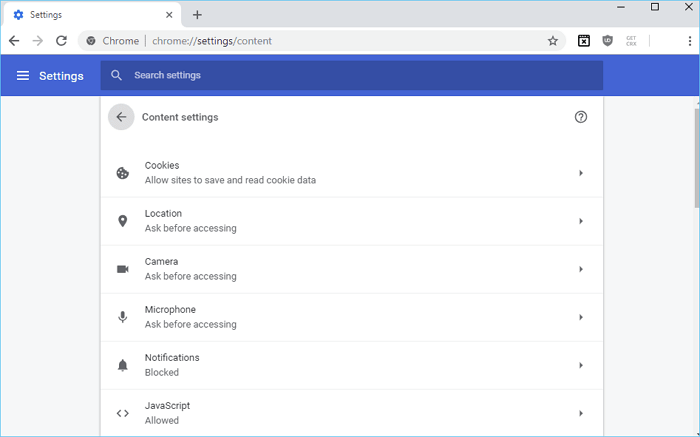
Why You Might Not Want to Backup with Sync
While Google Chrome Sync is useful and time-saving, it also has downsides for users who want full control over their backup.
The main concern is that Sync depends on your Google account and Google's servers. If the account is compromised, disabled, or incorrectly synced, your Chrome data may become exposed, overwritten, or unavailable. Sync also does not give you a separate backup image that you can store offline.
Some users also report Chrome Sync pausing or failing to synchronize completely across devices, which can make recovery less predictable.

A safer approach is to create a separate backup of Chrome's local user data. You can store that backup on an external drive, NAS, cloud drive, or another secure location and restore it when reinstalling Windows or moving to a new computer.
See also:
Is the post helpful? Don't forget to share it on Twitter or Instagram to help your fans and friends:
Chrome Sync Alternative - Backup Your Chrome Settings Safer
Qiling Disk Master is a user-friendly backup and restore software that can protect files, partitions, and the operating system with a few clicks.
It can also help you back up and restore Chrome settings, so you can quickly rebuild your browser environment after reinstalling Windows or switching to another computer.
Qiling Disk Master lets you store Chrome settings backups on internal drives, external hard drives, cloud services, NAS locations, or a security zone, giving you more control than Chrome Sync alone.
It also supports scheduled backup, so Chrome settings can be backed up automatically even when you forget to run a manual backup.
It also includes the following features:
- 30-day money-back guarantee
- Compress backup
- Full backup, incremental backup and differential backup
- Cloud storage provided: 250 GB of free Cloud storage space
- Universal Restore
- Multi-path backup locations
- Create an emergency bootable disk/USB
- Security zone backup
Now, follow the detailed steps below to see how Qiling Disk Master backs up Chrome settings:
Google Chrome settings and user data are stored on your computer by default in the C:\Users\username\AppData\Local\Google\Chrome\ directory.
- Tip
- Before backing up, ensure that Google Chrome and all extensions are closed.
Step 1. To start Chrome data backup, click "Create Backup" and select "Apps data" from the options.

Step 2. In the app data backup section, find Chrome and select the account data you want to back up, including browsing history, bookmarks, passwords, extensions, and cookies.

Step 3. Choose a backup location, such as an internal or external drive, and consider keeping an additional backup on a Qiling cloud or NAS device for extra security.

📖Related Reading: How to Backup/Export and Restore Chrome History and Cookies
The Bottom Line
Google Chrome Sync is convenient, but it is not always enough for users who need a separate, controllable backup. If you prefer to back up Chrome settings without Sync, Qiling Disk Master provides a safer way to store and restore Chrome data.
If you have any questions when using Qiling Disk Master, please feel free to contact us for assistance. We're always here to help.
If this post is helpful, share it on Twitter or Instagram to help your fans and friends.
FAQ on Backup Chrome Settings without Sync
1. How do I backup my Google Chrome settings?
Google Chrome Sync can keep Chrome settings available across devices, but it is not a true independent backup. A safer alternative is to use Qiling Disk Master Pro to back up Chrome settings securely.
2. Can I export all Chrome settings?
With Qiling Disk Master, you can easily back up all your Chrome settings, including bookmarks, passwords, extensions, and more, in just a few clicks.
3. How do I transfer Chrome settings to a new computer?
To transfer Chrome settings to a new computer, back up your Chrome settings and restore them to the new computer, which is a more reliable method than using Sync that ensures no data is lost.
Related Articles
- Clone Hard Drive to SSD in Windows (Step by Step Guides)
- How to Schedule A Weekly Backup to Microsoft OneDrive[3 Tips]
- How to Perform Windows Automatic Backup [Step-by-step Guide]
- 2024 Windows XP Backup Software & Backup Utility Free Download
- How to Backup Cyberpunk 2077 Saves [Detailed Guide]
- Download Crucial Data Transfer Software to Migrate SSD Data and OS
- How Do I Switch/Move Internet Explorer to Firefox - Qiling
As the Internet Explorer comes to its end of life, many users are looking for solutions to move data from Internet Explorer to other browsers. Switching IE favorites, passwords, etc., to Firefox on your current PC or between two computers is easy to accomplish.
Products
Articles & Tutorials
- Data Recovery
- Data Backup
- File Recovery
- File Backup
- System Backup and Restore
- Disk and Partition Clone
- Technical articles
- Mobile articles
- Disk Master Help
- Windows Data Recovery Tutorials
- Windows Secure Delete Tutorials
- Windows Partition Management Tutorials
- Windows File Backup and Restore Tutorials
- Windows System Backup and Restore Tutorials
- Windows Disk Backup and Restore Tutorials
- Windows Clone Tutorials