How to Backup Cyberpunk 2077 Saves [Detailed Guide]
Cyberpunk 2077 is a massive role-playing game that was released in December 2020 on various platforms. Set in the dystopian world of Night City, the game explores the eternal themes of power and technology.
Cyberpunk 2077's plot is a complex mix of factors, enriched by its engaging gameplay, various gameplay modes, and skill trees. As the player's character "V", you'll make numerous choices that shape the story, influencing its development and ultimate outcome. This diversity creates a captivating game world that has drawn many players in, contributing to the game's impressive reputation and sales.

As an action RPG, Cyberpunk 2077 requires players to navigate through multiple game nodes and branching storylines. This makes it essential to back up your saves to avoid losing progress. To ensure your data is secure, you can choose from three effective backup methods, which will be detailed below to help you prevent data loss and enjoy a worry-free gaming experience.
The Importance of Backing Up Cyberpunk 2077 Saves
Data loss can occur due to various reasons such as computer infected by viruses, hardware failure, or system errors, leading to damaged game files and inability to load old saves. To prevent this, it's essential to back up game saves in advance.
For Cyberpunk 2077, you need to be aware of three key situations:
- Game Bugs: Cyberpunk 2077 has been plagued by numerous bugs, which can lead to a subpar gaming experience and potentially corrupt your original save files.
- Installing Mods: Adding rich mods to the game has always been a popular hobby among players, but it can be risky if not done properly. If game data isn't backed up in advance, incompatible mods can cause instability and prevent the game from running normally.
- Save File Size Limit: Cyberpunk 2077 save files can become corrupted when they reach 8MB in size. Backing up regularly helps you avoid replaying the game from the very beginning.
You may also want to know:
3 Ways to Backup Cyberpunk 2077 Saves
To avoid the above situation, we provide you with three solutions, and you can choose the most suitable backup method according to the following detailed introduction and tutorial.
- Method 1. Search in File Explorer
- Method 2. Backup through Game Platform
- Method 3. Using Professional Backup Software
It's time to check them out.
Method 1. Search in File Explorer
The official website of Cyberpunk 2077 provides the path to save game files, which is located at %userprofile%\Saved Games\CD Projekt Red\Cyberpunk 2077. To access it, simply open File Explorer and navigate to this path.
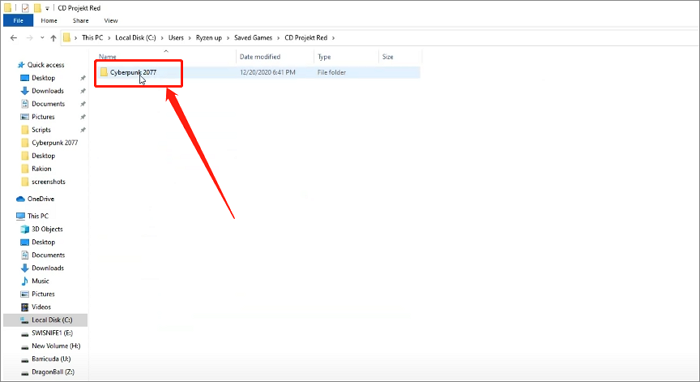
Next, right-click on the save folder, select "Copy," and paste it to another disk or external drive to complete the backup.
Method 2. Backup through Game Platform
For players using PS and Xbox series, the Cloud storage function can automatically back up game data after networking. However, for PC players, including those using Steam, you'll need to manually back up your saved files through the game platform. To do this on Steam, you can follow these steps to ensure your Cyberpunk 2077 saves are secure.
Step 1. Open Steam and find Cyberpunk 2077 in the LIBRARY
Step 2. Right-click and select "Properties"
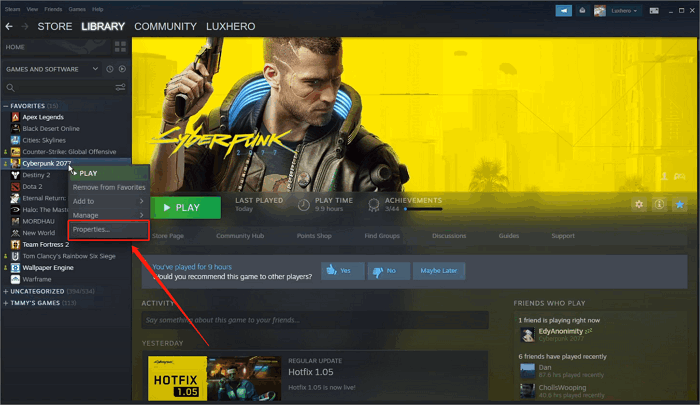
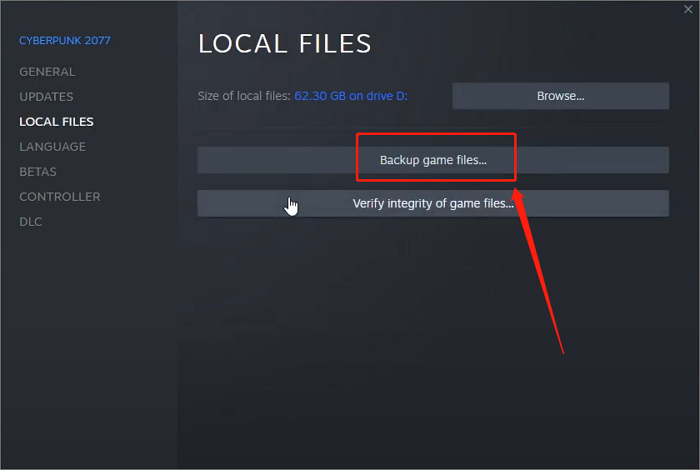
Step 3. Choose "Local Files" on the pop-up window
Step 4. To backup your Cyberpunk 2077 saves, go to the game's settings, select "Backup game files", and choose a location on another disk to save the files. This will create a copy of your saves, allowing you to restore them if needed.
Method 3. Using Professional Backup Software
While the two methods above are straightforward, they require manual effort each time. For games like Cyberpunk 2077, where data errors often occur, it's recommended to use Qiling Backup Home, a professional software that can automatically backup game saves.
Qiling Backup Home is a professional offline backup software that allows you to create a personalized automatic backup cycle and schedule, providing a plan for backing up saved files to your computer or the 250 GB free cloud space provided by Qiling, giving you peace of mind while playing Cyberpunk 2077.
Here is a step-by-step tutorial on how Qiling Backup Home backs up your Cyberpunk 2077 saves.
Step 1. To initiate a backup, click the File backup button in the Backup and recovery page.

Step 2. On the left, both local and network files will be shown, allowing you to browse and select the desired backup files from the directory.

Step 3. Follow the on-screen instructions to select a location to store the backup.

Step 4. Click Options to encrypt the backup with a password in Backup Options. There are also other additional choices you may choose to tailor the backup process to your requirements.

To specify the backup schedule, click on Backup Scheme and select a backup plan, such as daily or weekly backups, and choose a start time for the backup at a specific event.

Step 5. The backup can be stored on a local disk, Qiling's online service, or a network-attached storage (NAS) device.

Step 6. Qiling Backup allows customers to back up their data to both a third-party cloud drive and Qiling's own cloud drive.
To back up data to a cloud drive provided by a third party, select Local Drive, scroll down to add Cloud Device, and then add and log in to your account.
Step 7. The backup process can be initiated by clicking the Proceed button. Once completed, the backup job will be displayed as a card on the left side of the panel. To further manage the backup job, click on it.

Conclusion
Backing up your Cyberpunk 2077 saves in advance is essential to protect your game progress. Using Qiling Backup Home lets you automatically save your progress, making it easy to restore your saves whenever unexpected issues arise.
FAQs
1. Where are Cyberpunk 2077 saves saved?
Cyberpunk 2077 saves are saved at %userprofile%\Saved Games\CD Projekt Red\Cyberpunk 2077. You can open File Explorer to search for them.
2. Can I transfer Cyberpunk save files?
You can transfer Cyberpunk 2077 save files by using cloud storage on PS or Xbox, or by extracting and importing them on PC through Stadia or Qiling Backup Home.
Related Articles
- How to Backup USB to OneDrive [Bidirectional Way]
- System State Backup & System Image Backup Windows 10 [2022]
- [3 Effective Tips] How to Backup Firefox Bookmarks
- How to Do Offsite Backup? [2022 Three Ultimate Guide]
- Windows Backup Failed While Determining Libraries Location [Best Solutions]
“Windows Backup failed to read or write from volume %SystemDrive% due to I/O error” or “Windows Backup failed to read or write from volume %SystemDrive% due to insufficient disk space”. - Windows Backup vs. Professional Backup Software (Which Should I Use?)
Windows backup vs. professional backup software - which one do you choose? Windows has its own native backup tools, but a better alternative is professional backup software, which offers a more reliable solution for backing up your Windows computer.
Products
Articles & Tutorials
- Data Recovery
- Data Backup
- File Recovery
- File Backup
- System Backup and Restore
- Disk and Partition Clone
- Technical articles
- Mobile articles
- Disk Master Help
- Windows Data Recovery Tutorials
- Windows Secure Delete Tutorials
- Windows Partition Management Tutorials
- Windows File Backup and Restore Tutorials
- Windows System Backup and Restore Tutorials
- Windows Disk Backup and Restore Tutorials
- Windows Clone Tutorials