Windows Backup vs. Professional Backup Software (Which Should I Use?)
What Are Windows Built-in Backup Programs & How Do They Work
For Windows users, choosing a backup tool is essential. Fortunately, built-in backup programs are available in Windows 7/8/10/11, allowing users to back up their computer and files. Specifically, File History and Backup and Restore (Windows 7) are native tools that can be used to safeguard important data.
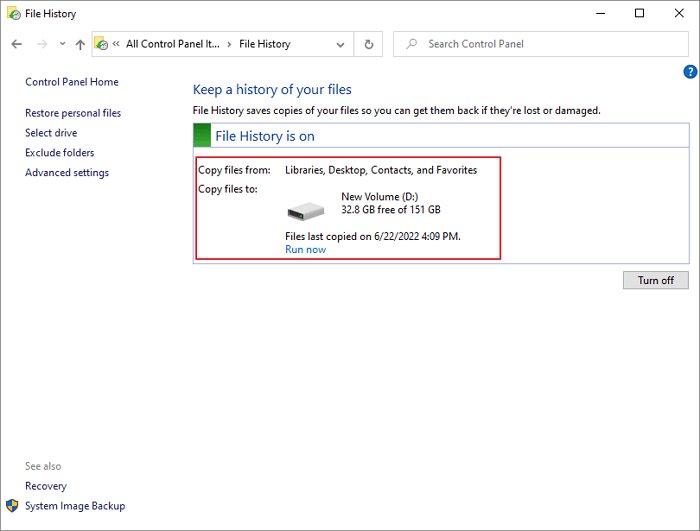
File History is a backup program that automatically saves copies of files on your computer, introduced with Windows 8 and now the primary backup solution for Windows users to back up personal files.
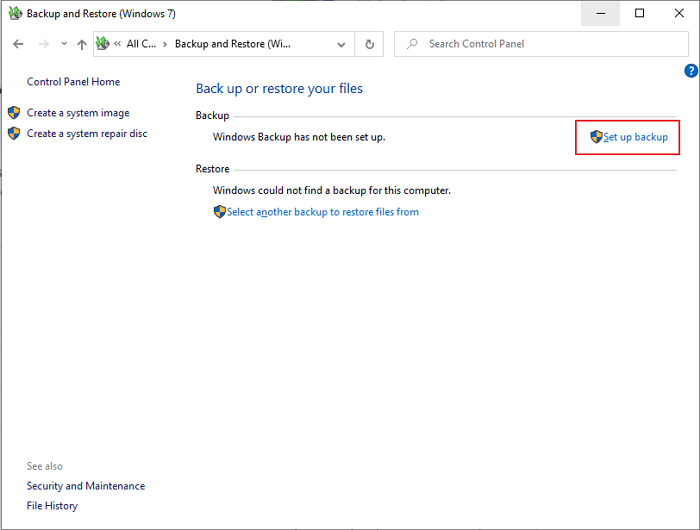
Backup and Restore in Windows 7 allows users to back up Windows, choose what to back up, where to save backups, and how often to run backups. It also enables creating a system image for future recovery in case of a system crash.
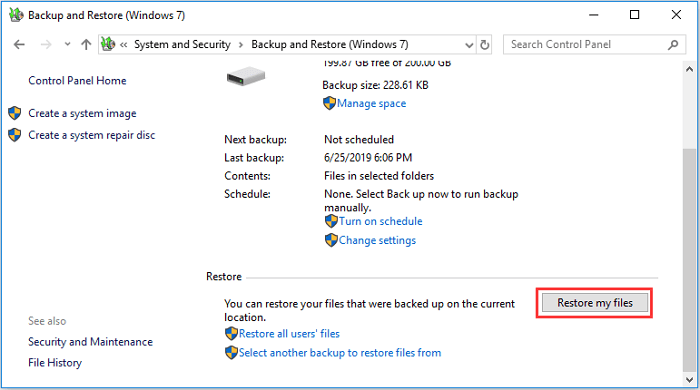

How to use Backup and Restore in Windows 10
Read this article to learn how to use the Backup and Restore.
Professional Backup Software - Qiling Backup
While using Windows' native backup tools like Backup and Restore or File History is better than nothing, they have limitations. Third-party backup software, however, can offer advanced features and options that native Windows backup tools cannot, making them a more reliable choice for data protection. Qiling Backup is a top name in the data backup and recovery niche.
Qiling Backup Home is a popular backup tool that offers many valuable features and is easy to use, allowing users to back up their entire computer, including the OS, files, folders, disks, partitions, and outlook emails, with options for incremental and differential backups.
Guide: How to back up your Windows computer with a system backup tool
To create a system backup of your Windows computer, you can follow these steps. First, open the Control Panel and click on the "Backup and Restore (Windows Backup)" option.
Step 1. Launch Qiling Backup on your computer, click System Backup on the home screen to start the backup task.

Step 2. Your Windows operating system information and all system related files and partitions will be automatically selected, so you don't need to do any manual selection at this step. To proceed, click on the illustrated area to choose a location to save the system image backup.

Step 3. The recommended backup location is an external physical drive or cloud, where system backup files can be safely preserved.

Step 4. The Windows system backup process allows for customization settings such as enabling an automatic backup schedule, which can be set to daily, weekly, monthly, or upon an event. Additionally, differential and incremental backup options are available. By clicking "Proceed" in the Options button, the backup process begins, and the completed task will be displayed in a card style on the left side.

A Comparison of Windows Native Backup Tools and Professional Backup Software
While both Windows built-in backup programs and professional backup software can meet your needs, the built-in tool falls short in many areas compared to professional backup tools.
The Windows built-in backup tool has several limitations, including the inability to backup system files, the lack of support for backing up external drives, and the inability to schedule backups to run at specific times. Additionally, the tool may not be able to backup files that are in use by other programs, and it may not be able to recover files that have been deleted or corrupted.
- Limited Number of System Images. The Backup and Restore utility only allows storing one system image at a time, requiring users to back up to multiple destination drives to keep multiple system images.
- Limited backup content. Windows 10's built-in backup program, File History, allows you to add custom files to the backup plan, but Windows 11's version does not offer this customization option. Instead, it only backs up files, folders, and the system.
- No Cloud Storage. Backup and Restore and File History allow users to store backups locally, but neither provides a solution for cloud-based backups.
- No Single-File or Folder Recovery. File History allows you to restore individual files, but it does not work with Backup and Restore.
Fortunately, the limitations of Windows' native backup tool are no longer a concern with Qiling Backup Home. This tool allows you to back up and restore your entire computer, automatically back up files, and clone HDD to SSD, making it easy to migrate to a solid-state disk. You can store backups in different locations, such as Cloud, local drives, security zone, and NAS, and even take advantage of 250G of free cloud storage to safeguard your data, helping you meet the demands of the 3-2-1 backup rule.
Final Thoughts
If you're looking to make a backup of your computer or files without incurring any additional costs, you can use Windows' built-in backup programs. However, if you need a more comprehensive backup solution, Qiling Backup is a good option that offers advanced features such as automatic and scheduled backups. It's suitable for home, free, and business users, making it a great choice for anyone looking for a reliable backup tool.
Qiling Backup is a reliable Windows backup and recovery solution that's worth considering.
FAQs
1. What is a mirror backup?
A mirror backup replicates everything on your computer's hard drive, including the operating system, boot information, applications, files, preferences, and settings, essentially capturing the entire system in a single snapshot. This comprehensive backup is often compared to taking a picture of your entire system, allowing you to restore everything with a single image, including hidden files and settings that a standard backup might miss.
2. Does Windows 10 backup compress files?
The backup process compresses data before uploading, so if the backup was successful, there's likely nothing to worry about. However, to be extra cautious, manually triggering the backup and verifying its completion can provide additional peace of mind.
3. What is the 321 rule?
The 3-2-1 backup rule is a guideline for creating and storing backups of important data. It recommends keeping at least three copies of your data (1 primary and 2 backups), storing them on two different types of media, and keeping one copy offsite. This ensures that your data is safe and can be recovered in case of a disaster or data loss.
4. Which is better system image or backup?
A regular backup is generally faster, uses less storage space, and is more flexible and compatible than a system image. However, in situations where your system crashes, a system image is often a better choice, providing a full snapshot of your system that can be used to restore it to its previous state.
Related Articles
- How to Install Software on Multiple Computers at the Same Time
- [100% Efficient] Create Windows 10 Image Backup with 2 Ways
- How to Backup A Hard Drive Windows 7 [Ultimate Guide for Windows 7 Users]
- How to Move OS to SSD Without Cloning. Make It with Our Guide
- How Do Server Users Move Documents Folder from C to D Drive in 2022
Can I move system files like the Documents folder from C to D drive? Yes, sure! This page gives you a complete guide to successfully moving the Documents folder from C to D drive in Windows Server 2022/2019/2016 and even older Server computers. - How To Move Documents Folder To Another Drive? Get Your Answer!
Have you ever encountered any issues while moving your documents folder to another drive? If so, as this post will guide you through the detailed steps of how to move your documents folder to another drive. Just keep reading on to find out!
Products
Articles & Tutorials
- Data Recovery
- Data Backup
- File Recovery
- File Backup
- System Backup and Restore
- Disk and Partition Clone
- Technical articles
- Mobile articles
- Disk Master Help
- Windows Data Recovery Tutorials
- Windows Secure Delete Tutorials
- Windows Partition Management Tutorials
- Windows File Backup and Restore Tutorials
- Windows System Backup and Restore Tutorials
- Windows Disk Backup and Restore Tutorials
- Windows Clone Tutorials