Run EXE Files on Mac: 3 Practical Ways
EXE files are executable files that run on Windows operating systems, used to open or install applications. However, on Mac computers, the operating system doesn't support EXE files, instead relying on DMG extensions. To run an EXE file on a Mac, you can create or install a Windows system on the Mac, allowing both built-in macOS applications and third-party software to make it possible.
How to Run EXE Files on Mac
To install a Windows system on a Mac, you can use Boot Camp, install Windows on a virtual machine, or create a portable Windows system drive. This allows you to run exe files on your Mac.
Method 1. Install Windows OS with Boot Camp
Boot Camp is a utility on your Mac that allows you to switch between Windows and macOS. To use it, you'll need to download a copy of Windows 10 and follow the steps guided by the Boot Camp Assistant. Please note that Boot Camp requires at least 64 GB of free disk space for installation. Once you've prepared your Mac, the Boot Camp Assistant will walk you through the installation process.
Step 1. Download the installation file
Download the Windows ISO file, making sure to select the correct version (Windows 8/8.1/10) since Boot Camp only supports these versions.
Step 2. Partition Mac Drives
To create a bootable USB drive for Windows installation using Boot Camp Assistant, open the application, which is located in the Utilities folder of your Applications folder. When prompted, insert a USB drive with a minimum capacity of 8GB. Additionally, you will need to set the partition size, ensuring it is at least 64GB.
Step 3. Format the Windows Partition
After Boot Camp Assistant finishes, your Mac restarts to the Windows installer. Select the BOOTCAMP partition as the install destination and click Format, allowing the installer to select and format the partition automatically.
Step 4. Install Windows with Boot Camp
Your Mac will start to install Windows after you follow the on-screen instructions. When the process is finished, a "Welcome to the Boot Camp installer" window will appear, guiding you through the installation of Boot Camp and Windows support software.
Method 2. Install Windows OS using Virtual Machine
You can also install Windows using virtual machine software, but this requires a valid Windows license. If you already have a product key, you can download Windows and install it in a virtual machine program.
Parallel Desktop allows you to run Windows on your Mac without rebooting, and also enables seamless content sharing between Mac and Windows. The software is user-friendly and easy to set up, making it simple to follow steps to run exe files on your Mac.
Step 1. Windows installation
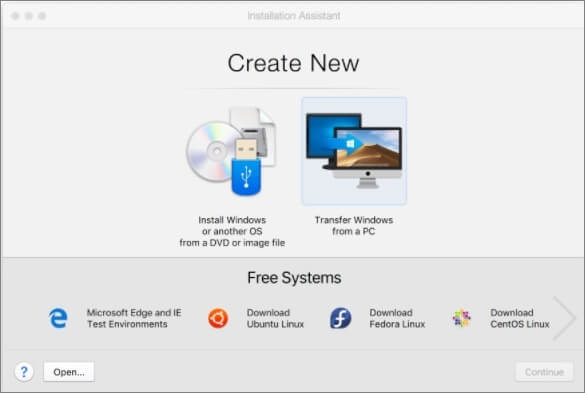
To install Windows or another OS on your Mac using Parallels, start by opening the app and going to File > New > Install Windows or another OS from DVD or image file. From there, select the Continue option to install Windows either from a bootable USB drive or from a DVD, then enter the Windows product key.
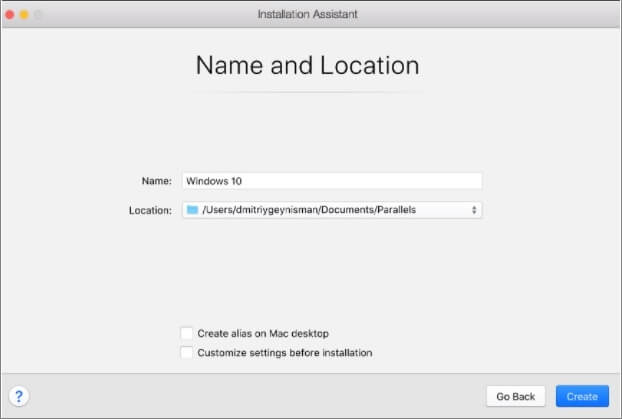
To initiate the installation process, enter the details and continue, then type in a name for the virtual machine. This will start the installation process. After installation, open Windows by clicking on the Power button and selecting the Parallels Virtual Machine from the list.
Step 2. Use the Parallels desktop
To configure shared folders in Parallels Desktop, open the Parallels Desktop form Spotlight, click on Virtual Machine, then select Configure from the drop-down menu, click on Options, and then click on Shared Folders. From there, click on Add and select Choose, which will allow you to include a path from your Mac's desktop to the virtual machine.
Method 3. Creating a Portable Windows USB Drive for Mac
You can create a portable Windows USB drive on your Mac, which is a better and easier method than installing a Windows system. This approach requires zero free disk space on your Mac, so you don't need to worry about lowering your disk space.
Third-Qiling OS2Go is a party software that makes it easy to create a portable Windows USB drive, requiring no complicated operation steps or advanced computer knowledge. With simple steps and clear instructions, you can use Qiling OS2Go to create a portable Windows USB drive, making it a recommended tool for this method.
Step 1. To use Qiling OS2Go, install it on your Windows computer, which will display the used space on your system drive. Then, plug in a USB drive that is larger than the system drive's used space. Next, choose the target USB drive and click Next to continue.
Step 2. Qiling OS2Go will notify you that the following operation would delete all data on your drive. Make sure you have backed up all important data, then click Continue to proceed.
Step 3. The default disk layout on the target drive will be the same as the resource drive, but you can also edit it according to your needs. If you're using a Solid State Drive as the Windows bootable drive, select the option and click Proceed.
Step 4. Qiling OS2Go will create a portable USB drive, which may take some time, depending on your operating system and network connection. Once the process is complete, the USB drive will be bootable.
Step 5. To boot your Mac from a portable Windows USB, insert the USB drive and start your Mac while pressing the Option/Alt key. This will allow you to choose the yellow EFI Boot icon to boot from the USB drive. From there, simply follow the on-screen instructions to complete the boot process.
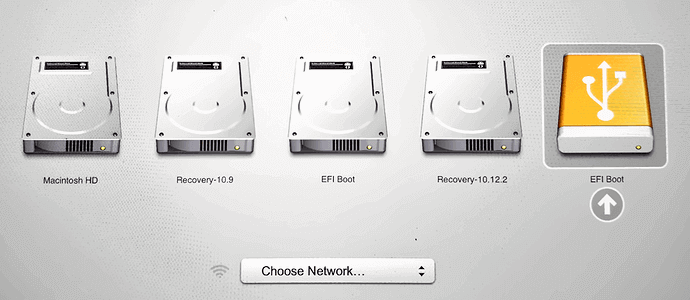
A portable Windows USB drive allows you to run Windows-based apps on Mac computers and is a convenient option for businessmen. Once created, it can be used to boot any other computer with your own system, without needing an internet connection or risking data loss.
Conclusion
To run an EXE file on a Mac, you can use Boot Camp, a Virtual Machine, or Qiling OS2Go to install Windows within your Mac, then launch the EXE file within that Windows environment.
Related Articles
- Fix WintoUSB Stuck at 0% and Install Windows with An Easy Tool
- Windows To Go for Mac: How to Install and Use
- How to Play Windows Games on Chromebook [Latest Guide]
- How to Create a Windows To Go USB Stick?
- Full Comparison: SeagateOneTouchvsBackupPlusSlim
The Seagate One Touch and Backup Plus Slim are two popular portable hard drives that have sparked a debate among users. Both offer compact designs, ease of use, and reliable backup solutions, making it challenging to decide between them. - Server Migration: Everything You Need to Know | 2022 Complete Guide
This guide provides a step-by-step process to migrate Server data between Windows Server computers, covering everything you need to know about Server Migration to ensure a successful transfer of Server data.
Products
Articles & Tutorials
- Data Recovery
- Data Backup
- File Recovery
- File Backup
- System Backup and Restore
- Disk and Partition Clone
- Technical articles
- Mobile articles
- Disk Master Help
- Windows Data Recovery Tutorials
- Windows Secure Delete Tutorials
- Windows Partition Management Tutorials
- Windows File Backup and Restore Tutorials
- Windows System Backup and Restore Tutorials
- Windows Disk Backup and Restore Tutorials
- Windows Clone Tutorials