How to Create a Windows To Go USB Stick?
Portable Windows offers unparalleled benefits, allowing users to store their system on a USB drive and use it anywhere without disruption. The Windows To Go feature enables users to create a portable Windows drive, but it's limited to Windows 8 Enterprise, Windows 10 Enterprise, and Windows Education versions, and requires a Microsoft-certified USB drive. For users with basic Windows versions, third-party software is necessary to create a portable Windows drive, making it a viable alternative for meeting work and entertainment needs on-the-go.
How To Create a Windows To Go USB?
The limitations of Windows To Go can be overcome with third-party software, but selecting the right one can be challenging. Qiling OS2Go is a popular alternative that allows users to clone their Windows operating system onto a USB drive without complicated steps, making it a perfect alternative to Windows To Go. This software is compatible with the latest Windows 11 and does not require specifically certified USB drives, offering a flexible and user-friendly solution.
Qiling OS2Go
- To migrate Windows 11/10 to a portable drive, along with programs, games, and files in the system drive, you can use the built-in feature called "Windows 10's built-in migration tool" or third-party software like Qiling Disk Master. These tools will help you clone the entire system, including installed programs, games, and files, to a portable drive.
- You can restore a cloned Windows operating system to a different computer at any time and from anywhere, as long as you have a stable internet connection and the necessary permissions. This process is often referred to as "deployment" or "imaging" and can be done using various tools and software, such as Microsoft's System Center Configuration Manager or third-party solutions like Qiling.
- Run Windows on a macOS device without creating dual boot systems
Creating a portable Windows system drive is possible on both enterprise and non-enterprise editions of the OS by following simple steps and procedures.
Step 1. To use Qiling OS2Go, install it on your Windows computer, which will show the used space on your system drive. Next, plug in a USB drive that is larger than the system drive's used space. Select the target USB drive and click Next to proceed.
Step 2. Qiling OS2Go will notify you that the following operation would delete all data on your drive. Make sure you have backed up all important data. Then, click the Continue button to proceed.
Step 3. The default disk layout on the target drive will be the same as the resource drive, but you can also customize it according to your needs. If you're using a Solid State Drive as the Windows bootable drive, tick the option to proceed. Click Proceed.
Step 4. Qiling OS2Go will start creating the portable USB drive, a process that may take some time depending on your operating system and network conditions. Once the progress reaches 100%, the USB drive should be bootable and ready to use.
Step 5. To install Windows on a new computer, insert the portable Windows USB drive, restart your computer, and press the key (F2, DEL, F10, etc.) to access the BIOS. From there, select the option to boot from the USB drive. This will initiate the Windows installation process.
Note: To ensure a successful boot, make sure the portable USB and the target computer have the same boot mode, either UEFI or Legacy, to avoid any booting issues.
OS2Go vs Windows Media Creation Tool
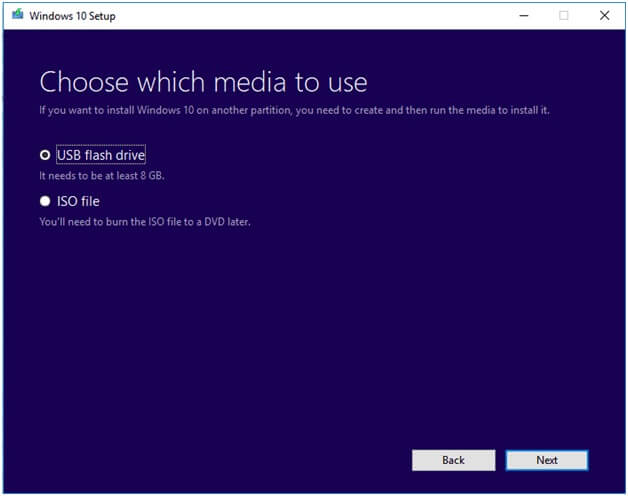
A portable USB drive allows you to take your own Windows system with you, while a bootable USB drive lets you boot a computer from the flash drive, which can also be used to reinstall Windows in case of boot failures.
Conclusion
Creating a Windows To Go USB drive is essentially creating a portable version of your computer's system. However, due to limitations, using the native Windows To Go tool may not be the best option. Instead, consider using Qiling OS2Go, an alternative that offers extended support and a minimal interface, making it a more viable choice for creating a portable Windows drive.
Related Articles
- (Two Usefuls Ways) How to Create Windows 10 Installation USB Drive
- How Can You Put Windows 10 on A USB
- How to Create Portable Drive when Rufus Windows To Go Option Missing
- How to Use Rufus to Install Windows 11 (with Pictures)
- How to Copy Folders and Subfolders Using Xcopy Command?
Learn how to use XCopy command to copy folders and subfolders, not just files. Also, an easier way is presented. - Your PC Ran into a Problem Loop – Fixes for Windows 10/8.1/8
Owing to driver update, system file corruption or a memory issue, your computer may be stuck at a blue screen with error message: your PC ran into a problem loop.
Products
Articles & Tutorials
- Data Recovery
- Data Backup
- File Recovery
- File Backup
- System Backup and Restore
- Disk and Partition Clone
- Technical articles
- Mobile articles
- Disk Master Help
- Windows Data Recovery Tutorials
- Windows Secure Delete Tutorials
- Windows Partition Management Tutorials
- Windows File Backup and Restore Tutorials
- Windows System Backup and Restore Tutorials
- Windows Disk Backup and Restore Tutorials
- Windows Clone Tutorials