(Two Usefuls Ways) How to Create Windows 10 Installation USB Drive
Quick Navigation:
- Method 1. How to Create Windows 10 Installation USB Drive Without ISO
- Method 2. How to Create Windows 10 Installation USB Drive by Downloading ISO
What's Windows 10 Installation USB Drive?
Installing Windows 10 from a USB drive is a quick and easy process that can have a fresh copy of Windows 10 up and running on your device in just a few minutes. This method is often preferred due to its portability and compatibility with all desktop and laptop computers, making it ideal for devices without a DVD drive. With multiple USB ports on many PCs, a Windows installation USB drive is a convenient and reliable option.
Installing Windows 10 from a USB drive is faster than from an optical drive, and it can boot quickly. To create a Windows 10 installation drive, you can use the Windows 10 Media Creation Tool, which is a common method. This allows you to create a USB drive that can be used to install Windows 10.
Using the Windows Media Creation Tool, for example, can be a time-consuming and complex process, but it's the only official way to create a Windows installation USB drive. On the other hand, using the Qiling Disk Master software makes the process much simpler, although it's not an official method. We'll discuss each method briefly.
Method 1. How to Create Windows 10 Installation USB Drive Without ISO
The Windows Media Creation Tool requires an ISO file to work with, which is a single file containing all installation files for a program, including the Windows operating system, which is distributed as an ISO file to aid in installing the operating system.
You can create a Windows 10 installation USB drive without an ISO file using the Qiling OS2Go, which can automatically download the desired Windows 10 version in just a few clicks. This tool is especially useful for travelers who need to take their Windows installation with them, but can't take their laptop everywhere, as it allows you to make portable Windows 7, 10, or 11 on a USB drive.
The Qiling OS2Go utility allows you to run Windows on a Mac without bootcamp and create Windows To Go on Non-Certified USB drives, offering seamless integration and 24x7 customer support.
Below are the detailed steps.
Step 1. Install Qiling OS2Go on your Windows computer. Plug in a USB drive or external hard drive that is large enough.
Step 2. To create a Windows installation drive, choose the "Windows Install Drive Creator" tab, select the desired Windows versions (Windows 11, 10, or 8.1), and optionally select a local ISO file, then click "Create".
Step 3.You will see a safety warning message, telling you that all data on the selected disk will be deleted. Click "Continue" to proceed.
Step 4.Qiling OS2Go will start creating the Windows Installation media, which may take a while to download, depending on your operating system and network condition. Once the progress reaches 100%, the USB drive should be bootable and ready for use.
Step 5. Insert the Windows Installation media into your computer and begin the installation process.
Method 2. How to Create Windows 10 Installation USB Drive by Downloading ISO
Creating a Windows 10 installation media using the Media Creation Tool is the official and most obvious way to do so. This tool allows you to download the Home or Pro versions of Windows 10 OS, and then create a USB drive or ISO file to install the operating system. The guide below provides a step-by-step process on how to create a Windows 10 installation USB drive by downloading ISO.
Make the Windows 10 Bootable USB
Insert your formatted USB drive on your laptop or PC, then download the Windows 10 Media Creation Tool by heading over to the Media Creation Tool page and clicking on Download Tool now.
Download the tool on your PC, select "Create installation media for another PC" and choose your desired Windows 10 version, then follow the instructions to install it directly to a USB drive.
Download Windows 10 ISO Directly From Microsoft
To download the Windows 10 ISO, go to the Microsoft website, click on the "Download Windows 10" button, select the version you want (e.g.
Step 1: To access the Developer Options on your Windows 10 ISO, press the F12 key on your keyboard. This will open the Developer Options menu, allowing you to access various settings and features.
Step 2:To open the Toggle device toolbar, press CTRL + SHIFT + M, and from the dropdown menu, select Responsively. Then, press F5 to refresh the page.
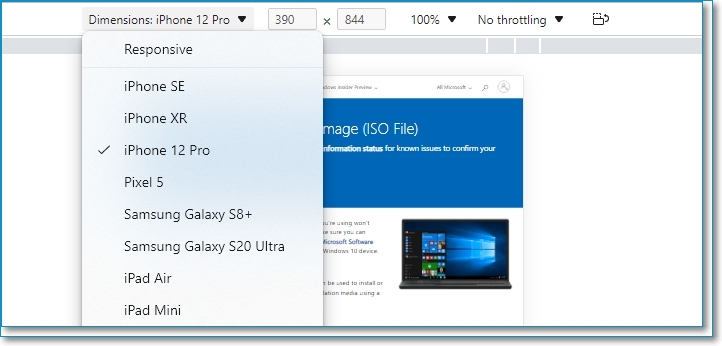
Step 3: After the page refreshes, select the latest version of Windows 10 and confirm the download.
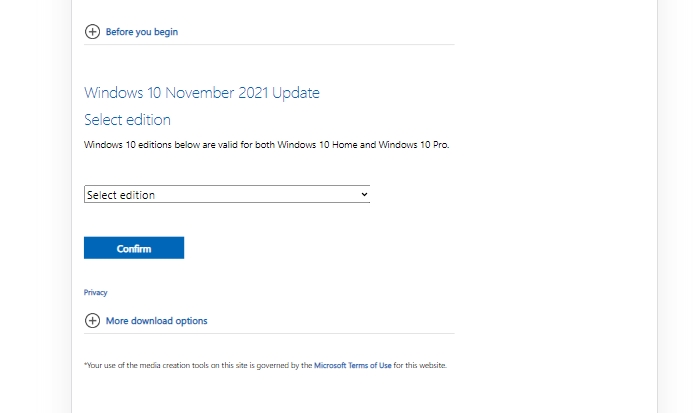
Make Windows 10 Installation Media
To create the USB installation media, you'll need an ISO to USB burning tool, such as Rufus, to burn the installation media onto a USB drive.
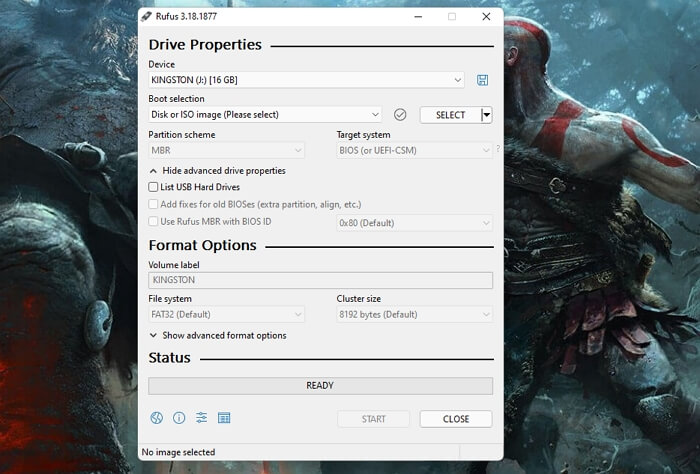
- Download and install the Rufus application on your PC.
- Select the required USB drive from the dropdown menu, and select Windows 10 ISO.
- Now, Rufus will automatically update the properties and burning options.
- Click on Start to burn the Windows 10 ISO to the USB drive.
What process is taking a while to complete?
Closing Words
Using Qiling OS2Go streamlines the process of creating a Windows 10 installation drive by eliminating the need to download ISO files, thus reducing workload and speeding up the process.
The Media Creation Tool and the ISO download are two options available for creating a Windows 10 installation media, both of which can be used to efficiently achieve the desired result.
Related Articles
- [Solution] Install Windows 11 on An Unsupported Computer
- Windows 11 to Go | How to Create Windows 11 Portable USB Drive
- How to Play Windows Minecraft on Mac Smoothly Without Overheating
- Download and Create Windows 10 To Go
- How to Fix Windows Stuck on Diagnosing Your PC -10 Ways👍
If your PC is stuck on the 'Diagnosing Your PC' screen, there are fixes for this issue on Windows 10/11. You can try restarting your PC, checking for updates, or running the Windows Update troubleshooter to resolve the problem. - How to Perform Xbox Series S Internal SSD Upgrade💡
Upgrading the internal SSD of the Xbox Series S is a process that can be completed with some guidance.
Products
Articles & Tutorials
- Data Recovery
- Data Backup
- File Recovery
- File Backup
- System Backup and Restore
- Disk and Partition Clone
- Technical articles
- Mobile articles
- Disk Master Help
- Windows Data Recovery Tutorials
- Windows Secure Delete Tutorials
- Windows Partition Management Tutorials
- Windows File Backup and Restore Tutorials
- Windows System Backup and Restore Tutorials
- Windows Disk Backup and Restore Tutorials
- Windows Clone Tutorials