How to Create Portable Drive when Rufus Windows To Go Option Missing
Rufus is a free and easy-Rufus is a free and open-source tool that helps users format and create bootable USB flash drives. In addition to its primary function, Rufus offers several other features, including the ability to create portable USB drives using Windows To Go. This feature allows users to take their own system anywhere and use it on any computer, but it was removed from Rufus 2.3 and later versions. If you're looking for an alternative or a perfect solution, keep reading.
Rufus Windows To Go Alternative - Qiling OS2Go
Qiling OS2Go is a user-friendly alternative to Windows To Go that supports Windows 7 to Windows 11 and can be used with minimal effort, requiring only a large enough USB drive.
Qiling OS2Go is a cost-effective option compared to hard drives, and it supports non-certified USB drives, unlike Windows To Go. It allows you to create a portable USB drive that can be used on a Mac computer to run a Windows system without BootCamp. You can start with a trial and purchase if you like.
Step 1. To use Qiling OS2Go, first install it on your Windows computer, which will show you the used space on your system drive. Then, plug in a USB drive that is larger than the system drive's used space. Next, choose the target USB drive and click Next to proceed.
Step 2. Qiling OS2Go will notify you that the following operation would delete all data on your drive. Make sure you have backed up all important data. Click the Continue button to proceed.
Step 3. The default disk layout on the target drive will be the same as the resource drive, but you can also customize it according to your needs. If you're using a Solid State Drive as the Windows bootable drive, select the corresponding option and click Proceed.
Step 4. Qiling OS2Go will create a portable USB drive, which may take a while depending on the OS and network condition. Once the progress reaches 100%, the USB drive will be bootable.
Step 5. Insert the portable Windows USB into your computer and start it up. Press the required key (usually F2, DEL, or F10) to access the BIOS settings. From there, select the option to boot from the USB disk. This will allow you to install Windows from the USB drive.
Note: To ensure seamless booting, it's essential to match the boot mode of your portable USB drive with the target computer. If the modes don't match (UEFI or Legacy), you may encounter difficulties in booting.
Create Windows To Go drive via Rufus
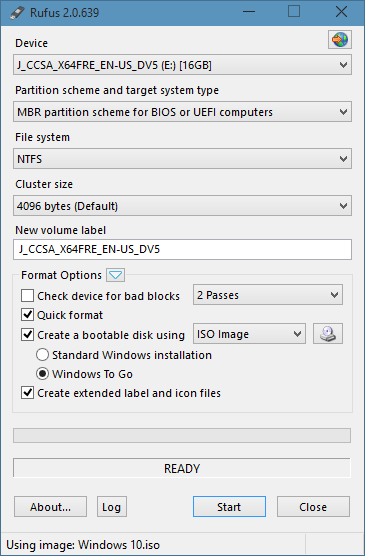
If you're using a Rufus version with the Windows To Go option, you can create a portable USB drive. However, keep in mind that Rufus only supports Windows 8/8.1/10 and requires a certificate USB drive. To create a portable Windows To Go drive in Rufus, follow these steps: (insert steps here).
Step 1. Connect your USB flash drive to the computer, ensuring it's a new one or backed up with all data if it's not new.
Step 2. Select your USB drive from the Device drop-down menu.
Step 3. Select the proper partition scheme (MBR or GPT) based on the partition style of your computer.
Step 4. The file system and cluster size will be automatically filled in by default, but you can customize them if needed.
Step 5. To create a bootable disk using the Windows ISO file, click the browse icon next to the option and select the Windows ISO file from your computer. This will allow you to use the Windows ISO file to create a bootable disk.
Step 6. To create a Windows To Go workspace, select the Windows To Go option from the Start menu before clicking the Start button. This will allow you to create a portable version of Windows that can be booted from a USB drive.
Conclusion
If you're experiencing issues with the "No Windows To Go option" in Rufus, you can try using Qiling OS2Go as an alternative. To do this, ensure your USB drive meets the necessary conditions, such as being at least 8GB in size, having a FAT32 or NTFS file system, and being in a healthy state. Once you've verified your USB drive meets these requirements, you can proceed with using Qiling OS2Go to create a Windows To Go drive. This should resolve the issue you're facing with Rufus.
Related Articles
- 3 Ways to Run EXE Files on Mac Computers
- How to Create a Windows 10/11 Bootable USB
- How to Use Rufus to Make Bootable USB for Windows 11/10/7
- FIX Error: Rufus Can't Create Bootable USB
- How to Back Up/Save Favorites Mailbox in Outlook[Manual & Automatic Ways]
Learn how to back up or save the Favorites mailbox in Outlook manually or automatically to protect frequently used email folders. - How to Save Outlook Emails When Leaving Job | 2 Available Options
Save Outlook emails when leaving a job by exporting, backing up, or moving important messages before losing account access.
Products
Articles & Tutorials
- Data Recovery
- Data Backup
- File Recovery
- File Backup
- System Backup and Restore
- Disk and Partition Clone
- Technical articles
- Mobile articles
- Disk Master Help
- Windows Data Recovery Tutorials
- Windows Secure Delete Tutorials
- Windows Partition Management Tutorials
- Windows File Backup and Restore Tutorials
- Windows System Backup and Restore Tutorials
- Windows Disk Backup and Restore Tutorials
- Windows Clone Tutorials