This Device Cannot Start Code 10 - 12 Methods Included
this guide can help if you've encountered the "This device cannot start code 10" error, which occurs when plugging a USB device or audio input into your computer. This guide will outline the common causes of this issue and provide 12 fixes to resolve it, as well as introduce an efficient file backup tool for removable storage devices.
What This Device Cannot Start Code 10 Mean & Its Causes
The "This device cannot start" error on Windows Device Manager indicates that a hardware device connected to the computer is not functioning as expected, and Device Manager is unable to launch it due to an unspecified underlying issue.
This error could affect different hardware connected to your computer, including USB or audio devices, and may display additional information such as a specific device name or code.
- This error message indicates that the device is unable to start due to a failure in the requested operation, resulting in a code 10 error.
- "Windows cannot start the device because it is missing or corrupted. Try reinstalling the driver for the device."
- "The device cannot start. (Code 10) STATUS_DEVICE_POWER_FAILURE."
The "This device cannot start. (Code 10)" error message is typically caused by a problem with the device driver, a corrupted registry, or an issue with the hardware itself. This error can occur when the operating system is unable to load the device driver, or if the driver is outdated or corrupted.
- Faulty hardware.
- Outdated drivers.
- Windows registry problems.
- Power supply challenges.
- Outdated operating system.
- Corrupted system drivers.
- Malfunctioning USB port.
- Conflicts between hardware connected to your PC.
The next section discusses possible fixes to the error.
How to Fix Error Code 10 This Device Cannot Start
To fix the "start code 10 errors", you can try one of the twelve fixes discussed below. These fixes include ensuring that your device is properly configured, checking for any physical damage or loose connections, updating your device's drivers, running a virus scan, and more. Each of these fixes is designed to address a specific cause of the error, so it's worth trying a few different options to see which one works best for your device.
Fix 1. Reboot Your Computer
The most common fix for the "This device cannot start Code 10" error is to simply restart your computer, as this may resolve any minor bugs preventing your USB device from being detected on your PC.
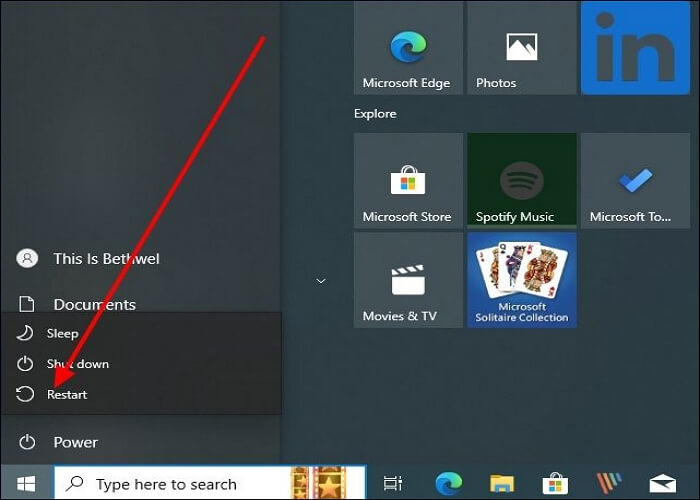
To reboot your computer, click the Start Menu, choose the Power button, and click "Restart".
Fix 2. Use a Powered USB Hub
If you suspect the error is due to power supply challenges, you can try using a powered USB hub. This is because some USB devices require more power than your computer's USB ports can provide, leading to a connection error. A powered USB hub can help ensure a stable power supply and increase the chances of your USB or audio device connecting successfully to your computer.
Share this blog on your social media to help more people get out of this issue.
Fix 3. Run Hardware and Devices Troubleshooter
If you're experiencing a code 10 error message related to hardware devices connected to your computer via USB, you can run a troubleshooter to detect and resolve the issues. To do this on Windows, you can follow these steps: run a hardware and devices troubleshooter, which can help detect and solve problems behind the error, allowing you to troubleshoot and potentially fix the issue with your USB-connected hardware devices.
Step 1. To launch the Windows Device Diagnostic, press the Windows key + R to open the Run window, type "msdt.exe -id DeviceDiagnostic", and press Enter. This will open the "Hardware and Devices" window.
Step 2. Click "Next" and follow the onscreen to initiate the troubleshooter.
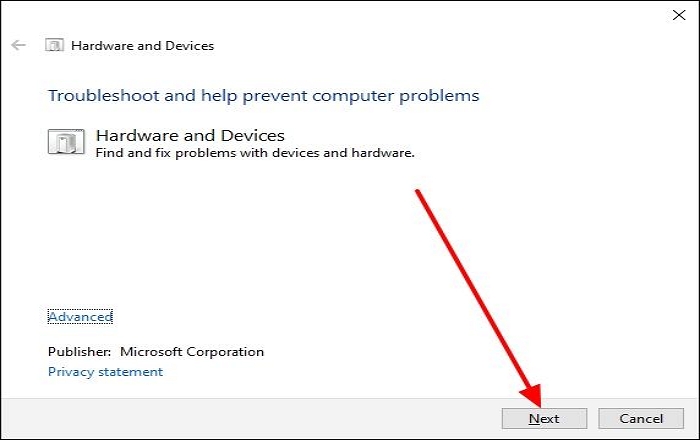
Step 3. Once the troubleshooter has finished scanning and fixing possible errors, check if your USB device is connected successfully.
Fix 4. Undo Recent Changes on the Device Driver
If the code 10 error occurs after you've made some adjustments to your device drivers, you can try undoing the changes to solve the issue. Check the following steps.
Step 1. Disconnect all the USB and audio devices on your PC.
Step 2. To open Device Manager, click on the Start menu and select "Device Manager".
Step 3. To roll back a device, double-click the device you want to roll back on to expand the category.
Step 4. To roll back a driver, right-click on the driver, choose "Properties," go to the "Driver" tab, and select "Roll Back Driver" from the options.
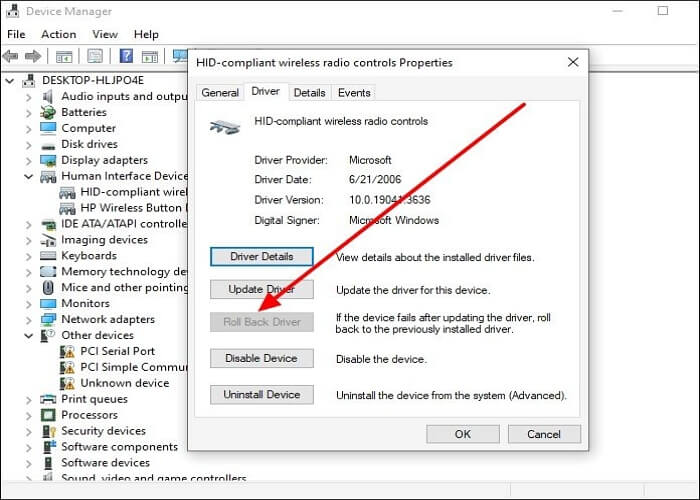
Step 5. Follow the onscreen instructions to undo recent changes and see if the error is resolved.
Fix 5. Update Device Drivers
To resolve the "This device cannot start. (Code 10)" issue, update the device drivers for your USB controllers by going to Device Manager, expanding the "Universal Serial Bus Controllers" section, right-clicking on each controller, selecting "Update driver," and following the prompts to search for and install updated drivers. This should ensure the connected hardware functions correctly.
Step 1. Launch Device Manager and expand the "Universal Serial Bus controllers" section by double-clicking on it.
Step 2. Right-click on the driver to update, then select "Update Driver."
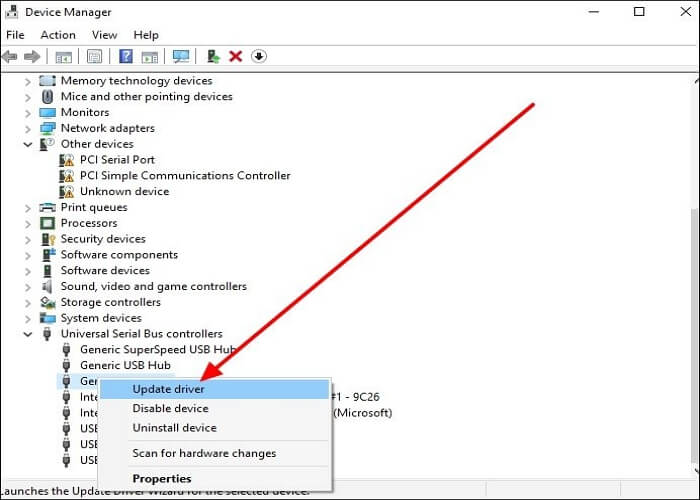
Step 3. To update drivers, select the "Search automatically for updated driver software" option, and the computer will automatically search for the latest drivers to install. Once the process is complete, restart the computer and verify if the updated driver has resolved the issue.
Fix 6. Modify Corrupted Registry Entries
You'll likely experience the "This device cannot start" error if your Windows 10 Registry has corrupted UpperFilters and LowerFilters. To fix this, modify the Registry by deleting the corrupted files after backing it up.
Step 1. To enter the Registry Editor, open the Run dialog box, type "regedit," and press Enter.
Step 2. To resolve the issue, go to the following location in the registry: HKEY_LOCAL_MACHINE\SYSTEM\CurrentControlSet\Control\Class, and select the problematic Class GUID.
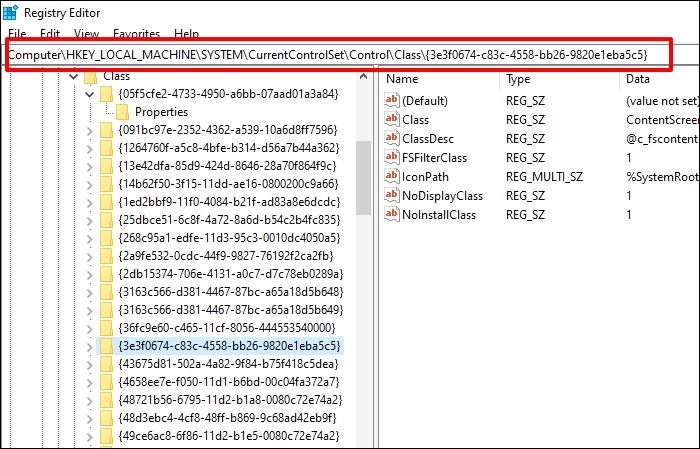
Step 3. Choose the values for UpperFilter and LowerFilters, then select the delete option.
Step 4. Follow the onscreen instructions, then tap "Yes" to remove the corrupted files. You can then restart your system once the corrupted entries are completely removed and check whether the error has disappeared.
Fix 7. Disable and Re-enable USB Controller
To fix the "This device cannot start code 10" error message by enabling and re-enabling USB controllers, follow these steps:
Step 1. Open Device Manager, then navigate to "Universal Serial Bus Controller."
Step 2. To uninstall all drivers under the Universal Serial Bus controller, right-click each driver and select Uninstall device, repeating the process for all drivers.
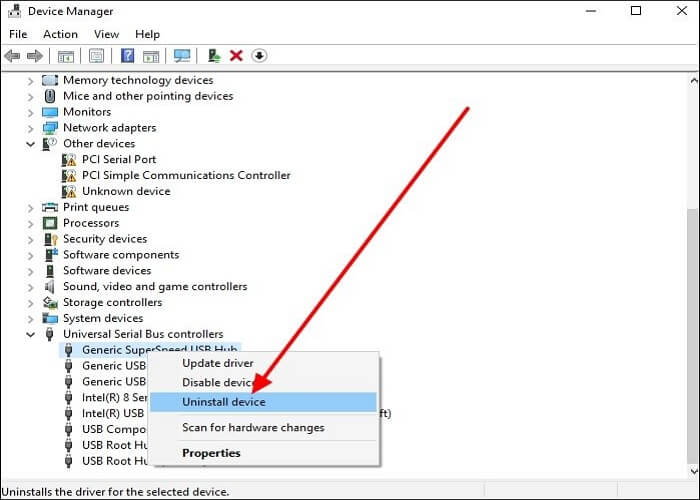
Step 3. Once you've uninstalled the problematic driver, restart your PC to reinstall the drivers, which should fix the code 10 error.
Fix 8. Try Older Driver Version
New drivers are often assumed to be the best for a computer, but they can sometimes cause issues. If the latest drivers are causing the "This device cannot start" error, trying out older versions may resolve the problem.
To resolve the issue, you can try installing older versions of the drivers for your computer's hardware. This can be done by searching for the older drivers online and downloading them to your computer. Once downloaded, you can install them and then restart your PC.
Fix 9. Perform System Restore
System restore allows you to revert your operating system to its previous state before a Windows update, helping to fix logical errors that may have occurred after a settings update. To perform system restoration, follow these steps:
Step 1. Go to the search bar on your computer, type "system restore" and press Enter to open the System Restore tool.
Step 2. To access System Restore, click on the "System Protection" tab in the "System Properties" window, which opens after selecting the "System Protection" option from the left side of the window, and then select "System Restore" from the available options.
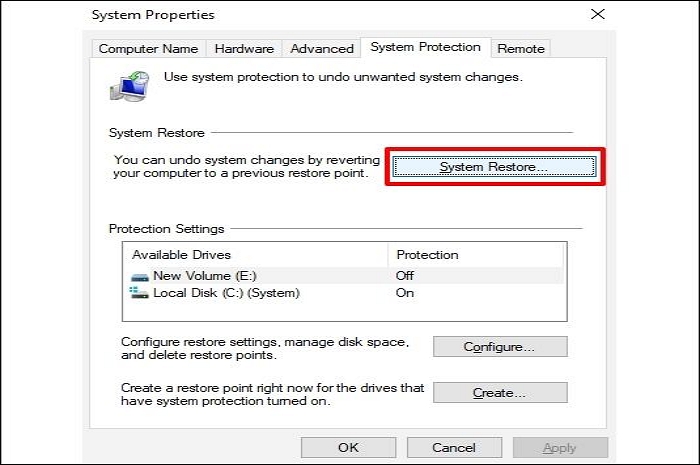
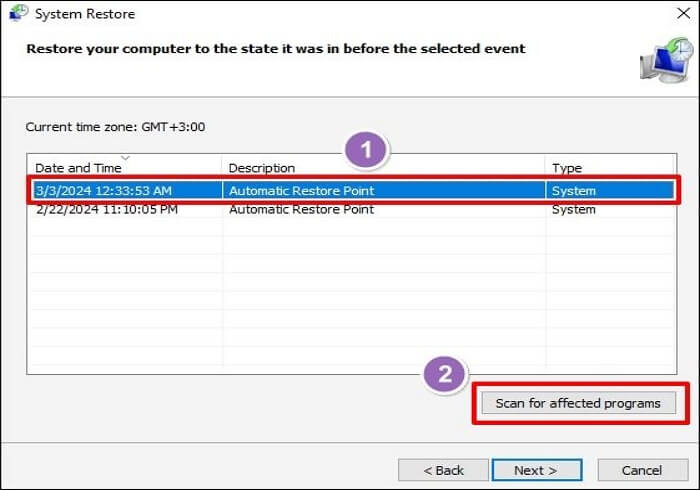
Step 3. After clicking "Next" when the option "Restore system files and settings" appears, you will see a list of available restore points. From this list, select the one you want to use to restore your system to a previous state.
Step 4. Click the "Scan for affected programs" option to learn which apps will be affected when you restore your system. Once you've checked the apps, close the window, then click Next. Follow the onscreen steps to restore your system to the selected restore point. Once done, you can check for the error message again.
Fix 10. Clean Install Windows
If previous fixes didn't work, you may need to do a clean install of Windows, as there might be an issue with the operating system preventing your USB and audio devices from being detected.
A clean install will fix such errors and allow you to use your device as before. Before performing a Windows clean install, remember to back up all your files using professional backup software, such as Qiling Disk Master.
To clean install Windows 10, start by creating a bootable USB drive with the Windows 10 installation media. Then, insert the USB drive into your computer and restart it.
Fix 11. Replace the Faulty Device
If Windows can't detect your USB or audio device, it might be due to a faulty device. Trying previous fixes won't help, so it's best to replace the faulty device with a working one.
External computer components can become worn out over time, leading to malfunctions. To avoid losing important data, it's essential to back up all files to a safe location before replacing the faulty hardware.
Fix 12. Ask for Professional Help
If you've tried all 11 fixes to resolve the "This device cannot start. (Code 10)" error and none of them worked, it's time to seek help. You can reach out to Microsoft or the device manufacturer for assistance. They'll likely connect you with an expert who can guide you through the process of fixing your device. Be sure to follow all instructions carefully to help resolve the issue.
Share this blog on your social media to help more people get out of this issue.
Bonus Tip: Always Create a Backup of Removable Storage Devices
If you encounter the "This device cannot start. (Code 10)" error, you won't be able to access data on your undetected USB device. To avoid this, create a backup of your removable storage device using a reliable tool like Qiling Disk Master, which allows you to backup data to different locations and recover it whenever needed.
Qiling Backup offers various backup options, including external drives, local storage, networks, NAS, and cloud storage. It also supports scheduled, incremental, differential, and encrypted backups, allowing users to restore backups to the original location or replace existing files when needed.
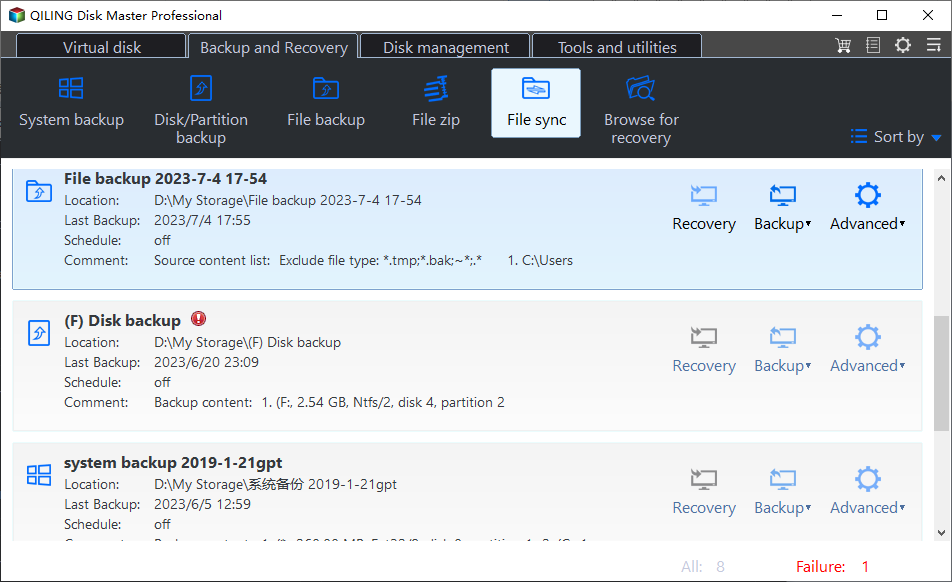
Qiling Disk Master is the best file sync software for Windows, allowing you to sync files between external drives and computers. This software ensures the safety of your data by backing up your removable storage device, protecting it against hardware damage or malware attacks.
The main features of Qiling Disk Master include:
- Multi-path backup storage.
- Disk clone and disk imaging.
- Password-protected backups.
- Enhanced backup efficiency.
- Bootable backup and recovery.
- Basic backup scheduling.
To Wrap Things Up
The "This device cannot start code 10" error on Windows is caused by issues such as faulty hardware, outdated drivers, Windows registry problems, corrupted system drivers, malfunctioning USB ports, or other problems, and can be resolved by rebooting, running a troubleshooter, updating device drivers, or replacing the faulty device.
To safeguard the data on your removable storage device, back it up using Qiling Disk Master, a file backup and recovery solution that guarantees the availability of your data even when hardware damage occurs. Download and install Qiling Disk Master on your computer today to unearth its unique benefits.
FAQs on How to Fix This Device Cannot Start Code 10
Below are frequently asked questions on fixing the "This device cannot start. (Code 10)" problem.
1. What Does It Mean When Wi-Fi Driver Say This Device Cannot Start Code 10?
The issue arises when your computer's wireless network adapter fails to connect to a Wi-Fi network, potentially due to outdated or corrupted Wi-Fi drivers, faulty USB ports, device conflicts, or damage to the adapter.
2. What Is Code 10 on USB Hard Drive This Device Cannot Start?
This error code indicates an unspecified problem on your USB hard drive due to a hardware issue, preventing the USB device from functioning correctly as the Device Manager cannot launch it successfully.
3. How to Solve USB Device Not Recognized Problem in Windows 10?
If Windows 10 has failed to recognize your USB device, you can try the following fixes:
- Reboot Your Computer.
- Use a Powered USB Hub.
- Run Hardware and Devices Troubleshooter.
- Undo Recent Changes on the Device Driver.
- Update Device Drivers.
- Modify Corrupted Registry Entries.
- ...
This tutorial has discussed how you can apply each of the fixes, such as adjusting the brightness, using a different browser, or checking for software updates, to resolve issues with your computer or device.
Related Articles
- Tutorial on Windows 10: Move Partition to End of Disk [Step-by-Step Guide]
- 10 Fixes to Solve Chromebook Black Screen [2024 Guide]
Fix a Chromebook black screen with practical checks for power, display, system glitches, and recovery options. - (All Methods to Fix) Computer Keeps Booting to BIOS
Fix a computer that keeps booting to BIOS. Learn common causes, boot order checks, disk issues, and ways to protect your data. - Computer Keeps Crashing When Playing Games - How to Fix?
Have you encountered the computer keeps crashing when playing games error? What to do if the PC continues crashing while gaming? Please read about the best solutions, their steps, and additional safety benefits. - How to Repair Install Windows 10 in 3 Different Ways
Repairing Windows 10 installation involves reinstalling the operating system while keeping your programs, settings, and files intact. There are three common methods to do a repair install of Windows 10, which can be used to resolve various issues with the operating system. - How to Repair Raw Drive in Windows 10/11 [Efficient Solutions]
Repair a RAW drive in Windows 10, recover important files, and convert or format the drive safely when needed.
Products
Articles & Tutorials
- Data Recovery
- Data Backup
- File Recovery
- File Backup
- System Backup and Restore
- Disk and Partition Clone
- Technical articles
- Mobile articles
- Disk Master Help
- Windows Data Recovery Tutorials
- Windows Secure Delete Tutorials
- Windows Partition Management Tutorials
- Windows File Backup and Restore Tutorials
- Windows System Backup and Restore Tutorials
- Windows Disk Backup and Restore Tutorials
- Windows Clone Tutorials